

secedit can export Windows 10 or Windows 11 security settings into a reusable .inf security template, giving administrators a compact record of local policy before troubleshooting, changing hardening settings, or reinstalling the OS. The important limitation is that this is a security-policy backup, not a full system backup: it does not preserve applications, user profiles, firewall rule collections, certificates, BitLocker protectors, ordinary registry preferences, or every Local Group Policy setting.
Microsoft’s current secedit /export documentation explicitly supports Windows 10 and Windows 11 and describes the command as a way to back up local security policies and reproduce them elsewhere. Its companion secedit /configure command can apply a template back to a system. Used carefully, that makes the built-in Security Configuration Engine useful for rolling back a bad local policy change without resorting to a reinstall.
The practical trap is scope. A full export can include account-policy settings, audit policy, user rights assignments, security options, restricted-group definitions, service security, and file or registry permissions. Restoring the entire file blindly can undo changes unrelated to the problem you are fixing—or, worse, remove access you need to administer the PC. Treat the exported file as a baseline and create a smaller copy when restoring a specific setting.
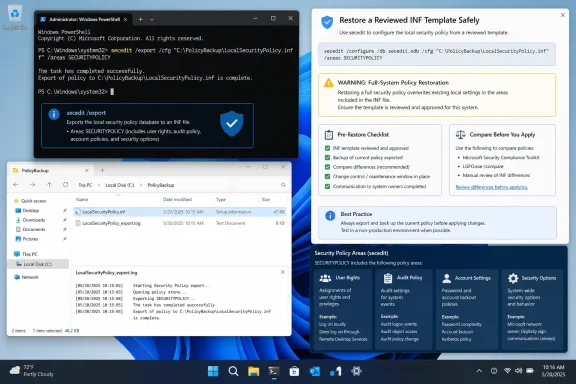 What
What secedit captures—and what it leaves behind
Windows stores a set of security configuration settings in its security database. secedit /export writes the applicable settings to a text-based INF template that can be read in Notepad, checked into secure configuration management, or retained with other machine documentation.
A broad export may contain sections such as:
[System Access], which holds password, lockout, and certain local-security settings.[Event Audit], which holds classic audit-policy configuration.[Privilege Rights], which contains assignments such as who may log on locally, back up files, manage the Security event log, or shut down the system.[Registry Values], which records certain policy-backed registry values.[Group Membership],[Service General Setting],[Registry Keys], and[File Security], when those areas are defined in the security database.
Microsoft separates these settings into areas. The securitypolicy area covers account policies, audit policies, and security options; user_rights covers user-rights assignments; group_mgmt, services, regkeys, and filestore cover more consequential configuration categories. The distinction becomes vital during restoration because area selection is broad. It is not a switch for restoring one individual line inside a section.
The export also does not solve management-policy conflicts. On an Active Directory-joined PC, local policy is processed before site, domain, and organizational-unit Group Policy Objects. Microsoft documents that domain GPOs can override conflicting local settings at refresh. If a setting “comes back” after you restore it, check the effective domain policy before repeatedly applying a local template.
Export a clean local security-policy baseline
Open Windows Terminal, Command Prompt, or PowerShell as Administrator. Use an explicit folder outside your profile’s temporary locations. The example below creates a local working folder, but move the finished backup to protected storage afterward.
New-Item -ItemType Directory -Path C:\PolicyBackup -Force
secedit /export /cfg C:\PolicyBackup\LocalSecurityPolicy.inf /log C:\PolicyBackup\LocalSecurityPolicy-export.log
The /cfg parameter is required and names the INF template being written. The /log parameter is optional but worth using: it gives you a timestamped record of what the Security Configuration Engine did, instead of forcing you to inspect its default logging location.
Do not add /mergedpolicy merely because the machine is domain-joined. Microsoft defines that option as a request to merge and export domain and local policy settings. That may be appropriate when documenting an effective configuration for analysis, but it is the wrong default for a local recovery template. A domain policy will still win on conflicts when Group Policy refreshes.
A successful command should leave these two files in C:\PolicyBackup:
LocalSecurityPolicy.inf
LocalSecurityPolicy-export.log
If the INF is missing, open the log first. Also inspect the Security Configuration Engine log at %windir%\security\logs\scesrv.log; Microsoft notes that this log is overwritten when secedit export, import, analysis, or configuration operations run. Copy a failure log before running another secedit command.
For a smaller backup centered on the items most often changed in Local Security Policy, export only the core policy and user-rights areas:
secedit /export /cfg C:\PolicyBackup\CoreSecurityAndRights.inf /areas securitypolicy user_rights /log C:\PolicyBackup\CoreSecurityAndRights-export.log
This narrower template intentionally excludes file-system ACLs, registry-key ACLs, restricted-group membership, and service security. It is usually the safer recovery artifact for a standalone workstation.
Review the INF before you depend on it
Open the exported INF in Notepad. It is plain text, but it is not a casual preferences file. Security templates can carry account and group identifiers, privilege assignments, service definitions, and access-control information. Store them as sensitive configuration data: use an encrypted backup location or an access-controlled administrative share, rather than attaching them to a ticket or leaving them in a synced personal folder.
The most useful review is to locate the sections you are likely to need after a troubleshooting change:
[System Access]
[Event Audit]
[Registry Values]
[Privilege Rights]
The [Privilege Rights] section deserves special care. Windows security templates represent principals as security identifiers, often with entries such as *S-1-5-32-544 for a well-known local group or a machine-specific SID for a local account. Microsoft’s protocol documentation confirms that privilege-rights settings are applied to SID entities, not to friendly account names.
That detail changes how useful the backup is after an in-place repair or a clean installation. Built-in groups retain recognizable well-known SIDs, but a newly created local user account receives a different machine-specific SID. A template exported before a reinstall can therefore refer to an account that no longer exists. It may apply without restoring the intended right to the new account.
For that reason, use a backup from the same installation as the strongest rollback tool. After a clean install, use the old INF as a reference, compare it with a fresh export from the rebuilt machine, and update any account-specific entries before applying them. Verify the SID of the current signed-in account with:
whoami /user
Avoid editing the original. Make a working copy named for the exact recovery task, such as Restore-LocalLogonRight.inf or Restore-AuditPolicy.inf.
Restore only the policy area you need
Before applying any older template, export the machine’s current state. This gives you a way back if the restoration changes more than intended.
secedit /export /cfg C:\PolicyBackup\BeforeRestore.inf /log C:\PolicyBackup\BeforeRestore-export.log
Next, copy the original backup and remove sections and entries unrelated to the setting you are repairing. Keep the INF header sections—typically [Unicode] and [Version]—and retain only the specific policy section and settings you intend to restore. For example, a recovery file focused on user-rights assignments should contain the header plus the required entries from [Privilege Rights]; it should not also retain group membership, file-security, or service-security sections.
Validate the edited template before it can change the computer:
secedit /validate C:\PolicyBackup\Restore-UserRights.inf
Microsoft provides secedit /validate specifically to check security-template syntax. Validation does not prove that the policy is appropriate for this PC, but it catches malformed INF structure before an apply operation.
To apply a carefully trimmed user-rights template, use a separate database file and limit the operation to user_rights:
secedit /configure /db C:\PolicyBackup\Restore-UserRights.sdb /cfg C:\PolicyBackup\Restore-UserRights.inf /overwrite /areas user_rights /log C:\PolicyBackup\Restore-UserRights.log
For password policy, classic auditing, or Security Options, use the securitypolicy area instead:
secedit /configure /db C:\PolicyBackup\Restore-SecurityPolicy.sdb /cfg C:\PolicyBackup\Restore-SecurityPolicy.inf /overwrite /areas securitypolicy /log C:\PolicyBackup\Restore-SecurityPolicy.log
Here, /overwrite replaces the template stored in the temporary .sdb database rather than appending to it. It does not mean “reset Windows.” The setting changes come from the INF content and the area selected by /areas.
Do not run a full, unedited export through /configure unless restoring the whole captured policy set is genuinely your goal. A template that includes [Group Membership], [File Security], [Registry Keys], or service settings can cause a much wider change than someone troubleshooting a single logon right or audit setting expects.
Verify the effective result instead of trusting the exit code
A successful secedit process only confirms that the engine completed its work. Inspect the log file, then export the area again and compare the resulting INF with your intended recovery file.
For a user-rights restore:
secedit /export /cfg C:\PolicyBackup\AfterRestore-UserRights.inf /areas user_rights /log C:\PolicyBackup\AfterRestore-UserRights-export.log
fc /n C:\PolicyBackup\Restore-UserRights.inf C:\PolicyBackup\AfterRestore-UserRights.inf
Some formatting or unrelated header differences are normal; focus on the entries you deliberately restored. You can also check the graphical view through secpol.msc where that console is available, especially under Local Policies and User Rights Assignment.
On a managed device, run the following before declaring the repair complete:
gpresult /r /scope computer
If Active Directory Group Policy, Microsoft Intune policy, or another management platform owns the setting, a local secedit restoration may be temporary. The durable correction belongs in the policy source that manages the device.
A dated INF export stored with its log file is a fast, low-overhead safety net for local policy work. Its value is highest before a change, on the same Windows installation, and when it is restored in narrow, reviewed pieces rather than treated as a one-command substitute for a full PC backup.