📎 AI Summary:
The user is experiencing permission issues when attempting to modify desktop folders on Windows 10 Pro, despite being an administrator. Responders suggest checking and adjusting folder ownership and inheritance settings under the Desktop folder’s Advanced Security settings, specifically enabling inheritance to resolve permission errors. The user thanks the community after following the advice and successfully resolving the problem.

Imageman

Extraordinary Member
Member details
Joined
Aug 2, 2009
Messages
26
Thread Author #1
Windows 10 Pro / Lenovo P910 ThinkMaster

I am an individual, no other computer users in my lab, and am set up as Administrator. I've read many posts but never get the solution.

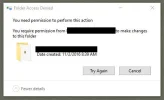
Constantly getting the 'You need permission to perform this action'. Changing folder names, deleting folders from the desktop, and on and on. How resolve this?

Assistance very much appreciated - Best, Bob
 

Attachments

  • Permissions.webp
    Permissions.webp
    10.3 KB · Views: 335
Solution
I would do the following
  • Navigate to C:\Users\<username>
  • Right click on Desktop and select Properties
  • Click on the Security tab
  • Click on Advanced
    • The owner should be your user
      • Permissions
        • ALLOW SYSTEM Full Inherit from C:\Users<username> Applies to "This folder, subfolders and files
        • ALLOW <Username> Full Inherit from C:\Users<username> Applies to "This folder, subfolders and files
        • ALLOW Administrators Full Inherit from C:\Users<username> Applies to "This folder, subfolders and files
Most likely inheritence has been disabled, at the bottom if the bottom says "Enable inheritance" click that and the Desktop folder should inherit permissions...

Neemobeer

Windows Forum Team
Staff member
Member details
Joined
Jul 4, 2015
Messages
8,995
I would do the following
  • Navigate to C:\Users\<username>
  • Right click on Desktop and select Properties
  • Click on the Security tab
  • Click on Advanced
    • The owner should be your user
      • Permissions
        • ALLOW SYSTEM Full Inherit from C:\Users<username> Applies to "This folder, subfolders and files
        • ALLOW <Username> Full Inherit from C:\Users<username> Applies to "This folder, subfolders and files
        • ALLOW Administrators Full Inherit from C:\Users<username> Applies to "This folder, subfolders and files
Most likely inheritence has been disabled, at the bottom if the bottom says "Enable inheritance" click that and the Desktop folder should inherit permissions from C:\Users\<username> like it is supposed to.
 
Last edited:
Solution

Imageman

Extraordinary Member
Member details
Joined
Aug 2, 2009
Messages
26
Thread Author #5
I would do the following
  • Navigate to C:\Users\<username>
  • Right click on Desktop and select Properties
  • Click on the Security tab
  • Click on Advanced
    • The owner should be your user
      • Permissions
        • ALLOW SYSTEM Full Inherit from C:\Users<username> Applies to "This folder, subfolders and files
        • ALLOW <Username> Full Inherit from C:\Users<username> Applies to "This folder, subfolders and files
        • ALLOW Administrators Full Inherit from C:\Users<username> Applies to "This folder, subfolders and files
Most likely inheritence has been disabled, at the bottom if the bottom says "Enable inheritance" click that and the Destop folder should inherit permissions from C:\Users\<username> like it is supposed to.
 

Imageman

Extraordinary Member
Member details
Joined
Aug 2, 2009
Messages
26
Thread Author #6
Link Removed

Thanks for the solution! Good job, Best, Bob