
 Overview: What KB5101684 Is—and What It Is Not
KB5101684 is the optional D-week Windows 11 cumulative preview update released on the fourth Tuesday of July. Microsoft uses these non-security previews to let users and IT departments validate reliability fixes and incoming features before the same code is generally folded into the following month’s mandatory Patch Tuesday security update. Microsoft’s Windows client release-cycle guidance explains that optional previews are cumulative, intended for early validation, and typically publish during the fourth week of a month.
That distinction matters. KB5101684 does not contain new security fixes in the conventional Patch Tuesday sense, so a stable personal PC does not need to install it immediately. Its changes should arrive in the next monthly security update for supported Windows 11 installations, assuming Microsoft does not revise or withdraw individual fixes in the meantime. Microsoft’s servicing documentation says preview content is generally incorporated into the next monthly security release.
For enthusiasts, testers, and users affected by a listed defect, the update is a practical way to receive quality improvements early. For organizations, it is a particularly useful validation candidate, especially where the release touches Secure Boot certificate delivery, DFS shares, SMB File History backups, Remote Desktop, Azure Virtual Desktop, and virtualized Microsoft Office workloads. Microsoft’s KB5101684 notes specifically identify all of those areas as changed or fixed.
A More Polished Windows 11 Desktop Experience
The most visible additions in the July 2026 Windows 11 preview update are not dramatic redesigns. Instead, Microsoft is addressing the smaller usability irritants that shape how Windows feels during an ordinary workday.
File Explorer Finally Uses Sensible Size Units
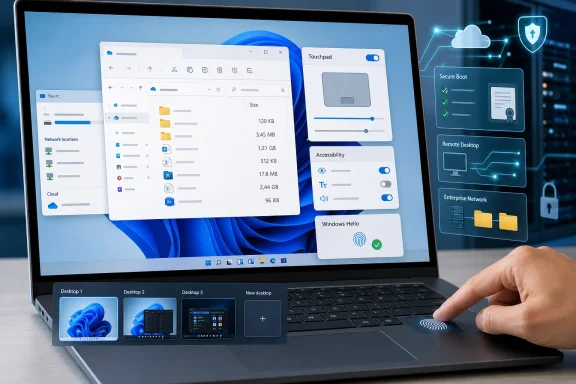
File Explorer’s Details view now presents file sizes using appropriate units such as KB, MB, and GB, rather than forcing every value into kilobytes. It is a small correction, but it improves scanability in directories containing large media files, virtual-machine images, archives, or developer assets. Microsoft lists the File Explorer unit change in KB5101684.
Microsoft has also added middle-click support for opening folders in a new tab from the File Explorer address bar and Home page. This brings File Explorer closer to the navigation model people already expect from modern browsers, making it simpler to preserve a current directory while opening another location in parallel. The release notes also cite fixes for a gray flash during Home-page loading, unexpected scrolling back to the top, and improved Recommended-section thumbnail clarity.
These are welcome quality-of-life improvements because they reduce friction without demanding a new workflow. They also demonstrate a more mature approach to Windows 11 servicing: polish does not need to wait for a full annual feature update.
Start Menu and Taskbar Reliability Get Needed Attention
The July preview also targets two areas where even minor instability is immediately obvious: the Start menu and the taskbar. Microsoft says the update improves reliability of saved Start view preferences and keyboard navigation when focus is within the app list. KB5101684’s changelog also includes broader reliability improvements for Start and taskbar behavior during startup.
There is also a refresh to the Start menu account control for people signed in with a Microsoft account. The account area now receives a redesigned appearance and a badge intended to show subscription status. That is likely to prove more divisive than the reliability work: clearer account information can be useful, but more visible subscription signaling in Start may feel like another step toward turning core Windows surfaces into commercial account dashboards. Microsoft notes that the revised account control is for Microsoft-account users and that availability varies by device and market.
Widgets Become Less Visually Aggressive
Microsoft is changing taskbar notification badges for Widgets so they use the system’s Windows accent color rather than a standard red badge. The aim is to make alerts less distracting while preserving their visibility. Microsoft’s release notes also say that new users will see Weather as the sole Lock screen widget by default.
The shift toward a simpler Lock screen Widgets setup is sensible. Windows has accumulated numerous glanceable-content surfaces, and limiting a fresh installation to weather reduces visual clutter and gives users a clearer starting point. The caveat is that Widgets remain an area where preferences vary sharply: users who want a minimal Lock screen may still view any default widget as unnecessary.
Better Touch, Accessibility, and Speech Features
KB5101684 carries a strong accessibility and input theme. Some of the most practical features are not AI-driven at all; they are direct improvements to touch, dictation, magnification, and keyboard-independent control.
Precision Touchpads Gain More Granular Scrolling Controls
Windows 11 now exposes two new precision touchpad settings under Settings > Bluetooth & devices > Touchpad:
- Scroll and zoom speed, which adjusts the baseline pace of those gestures.
- Accelerated scrolling, which increases speed as users repeat the gesture.
Microsoft says these controls are designed to make navigation through long documents and large pages faster while preserving user choice over baseline behavior. The KB5101684 notes place both options in the new touchpad configuration area.
This is a meaningful improvement for laptop users because Windows touchpad behavior has often leaned too heavily on one-size-fits-all defaults. A precise but slow scroll may suit spreadsheet work; rapid acceleration may better suit research, coding, or long PDF documents. Giving users direct controls is better than silently tuning the default and hoping it works for everyone.
Magnifier Loses an Obstruction on Touch Devices
The update changes the default behavior of the horizontal and vertical touch bars used to pan the Magnifier view. They are now turned off by default, preventing them from covering magnified content; users who need touch panning can turn them back on in Settings > Accessibility > Magnifier. Microsoft documents the Magnifier adjustment in its KB5101684 release notes.
This may sound modest, but it reflects a sound accessibility principle: controls should not block the very material they are meant to help users access. Microsoft has also improved system-dialog sizing on smaller tablets and the persistence of mouse cursor size, continuing a pattern of refinements for users who depend on predictable visual and touch interactions. Those input and windowing changes are included in the official update description.
Voice Access Expands, While Voice Typing Becomes More Conservative
The release adds Voice Isolation to Voice Access, with a one-time voice setup intended to filter other speakers and background noise. Microsoft also offers a separate mode that removes non-speech noise such as typing or door slams, while leaving the default microphone signal unfiltered for users who do not want processing. Korean language support for Voice Access is also arriving, alongside a reliability improvement for starting the feature. Microsoft’s July 2026 preview notes detail those Voice Access additions.
Voice Isolation could be valuable in shared homes, offices, classrooms, and hybrid environments where voice-driven computing is otherwise vulnerable to ambient conversation. Its effectiveness will naturally depend on microphone quality, room acoustics, and the user’s speech patterns, so it should be treated as an enhancement rather than a guarantee of flawless recognition.
In a separate change, Fluid dictation is now off by default for new users, with an educational tip available when it is first used. Microsoft identifies the new default in the update notes. That decision suggests Microsoft is being more careful about enabling always-adaptive or potentially surprising input behavior automatically—a sensible balance between innovation and user control.
Windows Hello Expands Beyond Built-In Fingerprint Readers
One of the more consequential security and usability changes is the start of a rollout for Windows Hello Enhanced Sign-in Security (ESS) support on compatible peripheral fingerprint readers. Previously associated with built-in sensors, ESS can now extend to desktops and other eligible Windows 11 PCs, including certain Copilot+ PCs, when a supported external reader is connected. Microsoft’s release notes say enrollment is available through Settings > Accounts > Sign-in options.
For desktop users, this has the potential to remove a long-standing compromise. A machine with a strong password, TPM-backed protections, and no integrated biometric reader can gain a more convenient local sign-in method without sacrificing the authentication model Windows Hello is built around.
There are important qualifications. The feature depends on a supported ESS fingerprint reader, not simply any USB biometric device, and Microsoft says it is only beginning to roll out. Availability may therefore vary by device, hardware, market, and update state. The official KB notes explicitly caution that feature availability varies by device and market. Buyers should confirm ESS compatibility from the hardware vendor rather than assume that a generic Windows Hello label is sufficient.
AI Components: More Modular, but Still Copilot+ Specific
KB5101684 updates four AI components—Image Search, Content Extraction, Semantic Analysis, and Settings Model—to version 1.2607.840.0. Microsoft’s release information identifies the component version and names the affected modules.
The update also permits removal of the Image Generation AI component on supported Copilot+ PCs where it is installed. That is a positive step for users who want tighter control of local AI capabilities, disk usage, or feature exposure. Microsoft lists removal of the Image Generation AI component as a Copilot+ PC change.
However, the practical impact remains limited to the Copilot+ hardware segment. The standalone package instructions state that AI component updates are applicable to Copilot+ PCs and do not install on ordinary Windows PCs or Windows Server. Microsoft’s KB5101684 deployment guidance makes that boundary explicit.
This modular strategy has advantages. It allows Microsoft to service AI functions separately from the entire operating system and potentially gives users more management options. It can also complicate support conversations, because two Windows 11 PCs on the same OS build may differ materially depending on NPU-capable hardware, market availability, and whether a gradual rollout has reached them.
The Enterprise Fixes May Be the Most Important Part
While consumer-facing changes dominate the headlines, KB5101684 contains several fixes with clear relevance to managed Windows deployments.
DFS Files and Mark of the Web
Microsoft fixes an issue in which files on a Distributed File System (DFS) mapped drive could be incorrectly treated as though they came from the internet after a device booted while disconnected and then reconnected to the network. The error could cause File Explorer’s Preview Pane to show a warning that the file might harm the computer, or add an unexpected Mark of the Web to copied files. Microsoft describes the DFS issue and its effects in KB5101684.
That matters because Mark of the Web is not merely cosmetic. It can influence how Windows and applications handle documents, scripts, and other content. In an enterprise environment, a false provenance signal can disrupt workflows, create avoidable support tickets, and confuse users who are attempting to preview legitimate internal files.
File History Can Back Up to SMB Shares Again
The update also fixes a File History problem affecting automatic backups to SMB network shares. Windows could report false “invalid credentials” errors and fail to complete the backup connection. Microsoft’s release notes identify the failure as an SMB network-share issue.
For home users with NAS-based backup targets and for smaller businesses that still rely on File History, this is a direct reliability fix. A backup system that fails quietly or presents misleading credentials errors is worse than an obviously broken one, because it can create a false sense of protection until data recovery is actually needed.
Remote Work and Virtual Desktop Reliability
KB5101684 improves clipboard reliability in some Remote Desktop and Azure Virtual Desktop scenarios. It also improves stability for Office applications used in virtualized environments, including while working in and closing those apps. Microsoft lists both fixes in the July preview update notes.
The release further includes better DHCP renewal behavior in certain NACK scenarios and on Modern Standby devices, plus improved page-per-minute performance for IPPS printers. Microsoft’s KB documentation describes these as network and printing improvements. None may be exciting in isolation, but collectively they target the practical infrastructure dependencies that decide whether a Windows PC feels reliable in an office.
Secure Boot Certificates Remain the Strategic Story
The July preview update arrives during Microsoft’s transition away from Secure Boot certificates issued in 2011, which began expiring in June 2026. Microsoft says Windows devices that have not yet received newer certificates should continue to boot and receive ordinary Windows updates, but they may not receive future Secure Boot protections for early boot components. Microsoft’s Secure Boot certificate guidance explains both the expiration and the impact on boot-level protection.
KB5101684 includes additional “high confidence” device-targeting data intended to broaden the set of eligible devices that can automatically receive the new certificates. The KB5101684 notes say certificate delivery through Windows Update will continue across supported PCs and non-managed business devices in the coming months.
This is a crucial distinction: a PC continuing to start normally does not necessarily mean its Secure Boot trust chain has been fully modernized. Secure Boot is involved before Windows itself loads, helping validate trusted early-boot software. A device left on expiring certificates may operate normally today yet be unable to benefit from future protections for boot managers and related pre-OS components. Microsoft’s technical guidance states that standard updates may still install while future early-boot protections become unavailable.
Why IT Departments Should Treat This Separately From a Routine Preview
For consumer PCs, the automatic rollout is designed to reduce manual intervention. For managed estates, the certificate transition deserves careful planning because firmware differences, BitLocker configurations, and older hardware can complicate rollout.
Microsoft advises organizations to inventory devices still using the older certificates, deploy OEM firmware updates where appropriate, and pilot the certificate update across representative hardware and firmware groups. Microsoft’s Secure Boot remediation guidance specifically warns that problem environments can encounter Secure Boot validation errors, BitLocker recovery prompts, startup hangs, or boot failures.
That does not mean administrators should avoid the update. It means the certificate modernization should be treated as a security-critical platform transition rather than an ordinary background quality fix. The risks are concentrated in specific hardware and firmware scenarios, while the objective—maintaining trustworthy early-boot validation—is fundamental.
Deployment Notes: Optional for Users, Worth Testing for Administrators
For a typical Windows 11 user, KB5101684 can be found through Settings > Windows Update > Advanced options > Optional updates. Microsoft’s installation instructions list that route for Windows Update installations.
The sensible install decision depends on the machine:
- Install now if the PC is affected by File Explorer, File History, Remote Desktop, AVD, touchpad, Windows Hello, or reliability issues addressed in the update.
- Wait for the next security update if the machine is stable and there is no immediate need for the fixes.
- Pilot before broad deployment in business environments, particularly where Secure Boot certificates, DFS, SMB backups, virtual desktops, BitLocker, or custom Windows installation media are involved.
- Use the Microsoft Update Catalog or servicing tools only when necessary, especially for offline servicing and controlled deployments.
Administrators servicing existing Windows images should pay particular attention to Microsoft’s warning about the boot.stl file. The company says deployment media must include a matching boot.stl file for Secure Boot validation; failure to include it can prevent a device from starting installation media and produce error 0xc0430001. Microsoft’s KB5101684 deployment notes recommend using the Update WinPE script or manually copying the file from Windows\Boot\EFI into the corresponding media location.
The package also includes KB5101711, a servicing stack update intended to improve the reliability of installing Windows updates. Servicing stack updates maintain the components responsible for installing, repairing, and servicing Windows, and Microsoft generally bundles the latest servicing stack content with the cumulative update payload. Microsoft’s servicing stack documentation explains that these updates improve the update-installation process and are combined with cumulative updates for modern Windows releases.
Windows 11 24H2 Support Deadline Adds Urgency
The preview update is available for both Windows 11 25H2 and 24H2, but their support timelines differ significantly. Windows 11 version 24H2 Home and Pro editions reach end of updates on October 13, 2026, while 24H2 Enterprise and Education editions remain supported until October 12, 2027. Microsoft’s Windows 11 release health page confirms both dates.
For Home and Pro users on 24H2, the July preview is therefore part of the final stretch of regular servicing, not a reason to defer version planning. Microsoft’s current release information identifies Windows 11 25H2 as supported through October 2027 for Home and Pro, while Windows 11 26H1 has a later support schedule for eligible editions. Microsoft’s Windows 11 release-information page provides the active build and servicing timelines.
KB5101684 is best understood as a substantial Windows 11 quality update rather than a landmark feature release. Its individual changes are incremental, but they cover an unusually broad range of real-world pain points: file management, backup reliability, authentication, accessibility, touchscreen behavior, virtual desktops, printing, networking, and early-boot security. For users who need one of its fixes, it is a worthwhile optional install; for everyone else, it offers a clear preview of what the next mandatory Windows 11 security update is likely to deliver.
Update: Additional details (July 29, 2026)
Microsoft’s release notes also identify two Windows Search improvements not covered above. KB5101684 improves app search so it better recognizes typos and partial app names, helping users find installed software even when the query is imperfect. It also improves Settings-result relevance, placing more useful and exact configuration matches higher in Search results.
These are shell-level usability changes rather than a separate Search platform update, but they can matter in support and managed-PC scenarios where users rely on Start search to quickly launch an application or locate a specific Settings page.
Update: Additional details (July 29, 2026)
Windows Report notes that KB5101684 also fixes Settings power changes so they apply consistently across all power plans, including display, sleep, hibernation, lid, and power-button behavior. Microsoft has also restored the option for users to choose when Energy Saver activates.
Additional changes include more accurate Windows Update installation-progress reporting, cleanup changes intended to improve post-update performance, and a Windows Setup notice pointing to Microsoft family-safety features. The update also refreshes daylight-saving-time data for Beirut, Casablanca, Jerusalem, and Nuuk.
Update: KB5101684 fixes Intune enrollment compliance issue on newly provisioned PCs (July 30, 2026)
gHacks reports that KB5101684 includes an additional enterprise-relevant fix affecting newly provisioned or recovered Windows 11 devices. Systems running releases issued on or after July 14, 2026, including KB5101650, could remain incorrectly marked as noncompliant after enrolling in an MDM platform such as Microsoft Intune. In affected environments, that status could block access to corporate resources despite a successful enrollment.
The preview update corrects that compliance-state problem, making it particularly relevant for IT teams deploying, resetting, or recovering Windows 11 24H2 and 25H2 endpoints through managed provisioning workflows.
gHacks also notes that Microsoft currently lists no known issues for KB5101684. As with the update’s other gradual-rollout features, administrators should still validate the package against representative device, enrollment, and conditional-access configurations before wider deployment.
Update: Additional details (July 30, 2026)
PCWorld reports that ordinary Windows Hello fingerprint readers remain usable, but only after Enhanced Sign-in Security is disabled. Microsoft warns that switching ESS off removes existing ESS enrollments and associated credentials—including passkeys—which must then be provisioned again.
Managed-device policies can also block incompatible Windows Hello peripherals, meaning the ESS enrollment option may not appear in Settings. IT teams should therefore validate external-reader ESS support before recommending hardware or changing sign-in configurations.
