📎 AI Summary:
The thread discusses how to block or disable default Windows XP games across multiple computers via Active Directory on Windows Server 2003. The main solution suggested involves using Group Policy to add software restriction rules targeting game executables and directories, with clarification questions from the original poster about how to implement these rules. Overall, the conversation is focused on technical guidance for centrally managing game restrictions, with users affirming the effectiveness of Group Policy and seeking additional procedural details.

Psyckus

New Member
Joined
Aug 5, 2015
Messages
3
Thread Author #1
Hi everyone,

I've been looking everywhere for a specific guide to block or disable default games (Minesweeper, Solitaire, etc) in windows XP Pro, but I want to know if I can do it from the Active Directory server which runs Windows Server 2003. I want to know if there is a way to do it from there so I don't have to do it directly from the XP PCs one by one.

Please help, hope I can get a specific guide on how to do it, if there is a way.

Thanks in advance and regards.
 

Solution
You certainly can by using a Group Policy on your domain,

You could add the paths to the games to Computer Configuration > Windows Settings > Security Settings > Software Restriction Policies > Additional Rules

A good start would be by adding these:
%SystemRoot%\system32\freecell.exe
%SystemRoot%\system32\mshearts.exe
%SystemRoot%\system32\sol.exe
%SystemRoot%\system32\spider.exe
%SystemRoot%\system32\winmine.exe
C:\Program Files\MSN Gaming Zone
C:\Program Files\Windows NT\Pinball\PINBALL.EXE

Also if you take away Admin rights on your domain then people can't install any new games :)

Josephur

Windows Forum Admin
Staff member
Premium Supporter
Microsoft Certified Professional
Joined
Aug 3, 2010
Messages
1,283
You certainly can by using a Group Policy on your domain,

You could add the paths to the games to Computer Configuration > Windows Settings > Security Settings > Software Restriction Policies > Additional Rules

A good start would be by adding these:
%SystemRoot%\system32\freecell.exe
%SystemRoot%\system32\mshearts.exe
%SystemRoot%\system32\sol.exe
%SystemRoot%\system32\spider.exe
%SystemRoot%\system32\winmine.exe
C:\Program Files\MSN Gaming Zone
C:\Program Files\Windows NT\Pinball\PINBALL.EXE

Also if you take away Admin rights on your domain then people can't install any new games :)
 

Solution

ussnorway

Windows Forum Team
Staff member
Joined
May 22, 2012
Messages
4,598
A bit like locking the door to a glass house but yes, group policy will keep most people from playing the games
 

Psyckus

New Member
Joined
Aug 5, 2015
Messages
3
Thread Author #4
You certainly can by using a Group Policy on your domain,

You could add the paths to the games to Computer Configuration > Windows Settings > Security Settings > Software Restriction Policies > Additional Rules

A good start would be by adding these:
%SystemRoot%\system32\freecell.exe
%SystemRoot%\system32\mshearts.exe
%SystemRoot%\system32\sol.exe
%SystemRoot%\system32\spider.exe
%SystemRoot%\system32\winmine.exe
C:\Program Files\MSN Gaming Zone
C:\Program Files\Windows NT\Pinball\PINBALL.EXE

Also if you take away Admin rights on your domain then people can't install any new games :)
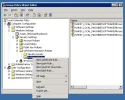
Thanks a lot, but how do add these (sorry I'm quite new to GP) I right click on Additional Rules. Do I have to add them as New Certificate, Hash, Internet Zone or Path rule? Or is there another way?
 

Attachments

  • Sin título.webp
    Sin título.webp
    32.5 KB · Views: 385

Psyckus

New Member
Joined
Aug 5, 2015
Messages
3
Thread Author #5
bump. Please help!