
Microsoft’s File Explorer documentation confirms that Windows 11 uses Home—previously called Quick access—as its default landing page, while Microsoft also provides an option to open directly to This PC. That difference is useful diagnostically: if Explorer becomes responsive when it opens to This PC, the delay is likely connected to Home’s recent-file, frequent-folder, or pinned-location data rather than a broad failure of the Explorer process.
Do not confuse File Explorer history with the separate Windows activity history and Search history controls in Settings. Clearing those privacy records does not clear the list that Home/Quick access uses. The relevant controls are in File Explorer Options.
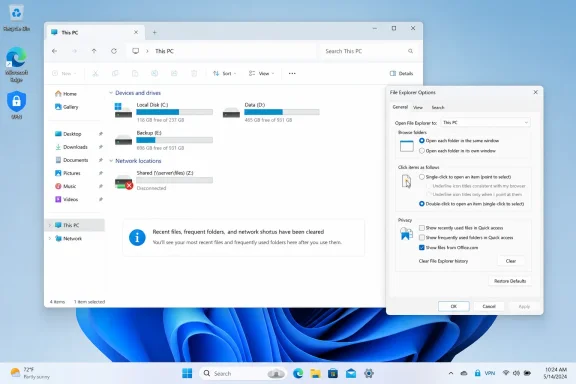 Start by isolating the slow view
Before changing anything, determine whether the delay occurs only when File Explorer opens, only in Home/Quick access, or whenever you browse folders.
Press Windows + E and time what happens. If File Explorer opens slowly but becomes normal after you click a local folder such as Downloads or Documents, Home is the first suspect. If This PC is slow as well—especially when its drives and Network locations appear—you should check unavailable mapped drives, old shortcuts, external drives, VPN-only shares, and cloud locations.
A simple isolation test takes less than a minute:
- Open File Explorer.
- Select the three-dot menu in Windows 11, then choose Options. In Windows 10, select the View tab and then Options.
- On the General tab, find Open File Explorer to.
- Change the setting from Home or Quick access to This PC, select Apply, then close every File Explorer window.
- Reopen File Explorer with
Windows + E.
If the delay disappears, leave the setting on This PC for a day or two. This does not remove your files, mapped drives, or pinned folders. It simply changes the first screen Explorer loads. Microsoft documents This PC as a supported alternative to the default Home view; it is not a workaround that risks breaking Windows.
If Explorer remains slow even when it opens to This PC, continue with the network checks below. This PC itself lists local disks, removable storage, and mapped network locations, so an unreachable server can still delay it.
Clear the history that Home actually reads
Home and Quick access are designed to surface recently used files and frequently used folders. That convenience becomes a liability when the history includes a folder from an unplugged USB disk, an old NAS, a company share reachable only over VPN, or a server that has been retired.
To clear that data:
- Open File Explorer and choose Options.
- Stay on the General tab.
- In the Privacy section, select Clear beside Clear File Explorer history.
- Select Apply, then OK.
- Close File Explorer and open it again.
This removes the recent and frequent entries displayed by Home/Quick access. It does not delete files, erase Windows Search indexing, remove OneDrive content, or disconnect working network drives. It also does not remove folders you deliberately pinned; inspect those separately.
Microsoft’s File Explorer guidance also allows you to stop Home from collecting new recent and frequent entries. In the same Privacy section, clear these options if they are enabled:
- Show recently used files in Home or Show recently used files in Quick access.
- Show frequently used folders in Home or Show frequently used folders in Quick access.
The exact wording varies by Windows version, but the intent is the same. Turning both options off converts Home into a much more static view, primarily showing items you have explicitly pinned. For a PC that is routinely disconnected from office VPN, removable media, or a home file server, that is often preferable to having Explorer repeatedly revisit stale paths.
Next, look through the folders visible under Home or Quick access. Right-click any item that points to a drive, server, shared folder, or cloud location you no longer use, and choose Unpin from Quick access or Remove from Quick access. The terminology can differ depending on whether the entry is a deliberate pin or a history suggestion.
Be deliberate here. A shared folder may be valid while you are on the corporate network and invalid at home. Removing it from Home does not revoke access; it prevents Explorer from treating it as a launch-time destination.
Remove unavailable mapped drives instead of waiting for them
A mapped drive is a drive letter such as H: or Z: connected to a network path such as \\Server\SharedFiles. It looks like a local disk in File Explorer, but it depends on DNS, network access, server availability, credentials, and often a VPN connection.
When File Explorer tries to display an unavailable mapping, it may wait while Windows attempts to contact the remote resource. The symptom is familiar: This PC sits on “Working on it,” a mapped drive has a red X, folder lists appear late, or the Explorer window becomes unresponsive when Network locations expands.
First, identify mappings that are no longer valid:
- Open File Explorer and select This PC.
- Under Network locations, look for drive letters with a red X, an unavailable status, or a server name you no longer recognize.
- Try opening the drive once. If it works promptly after connecting to the appropriate VPN or network, the drive is not stale—it was simply unavailable at that moment.
- If the server has been replaced, the share has been retired, or you no longer need the mapping, right-click it and choose Disconnect.
Do not disconnect a work drive merely because it shows a red X immediately after sign-in. Microsoft documents cases in which mapped drives may not be available to an elevated administrator session even though they exist for the signed-in user. In managed environments, mappings may also be recreated by Group Policy or a logon script. If a drive returns after every restart, the lasting fix belongs with the IT administrator who manages the mapping, not in repeated local cleanup.
For an optional command-line check, open a regular—not administrator—PowerShell window and run:
Get-SmbMapping
This lists SMB mappings and their local and remote paths. If you identify an obsolete mapping, Microsoft Learn documents this removal command:
Remove-SmbMapping -LocalPath "Z:" -UpdateProfile
Replace Z: with the affected letter. The -UpdateProfile switch matters: it removes the mapping persistently so Windows does not re-establish it at the next sign-in. Do not use this command on a drive required for backup, line-of-business software, redirected folders, or company file storage unless you know it is obsolete.
A network path manually pinned to Home can cause the same symptoms without showing up as a mapped drive letter. Remove that pin as well. If the location is still needed periodically, open it only after connecting to the VPN, or create the mapping through your organization’s normal connection process rather than keeping a permanently unavailable shortcut on the PC.
Check the settings that can make an ordinary delay look worse
Once history and dead network locations are cleaned up, test File Explorer again. If it is still slow only in one large folder, the problem may be folder-specific rather than a Home or network issue.
Folders containing thousands of photos, videos, or mixed media can take longer because Explorer generates thumbnails, reads metadata, and tries to choose a folder template such as Pictures or Videos. Test by switching the affected folder to Details view. If it becomes responsive immediately, the bottleneck is likely thumbnail or metadata work, not basic disk access.
You can also check the folder template:
- Right-click the slow folder and select Properties.
- Open the Customize tab.
- Under Optimize this folder for, select General items.
- If appropriate, apply the setting to subfolders.
- Select Apply and reopen the folder.
Use that setting for mixed document archives, software folders, and general storage—not for a photo library where image-specific columns and preview behavior are useful.
If File Explorer is slow everywhere, including a newly created empty folder on the local C: drive, the history-and-network workflow has done its job: it has ruled out the most common launch-time causes. At that point, check for a pending Windows restart, low free disk space, a failing external disk, third-party shell extensions, antivirus scanning, or file-system errors. Microsoft’s broader File Explorer troubleshooting guidance recommends installing pending Windows updates and restarting before moving to more invasive repair steps.
Windows 10 users should also account for the support timeline. Microsoft ended free Windows 10 security updates and technical support on October 14, 2025. A slow Explorer window can still be troubleshot on Windows 10, but a PC that handles sensitive files or reaches company shares should be evaluated for a supported Windows 11 upgrade or an applicable extended-support arrangement.
The practical fix is usually modest: clear File Explorer history, remove unavailable locations, then open Explorer to This PC while you verify the result. If that restores instant launches, add back only the network shares and pins that are reachable when you actually use the PC.
