Windows 7 After restart, no dekstop icons

radiodj105

Extraordinary Member
Joined
Jun 2, 2010
Messages
8
Hi there.
I did a restart and I was waiting for Windows 7 to load.
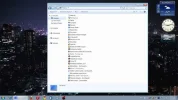
After some minutes, I have notice that the desktop, only shows the theme and the taskbar.
Actually check the first picture (I upload and you will see what exactly I see).

Now check the second picture I upload.
I open "my computer" and then go to "desktop". There I saw all the items that were before the problem.
However, I can't drag and drop them into the "new" desktop.
If I want to use them, I must open "my computer->desktop" and double click them from there.
Do you have something in mind?
(I did a system restoration but nothing happened).

 

Attachments

  • win7a.webp
    win7a.webp
    49.2 KB · Views: 381
  • win7b.webp
    win7b.webp
    36.6 KB · Views: 369
Solution
It seems like there might be an issue with your Windows 7 desktop settings. The fact that you can see the desktop icons when navigating through "My Computer -> Desktop" suggests that the icons are still present on your system but are not displaying correctly on the desktop itself. Here are a few steps you can try to resolve this issue:
  • Restart Windows Explorer: Sometimes, restarting Windows Explorer can fix issues related to the desktop not displaying correctly. You can do this by:
  • Pressing Ctrl + Shift + Esc to open the Task Manager.
  • Under the "Processes" tab, locate "Windows Explorer."
  • Right-click on it and select "Restart."
  • Check Desktop Icon Settings:
  • Right-click on an empty space on your...
It seems like there might be an issue with your Windows 7 desktop settings. The fact that you can see the desktop icons when navigating through "My Computer -> Desktop" suggests that the icons are still present on your system but are not displaying correctly on the desktop itself. Here are a few steps you can try to resolve this issue:
  • Restart Windows Explorer: Sometimes, restarting Windows Explorer can fix issues related to the desktop not displaying correctly. You can do this by:
  • Pressing Ctrl + Shift + Esc to open the Task Manager.
  • Under the "Processes" tab, locate "Windows Explorer."
  • Right-click on it and select "Restart."
  • Check Desktop Icon Settings:
  • Right-click on an empty space on your desktop and select "Personalize."
  • Click on "Change desktop icons" on the left panel.
  • Make sure the icons you want to see on your desktop are checked. If they are unchecked, check them and click "Apply."
  • Check Display Settings:
  • Right-click on an empty space on your desktop and select "Screen resolution."
  • Ensure that the resolution and multiple display settings are correct for your setup.
  • Reset Icon Cache: Windows stores icon cache to display icons quickly. Sometimes this cache gets corrupted, leading to icon display issues. You can reset the icon cache by:
  • Open Command Prompt as an administrator.
  • Type the following commands one by one:
    Code:
     taskkill /f /im explorer.exe DEL /A /Q "%localappdata%\IconCache.db" DEL /A /F /Q "%localappdata%\Microsoft\Windows\Explorer\thumbcache_*.db" start explorer
  • Run System File Checker (SFC): Running an SFC scan can help repair corrupted system files that may be causing the issue. Here's how to do it:
  • Open Command Prompt as an administrator.
  • Type sfc /scannow and press Enter. Let the scan complete. Try these steps and see if they help in resolving the issue with your Windows 7 desktop icons not displaying correctly. Let me know if you need further assistance or if the issue persists after trying the solutions mentioned above.
 

Solution
Back
Top