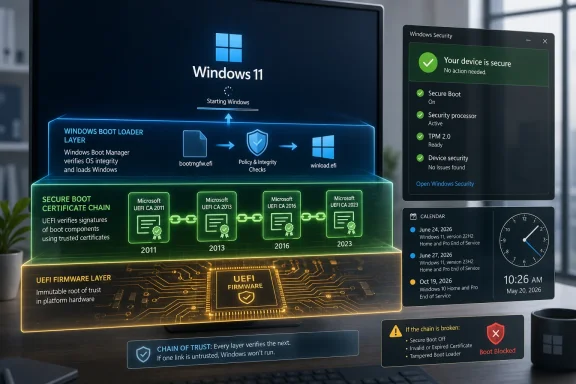
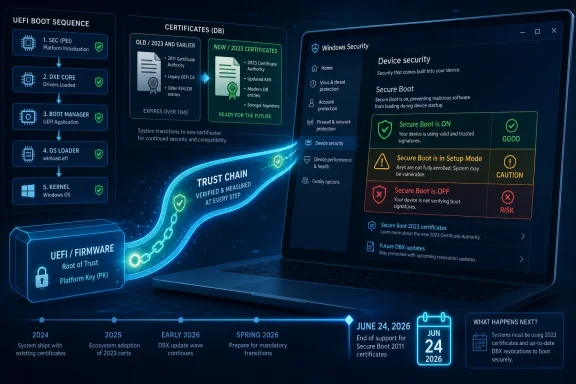
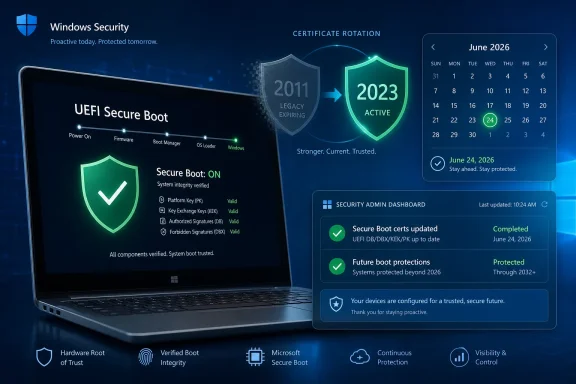
Windows users can check Secure Boot readiness by opening the Windows Security app, choosing Device security, and reading the Secure Boot status Microsoft began surfacing there in April 2026 as part of its migration from 2011 Secure Boot certificates to replacement 2023 certificates. That sounds like a small settings-page improvement, but it is really Microsoft turning a low-level platform trust problem into something ordinary users can understand. The important point is not that your PC will suddenly stop booting; for most people, it will not. The risk is quieter: a machine left on the old trust chain may eventually lose access to future protections for the earliest and most sensitive part of the Windows startup process.
Secure Boot is one of those technologies users are told to care about only when something breaks. It lives below Windows, inside the UEFI firmware trust chain, and its job is to make sure the code that starts before the operating system has been signed by a trusted authority. That makes it crucial to defending against bootkits and other malware that wants to load before Windows security tools are awake.
The problem Microsoft is now racing is calendar-based rather than exploit-based. The original Microsoft Secure Boot certificates issued in 2011 are reaching expiration in 2026, with key dates beginning in June and extending into October. Those certificates were born with the Windows 8 era, and the PC ecosystem has been leaning on them for roughly a decade and a half.
Microsoft’s replacement path is the 2023 Secure Boot certificate set. On supported consumer PCs, the update is designed to arrive through Windows Update, settle into firmware over time, and complete after normal restarts. That is the ideal version of the story: no BIOS spelunking, no manual key enrollment, no support call.
The new Windows Security app status is therefore less a convenience than a translation layer. It takes a platform maintenance operation that would otherwise be buried in event logs, registry values, and firmware variables, and turns it into a green, yellow, or red signal. For once, the consumer-facing answer really is: open the app and look.
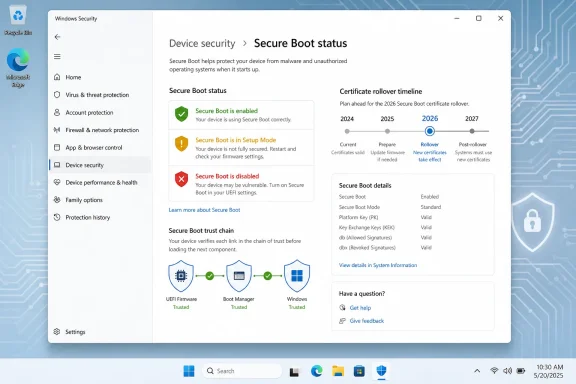
The badge color gives the first clue. Green generally means the system is sufficiently protected and no action is recommended. Yellow means Windows has a safety recommendation, often because the PC is still on an older boot trust configuration or because more information is needed before the automated update can complete. Red is the serious state, indicating that the device needs immediate attention because it can no longer receive a required update for the Windows boot experience.
But Microsoft has been careful to warn that a green icon alone is not the whole answer. A PC can show Secure Boot as enabled without necessarily proving that the certificate migration is complete. The more decisive message is the one that says Secure Boot is on and all required certificate updates have been applied.
That distinction matters because “Secure Boot is on” and “Secure Boot is ready for the 2023 certificate era” are adjacent but not identical claims. The first is a feature state. The second is a trust-chain migration state. Microsoft has now put both concepts in the same neighborhood of the Windows Security app, which is good for users but also easy to misread.
The misleading version of this story is that Windows PCs will all become unbootable when the old certificates expire. That is not Microsoft’s stated scenario for ordinary updated systems, and it is not the right mental model. A device may continue to start and install regular Windows updates even if it has not completed the Secure Boot certificate migration.
The real concern is future servicing of early boot components. Secure Boot does not merely validate today’s bootloader; it also underpins the ability to trust later boot-related updates. If a device is stuck on the old certificate chain after expiration, Microsoft may be unable to deliver certain future Secure Boot protections in the same way.
That makes the Windows Security badge a readiness indicator, not a doom clock. Green means the transition has landed. Yellow means stay current and pay attention. Red means the issue has crossed from maintenance into security debt.
That is why older devices deserve more scrutiny. Microsoft has repeatedly pointed administrators toward firmware updates from OEMs, especially for older models. If a vendor is still supporting a machine, installing current BIOS or UEFI firmware before worrying about Secure Boot status is the prudent move.
The uncomfortable edge case is the PC that still runs Windows acceptably but is no longer loved by its manufacturer. Those systems may boot, browse, game, and run office apps just fine, yet still be poor candidates for a smooth trust-chain migration. In security terms, “works today” and “can absorb the next platform maintenance event” are different standards.
This is also where enthusiasts should be careful with custom Secure Boot configurations. Dual-boot setups, manually enrolled keys, old option ROMs, and unusual firmware settings can make a machine more interesting than Microsoft’s mainstream rollout logic expects. If you built a custom trust setup, do not assume the Windows Security app is the only thing you should ever inspect.
The scale problem is obvious. A company may have hundreds of nominally identical laptops that are not actually identical once BIOS versions, replacement motherboards, virtualization platforms, and servicing history are considered. Secure Boot certificate readiness becomes an asset-management exercise as much as a Windows Update exercise.
Microsoft’s deployment sequence also has more moving parts than the consumer UI implies. The process can involve adding 2023 certificates to the Secure Boot database, updating the Key Exchange Key, and eventually moving to a boot manager signed by the newer certificate chain. Each step has to succeed before the next one is meaningful.
That is why the most competent enterprise response is gradual. Inventory first, test representative models, update firmware, deploy to small rings, monitor completion, then expand. The organizations that treat this as just another monthly patch may be lucky, but luck is not a deployment strategy.
That is not merely cosmetic. Windows 11’s hardware requirements already made firmware-era security part of the operating system’s identity. Secure Boot readiness now reinforces that message: modern Windows security is not just antivirus, patching, and a password. It is also whether the firmware and boot path can keep accepting new trust decisions.
The trade-off is that the UI can make complex infrastructure look simpler than it is. A green badge is reassuring, but it compresses a stack of certificate authorities, firmware variables, boot managers, OEM behavior, and update orchestration into one icon. That compression is useful only if users understand when to trust it and when to dig deeper.
For a single home PC, the badge is probably enough. For a lab, a repair bench, a gaming rig with old peripherals, or an enterprise fleet, it is the beginning of the conversation. The Windows Security app tells you what Windows thinks; your firmware history may still explain why.
Green is the desired destination, provided the accompanying text says the certificate updates are complete. Yellow is a prompt to make sure Windows Update and firmware are current, then give the device time and restarts. Red is the state where ignoring the warning may leave the system unable to receive required boot-security updates.
The most important thing to avoid is overreacting. Do not disable Secure Boot just because you saw an article about certificate expiration. Do not reset firmware keys unless you know exactly why you are doing it. Do not install BIOS updates from anywhere except the PC or motherboard maker.
If the Windows Security app says Secure Boot is off, that is a separate issue from the certificate migration. Some users disable Secure Boot for Linux installations, legacy hardware, or troubleshooting. But a disabled Secure Boot state means the certificate update path is not protecting the boot chain in the way Microsoft’s guidance assumes.
 Microsoft Turns a Firmware Deadline Into a Windows Badge
Secure Boot is one of those technologies users are told to care about only when something breaks. It lives below Windows, inside the UEFI firmware trust chain, and its job is to make sure the code that starts before the operating system has been signed by a trusted authority. That makes it crucial to defending against bootkits and other malware that wants to load before Windows security tools are awake.The problem Microsoft is now racing is calendar-based rather than exploit-based. The original Microsoft Secure Boot certificates issued in 2011 are reaching expiration in 2026, with key dates beginning in June and extending into October. Those certificates were born with the Windows 8 era, and the PC ecosystem has been leaning on them for roughly a decade and a half.
Microsoft’s replacement path is the 2023 Secure Boot certificate set. On supported consumer PCs, the update is designed to arrive through Windows Update, settle into firmware over time, and complete after normal restarts. That is the ideal version of the story: no BIOS spelunking, no manual key enrollment, no support call.
The new Windows Security app status is therefore less a convenience than a translation layer. It takes a platform maintenance operation that would otherwise be buried in event logs, registry values, and firmware variables, and turns it into a green, yellow, or red signal. For once, the consumer-facing answer really is: open the app and look.
The Green Checkmark Is Useful, but the Text Matters More
The quickest route is straightforward. Open the Start menu, type Windows Security, launch the app, select Device security, and look for the Secure Boot section. On updated systems, Microsoft’s newer status text should tell you whether the required certificate updates have been applied.The badge color gives the first clue. Green generally means the system is sufficiently protected and no action is recommended. Yellow means Windows has a safety recommendation, often because the PC is still on an older boot trust configuration or because more information is needed before the automated update can complete. Red is the serious state, indicating that the device needs immediate attention because it can no longer receive a required update for the Windows boot experience.
But Microsoft has been careful to warn that a green icon alone is not the whole answer. A PC can show Secure Boot as enabled without necessarily proving that the certificate migration is complete. The more decisive message is the one that says Secure Boot is on and all required certificate updates have been applied.
That distinction matters because “Secure Boot is on” and “Secure Boot is ready for the 2023 certificate era” are adjacent but not identical claims. The first is a feature state. The second is a trust-chain migration state. Microsoft has now put both concepts in the same neighborhood of the Windows Security app, which is good for users but also easy to misread.
This Is Not a Panic Button for Home PCs
For most home users, the practical advice is boring in the best possible way: keep Windows Update current, restart when asked, and check the Windows Security message if you are curious. Microsoft says the certificate updates are being delivered automatically for consumer PCs and some business devices. If the app says the device is fully updated, there is nothing to tune.The misleading version of this story is that Windows PCs will all become unbootable when the old certificates expire. That is not Microsoft’s stated scenario for ordinary updated systems, and it is not the right mental model. A device may continue to start and install regular Windows updates even if it has not completed the Secure Boot certificate migration.
The real concern is future servicing of early boot components. Secure Boot does not merely validate today’s bootloader; it also underpins the ability to trust later boot-related updates. If a device is stuck on the old certificate chain after expiration, Microsoft may be unable to deliver certain future Secure Boot protections in the same way.
That makes the Windows Security badge a readiness indicator, not a doom clock. Green means the transition has landed. Yellow means stay current and pay attention. Red means the issue has crossed from maintenance into security debt.
Older Firmware Is Where the Story Gets Interesting
The consumer path is simple because Microsoft wants it to be simple. The messy part is that Secure Boot lives in firmware, and firmware is where the PC ecosystem’s long tail always shows up. A Windows Update can initiate the process, but the system firmware still has to accept and store the new trust material correctly.That is why older devices deserve more scrutiny. Microsoft has repeatedly pointed administrators toward firmware updates from OEMs, especially for older models. If a vendor is still supporting a machine, installing current BIOS or UEFI firmware before worrying about Secure Boot status is the prudent move.
The uncomfortable edge case is the PC that still runs Windows acceptably but is no longer loved by its manufacturer. Those systems may boot, browse, game, and run office apps just fine, yet still be poor candidates for a smooth trust-chain migration. In security terms, “works today” and “can absorb the next platform maintenance event” are different standards.
This is also where enthusiasts should be careful with custom Secure Boot configurations. Dual-boot setups, manually enrolled keys, old option ROMs, and unusual firmware settings can make a machine more interesting than Microsoft’s mainstream rollout logic expects. If you built a custom trust setup, do not assume the Windows Security app is the only thing you should ever inspect.
Enterprise IT Gets a Dashboard Problem, Not a Checkbox Problem
For administrators, the Windows Security app is helpful but insufficient. A fleet cannot be managed by asking users to screenshot a green badge. Microsoft’s IT guidance points toward inventory, event logs, registry signals, firmware baselines, and staged deployment rings.The scale problem is obvious. A company may have hundreds of nominally identical laptops that are not actually identical once BIOS versions, replacement motherboards, virtualization platforms, and servicing history are considered. Secure Boot certificate readiness becomes an asset-management exercise as much as a Windows Update exercise.
Microsoft’s deployment sequence also has more moving parts than the consumer UI implies. The process can involve adding 2023 certificates to the Secure Boot database, updating the Key Exchange Key, and eventually moving to a boot manager signed by the newer certificate chain. Each step has to succeed before the next one is meaningful.
That is why the most competent enterprise response is gradual. Inventory first, test representative models, update firmware, deploy to small rings, monitor completion, then expand. The organizations that treat this as just another monthly patch may be lucky, but luck is not a deployment strategy.
The Boot Chain Has Become Ordinary User Interface
There is a broader shift hiding inside this small Windows Security change. Microsoft is pulling deeper platform health into places normal users can see. TPM status, memory integrity, virtualization-based security, and now Secure Boot certificate state all live closer to the consumer security dashboard than they did in the old Windows era.That is not merely cosmetic. Windows 11’s hardware requirements already made firmware-era security part of the operating system’s identity. Secure Boot readiness now reinforces that message: modern Windows security is not just antivirus, patching, and a password. It is also whether the firmware and boot path can keep accepting new trust decisions.
The trade-off is that the UI can make complex infrastructure look simpler than it is. A green badge is reassuring, but it compresses a stack of certificate authorities, firmware variables, boot managers, OEM behavior, and update orchestration into one icon. That compression is useful only if users understand when to trust it and when to dig deeper.
For a single home PC, the badge is probably enough. For a lab, a repair bench, a gaming rig with old peripherals, or an enterprise fleet, it is the beginning of the conversation. The Windows Security app tells you what Windows thinks; your firmware history may still explain why.
The Practical Read on Each Badge
The new Secure Boot status system is useful because it gives users a sane first step. It does not require a Microsoft account, a third-party scanner, a BIOS menu, or a command prompt. It also does not require trusting random utilities that promise to audit Secure Boot readiness.Green is the desired destination, provided the accompanying text says the certificate updates are complete. Yellow is a prompt to make sure Windows Update and firmware are current, then give the device time and restarts. Red is the state where ignoring the warning may leave the system unable to receive required boot-security updates.
The most important thing to avoid is overreacting. Do not disable Secure Boot just because you saw an article about certificate expiration. Do not reset firmware keys unless you know exactly why you are doing it. Do not install BIOS updates from anywhere except the PC or motherboard maker.
If the Windows Security app says Secure Boot is off, that is a separate issue from the certificate migration. Some users disable Secure Boot for Linux installations, legacy hardware, or troubleshooting. But a disabled Secure Boot state means the certificate update path is not protecting the boot chain in the way Microsoft’s guidance assumes.
The Small Checklist That Beats Firmware Guesswork
A sensible user response fits on one screen, because Microsoft has done the right thing by putting the main signal inside Windows itself. The goal is not to become a UEFI engineer; it is to confirm whether your machine is already on the supported path and avoid making the situation worse.- Open Windows Security, go to Device security, and read the Secure Boot section rather than relying only on the icon color.
- Treat the message saying all required certificate updates have been applied as the clearest sign that the PC is ready.
- Install current Windows updates and restart normally if the device says it is still using an older boot trust configuration.
- Check your PC or motherboard maker for firmware updates if Windows reports a hardware or firmware limitation.
- Avoid disabling Secure Boot or manually changing firmware keys unless you have a specific, well-understood reason.
- For managed fleets, use inventory, event logs, registry signals, and staged deployment rings instead of relying on end-user screenshots.
References
- Primary source: Notebookcheck
Published: 2026-06-18T08:00:07.162254
How to check if your PC is Secure Boot ready - Notebookcheck News
Learn how to check if your PC is ready for Microsoft's Secure Boot certificate update using official built-in tools like the Windows Security app. www.notebookcheck.net
- Official source: learn.microsoft.com
Update Secure Boot Certificates for Windows Devices - Windows Client | Microsoft Learn
Update your Windows devices to maintain Secure Boot protection with 2023 certificates before they expire in June 2026.learn.microsoft.com - Official source: support.microsoft.com
Secure Boot certificate update status in the Windows Security app - Microsoft Support
 support.microsoft.com
- Related coverage: howtogeek.com
How to Check if Secure Boot Is Enabled on Your PC
To check if Secure Boot is enabled on your PC, open the Start Menu and search for "System Information". www.howtogeek.com
- Related coverage: dell.com
Microsoft Secure Boot 2011 Certificate Expiration Impact on Dell PowerEdge Servers | Dell US
Microsoft Secure Boot 2011 certificates begin expiring in June 2026. Dell is working to ensure supported PowerEdge platforms are updated with the new 2023 Secure Boot certificates.www.dell.com - Related coverage: windowscentral.com
Microsoft warns Secure Boot certificates will expire in 2026 | Windows Central
After 15 years, the original Secure Boot certificates that keep your PC secure during boot are expiring. Here's what you need to know.www.windowscentral.com
- Official source: techcommunity.microsoft.com
Act now: Secure Boot certificates expire in June 2026 - Windows IT Pro Blog
Get tips to prepare for the rollout of updated certificates across your organization. techcommunity.microsoft.com
- Related coverage: windowslatest.com
Windows 11 gets Secure Boot Allowed Key Exchange Key (KEK) update on more PCs, requires a reboot to install
Microsoft is rolling out "Secure Boot Allowed Key Exchange Key (KEK) Update," which requires a system reboot to finish installing. www.windowslatest.com
- Related coverage: securitytoday.de
Secure Boot Certificates Expire in June 2026: What IT Teams Must Prepare for The
Secure Boot Certificates: Microsoft retires 2011 CAs starting June 2026. What IT teams need to implement now for Windows fleets, UEFI, and Linux dual-boot setups.www.securitytoday.de
- Related coverage: cybernews.com
Microsoft urges Windows Secure Boot update 2026 | Cybernews
Microsoft warns Windows users to update Secure Boot certificates by June, 2026. cybernews.com
- Related coverage: windowsforum.com
Secure Boot Certificate Expiring June 2026: Windows Security Status Badges Explained | Windows Forum
Secure Boot is about to become a lot more visible to Windows users, and that is a good thing. Microsoft has confirmed that the Secure Boot certificates...windowsforum.com - Related coverage: tomshardware.com
Microsoft is refreshing Secure Boot certificates to plug security holes before they happen — if you bought a PC last year, you should be set | Tom's Hardware
Be sure to keep Windows 11 systems updated to get refreshed security certificates.www.tomshardware.com - Related coverage: techradar.com
Still using Windows 10? Microsoft is automatically replacing Secure Boot certificates on older PCs ahead of expiration, so you might want to update ASAP | TechRadar
Secure Boot certificate upgrades is bad news for Windows 10www.techradar.com - Related coverage: pcgamer.com
Secure Boot certificates used by anti-cheat software are set to expire in June but new ones are already in the mail | PC Gamer
You shouldn't have to worry about expired certificates if you keep your PC up-to-date.www.pcgamer.com - Related coverage: tomsguide.com
Windows 10 users warned to upgrade now or risk a ‘degraded security state’ as Microsoft ends Secure Boot support | Tom's Guide
Support for Windows 10 officially ended in October 2025, and Microsoft says devices that don’t upgrade could enter a degraded security state — leaving them vulnerable to threats. Here’s what it means for your PC and how to protect it.www.tomsguide.com - Related coverage: cisco.com