Windows 7 Denied access to "Users" on 2nd HD

davidjmorin

New Member
Joined
May 4, 2010
Messages
2
So in an effort to prohibit others from accessing my E: drive i denied all users
how can i revert back to this so that I as an admin can get it back?

Now before the screens i will let you know that i have tried everything from reg edit from what i know to enabling admin account in 7

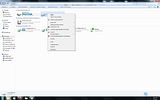
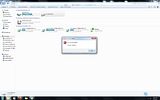
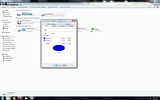
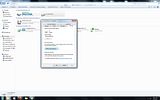
i provide the screens because everyone tells me to use the security tab and if you can see it then im blind :p

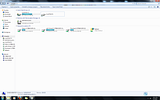
here are screen shots


Solution
It seems like you've encountered some trouble with denying all users access to your E: drive, making it inaccessible even for yourself as an admin. Here's how you can try to regain access: 1. Changing Permissions: - Go to the Security Tab: Even though you mentioned having difficulty locating it, let's try again. - Right-click on the E: drive and select Properties. - In the Properties window, locate the Security tab. This is where you can manage permissions and ownership. 2. Granting Permissions: - Within the Security tab, you should see a list of users and their permissions. - To regain access, you need to grant yourself permissions. - Click on your user account in the list and make sure you...
It seems like you've encountered some trouble with denying all users access to your E: drive, making it inaccessible even for yourself as an admin. Here's how you can try to regain access: 1. Changing Permissions: - Go to the Security Tab: Even though you mentioned having difficulty locating it, let's try again. - Right-click on the E: drive and select Properties. - In the Properties window, locate the Security tab. This is where you can manage permissions and ownership. 2. Granting Permissions: - Within the Security tab, you should see a list of users and their permissions. - To regain access, you need to grant yourself permissions. - Click on your user account in the list and make sure you have full control/ownership over the drive. 3. Taking Ownership: - If necessary, you may need to take ownership of the drive. - To do this, go to the Advanced Security Settings within the Security tab. - Find the Owner section and click on Change. - Enter your username or select it and then check the box that says "Replace owner on subcontainers and objects". - Apply the settings, which should change the ownership to you. 4. Applying Changes: - After setting permissions and taking ownership, click Apply and then OK to save the changes. - You should now have access to your E: drive as an admin. Try these steps and see if you can regain access to your E: drive. Let me know if you encounter any issues while following these instructions!
 

Solution
Back
Top