

Admins should check EFI System Partition free space before retrying KB5089549: Windows 11 24H2 and 25H2 devices failing with 0x800f0922 should be flagged when EFI free space is at or below the 10 MB risk point and escalated to the team that owns endpoint engineering, OS deployment, and disk layout.
KB5089549 is Microsoft’s May 12, 2026 security update for Windows 11 versions 24H2 and 25H2. It brings Windows 11 24H2 to OS build 26100.8457 and Windows 11 25H2 to OS build 26200.8457. The operational issue is not the build number; it is that a mainstream Windows 11 security update can be blocked by a hidden boot-partition constraint even when C: has plenty of free space.
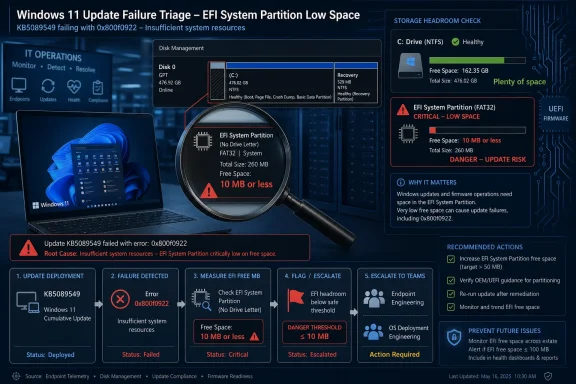
Microsoft’s known-issue signal is specific: KB5089549 can fail with error 0x800f0922 on systems where the EFI System Partition has very limited free space, especially 10 MB or less. That does not make every 0x800f0922 failure an EFI-space problem. It does give admins a concrete measurement to collect before wasting time on generic Windows Update repair steps.
WindowsForum’s user reports make the risk familiar. In earlier threads, Windows 10 users reporting KB5053606 described failed installs, troubleshooting loops, and performance disruption after a mandatory security update. Windows 11 users discussing KB5048685, KB5050094, KB5050009, and KB5049622 reported the same kind of user-facing confusion: repeated installation failures, restart loops, and uncertainty over whether the problem was the patch, the PC, or the update service. Those reports do not prove the same root cause. They show the support pattern KB5089549 admins should avoid: treating every update failure as generic when this one has a named hidden storage condition.
The EFI System Partition is small, boot-related, and easy to miss in normal support workflows. It is not the Windows volume where users store documents. It is not where ordinary cleanup tools remove downloads or browser caches. It often has no drive letter, and many endpoint dashboards emphasize visible Windows-volume capacity because that is what users and help desks usually ask about.
For KB5089549, that ordinary view can be misleading. A user may correctly report that the device has plenty of free space on C:, while the EFI System Partition has almost no remaining headroom. The known issue points at the EFI partition, not the user profile, not Downloads, and not ordinary app data.
That distinction should change triage. If a Windows 11 24H2 or 25H2 device fails KB5089549 with 0x800f0922, the first question is not “Can the user delete files?” The first question is whether the hidden EFI partition has enough free space.
WindowsForum’s older update threads are useful here only as context. Users hit by KB5053606 on Windows 10 and KB5048685 on Windows 11 often described the symptoms before anyone could confidently separate cause from noise. With KB5089549, admins already have a sharper clue: measure EFI System Partition free space.
The careful reading is this: Microsoft has documented a known installation failure mode involving KB5089549, 0x800f0922, and low EFI System Partition free space. Admins can act on that by measuring the right partition and routing confirmed cases to the right owners.
For managed fleets, this matters because a partitioning pattern can scale. A single failed laptop is a ticket. A group of failed laptops with the same model, image lineage, upgrade path, or disk layout is an endpoint engineering problem. That is where WindowsForum’s user-report history becomes operationally valuable: the community record repeatedly shows that scattered “Windows Update failed” complaints can hide a shared condition.
If you adapt this for fleet inventory, collect only the fields you need and remove the temporary mount point after measurement. Do not leave the EFI partition mounted for users. Do not use the measurement step as permission to delete files from the partition.
A user may have hundreds of gigabytes free on C:. That does not prove the EFI System Partition has space. The partitions serve different purposes, and normal user cleanup targets the wrong place for this issue.
The tighter support message is:
For KB5089549, do not start with browser caches, Downloads folders, or generic storage cleanup unless another signal points there. Start by confirming whether the affected device matches the known-issue pattern.
That distinction matters in compliance reporting and user communication. “Microsoft documented a known issue” means support teams can check a specific condition. It does not mean the update has a universal fix, and it does not mean the error code always has one cause.
The responsible interpretation is narrow:
That changes the response. A retry-only campaign may make the dashboard look active, but it will not fix a partition constraint. If the EFI System Partition is critically low, the device needs remediation before ordinary update pressure will work.
WindowsForum’s user reports around KB5053606, KB5048685, KB5050094, KB5050009, and KB5049622 show why this matters. The first visible symptom is usually not a clean engineering diagnosis. It is a failed install, a restart loop, a slow machine, or a frustrated user. The difference with KB5089549 is that admins have a specific hidden measurement to add to intake.
A good fleet response asks:
Use this script:
The user-facing explanation can stay simple: the update may be blocked by a small hidden boot partition, not by the user’s personal files.
Recommended reporting fields:
The compliance workflow should be:
The right response is verification first:
Those reports should not be stacked onto KB5089549 as evidence of a shared technical root cause. They are useful because they show the support dynamic: users see symptoms, generic fixes spread, and the real blocker can take time to isolate.
KB5089549 is stronger as an alert because the suspected blocker is concrete. Measure EFI free space. Compare it with the 10 MB risk point. Correlate by model and image. Escalate to the team that owns disk layout. That is the new information.
Do not assume every 0x800f0922 error is caused by EFI free space. Confirm the full context.
Do not treat C: drive free space as the deciding measurement for this issue. The named constraint is the EFI System Partition.
Do not manually clean the EFI partition as a normal support step. It is boot-related and should be handled by qualified admins using tested procedures.
Do not push partition changes across a fleet without pilot testing and rollback planning.
Do not write vague compliance exceptions that say only “update failed.” Record the update, error code, EFI free-space measurement, threshold classification, and remediation owner.
For admins, the action is clear: measure EFI System Partition free space on affected Windows 11 24H2 and 25H2 devices, flag systems at or below 10 MB, stop retry-only campaigns for confirmed cases, and route remediation to endpoint engineering and OS deployment owners.
For help desks, shorten the script around the known issue. For security teams, classify confirmed cases as blocked by a servicing prerequisite. For platform owners, review whether device images, OEM layouts, upgrade paths, or migration practices are creating the condition. The next servicing window should not discover this one ticket at a time.
KB5089549 is Microsoft’s May 12, 2026 security update for Windows 11 versions 24H2 and 25H2. It brings Windows 11 24H2 to OS build 26100.8457 and Windows 11 25H2 to OS build 26200.8457. The operational issue is not the build number; it is that a mainstream Windows 11 security update can be blocked by a hidden boot-partition constraint even when C: has plenty of free space.
Microsoft’s known-issue signal is specific: KB5089549 can fail with error 0x800f0922 on systems where the EFI System Partition has very limited free space, especially 10 MB or less. That does not make every 0x800f0922 failure an EFI-space problem. It does give admins a concrete measurement to collect before wasting time on generic Windows Update repair steps.
WindowsForum’s user reports make the risk familiar. In earlier threads, Windows 10 users reporting KB5053606 described failed installs, troubleshooting loops, and performance disruption after a mandatory security update. Windows 11 users discussing KB5048685, KB5050094, KB5050009, and KB5049622 reported the same kind of user-facing confusion: repeated installation failures, restart loops, and uncertainty over whether the problem was the patch, the PC, or the update service. Those reports do not prove the same root cause. They show the support pattern KB5089549 admins should avoid: treating every update failure as generic when this one has a named hidden storage condition.
 Microsoft Has Put EFI Headroom Into the Patch Conversation
The EFI System Partition is small, boot-related, and easy to miss in normal support workflows. It is not the Windows volume where users store documents. It is not where ordinary cleanup tools remove downloads or browser caches. It often has no drive letter, and many endpoint dashboards emphasize visible Windows-volume capacity because that is what users and help desks usually ask about.For KB5089549, that ordinary view can be misleading. A user may correctly report that the device has plenty of free space on C:, while the EFI System Partition has almost no remaining headroom. The known issue points at the EFI partition, not the user profile, not Downloads, and not ordinary app data.
That distinction should change triage. If a Windows 11 24H2 or 25H2 device fails KB5089549 with 0x800f0922, the first question is not “Can the user delete files?” The first question is whether the hidden EFI partition has enough free space.
WindowsForum’s older update threads are useful here only as context. Users hit by KB5053606 on Windows 10 and KB5048685 on Windows 11 often described the symptoms before anyone could confidently separate cause from noise. With KB5089549, admins already have a sharper clue: measure EFI System Partition free space.
What Fails, Who Is Affected, and What the Known Issue Does — and Does Not — Mean
The documented scenario is narrow:- The update is KB5089549.
- The operating system is Windows 11 24H2 or Windows 11 25H2.
- The installation failure includes 0x800f0922.
- The EFI System Partition has very limited free space, with 10 MB or less called out as an especially exposed condition.
The careful reading is this: Microsoft has documented a known installation failure mode involving KB5089549, 0x800f0922, and low EFI System Partition free space. Admins can act on that by measuring the right partition and routing confirmed cases to the right owners.
For managed fleets, this matters because a partitioning pattern can scale. A single failed laptop is a ticket. A group of failed laptops with the same model, image lineage, upgrade path, or disk layout is an endpoint engineering problem. That is where WindowsForum’s user-report history becomes operationally valuable: the community record repeatedly shows that scattered “Windows Update failed” complaints can hide a shared condition.
Admin Checklist: Measure Once, Report Clearly, Escalate Correctly
Use one repeatable checklist for KB5089549 failures. Do not let each team invent its own version.1. Confirm scope
Record these fields for every affected device:- Device name
- User or asset owner
- Windows version: Windows 11 24H2 or Windows 11 25H2
- Current OS build, if available
- Failing update: KB5089549
- Error code: 0x800f0922, if present
- Update attempt date and deployment ring
- Hardware model and firmware family
- Original image or provisioning source
- Upgrade path, if known
- BitLocker or encryption status, if relevant to your remediation process
2. Measure EFI System Partition free space
Collect:- EFI System Partition total size
- EFI System Partition free space in MB
- Whether free space is 10 MB or less
- Whether the EFI partition was temporarily mounted only for measurement
- Name of the tool or script used to collect the measurement
- Technician or automation account that performed the check
- Timestamp of the measurement
3. Classify the device
Use a simple classification model:- Confirmed known-issue candidate: Windows 11 24H2/25H2, KB5089549 failure, 0x800f0922, EFI free space at or below 10 MB.
- Possible candidate: Windows 11 24H2/25H2, KB5089549 failure, 0x800f0922, EFI free space above 10 MB but unusually low for your fleet.
- Not confirmed by EFI signal: KB5089549 failure without low EFI free space, or a different error path.
4. Correlate across the fleet
Group confirmed and possible candidates by:- OEM model
- Firmware version or firmware family
- Original deployment image
- Windows 11 24H2 versus 25H2 population
- Upgrade path from earlier Windows builds
- Disk cloning or migration history
- Recovery and EFI partition layout
- Deployment ring
- Office, classroom, lab, kiosk, or remote-user cohort
5. Assign ownership
Use clear handoff boundaries:- Help desk: confirm update, Windows version, error code, and whether the device is already in the low-EFI-space cohort.
- Endpoint engineering: validate the EFI measurement process, analyze model and image patterns, and design the remediation approach.
- OS deployment/platform team: review provisioning templates, OEM layouts, migration methods, and disk-partition standards.
- Security/compliance: track affected devices as blocked by a servicing prerequisite rather than as simple user noncompliance.
- Change control: approve partition-level changes only after pilot testing, backup validation, and rollback planning.
Local Verification Example — Not a Remediation Script
The following PowerShell example is a local verification example for an administrator on an individual machine. It temporarily mounts the EFI System Partition to measure free space, then removes the mount point. It is not a Microsoft-supported remediation path, not a cleanup procedure, and not a partition-resizing instruction.
Code:
# Local verification example only.
# Run in an elevated PowerShell session.
# Pick an unused drive letter for the temporary mount.

mountvol S: /S

$drive = Get-PSDrive S

[PSCustomObject]@{
    ComputerName = $env:COMPUTERNAME
    EfiFreeMB    = [math]::Round($drive.Free / 1MB, 2)
    EfiUsedMB    = [math]::Round($drive.Used / 1MB, 2)
}

mountvol S: /DWhy C: Drive Cleanup Can Be the Wrong Answer
KB5089549’s known failure path is about EFI System Partition headroom. That makes standard “free up disk space” advice incomplete and sometimes irrelevant.A user may have hundreds of gigabytes free on C:. That does not prove the EFI System Partition has space. The partitions serve different purposes, and normal user cleanup targets the wrong place for this issue.
The tighter support message is:
That explanation is more useful than asking users to delete personal files. It also matches what WindowsForum readers have seen across earlier update reports: users often report reasonable facts from their perspective, while the blocking condition sits somewhere the user cannot see.“Your visible Windows drive may have enough space. This update can be blocked by low free space in a small hidden boot partition. We need to measure that partition before retrying.”
For KB5089549, do not start with browser caches, Downloads folders, or generic storage cleanup unless another signal points there. Start by confirming whether the affected device matches the known-issue pattern.
Do Not Confuse a Known Issue With a Fix
The article should not imply that Microsoft resolved every KB5089549 installation failure. The known issue gives admins a documented failure mode and a triage clue. It does not automatically repair machines.That distinction matters in compliance reporting and user communication. “Microsoft documented a known issue” means support teams can check a specific condition. It does not mean the update has a universal fix, and it does not mean the error code always has one cause.
The responsible interpretation is narrow:
- KB5089549 can fail with 0x800f0922 when EFI System Partition free space is very low.
- Systems with 10 MB or less free on the EFI partition deserve priority review.
- EFI free space should be measured before repeated retry campaigns.
- Any partition-level remediation should be tested and owned by teams responsible for endpoint and OS deployment engineering.
Why Managed Fleets Should Care More Than Home Users
For home users, the issue is a failed update. For managed organizations, it can become a reporting and compliance problem. Security dashboards may show a device as missing a required update even when the real blocker is a servicing prerequisite hidden in disk layout.That changes the response. A retry-only campaign may make the dashboard look active, but it will not fix a partition constraint. If the EFI System Partition is critically low, the device needs remediation before ordinary update pressure will work.
WindowsForum’s user reports around KB5053606, KB5048685, KB5050094, KB5050009, and KB5049622 show why this matters. The first visible symptom is usually not a clean engineering diagnosis. It is a failed install, a restart loop, a slow machine, or a frustrated user. The difference with KB5089549 is that admins have a specific hidden measurement to add to intake.
A good fleet response asks:
- Are failures concentrated in one deployment ring?
- Are they tied to one OEM model or firmware family?
- Are they tied to a specific image generation?
- Are upgraded systems more affected than clean installs?
- Did a cloning, migration, or dual-boot history create unusual partition layouts?
- Are affected devices using the same recovery partition structure?
What Help Desks Should Change Now
Frontline support does not need to become a disk-partition engineering team. It does need a shorter intake path for KB5089549.Use this script:
- Confirm the device is running Windows 11 24H2 or Windows 11 25H2.
- Confirm the failing update is KB5089549.
- Record the error code, especially 0x800f0922.
- Check whether the device is already in a low-EFI-space inventory.
- If not, request the approved EFI free-space measurement.
- If EFI free space is 10 MB or less, escalate under the KB5089549 known-issue path.
- If EFI free space is not low, continue normal Windows Update troubleshooting.
The user-facing explanation can stay simple: the update may be blocked by a small hidden boot partition, not by the user’s personal files.
What Security and Compliance Teams Should Track
Security teams should treat confirmed low-EFI-space cases as blocked pending remediation, not as ordinary overdue endpoints.Recommended reporting fields:
- KB5089549 deployment status
- Error code
- EFI free MB
- Threshold classification: at or below 10 MB, above 10 MB, not measured
- Device model
- Image lineage
- Deployment ring
- Remediation owner
- Remediation status
- Date ready for retry
- Date KB5089549 successfully installed
The compliance workflow should be:
- Identify KB5089549 failures with 0x800f0922.
- Cross-check EFI free space.
- Tag confirmed low-space systems as requiring remediation.
- Stop retry-only campaigns for confirmed cases until the prerequisite is addressed.
- Reattempt KB5089549 after remediation.
- Close the exception only after installation succeeds.
Power Users Should Verify Before Touching the Boot Partition
Enthusiasts may see this on systems that have been upgraded for years, cloned across drives, resized with third-party tools, dual-booted, or modified for recovery and boot experiments. Those machines can work normally every day while still carrying a cramped EFI System Partition.The right response is verification first:
- Confirm that the failing update is KB5089549.
- Confirm the error code is 0x800f0922.
- Confirm that the system is Windows 11 24H2 or 25H2.
- Measure EFI System Partition free space.
- Back up the device before any partition-level work.
- Research the exact disk layout before changing it.
- Prefer tested procedures and supported tooling.
- Avoid deleting unfamiliar EFI files.
Keep the WindowsForum History in Perspective
WindowsForum has covered several update-problem waves because users notice them first. Reports around Windows 10 KB5053606 described installation issues and performance complaints after a mandatory update. Windows 11 KB5048685 discussions captured user frustration around a routine patch that did not feel routine. Threads about KB5050094, KB5050009, and KB5049622 reflected install failures, restart loops, and troubleshooting uncertainty. WindowsForum also tracked user questions around KB5001716 and reports involving KB5041571 on specific Windows 11 24H2 Copilot+ scenarios.Those reports should not be stacked onto KB5089549 as evidence of a shared technical root cause. They are useful because they show the support dynamic: users see symptoms, generic fixes spread, and the real blocker can take time to isolate.
KB5089549 is stronger as an alert because the suspected blocker is concrete. Measure EFI free space. Compare it with the 10 MB risk point. Correlate by model and image. Escalate to the team that owns disk layout. That is the new information.
What Not to Do
Do not assume KB5089549 is universally broken. The known issue describes a specific failure mode.Do not assume every 0x800f0922 error is caused by EFI free space. Confirm the full context.
Do not treat C: drive free space as the deciding measurement for this issue. The named constraint is the EFI System Partition.
Do not manually clean the EFI partition as a normal support step. It is boot-related and should be handled by qualified admins using tested procedures.
Do not push partition changes across a fleet without pilot testing and rollback planning.
Do not write vague compliance exceptions that say only “update failed.” Record the update, error code, EFI free-space measurement, threshold classification, and remediation owner.
Frequently Asked Questions
What is the short version of the KB5089549 issue?
KB5089549 can fail on Windows 11 24H2 and 25H2 with error 0x800f0922 when the EFI System Partition has very little free space, especially 10 MB or less. The visible Windows drive may still have plenty of room.Does this mean my C: drive is full?
Not necessarily. This known issue is about the EFI System Partition, a small boot-related partition that most users never see.Is Microsoft’s known issue the same as a fix?
No. A documented known issue helps admins identify and triage a failure mode. It should not be described as a universal fix for every failed KB5089549 installation.What threshold should admins flag?
Use 10 MB or less free on the EFI System Partition as the critical-risk marker from the known issue. Devices above that point can still be monitored, but the clearest operational trigger is the 10 MB-or-less condition.Should help desks tell users to clear disk space?
Not as the first response for this known issue. Help desks should confirm the update, Windows version, error code, and EFI free-space status. C: drive cleanup does not address a cramped EFI System Partition.Can I delete files from the EFI System Partition?
No. Do not treat the EFI partition as a cleanup folder. It contains boot-related files, and deleting the wrong content can make the device unbootable.Are older WindowsForum update reports proof that those updates had the same issue?
No. WindowsForum reports around KB5053606, KB5048685, KB5050094, KB5050009, KB5049622, KB5001716, and KB5041571 show recurring update-installation pain and user frustration. They do not prove the same EFI-space root cause. Their value is procedural: update failures often look generic until the real constraint is measured.What should endpoint admins do this week?
Inventory EFI free space on Windows 11 24H2 and 25H2 devices, especially those failing KB5089549 with 0x800f0922. Flag systems at or below 10 MB free, correlate by model and image lineage, and prepare a tested remediation path before forcing retries.Operational Bottom Line
KB5089549 is a patch-readiness warning, not just another failed-update story. A Windows 11 security update can be blocked by a partition most users never see, while C: still looks healthy.For admins, the action is clear: measure EFI System Partition free space on affected Windows 11 24H2 and 25H2 devices, flag systems at or below 10 MB, stop retry-only campaigns for confirmed cases, and route remediation to endpoint engineering and OS deployment owners.
For help desks, shorten the script around the known issue. For security teams, classify confirmed cases as blocked by a servicing prerequisite. For platform owners, review whether device images, OEM layouts, upgrade paths, or migration practices are creating the condition. The next servicing window should not discover this one ticket at a time.
References
- Primary source: learn.microsoft.com
Windows 11 Security Update Installation Failure – KB5089549 (Build 26200.8457) - Microsoft Q&A
Hello Support Team, I am currently unable to install the Windows 11 Security Update (2026-05 Security Update KB5089549 – Build 26200.8457). The update download completes, but the installation fails repeatedly. Issue details: Operating System: Windows…learn.microsoft.com - Independent coverage: support.microsoft.com
May 12, 2026—KB5089549 (OS Builds 26200.8457 and 26100.8457) - Dukungan Microsoft
 support.microsoft.com
