

To check if your keyboard keys are working in Windows, test the affected keys in Notepad and with the built-in On-Screen Keyboard, then isolate the keyboard from its USB, Bluetooth, layout, accessibility, and driver settings. These steps cover laptop and external keyboards on Windows 11 and Windows 10; note that Microsoft support for Windows 10 ended on October 14, 2025.
A key test should establish two things: whether Windows receives the physical keystroke, and whether it produces the expected character or action.
If the number pad moves the pointer rather than entering numbers, Mouse Keys may be enabled.
Warning: Keep a mouse or touchpad available before removing the device. On a laptop with a nonworking built-in keyboard, use the On-Screen Keyboard or an external keyboard to sign in after restarting.
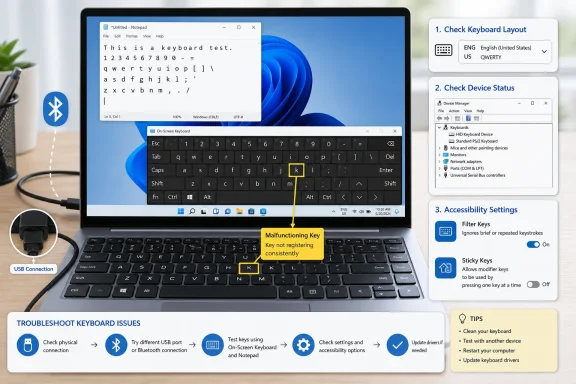 Start with a clean key-by-key test
A key test should establish two things: whether Windows receives the physical keystroke, and whether it produces the expected character or action.- Save any open work.
- Open Notepad:
- Press Windows key, type
Notepad, and select it.
- Press Windows key, type
- Click in the blank document.
- Test the affected key several times, then test nearby keys.
- For normal typing keys, test:
- Letters, numbers, punctuation
- Spacebar
- Enter
- Backspace
- Arrow keys
- For modifier keys, hold the key while pressing another key:
- Shift + a letter
- Ctrl +
C - Alt +
Tab - Windows key +
R
- If a key repeats unexpectedly, hold it down briefly and note whether:
- It repeats only while held down, which is normal.
- It continues repeating after release, which suggests a stuck key, debris, liquid damage, or a connection problem.
Compare the physical keyboard with On-Screen Keyboard
The built-in On-Screen Keyboard is a useful control test. If clicking an on-screen key works but pressing the matching physical key does not, Windows and the app can accept the input; the fault is more likely with the physical keyboard, its connection, or its driver.- Press Windows key + Ctrl + O.
Alternatively, open:- Windows 11: Start > Settings > Accessibility > Keyboard > On-Screen Keyboard
- Windows 10: Start > Settings > Ease of Access > Keyboard > Use the On-Screen Keyboard
- Leave Notepad open behind the on-screen keyboard.
- Click the affected on-screen key with the mouse.
- Confirm that it types or performs the expected action in Notepad.
- Press the physical version of that same key.
- Both work: The issue may be limited to a particular app, shortcut, keyboard layout, or intermittent hardware fault.
- On-Screen Keyboard works; physical key does not: Continue with the connection, layout, accessibility, and driver checks below.
- Neither works in Notepad: The problem may be app-wide, account-related, or related to the specific command rather than the keyboard hardware.
- Windows 11: Settings > Accessibility > Keyboard > Toggle Keys
- Windows 10: Settings > Ease of Access > Keyboard > Use Toggle Keys
Rule out an app-only problem
If the key fails only in one program but works in Notepad, do not reinstall the keyboard driver yet. That is an application problem, not proof of a failed keyboard.- Test the affected key in:
- Notepad
- A browser address bar
- Another app where the key normally fails
- Close and reopen the affected app.
- Check whether the app has its own keyboard shortcuts, remapping settings, macros, add-ins, or game controls.
- If the problem began after installing keyboard, gaming, macro, accessibility, remote-desktop, or clipboard software, temporarily exit that software and retest.
Check the keyboard layout when keys type the wrong symbols
A keyboard can be fully functional while Windows uses the wrong input layout. Typical symptoms include@ and " being reversed, punctuation appearing in unexpected places, or letters producing accented characters.- Look at the input indicator near the clock on the taskbar. It may show a language or layout abbreviation such as ENG.
- Select the indicator and choose the expected keyboard layout.
- You can also cycle installed layouts with Windows key + Spacebar.
- Windows 11: Open Start > Settings > Time & language > Language & region. Select the three dots beside the language, choose Language options, and review the entries under Keyboards.
- Windows 10: Open Start > Settings > Time & language > Language. Select your language, choose Options, and review Keyboards.
Check Num Lock and Mouse Keys
If the number pad does not type numbers, press Num Lock once and test again in Notepad. On compact keyboards, Num Lock may require Fn + Num Lock or another manufacturer-specific combination.If the number pad moves the pointer rather than entering numbers, Mouse Keys may be enabled.
- Open:
- Windows 11: Start > Settings > Accessibility > Mouse
- Windows 10: Start > Settings > Ease of Access > Mouse
- Turn off the option to control the mouse with a keypad, if it is enabled.
- Test the number pad again.
Check accessibility settings that can change key behavior
Windows accessibility features are valuable when deliberately enabled, but they can make a keyboard seem slow, unresponsive, or inconsistent.- Open:
- Windows 11: Start > Settings > Accessibility > Keyboard
- Windows 10: Start > Settings > Ease of Access > Keyboard
- Review these settings:
- Filter Keys: Turn this off for testing if normal brief keystrokes are ignored or if typing feels delayed. Filter Keys can ignore brief or repeated keystrokes.
- Sticky Keys: Turn this off temporarily if modifier-key shortcuts act as though Ctrl, Alt, Shift, or the Windows key remains active.
- Toggle Keys: This does not block typing, but it can help confirm lock-key presses.
- Return to Notepad and retest.
Inspect and reconnect an external keyboard
For a USB or wireless keyboard, test the connection before changing drivers.- Disconnect the keyboard.
- If it is wired:
- Inspect the cable and connector for damage.
- Connect it directly to a different USB port.
- Do not use a hub, dock, monitor USB port, or extension cable during the test.
- If it is wireless:
- Replace or charge the batteries.
- Turn the keyboard off and back on.
- Remove and reconnect its USB receiver.
- If it uses Bluetooth, reconnect it from Settings > Bluetooth & devices in Windows 11 or Settings > Devices > Bluetooth & other devices in Windows 10.
- Restart the PC and test again in Notepad.
Test the keyboard on another computer
This is the most useful hardware check for an external keyboard.- Connect the keyboard to another Windows PC, if available.
- Open Notepad on that PC.
- Test the same affected keys.
- The same keys fail on both computers: The keyboard is likely faulty and may need replacement or manufacturer service.
- The keyboard works on the second computer: The original PC has a Windows, driver, port, Bluetooth, or software conflict.
- A laptop’s internal keyboard cannot be moved to another PC: Test with an external keyboard and use the laptop manufacturer’s hardware diagnostics if available.
Update Windows and keyboard drivers
Use Windows Update before manually downloading random driver packages. Microsoft provides recommended hardware drivers through Windows Update, while optional driver updates must be selected manually.- Open Start > Settings > Windows Update.
- Select Check for updates.
- Install available updates.
- Open Advanced options > Optional updates.
- If driver updates are listed, select the relevant keyboard, chipset, Bluetooth, or USB driver updates and choose Download and install.
- Restart the PC, even if Windows does not specifically request it.
- Retest the keyboard in Notepad.
Reinstall the keyboard device in Device Manager
Reinstalling the device is a software repair step, not a fix for liquid damage, a broken cable, or failed key switches.Warning: Keep a mouse or touchpad available before removing the device. On a laptop with a nonworking built-in keyboard, use the On-Screen Keyboard or an external keyboard to sign in after restarting.
- Right-click Start and select Device Manager.
- Expand Keyboards.
- Right-click the affected keyboard entry and select Uninstall device.
- Select Uninstall to confirm.
- In Device Manager, select Action > Scan for hardware changes.
- Restart Windows.
- Test every affected key again in Notepad.
When the evidence points to hardware
Arrange repair or replacement when one or more of these apply:- The same physical keys fail on another computer.
- Keys repeat without being held, even after cleaning around the keys and reconnecting the keyboard.
- The issue began after a spill, impact, crushed cable, or damaged USB connector.
- A laptop’s built-in keyboard fails while an external keyboard works reliably.
- The keyboard is not detected in Device Manager after testing multiple ports or another PC.
References
- Primary source: Technobezz
Published: 2026-07-19T17:34:54.954000+00:00
How to Check If Your Keyboard Keys Are Working | Technobezz
How to check keyboard keys using online testers, built-in tools, and hardware diagnostics.www.technobezz.com - Official source: support.microsoft.com
Manage the language and keyboard/input layout settings in Windows | Microsoft Support
Learn how to change Windows display language and keyboard/input layout settings. These settings affect the language displayed in Windows, in apps, and at websites.support.microsoft.com

