

A DNS cache problem in Windows 11 or Windows 10 can make a website fail on one PC, continue opening an old address, or show a “DNS server not responding” message even though the network is connected. Start by clearing the Windows DNS Client cache, then verify whether the issue is limited to this PC, the router/network, or a browser. These steps apply to home PCs and unmanaged work PCs; do not replace DNS servers on a company or school network unless its IT administrator approves it.
Before resetting Windows networking, check whether the failure follows the computer or the network.
You can perform the same action in an elevated Windows Terminal or PowerShell window:
Microsoft documents this PowerShell command as equivalent to
Replace
Under the adapter currently in use, find DNS Servers. Ignore disconnected adapters unless you are troubleshooting a VPN, virtual machine, or a specific Ethernet connection.
If the hostname now resolves but the browser still fails, close every browser window, reopen the browser, and test again. Browser-level DNS, encrypted DNS, or a cached connection can survive a Windows DNS flush.
If the issue immediately returns on every device, check the router’s DNS configuration, any configured parental-control or security filtering service, and the ISP’s service status. A router firmware update or factory reset is not a first-line DNS fix because it can erase ISP, Wi-Fi, port-forwarding, and security settings.
Use this test:
Also disconnect a personal VPN temporarily and retest. VPN clients, web filters, endpoint security products, and parental-control tools can install their own DNS handling. Do not remove corporate VPN or security software from a managed PC; contact the organization’s support team instead.
If the Hosts file is damaged and you need to restore it, Microsoft’s supported recovery method is to rename the existing file to
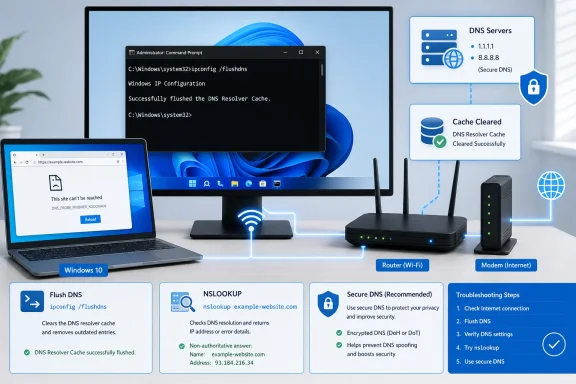 Confirm that this is a DNS problem
Before resetting Windows networking, check whether the failure follows the computer or the network.- Try the affected site on another device connected to the same Wi-Fi or Ethernet network.
- Try the same site on the affected PC using a different browser.
- Disconnect the PC from Wi-Fi and test through a phone hotspot, if available.
- Every device on the same network fails: Restart the modem and router. The router or its upstream DNS service may have a stale or failed response.
- Only this Windows PC fails: Clear its DNS cache first.
- Only one browser fails: Clear browser data or examine that browser’s Secure DNS setting after flushing Windows DNS.
- The site works on a hotspot but not home Wi-Fi: Focus on the router, ISP DNS service, or DNS settings assigned by that network.
- The site opens the wrong internal or work address: Do not change DNS to a public provider. This can be a company DNS, VPN, or Active Directory configuration issue.
Flush the Windows DNS cache
Flushing DNS removes cached name-to-address answers stored by the Windows DNS Client service. It does not erase Wi-Fi passwords, browser history, files, or router settings.- Save any open work.
- Select Start and type Command Prompt.
- Select Run as administrator.
- Select Yes if Windows asks for permission.
- Enter the following command:
ipconfig /flushdns- Press Enter.
You can perform the same action in an elevated Windows Terminal or PowerShell window:
Clear-DnsClientCacheMicrosoft documents this PowerShell command as equivalent to
ipconfig /flushdns.Test name resolution after the flush
A successful flush does not prove that the correct DNS server is responding. Test the affected name again.- In the same Command Prompt window, run:
nslookup example.comReplace
example.com with the site or hostname that is failing.- Review the first lines of the result:
- Server identifies the DNS server Windows queried.
- Address shows that server’s IP address.
- A later Name and Address result means DNS returned an answer.
- A timeout, “Non-existent domain,” or server failure points to the DNS resolver, network, or name itself.
- Check which DNS servers Windows is configured to use:
ipconfig /allUnder the adapter currently in use, find DNS Servers. Ignore disconnected adapters unless you are troubleshooting a VPN, virtual machine, or a specific Ethernet connection.
If the hostname now resolves but the browser still fails, close every browser window, reopen the browser, and test again. Browser-level DNS, encrypted DNS, or a cached connection can survive a Windows DNS flush.
Restart the connection and renew the DHCP lease
If the flush did not help and the PC receives its network settings automatically, renew its network lease. This requests fresh network configuration—including DNS server information—from the router or DHCP server.Warning: A release disconnects the PC temporarily. Do not do this during a remote support session, Remote Desktop connection, or online meeting unless you have another way to reconnect.
- Open Command Prompt as administrator.
- Run these commands one at a time:
Code:
ipconfig /release
ipconfig /renew
ipconfig /flushdns- Reconnect to Wi-Fi if Windows does not reconnect automatically.
- Test the affected website or hostname again.
ipconfig /release and /renew are intended for adapters configured to obtain an IP address automatically. They are not the right repair for a PC with a manually assigned static IP address.Restart the modem and router when multiple devices fail
When two or more devices have the same DNS symptom on the same network, a local Windows cache is unlikely to be the only cause.- Shut down or disconnect internet activity that should not be interrupted.
- Unplug the router’s power cable.
- Unplug the modem or fiber gateway power cable.
- Wait at least 30 seconds.
- Plug the modem or gateway back in first.
- Wait until its normal connection lights indicate that it is online.
- Plug the router back in.
- Wait for Wi-Fi and internet status to return.
- On the Windows PC, reconnect to the network and run:
ipconfig /flushdnsIf the issue immediately returns on every device, check the router’s DNS configuration, any configured parental-control or security filtering service, and the ISP’s service status. A router firmware update or factory reset is not a first-line DNS fix because it can erase ISP, Wi-Fi, port-forwarding, and security settings.
Check Windows DNS server settings
A DNS cache flush clears old answers; it does not help if Windows is repeatedly asking an incorrect DNS server. Check whether the adapter is set to automatic DNS or a manual address you no longer intend to use.Windows 11
- Open Settings.
- Select Network & internet.
- Select Wi-Fi or Ethernet, depending on the active connection.
- Open the connected network’s Properties page.
- Find DNS server assignment and select Edit.
- Review the selection:
- Choose Automatic (DHCP) to return to the DNS servers supplied by the router or network.
- Choose Manual only when you have approved DNS server addresses to enter.
- Select Save.
- Run:
ipconfig /flushdnsWindows 10
- Open Settings > Network & Internet > Status.
- Select Change adapter options.
- Right-click the active Wi-Fi or Ethernet adapter and select Properties.
- Select Internet Protocol Version 4 (TCP/IPv4), then select Properties.
- Select Obtain DNS server address automatically to restore DHCP-provided DNS, or select Use the following DNS server addresses to enter administrator-approved values.
- Select OK, then Close.
- Repeat for Internet Protocol Version 6 (TCP/IPv6) only if you intentionally use manually configured IPv6 DNS.
- Flush DNS again.
Check Secure DNS and VPN software
Modern browsers can use Secure DNS, also called DNS over HTTPS. That means Chrome, Edge, or Firefox may send name lookups through a browser-selected resolver instead of following the Windows DNS setting.Use this test:
- Flush Windows DNS.
- Test the failing site in a second browser.
- If only one browser fails, open that browser’s privacy or security settings.
- Find Use secure DNS, Secure DNS, or DNS over HTTPS.
- Temporarily set it to use the current service provider, or turn it off only long enough to test.
- Restart the browser and test again.
Also disconnect a personal VPN temporarily and retest. VPN clients, web filters, endpoint security products, and parental-control tools can install their own DNS handling. Do not remove corporate VPN or security software from a managed PC; contact the organization’s support team instead.
Check the Hosts file for a persistent wrong address
The Windows Hosts file can override normal DNS resolution. A bad or outdated entry may look exactly like a stale DNS cache because flushing the cache will not remove it.- Select Start, type Notepad, right-click it, and select Run as administrator.
- In Notepad, select File > Open.
- Browse to:
C:\Windows\System32\drivers\etc- Change the file type selector from text documents to All Files.
- Open the file named hosts.
- Look for an entry containing the affected website or hostname.
203.0.113.10 example.comIf the entry is clearly obsolete and belongs to software you control, remove that line, save the file, then run:Warning: Do not delete entries you do not understand on a work or school PC. They may be required for internal systems, development environments, or security controls.
ipconfig /flushdnsIf the Hosts file is damaged and you need to restore it, Microsoft’s supported recovery method is to rename the existing file to
Hosts.old, create a new extension-free file named hosts, and place it in the same folder. Keep the renamed copy until you confirm that required internal names still work.Use a network reset only as a last resort
A full network reset is broader than a DNS cache flush. It removes and reinstalls network adapters and returns their settings to defaults.Warning: Network reset can remove VPN client configuration, virtual network adapters, and custom networking settings. After the restart, known networks can be treated as public networks. Record VPN details and make sure you know the Wi-Fi password before continuing.
Windows 11
- Open Settings > Network & internet > Advanced network settings.
- Select Network reset.
- Select Reset now.
- Select Yes to confirm.
- Allow Windows to restart.
- Reconnect to Wi-Fi or Ethernet and test DNS again.
Windows 10
- Open Settings > Network & Internet > Status.
- Select Network reset.
- Select Reset now.
- Select Yes.
- Let the PC restart, then reconnect and test.
nslookup error, the DNS server shown by ipconfig /all, and whether the problem occurs on another network. That information identifies whether the next repair belongs with the website owner, DNS provider, ISP, router administrator, or workplace IT team.References
- Primary source: Technobezz
Published: 2026-07-18T17:24:02.674000+00:00
How to Fix a DNS Cache Problem in 2026 | Technobezz
Fix a DNS cache problem on Windows, Mac, iPhone, Android, Chromebook, Chrome, Edge, and Firefox with current reset steps.www.technobezz.com
