KB5083631 for Windows 11: Faster File Explorer, Cleaner Shell, Less Memory Use

Microsoft is preparing one of the more meaningful Windows 11 quality updates in recent memory, and the center of gravity is not a flashy new app or an AI gimmick but the parts of the OS people touch every day. The latest Release Preview work tied to KB5083631 points to faster File Explorer launch times, cleaner shell behavior, lower memory pressure in background update plumbing, and better responsiveness in settings pages that have long felt sluggish on larger systems . That may sound incremental on paper, but for a platform judged by muscle memory and routine tasks, these are the kinds of fixes that can change how Windows 11 feels. If Microsoft lands this cleanly in the April 2026 optional update and the May 2026 Patch Tuesday cycle, it could be remembered as a quality-of-life turning point rather than just another servicing release .

A desktop screen shows a file manager with a yellow folder and a download settings panel.Background​

Windows 11 has spent much of its life carrying two stories at once. On one hand, Microsoft has pushed a modern interface, Copilot integration, and a steady stream of new shell features. On the other, users have continued to complain that core workflows still feel too heavy, too inconsistent, or too fragile for an operating system meant to be the centerpiece of modern PC computing. File Explorer in particular has become a symbol of that tension because it is not a niche utility; it is the front door to nearly every routine on the platform .
That context makes the current KB5083631 story more important than the raw changelog might suggest. Microsoft is not merely adding new archive support or tweaking a few settings screens. It is targeting the mechanisms that shape perceived responsiveness: launch speed, explorer.exe reliability, dark mode consistency, startup behavior, and memory use in servicing components like Delivery Optimization . These are the kinds of improvements that users feel before they can measure them.
The Release Preview channel is also significant. Microsoft typically uses it as the last broad validation stage before changes hit general availability, which means the company is not experimenting in the abstract here. It is signaling that these performance and polish fixes are close to shipping, and likely stable enough to move into the mainstream servicing path .
There is also a broader strategic backdrop. Over the past several Insider cycles, Microsoft has shown more interest in reducing friction than in adding visual clutter. That includes efforts around startup app performance, File Explorer responsiveness, storage settings navigation, and shell reliability. In other words, the company appears to be treating basic Windows quality as a product priority again, rather than assuming that polish can wait until after feature work is done .
For everyday users, that matters because the complaints are cumulative. A slower Explorer launch here, a dark mode flash there, a memory-hungry background process somewhere else, and suddenly the platform feels less “modern” even if the underlying issue is minor. Microsoft’s new release appears to address exactly that type of death-by-a-thousand-cuts experience .

What KB5083631 Is Really About​

At the surface level, KB5083631 is a Windows 11 quality update with a lot of familiar plumbing fixes. Dig a little deeper, though, and it reads like a statement of intent: Microsoft wants Windows 11 to feel faster, more coherent, and less visually or operationally awkward. The company is trying to improve the lived experience of the shell, not just the benchmark numbers .
The File Explorer work is the clearest example. Microsoft says it is improving folder view consistency, speeding up Explorer launch, removing the white flash in dark mode in specific workflows, adding a “preview anyway” button for certain downloaded files, expanding archive support, and improving the reliability of explorer.exe after windows are closed . That is not a random list. It is a systematic attempt to make the shell behave more predictably under common stress points.

Why this is more than a cosmetic patch​

One of the strongest signals here is that Microsoft is fixing visible friction in places users encounter all the time. A white flash in dark mode may seem trivial in isolation, but it breaks the visual contract of the interface. Similarly, a delay in Explorer launch or a lingering shell process after closing a window affects trust because the user is left wondering whether the system is responsive or merely pretending to be .
There is also a subtle but important architectural message. Microsoft is not relying solely on background preloading or cosmetic masking. The release notes suggest the app itself is being tuned, especially around launch responsiveness and process cleanup, which is a better long-term answer than papering over delays with clever staging .
  • Explorer launch speed is being improved at the shell level.
  • Dark mode visual consistency is being repaired in common workflows.
  • explorer.exe reliability is being tightened after window close events.
  • Folder customization preferences are becoming more consistent across launch paths.
  • Archive handling is becoming more capable without extra tools.
For users, this is the kind of update that can be felt in the first ten minutes of a session. That matters because Windows is not judged by dramatic demos. It is judged by repetition, and Explorer sits at the center of that repetition .

File Explorer Finally Gets the Attention It Needed​

File Explorer has long been one of the most scrutinized pieces of Windows because it touches everything from downloads to document sorting to removable storage. When it misbehaves, users do not blame a peripheral component; they blame Windows itself. That is why this update feels bigger than a normal feature bullet list .
The changelog points to improved folder view consistency, which means customized settings such as sorting or icon size should now persist more reliably across different ways of opening the same folder. Microsoft explicitly calls out the Downloads folder and scenarios involving other apps, such as browsers, which is a sensible place to start because downloads are one of the most common entry points into Explorer workflows .

Speed, consistency, and the cost of tiny delays​

The real story is performance. Explorer is one of the most frequently launched apps in the OS, so even small gains add up quickly. A fraction of a second saved on each launch is not just a technical metric; it is a practical reduction in friction that compounds over a day, a week, and a month .
That is especially true on older hardware or budget systems, where Explorer has often felt more sluggish than it should. Microsoft’s update should help users who experience Windows as “heavy” rather than “broken.” Those are different problems, and the former often gets ignored because it does not produce dramatic crashes. It just wears people down.
  • Faster launch behavior should be most noticeable after boot.
  • Folder settings should behave more consistently across open paths.
  • Dark mode should feel less broken in everyday use.
  • Process cleanup should reduce lingering resource use.
  • Better responsiveness should help lower-end PCs disproportionately.
The white flash fix also matters because it addresses a kind of quality defect that users notice immediately even if they cannot name it. A dark theme is not just an aesthetic toggle. For many people it is part of a broader expectation that the shell will feel modern and internally consistent. When Explorer flashes white, the illusion of polish cracks .

The Storage and Startup Changes Matter More Than They Sound​

Microsoft is also improving the responsiveness of Settings navigation for storage, especially when browsing large volumes through Settings > System > Storage > Advanced Storage Settings > Disks & Volumes. That sounds niche, but on machines with multiple drives, big NVMe arrays, or complex storage setups, this is the sort of page users and administrators actually visit when they need answers quickly .
The startup-app improvement is similarly important. Microsoft says it is improving performance when launching apps listed under Settings > Apps > Startup. That may not excite casual users, but it matters because startup behavior is one of the first things people experience after login. If that early-session experience feels slow or congested, the whole operating system feels less ready for work .

Startup is where perception is won or lost​

A slow boot is not always the result of a bad CPU or weak SSD. Sometimes it is the cumulative effect of shell components, background services, and startup apps fighting for attention. Better startup performance can make a system feel newer than it is, especially on machines that are otherwise perfectly adequate .
That is why Microsoft’s work here should be read as quality engineering rather than convenience tuning. A Windows login sequence that reaches “usable” sooner can change how users judge the whole machine. If startup apps initialize more gracefully, and if the system becomes productive faster, the OS earns trust in the first few seconds.
  • Better startup app launching shortens the path to productivity.
  • Faster storage navigation helps with troubleshooting and capacity planning.
  • Lower UI lag in Settings makes the system feel less bureaucratic.
  • Improvements benefit both consumers and IT admins.
  • Early-session speed often shapes the user’s entire opinion of the PC.
This matters even more in a year when many systems are still operating under memory pressure and users are not upgrading hardware as quickly as they once did. Microsoft’s smaller optimization wins can have outsized value on midrange laptops and older desktops, where every avoided stall is noticeable.

Delivery Optimization and Memory Pressure​

One of the quieter but more practical changes in the update is the improvement to Delivery Optimization, which Microsoft says should use less RAM when handling Windows update downloads. On paper that sounds minor. In practice, it can be surprisingly valuable because Delivery Optimization runs in the background and competes with the applications users actually care about .
This kind of change matters most on constrained machines. If a background service consumes less memory, the system has more headroom for the browser, office apps, creative software, or whatever else the user is actively running. It also makes Windows feel less like a platform that permanently reserves a chunk of itself for housekeeping.

A small optimization with broad consequences​

Background resource use is easy to ignore until the system starts paging or becomes less responsive under load. At that point, even a modest reduction in RAM usage can improve the experience in ways the user can feel but not necessarily quantify. That is part of why this fix is strategically smarter than it looks .
Microsoft’s emphasis on memory efficiency also reflects a broader Windows 11 challenge. Over time, modern operating systems accumulate services, overlays, telemetry, sync behaviors, security layers, and update mechanisms. Each one is defensible. Taken together, they can create the impression that the platform is too busy even when it is not technically broken.
  • Lower background RAM use improves multitasking headroom.
  • Update downloads should interfere less with active work.
  • Constrained systems benefit the most.
  • Memory savings can reduce perceived sluggishness.
  • The change reinforces a “lighter Windows” narrative.
This is not a dramatic re-architecture, but it is the sort of change that quietly makes the operating system feel less bloated. And that, more than any single headline feature, is what many users have wanted from Windows 11 for years.

The New Archive Support Is a Welcome Bonus​

Microsoft is expanding File Explorer’s native archive support to include uu, cpio, xar, and NuGet packages, adding to the platform’s built-in handling of compressed formats. On its own, this is not the kind of change that makes headlines. But it is a useful sign of where the shell is headed: more capable, more self-contained, and less dependent on third-party tools for common packaging tasks .
This matters especially for developers and technically inclined users who regularly encounter package formats outside the ordinary ZIP and 7z world. NuGet packages, in particular, are part of a broader developer workflow, so having them visible in Explorer reduces friction and shortens the path between a downloaded file and an inspection step.

Utility over spectacle​

The best shell improvements are often the least glamorous. A broader archive list does not sell upgrades by itself, but it reduces the number of times users have to stop and ask, “What app do I need for this?” That is genuine quality-of-life work.
It also fits with Microsoft’s broader strategy of making Windows a more capable default environment. The more the shell can handle directly, the fewer dead ends users face. That is especially useful for people who do not want to install multiple utility apps just to inspect a package or peek inside an archive.
  • More archive formats mean fewer external tools.
  • Developers gain faster access to package contents.
  • Technical users benefit from a richer default shell.
  • Everyday users get fewer “can’t open this” moments.
  • The shell becomes more self-sufficient over time.
This is the sort of enhancement that strengthens Windows without making the interface more cluttered. That balance is important because Microsoft has been criticized in the past for piling features onto the shell without making the core experience cleaner. Here, the company appears to be doing the opposite.

Preview Safety and User Control​

The new “preview anyway” button in File Explorer’s preview pane is one of the more interesting additions because it tries to balance security and convenience instead of choosing one at the expense of the other. Microsoft is keeping the warning for files downloaded from the internet, but it is giving users a sanctioned way to proceed if they still want to preview the file .
That is a smart move. Security warnings lose effectiveness if they are too easy to ignore, but they also become counterproductive if they block ordinary workflows completely. Microsoft seems to be aiming for a middle ground where the system warns clearly but does not trap the user in an awkward detour.

Guardrails, not dead ends​

This approach reflects a broader UX lesson that more software companies are slowly learning: users want informed friction, not absolute obstruction. A system that constantly says no tends to train people to work around it. A system that says “be careful, but you decide” is usually more credible.
In that sense, the preview change is less about a single button and more about Microsoft’s willingness to trust users while still nudging them toward safer habits. That is a better posture for a mature desktop platform than blanket restriction.
  • Warnings remain visible and meaningful.
  • Users can proceed without hacky workarounds.
  • The experience stays safer than disabling protections.
  • Productivity improves for quick inspection tasks.
  • The UI acknowledges informed decision-making.
If Microsoft continues in this direction, it could reduce the tension between usability and security that has sometimes made Windows feel overprotective in the wrong places and under-protective in the wrong ones.

What This Means for Consumers and IT Teams​

Consumer impact is straightforward: the update should make Windows 11 feel smoother, less visually jarring, and less annoying to live with. File Explorer starts faster, dark mode behaves better, storage pages are more responsive, and startup app management feels less like a wait state. For anyone who spends hours a day in the shell, these improvements are not abstract .
For IT teams, the implications are even more interesting. A more reliable shell means fewer calls about odd desktop behavior, fewer complaints about “Windows being slow,” and fewer mysterious resource spikes tied to background services. That kind of improvement does not always show up in glossy product marketing, but it absolutely matters in fleet management.

Enterprise value is about support load​

The biggest enterprise benefit may simply be fewer small incidents. When Explorer reliability improves and startup apps launch more cleanly, support teams spend less time chasing vague frustration reports. When Delivery Optimization uses less memory, there is less chance of background processes getting blamed for performance problems they merely amplify.
That said, enterprises will still want to validate these changes carefully. A faster Explorer is great, but it must not create compatibility surprises with extensions, scripts, or workflow tools. As always, the devil is in the ecosystem.
  • Fewer helpdesk tickets about sluggish shells.
  • Better behavior on shared or older hardware.
  • Less background memory pressure on managed devices.
  • Cleaner startup sessions for end users.
  • More predictable troubleshooting in Settings and Storage.
Consumers, meanwhile, will judge the update by feel. Does File Explorer open instantly enough? Does dark mode stay dark? Does the system stop wasting resources after it closes things? Those are the questions that matter in the real world.

Strengths and Opportunities​

Microsoft’s approach here has real upside because it targets the most visible friction points first. That is better than chasing novelty while leaving the operating system to feel unfinished. If the company sustains this quality-first discipline, Windows 11 could end up feeling more coherent and more premium than it has in a while .
  • File Explorer improvements hit an app people use constantly.
  • Dark mode consistency strengthens the sense of polish.
  • Startup performance gains shorten the path to productivity.
  • Lower memory use in Delivery Optimization helps constrained systems.
  • Broader archive support reduces reliance on extra utilities.
  • Settings responsiveness makes system management less frustrating.
  • Explorer reliability can improve the feel of the whole desktop.
The biggest opportunity is psychological. If Microsoft can make Windows feel less needy, users may forgive a lot of past irritation. That is a valuable outcome in a platform where daily habit matters more than keynote rhetoric.

Risks and Concerns​

The obvious risk is overpromising and underdelivering. Windows users have seen quality campaigns before, and they will not be impressed by a changelog alone. They will care about whether the next several updates actually make the OS feel better in everyday use, and whether the improvements hold up across different hardware classes .
There is also the familiar danger of partial execution. If Microsoft fixes File Explorer but leaves other rough edges intact, the broader impression may remain unchanged. Likewise, if new features keep arriving while the company says it is reducing clutter, users could read that as mixed messaging rather than restraint.
  • Credibility depends on sustained improvements, not one good build.
  • Hardware variation may produce uneven results.
  • Enterprise compatibility could complicate rollout.
  • Security safeguards must not be weakened for convenience.
  • Patch rollout timing may leave some users waiting longer.
  • Regression risk is always real in shell and servicing work.
  • Perception risk remains if AI surfaces continue expanding elsewhere.
The deeper concern is trust. Once a platform earns a reputation for being noisy, rigid, or internally inconsistent, it takes time to reverse that impression. Microsoft’s current work is promising, but it has to become a pattern, not a one-off apology in code form.

Looking Ahead​

The real test now is not whether Microsoft can describe these improvements well, but whether users can feel them after rollout. The April 2026 optional update and the May 2026 Patch Tuesday cycle will tell us whether KB5083631 is merely a polished Release Preview package or the beginning of a broader shift toward a faster, calmer Windows 11 .
The other thing to watch is consistency. Microsoft has a history of making good progress in one area while another team introduces fresh friction somewhere else. If the company is serious about a quality-first turn, it will need to keep the shell, servicing stack, and update experience moving in the same direction. That is harder than it sounds, which is why it matters so much.
  • Watch for broader rollout of the Explorer fixes.
  • Watch for measurable startup and storage navigation improvements.
  • Watch for user reports on dark mode behavior after install.
  • Watch for any regressions in archive handling or preview actions.
  • Watch for whether Delivery Optimization memory use truly drops.
  • Watch for whether Microsoft keeps emphasizing core performance over surface novelty.
If the next few months go well, this release could mark the moment Windows 11 stopped trying so hard to impress and started trying harder to simply work better. That may not be the loudest possible story, but it is often the one that matters most.
Windows has always been at its best when it feels invisible in the right ways: quick to respond, consistent in its behavior, and quiet about the machinery beneath the surface. KB5083631 points toward that older, more disciplined ideal, and if Microsoft follows through, the result could be one of the most welcome improvements the platform has seen in years.

Source: Neowin KB5083631: Microsoft explains how Windows 11 will get significantly faster soon
 

Microsoft released KB5083631 on April 30, 2026, as an optional non-security preview update for Windows 11 versions 24H2 and 25H2, bringing File Explorer reliability fixes, Delivery Optimization memory improvements, faster startup-app behavior, and a long-delayed FAT32 formatting limit increase. That is the factual shape of the update. The more interesting story is that Microsoft is finally treating Windows 11’s rough edges not as cosmetic annoyances, but as a credibility problem. For an operating system now deep into its enterprise lifecycle, the little bugs have become the big argument.

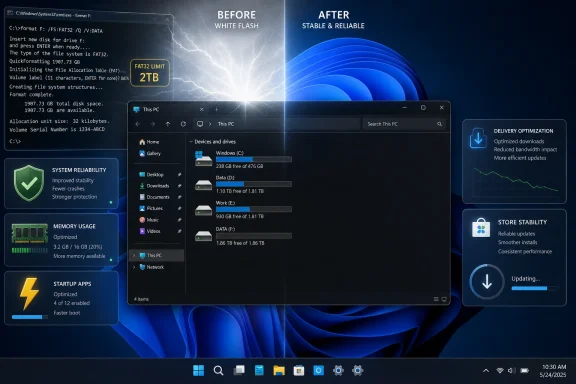
Windows 11 desktop with disk formatting details and app optimization panels comparing “Before” vs “After.”Microsoft Finally Ships the Kind of Update Windows 11 Needed Two Years Ago​

Windows 11 has spent much of its life being judged less by its ambitions than by its paper cuts. The centered taskbar, rounded corners, new Settings app, widgets, Copilot hooks, and AI-forward branding all gave Microsoft a story to tell. But users tend to remember the moment File Explorer flashes white in dark mode more vividly than the moment a product team announces a new “experience.”
KB5083631 matters because it is unusually weighted toward that second category of user memory. It is not just another cumulative package with a few security mitigations and a renamed setting. It is a maintenance release that goes after the indignities that make a modern PC feel unfinished: explorer.exe instability, forgotten folder views, memory bloat in background services, Microsoft Store installation failures, and display glitches in old dialogs.
That does not make it glamorous. In fact, the update’s importance lies precisely in how unglamorous it is. Microsoft is not winning hearts with another side panel; it is trying to stop Windows from getting in its own way.
The timing also matters. Microsoft has spent the past year insisting that performance, reliability, and polish are now central to the Windows 11 agenda. Users have heard versions of that promise before, usually right before being offered another cloud-adjacent feature they did not ask for. KB5083631 is a test of whether the company can make the operating system feel better in the places people touch every day.

File Explorer Was Never Just a File Manager​

File Explorer is the front door to Windows. It is also a museum of Microsoft’s design eras, with Win32 heritage, Shell integration, XAML islands, newer WinUI surfaces, legacy dialogs, cloud affordances, archive support, sync hooks, and context-menu modernizations all attempting to coexist inside one of the most frequently opened applications on the platform.
That history is why File Explorer bugs feel more personal than they should. A browser crash is annoying. A game stutter is frustrating. But File Explorer misbehaving makes the whole operating system feel suspect, because it suggests that Windows cannot reliably manage the basic act of showing you your own files.
The dark-mode white flash has become a perfect symbol of that problem. On paper, it is a visual bug. In practice, it is the kind of jarring defect that reminds users that Windows 11’s visual modernization is still layered over old machinery. Open “This PC” in dark mode and get blasted by a white pane before the interface settles, and suddenly the new design language feels like a costume change performed too late.
KB5083631 removes that flash in the affected File Explorer scenarios, including opening This PC and resizing the Details pane in dark mode. That is a small fix with an outsized emotional footprint. It says Microsoft knows that polish is not decorative; polish is part of whether users believe the system is coherent.
The update also fixes a more practical irritation: File Explorer view and sort preferences being lost when third-party apps open a folder directly. This is the sort of defect that rarely makes marketing copy but steadily trains users not to trust the shell. If you want Downloads sorted a certain way, Windows should not forget that preference because another application invoked the folder.
Just as important is the explorer.exe reliability work. Microsoft says the update improves the behavior of relevant explorer.exe processes so they stop after File Explorer windows close. That sounds mundane until you remember that explorer.exe is not merely an app process; it is deeply bound up with the shell, taskbar, desktop, and file-browsing experience. A “zombie” Explorer process lingering after use is not only untidy. It is another source of background resource consumption and another invitation for weird state to accumulate.

The White Flash Was a Symptom, Not the Disease​

The deeper issue behind File Explorer’s visual glitches is architectural. Windows has been modernized in layers, and layers have seams. Microsoft can redesign a toolbar, soften a corner, or recolor a pane, but the operating system still contains decades of behaviors that were never built with today’s design contract in mind.
This is not an easy problem to solve. One of Windows’ strengths is also its burden: compatibility. The same platform that lets businesses keep old workflows alive also makes it harder for Microsoft to rip out legacy components and replace them cleanly. Users want a fully modern Windows until a fully modern Windows breaks a line-of-business tool written in 2008.
That tension is visible in File Explorer more than almost anywhere else. It has to look modern enough for Windows 11, behave predictably enough for power users, and remain compatible enough for enterprise fleets that still depend on old shell extensions and deeply embedded workflows. Every change risks breaking someone’s muscle memory or someone’s deployment script.
Still, there is a limit to how long “legacy complexity” can function as an excuse. Windows 11 launched in 2021. Dark mode is not a new experiment. File Explorer is not a peripheral app. If the shell cannot consistently render without a white flash in 2026, users are right to ask whether Microsoft’s design modernization has been over-indexed on presentation and under-invested in plumbing.
KB5083631 does not resolve that tension, but it does move in the right direction. It treats File Explorer as infrastructure, not just interface. That distinction is crucial, because the Windows shell is where user confidence is either built or quietly eroded.

Memory Leaks Are Reputation Leaks​

The Delivery Optimization fix is the sort of change that IT departments notice even if consumers never learn the service name. Delivery Optimization is responsible for helping Windows download updates and Microsoft Store content more efficiently, including through peer-to-peer sharing mechanisms on local networks. It is supposed to make updating less painful, especially across many machines.
But background services are judged by a harsh standard: if users notice them, something has probably gone wrong. When Delivery Optimization consumes more memory than expected, it becomes another exhibit in the case against modern Windows bloat. It does not matter that the service has a legitimate purpose. What matters is that RAM is being used by something the user did not intentionally open.
KB5083631 improves Delivery Optimization memory usage and reduces the likelihood that it will consume an unexpectedly large amount of memory. That phrasing is careful, and it should be. Microsoft is not promising that Windows 11 will suddenly become featherweight. It is acknowledging that a background component could behave badly enough to warrant direct remediation.
For sysadmins, this kind of fix is more than housekeeping. Memory leaks on a single enthusiast desktop are irritating. Memory leaks across a fleet can become support tickets, performance complaints, help-desk noise, and reputational damage for the IT team that deployed the update cadence Microsoft recommended.
There is also a broader trust issue. Windows Update is compulsory in ways that many users still resent. If the machinery that delivers updates becomes a resource hog, Microsoft reinforces the suspicion that the platform’s maintenance model serves Redmond first and the local machine second. Fixing Delivery Optimization’s memory behavior is therefore not just a performance improvement; it is a small act of platform diplomacy.

Startup Speed Is Where Promises Meet the Coffee Cup​

Microsoft also says startup apps should launch faster after users sign in. That is another deceptively important change, because boot and sign-in performance remain among the most visible measures of whether a PC feels healthy. Users may not benchmark their systems, but they absolutely notice when the desktop appears and nothing is ready.
Modern Windows startup is a negotiation among security initialization, cloud sign-in, policy processing, driver loading, scheduled tasks, sync clients, management agents, Teams-like collaboration tools, GPU utilities, OEM helpers, and whatever the user has allowed into Startup. On paper, that complexity is manageable. In practice, it often produces the familiar experience of arriving at the desktop and then waiting for the machine to finish becoming usable.
If KB5083631 makes startup apps launch more quickly, the improvement will be felt in a highly visible place. It will not matter whether the technical gain is in scheduling, shell readiness, app activation, or some combination of underlying changes. To users, the system will either feel ready sooner or it will not.
This is also where Windows 11 competes against expectations shaped by phones, tablets, and modern standby devices. A PC is not a phone, and it carries a heavier compatibility burden. But users increasingly expect computing devices to feel instantly available. Every delay after sign-in makes the traditional desktop feel older than it needs to.
The risk, of course, is that “faster startup apps” becomes another improvement that varies dramatically by hardware and configuration. A clean Windows 11 install on a modern NVMe-equipped laptop is not the same thing as a three-year-old business image loaded with endpoint security, VPN agents, printer tools, and remote-management software. Microsoft can improve the platform, but OEMs, admins, and app vendors can still bury the gain under their own startup cargo.

The FAT32 Limit Finally Gets Its Absurd Epilogue​

The FAT32 change is the update’s most historically satisfying fix. For decades, Windows has imposed a 32GB limit when formatting FAT32 volumes through its built-in tools, even though FAT32 itself can support much larger volumes. KB5083631 raises the command-line formatting limit from 32GB to 2TB.
This is the kind of Windows fact that sounds fake until you have lived it. Users with larger USB drives, SD cards, embedded-device storage needs, or cross-platform workflows have long run into the strange reality that Windows could read larger FAT32 volumes but would not conveniently create them beyond 32GB using the standard formatting path. Third-party tools filled the gap because Windows declined to.
The change does not make FAT32 modern. It remains an old file system with familiar limitations, including the 4GB maximum file size that makes it a poor fit for large media files, disk images, and many contemporary workflows. But FAT32 persists because compatibility persists. Cameras, consoles, firmware tools, embedded devices, boot environments, and cross-platform scenarios still sometimes expect it.
Raising the command-line formatting limit to 2TB is therefore both practical and symbolic. Practically, it reduces the need for third-party utilities in a set of real-world edge cases. Symbolically, it shows Microsoft cleaning up an old arbitrary constraint that should have been retired years ago.
It is tempting to laugh at the 30-year arc of this change, but it also reveals something important about Windows maintenance. Not every bad behavior survives because it is technically difficult to fix. Some survive because they are normalized, documented by folklore, and worked around for so long that nobody with the authority to change them treats them as urgent.

Optional Preview Updates Are Microsoft’s Public Dress Rehearsal​

KB5083631 is an optional preview update, not the monthly mandatory security release. That distinction matters. Optional previews are where Microsoft ships non-security fixes and feature adjustments ahead of their broader arrival in the next Patch Tuesday cumulative update. They are production-quality updates, but they are also a kind of public dress rehearsal.
For enthusiasts, optional previews are often irresistible. They promise the fixes you have been waiting for without requiring you to wait for the next mandatory cycle. If File Explorer has been annoying you for months, the logic of installing now is obvious.
For enterprise IT, the calculus is different. Optional previews can be valuable for validation, pilot rings, and early detection. They are not usually something administrators want broadly installed across production fleets unless there is a specific pain point worth solving immediately. The very word “preview” is enough to slow the hand of anyone responsible for thousands of endpoints.
That tension is healthy. Microsoft needs a mechanism to get fixes into the field before Patch Tuesday. IT departments need a way to observe those fixes without turning every production machine into a test bed. Optional previews sit in that uncomfortable but necessary middle.
The May 2026 Patch Tuesday release is scheduled for May 12, 2026, and the fixes from KB5083631 are expected to roll forward into that mandatory cumulative update. That means most users do not need to chase the preview unless they are affected by one of the addressed issues or simply prefer to stay on the front edge of Windows servicing.

The Store and Shell Fixes Matter Because Failure Codes Became User Interface​

The Microsoft Store fixes in KB5083631 are another reminder that reliability is not only about crashes. Installation and download errors such as 0x80070057, 0x80240008, and 0x80073d28 have become part of the unpleasant grammar of Windows troubleshooting. To ordinary users, they are not diagnostic tools. They are dead ends.
When a Store install fails with a hexadecimal code, Windows is effectively asking the user to become an investigator. Search the code. Find a forum thread. Try resetting the Store cache. Re-register packages. Run DISM. Run SFC. Restart. Try again. At some point, the operating system has shifted the support burden onto the person it was supposed to serve.
Fixing these Store failures matters because the Store is no longer an optional curiosity in Microsoft’s platform strategy. It is part of app distribution, system component delivery, inbox app updates, gaming, and Microsoft’s broader attempt to make Windows feel more managed and less like a free-for-all download bazaar. If the Store cannot reliably install and update software, the strategy weakens.
The taskbar and system tray fixes sit in the same category. A missing or delayed system tray after sign-in may not sound catastrophic, but the right side of the taskbar is where users look for network, battery, audio, security, sync, VPN, and background-app status. If that area loads unreliably, the system feels half-awake.
KB5083631 also addresses explorer.exe crashes tied to Task View, taskbar flyouts, and unpinning items from File Explorer’s Quick Access. These are ordinary interactions. That is exactly why they matter. Users are more forgiving of obscure failures than failures caused by clicking the things Windows puts directly in front of them.

Windows Hello, Remote Desktop, and Color Profiles Show the Enterprise Angle​

The Windows Hello fingerprint fix addresses a particularly irritating class of upgrade problem: identity features that forget who you are. Biometric authentication is supposed to make sign-in feel seamless and modern. If fingerprint data disappears or fails to persist across a major OS upgrade, the convenience story collapses into re-enrollment and support friction.
Remote Desktop scaling fixes belong to a different but equally important world. Mixed-DPI multi-monitor setups are common among IT pros, developers, admins, and hybrid workers. When a security warning dialog renders stretched or squashed, it is not merely ugly. It undermines readability at the exact moment Windows is asking the user to make a trust decision.
The color profile improvements will matter most to creators, designers, photographers, and anyone who has invested time in calibrating a display. Custom color profiles that vanish, reset, or fail to remain available are more than cosmetic annoyances. For some users, they affect whether the machine can be trusted for color-sensitive work.
These fixes do not share a single subsystem, but they share a theme. Microsoft is working through the places where Windows 11’s reliability problems show up as broken continuity. Your fingerprint should survive an upgrade. Your Remote Desktop warning should render correctly. Your monitor profile should remain available. Your shell should remember how you like a folder displayed.
That is what mature operating systems are supposed to do. They preserve state. They honor user choices. They do not ask for applause when they stop forgetting.

The AI Era Still Depends on the Old Plumbing​

The irony of Windows in 2026 is that Microsoft is trying to sell an AI PC future on top of a platform still haunted by old reliability debts. Copilot experiences, local AI workloads, recall-style timelines, semantic search, and agentic automation all sound exciting in a keynote. They sound less persuasive when File Explorer cannot consistently render dark mode without a flash.
This is not an argument against new features. Windows cannot freeze itself in amber while competitors rethink the desktop, the browser, and the role of local compute. Microsoft is right to prepare Windows for AI-assisted workflows and hardware with NPUs, faster local inference, and deeper system-level context.
But platform ambition requires platform trust. If users believe Windows is already too noisy, too fragile, too eager to change defaults, or too willing to consume resources in the background, then AI features will be interpreted through that suspicion. Every new assistant becomes another thing to disable. Every new background capability becomes another possible memory leak.
KB5083631 is therefore strategically important in a way its changelog may undersell. It does not make Windows 11 an AI operating system. It makes the base operating system less embarrassing in several places that would otherwise weaken Microsoft’s larger pitch.
The company has to prove that it can do both things at once: build the future-facing Windows and maintain the daily-driver Windows. For years, users have suspected that Microsoft is better at the first half of that sentence than the second. Updates like this are how that suspicion gets challenged.

The Fixes Are Welcome, but the Pattern Still Needs Work​

It would be easy to overpraise KB5083631 because many of its fixes are satisfying. The white flash fix is real. The Delivery Optimization memory improvement is meaningful. The FAT32 formatting change is overdue in the most literal sense. Startup improvements, Store reliability, taskbar loading, Windows Hello persistence, Remote Desktop scaling, and color profile stability all address recognizable pain points.
But the update also invites a less flattering question: why did so many of these issues last long enough to become familiar? Windows 11 is not a hobby project. It is one of the most widely deployed desktop operating systems in the world, backed by one of the richest software companies on the planet. Users are not unreasonable to expect the shell, Store, startup flow, and core background services to behave.
Part of the answer is scale. Windows runs across absurd hardware diversity, old peripherals, enterprise policies, language packs, accessibility tools, security products, custom images, and decades of application assumptions. A fix that looks obvious from the outside can be messy inside the Windows compatibility universe.
Another part of the answer is prioritization. Microsoft’s public energy often goes where the growth story is: cloud, AI, subscriptions, developer platforms, security, and enterprise management. Core desktop polish can feel less strategically exciting until enough users complain loudly enough that it becomes a brand problem.
That is the lesson Microsoft should take from KB5083631. Reliability work should not need to arrive as a redemption arc. It should be the background rhythm of Windows development, visible enough that users stop feeling like unpaid QA and quiet enough that the operating system fades back into the work.

The Patch That Makes Windows 11 Feel Less Like a Negotiation​

For anyone deciding whether to install KB5083631 now or wait for the May 12 Patch Tuesday rollout, the practical answer depends on tolerance for preview updates and the severity of the issues on the machine in front of you. Enthusiasts with dark-mode File Explorer frustration or suspected Delivery Optimization memory problems have a stronger case for installing early. Managed environments should test first and let deployment rings do their job.
The concrete story is straightforward:
  • KB5083631 is an optional non-security preview update released on April 30, 2026, for Windows 11 versions 24H2 and 25H2.
  • The update moves Windows 11 24H2 to build 26100.8328 and Windows 11 25H2 to build 26200.8328.
  • File Explorer receives fixes for the dark-mode white flash, folder view and sort persistence, and explorer.exe process reliability after windows are closed.
  • Delivery Optimization receives memory-usage improvements intended to reduce unexpected RAM consumption.
  • Windows can now format FAT32 volumes from the command line up to 2TB instead of being capped at 32GB.
  • Users who skip the optional preview should receive these fixes through the May 2026 mandatory cumulative update cycle.
That is the pragmatic side of the release. The editorial side is simpler: KB5083631 is the kind of Windows update that should not feel unusual, but does. It is an update focused on making the operating system less annoying, less forgetful, and less wasteful.
Microsoft’s challenge from here is to make this cadence normal. Windows 11 does not need every monthly update to contain a headline feature, a new AI surface, or a reimagined workflow. Sometimes the most important work is making File Explorer stop flashing, memory stop leaking, startup stop dragging, and ancient limits stop pretending to be design decisions. If Microsoft can keep doing that, the next era of Windows has a better chance of being judged by what it enables rather than by what users have to endure.

Source: Windows Latest Microsoft's Windows 11 update just fixed memory leaks, slow startup, and File Explorer bugs
 

Microsoft released KB5083631 on April 30, 2026, as an optional non-security preview update for Windows 11 versions 24H2 and 25H2, bringing OS builds 26100.8328 and 26200.8328 while focusing heavily on memory use, startup behavior, File Explorer reliability, and update plumbing. The interesting part is not that Windows 11 gained another batch of features; it is that Microsoft’s most consequential work may be happening in places users never intentionally open. This is an update about the everyday drag of a modern OS: the process that does not quit, the service that eats RAM, the app that launches late after a reboot. For Windows 11, boring has become a strategy.

Windows 11 desktop with a file manager window open, showing folders and documents.Microsoft Is Finally Treating Friction as a Feature Bug​

Windows 11 has spent much of its public life being judged by what people can see. Centered taskbar icons, rounded corners, Copilot placement, Start menu changes, File Explorer redesigns, and AI-powered flourishes have all made for easy screenshots and easy arguments. But the actual user experience of an operating system is often determined by what happens between those screenshots.
KB5083631 lands in that less glamorous territory. Microsoft says it improves Delivery Optimization memory usage, startup-app launch performance, explorer.exe reliability, taskbar system tray loading, File Explorer preference persistence, and several crash-prone interaction points around Task View, Quick Access, and taskbar menus. None of that will make a keynote demo sparkle, but it may do more for the user’s sense of whether Windows 11 feels heavy.
That matters because Windows performance complaints are rarely about one giant failure. They are usually an accumulation of delays and oddities: a restart that takes too long to settle, a folder view that forgets itself, a background service that behaves like it owns the machine, a shell process that remains alive after the visible window is gone. When users say Windows feels bloated, they often mean they can no longer tell which background behaviors are necessary and which are simply waste.
Microsoft’s update notes read like an admission that polish is not just animation smoothness or dark mode consistency. Polish is resource discipline. It is the OS knowing when to start, when to stop, and when to get out of the way.

Delivery Optimization Is the Right Villain Because Nobody Invited It In​

The headline fix in this update is Delivery Optimization, the Windows component responsible for helping download Windows updates, Store apps, and related packages. In enterprise and managed environments, it can be useful: it can reduce bandwidth consumption by allowing devices to obtain update content from local peers or cache infrastructure rather than repeatedly pulling the same bits from Microsoft. In theory, it is exactly the sort of background service a modern fleet needs.
In practice, background services live or die by trust. Users do not open Delivery Optimization because they want to use it. They encounter it indirectly, usually when the machine is busy, the fan spins up, RAM usage looks suspicious, or Windows Update seems to be doing something opaque. A service designed to reduce friction becomes part of the friction when its resource footprint is visible.
KB5083631’s promise to reduce the likelihood of Delivery Optimization using an unexpectedly large amount of memory is therefore more significant than the wording suggests. Microsoft is not merely fixing a leak in an obscure subsystem. It is repairing a confidence problem around one of the most sensitive areas of Windows: the machinery that updates Windows itself.
That distinction matters for WindowsForum readers because Delivery Optimization sits at the intersection of consumer annoyance and enterprise necessity. Home users may view it as yet another hidden process. Admins may see it as a bandwidth-control and update-distribution mechanism that should behave predictably at scale. In both cases, the same rule applies: infrastructure components need to be boring in the best possible way.
A memory leak in a foreground app is irritating. A memory leak in an update-adjacent service is corrosive. It teaches users to distrust the background work that keeps the platform patched.

Startup Performance Is Where Windows Wins or Loses the Morning​

The other performance fix worth watching concerns startup apps. Microsoft says KB5083631 improves the performance of launching apps listed under Settings > Apps > Startup after the device starts. That sounds narrow, but the startup path is where Windows earns its first impression every day.
Modern PCs are fast enough that users expect the desktop to be usable almost immediately after sign-in. Yet many machines still suffer through a second boot sequence after the first one: Teams, OneDrive, security agents, peripheral tools, cloud sync clients, password managers, vendor utilities, VPN software, launchers, update checkers, and tray apps all begin negotiating for CPU, disk, memory, network, and attention. A system can show the desktop and still not feel ready.
Microsoft cannot fix every bad startup app. It cannot make every third-party updater elegant, every OEM utility necessary, or every security agent lightweight. But Windows owns the orchestration layer, and that is where small gains can matter. If the shell is more responsive while startup items initialize, or if launch sequencing becomes less clumsy, users experience the system as faster even without a benchmark-friendly improvement in raw compute performance.
This is especially important for the PCs that do not appear in Microsoft’s marketing imagery. A premium Copilot+ laptop with a modern SSD and abundant RAM may shrug off startup congestion. A five-year-old business laptop with too many agents and too little memory will not. For that machine, a few seconds of reduced startup drag can be the difference between “Windows is ready” and “wait, don’t click anything yet.”
The update’s startup fix should be treated carefully, though. Microsoft’s language is broad, and performance improvements often vary wildly depending on hardware, installed apps, security tools, and user profile condition. Still, its presence in the changelog points to the right target. The operating system’s first job after boot is not to show the desktop. It is to make the desktop trustworthy.

File Explorer Remains Windows’ Most Important App​

File Explorer is so familiar that Microsoft periodically seems tempted to treat it as solved. It is not solved. It is the operating system’s daily workbench, and when it misbehaves, users do not think “File Explorer has a bug.” They think “Windows is broken.”
KB5083631 includes several File Explorer fixes that speak directly to that reality. Microsoft says View and Sort preferences should be preserved in folders such as Downloads and Documents when apps launch File Explorer directly to those locations. It also removes a white flash that could appear in dark mode when opening This PC or resizing the Details pane. Most importantly, it improves the reliability of relevant explorer.exe processes so they stop after closing File Explorer windows.
That last item is the one enthusiasts and admins will notice. Explorer.exe is not just a file manager process in the way a normal app has a process. It is tied deeply into the shell experience, the desktop, the taskbar, and much of what users perceive as Windows itself. When Explorer behaves badly, the problem radiates beyond file browsing.
A lingering explorer.exe process after closing File Explorer windows is not always catastrophic, but it is symbolically perfect. It is the kind of defect that makes Windows feel sloppy: a visible action says something is done, while the process table says otherwise. Users who watch Task Manager do not need the process to consume massive resources to lose confidence. They only need to see that the OS is not cleaning up after itself.
The dark mode flash fix belongs in the same category. A white flash in a dark interface is not a productivity disaster. It is a tiny betrayal of polish repeated across millions of interactions. Microsoft has been moving Windows through a long visual modernization project, but inconsistency remains one of the reasons Windows 11 can still feel like a new interface stretched over an older machine.

Reliability Fixes Matter More Than Feature Count​

The KB5083631 changelog also includes reliability work around the taskbar system tray, Task View, taskbar menus, Quick Access unpinning, and explorer.exe behavior at sign-in. This is not the kind of work that wins feature-comparison charts. It is the work that prevents the OS from feeling haunted.
Windows 11’s shell has become a dense collection of surfaces. The taskbar is no longer just a launcher. It is a notification area, system status surface, app progress display, Copilot-adjacent real estate, search entry point, widget-adjacent anchor, and increasingly a place where Microsoft wants richer app experiences to appear. Every additional role increases the cost of flakiness.
The system tray is a good example. Users may not spend much time thinking about it, but they rely on it constantly for network state, audio, battery, background apps, security tools, and sync clients. If the tray loads unreliably or slowly, the machine feels unfinished after sign-in. It also increases support burden because users start troubleshooting symptoms that may simply be shell timing issues.
Task View and taskbar menus are similar. They are small interaction points that become deeply annoying when unreliable because they sit in muscle memory. A crash or delay in those paths does not merely interrupt a workflow; it breaks the user’s expectation that the system will respond to basic navigation.
Microsoft’s challenge is that Windows has to feel stable across hardware combinations and software piles that no single platform owner can fully control. That makes shell reliability less like fixing one app and more like maintaining a public road network. The roads must hold up under commuters, trucks, potholes, bad weather, and terrible drivers.

The Optional Preview Channel Is Both Safety Valve and Test Balloon​

KB5083631 is an optional preview update, which means most users do not need to chase it immediately. It is available through Windows Update’s optional path and the Microsoft Update Catalog, while its changes are expected to flow into the next security update cycle. That is the sensible route for anyone whose PC is boring because it needs to be reliable.
Optional previews occupy an awkward but useful place in Windows servicing. They let Microsoft ship non-security fixes before Patch Tuesday and gather broader exposure without forcing the entire installed base onto a new cumulative update immediately. For enthusiasts, they offer early relief. For cautious admins, they are a warning label with a download button.
The label matters this month because KB5083631 is not just a pile of shell fixes. It also includes Secure Boot certificate update work, and Microsoft notes a known issue involving some devices with unrecommended BitLocker Group Policy configurations. In a limited set of circumstances, affected systems may ask for the BitLocker recovery key on the first restart after installing the update.
That does not mean the update is dangerous for typical home users. Microsoft describes the affected configuration as unlikely on personal devices not managed by IT departments. But for enterprises, the lesson is familiar: even performance and reliability updates can intersect with boot trust, encryption policy, and fleet configuration in ways that deserve testing.
This is why optional previews should not be treated as free performance candy in managed environments. They are useful precisely because they reveal the shape of what is coming. A good IT shop can use them to validate configurations, watch for recovery-key prompts, measure startup behavior, and see whether shell fixes actually address user complaints before the broader security release arrives.

Secure Boot Turns a Performance Update Into a Fleet-Readiness Drill​

The Secure Boot certificate subplot is easy to miss if you focus only on the performance fixes. It should not be missed. Microsoft has been warning that Secure Boot certificates used by most Windows devices are set to expire starting in June 2026, and recent Windows quality updates are part of a controlled process to move eligible devices toward updated certificates.
In KB5083631, Microsoft says Windows quality updates include additional high-confidence device-targeting data to increase coverage for devices eligible to automatically receive new Secure Boot certificates. That phrasing is deeply Microsoft, but the basic point is straightforward: Windows is preparing more machines for a trust-chain transition that cannot be allowed to fail chaotically.
This is the kind of maintenance that users only notice if it goes wrong. Secure Boot is supposed to be invisible. BitLocker is supposed to protect the machine without surprising the user at restart. Boot Manager changes are supposed to happen with enough telemetry and caution that the PC simply comes back up.
The known issue shows why that invisibility takes work. If a managed device has BitLocker enabled, a specific TPM validation profile configured with PCR7, PCR7 binding reported as not possible, the newer Windows UEFI CA certificate present, and an older boot manager still in use, the update can trigger a one-time recovery-key requirement. That is a narrow combination, but narrow combinations are exactly what enterprise fleets are made of.
For sysadmins, the performance headline is almost secondary. KB5083631 is a reminder to audit BitLocker policy, check PCR7 binding status, and make sure recovery-key escrow is healthy before certificate-related servicing becomes more urgent. The update that makes File Explorer behave better may also expose whether your boot-security hygiene is ready for June.

Windows 11’s Most Useful Changes Are Becoming Harder to Market​

There are new features in KB5083631, and Microsoft naturally leads with some of them. Xbox mode arrives for Windows 11 PCs, offering a streamlined full-screen gaming interface. File Explorer gains support for additional archive formats. Haptic feedback expands for compatible input devices. Drop Tray replaces Drag Tray, and Windows adds a way to monitor certain agents from the taskbar, with Microsoft 365 Copilot’s Researcher as an early example.
Some of those changes will matter to specific audiences. Xbox mode is interesting for handhelds, living-room PCs, and anyone trying to make Windows less awkward with a controller. Expanded archive support is the sort of File Explorer improvement that saves people from installing a utility for one-off tasks. Haptic feedback may become more relevant as hardware support grows.
But the broader story is that Microsoft’s visible Windows agenda and its practical Windows agenda are not always the same. The visible agenda is AI integration, gaming surfaces, modern input, app-removal policy, and richer shell experiences. The practical agenda is making sure the system does not leak memory, forget views, flash white in dark mode, stall at startup, or leave processes behind.
That tension is not unique to Microsoft. Every mature platform has this problem. The features that sell upgrades and satisfy strategic narratives are rarely the same features that make long-time users less annoyed. Apple, Google, and Microsoft all market the future while quietly patching the present.
For Windows, however, the gap is especially visible because the platform serves so many roles. It is a gaming OS, enterprise endpoint, developer workstation, kiosk base, education platform, and consumer laptop environment. Microsoft cannot pursue only delight, because too many people use Windows under obligation. The OS has to be not merely impressive but tolerable for eight hours a day.

The AI Era Makes Old-Fashioned Performance More Important, Not Less​

One of the subtler tensions in this update is that it includes AI component updates while the most broadly valuable improvements are conventional performance and reliability fixes. That is the Windows 11 story in miniature. Microsoft is racing to make the PC an AI endpoint, but users still judge the system by whether File Explorer opens cleanly and whether startup feels bogged down.
This is not a contradiction. AI features increase the need for disciplined resource management. If Windows is going to host local models, semantic indexing, agent progress surfaces, Copilot-adjacent workflows, and richer background intelligence, then the old complaints about memory use and background activity become more urgent. Users who already suspect Windows is doing too much in the background will not be reassured by more background intelligence.
The agent-on-taskbar feature is a preview of this future. Microsoft wants long-running AI tasks to become visible enough that users can monitor them without living inside the app. That is reasonable design. But it also makes the shell responsible for yet another category of persistent background work.
The operating system can only support that model if it proves it can manage mundane background work first. Delivery Optimization cannot look wasteful. Startup app launch cannot feel disorderly. Explorer cannot linger in ways that suggest poor cleanup. Before Windows can become a trustworthy agent platform, it has to remain a trustworthy desktop.
This is why KB5083631’s dullest items may age better than its flashier ones. Xbox mode may be remembered by gamers. Agent progress may evolve into something important or vanish into the long history of Windows shell experiments. But memory discipline and shell reliability are not experiments. They are table stakes.

Enterprises Should Read the Changelog Like a Risk Register​

For managed environments, KB5083631 deserves a more skeptical reading than “install for performance fixes.” The update includes improvements that many organizations will welcome, including Enterprise State Roaming management through Windows Backup for Organizations policies and dynamic app removal support for Enterprise and Education editions. It also includes driver policy changes that remove default trust for cross-signed drivers while preserving trust for WHCP drivers and an allow list of legacy drivers.
Those are not cosmetic shifts. Driver trust changes can affect legacy peripherals, specialized hardware, and industry-specific software stacks. Microsoft says Windows audits driver compatibility before enforcement, but administrators have learned not to confuse staged rollout language with immunity from edge cases. If your business depends on a device with a crusty driver and a vendor portal that looks like it was last updated during the Windows 7 era, you have homework.
The batch-file processing change also belongs in the enterprise bucket. Microsoft is adding an option for administrators and Application Control for Business policy authors to enable a more secure processing mode that prevents batch files from changing during execution. That is a security-minded change, but it touches old automation habits. In Windows estates, old automation habits often means business-critical scripts nobody wants to own.
Even the Microsoft Store fixes matter here. Reduced errors while downloading and installing Store apps will be welcome in environments that rely on packaged app deployment, but Store reliability remains part of a larger question about how modern Windows app distribution fits into locked-down fleets. The update improves pieces of that story without resolving the whole governance problem.
The correct enterprise posture is neither panic nor enthusiasm. KB5083631 is a preview update with enough interesting fixes to test and enough platform-level change to justify caution. If you manage a fleet, you should be less interested in whether the update is “good” and more interested in whether it behaves predictably on your hardware, policies, encryption state, drivers, and app stack.

Consumers Can Usually Wait, Unless the Symptoms Are Already There​

For home users, the advice is simpler. If your Windows 11 PC is stable, there is little reason to rush an optional preview update just because it promises performance improvements. The fixes should arrive through the regular security update path soon enough, and waiting lets other users absorb the earliest surprises.
There are exceptions. If you are actively seeing unusually high memory use from Delivery Optimization, File Explorer processes lingering after windows close, dark mode flashing in Explorer, or startup apps taking an irritatingly long time after reboot, KB5083631 may be worth considering. Optional previews are most defensible when they target a problem you can actually observe.
The key is not to install preview updates as a ritual. Windows enthusiasts often enjoy being first, but Windows maintenance rewards boring habits. Make sure BitLocker recovery information is available if you use device encryption, close work before updating, and do not install a preview update five minutes before a deadline, class, trip, or presentation.
Microsoft has made Windows Update less chaotic than it used to be, but optional still means optional. If a PC is a production machine in your personal life — the one you use for work, school, taxes, family photos, or client calls — stability is a feature too.

The Changelog Says More About Windows 11 Than the Marketing Does​

The most revealing thing about KB5083631 is the distribution of attention. Microsoft is simultaneously pushing Xbox mode, haptics, Copilot-adjacent agent monitoring, policy controls, driver trust changes, Secure Boot preparation, Store reliability, File Explorer polish, and background memory fixes. That is a lot of Windows in one cumulative package.
This is the curse and strength of Windows servicing. The OS advances horizontally. A single update can touch gamers, sysadmins, accessibility-adjacent input scenarios, enterprise policy, boot security, storage formatting limits, taskbar reliability, and font rendering. No other mainstream desktop platform has quite the same breadth of obligation.
But breadth makes narrative difficult. Users want a simple answer: will this update make my PC better? The honest answer is that it depends on which part of Windows has been annoying you. If your pain is Delivery Optimization memory use or Explorer reliability, this update could be meaningful. If your machine is already fast and stable, the gains may be invisible.
That invisibility is not failure. The best operating-system fixes often disappear into normalcy. You do not notice a process that exits properly. You do not celebrate a folder view that remembers itself. You do not screenshot a system tray that loads without drama. You simply stop being interrupted.
For Microsoft, that should be the point. Windows 11 does not need every update to prove that the PC has entered a new era. Sometimes it needs to prove that the old era’s basics still matter.

The Fixes Worth Installing Are the Ones You Stop Noticing​

KB5083631’s practical value is clearest when reduced to the everyday behaviors it tries to improve. These are not the features Microsoft will use to define Windows 11’s future, but they are the changes most likely to affect whether users trust the system in the present.
  • KB5083631 is an optional non-security preview update for Windows 11 versions 24H2 and 25H2, raising systems to OS builds 26100.8328 and 26200.8328.
  • The update improves Delivery Optimization memory behavior, which matters because update infrastructure should not become a visible source of resource pressure.
  • File Explorer receives reliability and polish fixes, including better process cleanup, preserved View and Sort preferences, and removal of a dark mode white flash.
  • Startup apps listed under Settings > Apps > Startup should launch more efficiently after boot, though real-world gains will depend heavily on each PC’s app load and hardware.
  • Enterprises should test the update against BitLocker, Secure Boot, driver, kiosk, app-removal, and automation policies rather than treating it as a simple performance patch.
  • Most consumers can wait for the regular security update unless they are already experiencing one of the specific slowdowns or Explorer problems the preview is designed to address.
Microsoft’s least exciting Windows 11 update may be important because it points in the right direction: away from novelty as the default measure of progress and toward the quiet removal of daily irritants. If Windows is going to carry gaming shells, AI agents, enterprise controls, legacy compatibility, and modern security transitions on the same back, it cannot afford to feel careless in the basics. The future of Windows 11 will be sold with features, but it will be accepted or rejected in the seconds after sign-in, the memory graph in Task Manager, and the moment File Explorer closes and actually stays closed.

Source: Digital Trends Windows 11’s most important update may be the least exciting
 

Back
Top