Microsoft’s June 23, 2026 optional Windows 11 preview update, KB5095093, brings File Explorer refinements for versions 24H2 and 25H2, including a cleaner Details pane experience, more reliable cloud-file thumbnails, a OneDrive shortcut fix under administrator mode, and a corrected permanent-delete confirmation dialog. The update is not a grand redesign, and that is precisely why it matters. Microsoft is sanding down the places where Windows 11’s modern shell still behaves like a bundle of loosely stitched parts. For users and administrators, the story is less about novelty than trust: Explorer has to be boringly reliable because it is where Windows proves it still knows where your files are.
File Explorer has become the most revealing app in Windows 11. It is a file manager, a cloud client surface, a sync-status dashboard, a document collaboration entry point, and a compatibility bridge for decades of Windows habits. That makes every small Explorer bug feel larger than it looks in a changelog.
The redesigned Details pane fits into Microsoft’s long-running attempt to modernize Explorer without breaking the muscle memory that keeps Windows usable at scale. The pane is supposed to show useful context at a glance: file properties, thumbnails, sharing state, activity, and cloud status. In theory, that reduces clicks; in practice, it only works if the information is dependable and easy to parse.
That is the challenge Microsoft has been wrestling with since it began moving File Explorer deeper into the Windows App SDK and WinUI-era design language. Windows 11’s Explorer looks more modern than its Windows 10 predecessor, but users have repeatedly judged it by responsiveness, predictability, and lost functionality, not by visual polish. A prettier pane does not help if thumbnails fail, metadata feels buried, or the shell hesitates when OneDrive is involved.
The June preview update therefore reads like a maintenance release with philosophical implications. Microsoft is not merely adding chrome. It is trying to make the modern Explorer feel less like an experiment running on top of the old shell.
That shift explains why Microsoft is reorganizing the pane rather than simply repainting it. A user looking at a document in a synced folder may need to know whether it is local, online-only, shared, recently edited, or safe to delete. A photographer browsing a folder wants thumbnails and dimensions. An administrator validating copied logs wants dates, paths, and sizes without opening a properties dialog.
The problem with multifunction surfaces is that they can become worse at the simple things. If the pane tries to be a mini-dashboard but makes file size or modification date harder to find, it fails the basic Explorer contract. The best version of this redesign is not the one with the most information; it is the one that makes the right information legible at the moment of selection.
That distinction matters because Windows users do not all use Explorer the same way. Home users may want visual previews and OneDrive status. IT pros may care about paths, extensions, ownership, and timestamps. Developers may live in folders where files differ only by suffix, casing, or build output. The Details pane has to serve all of them without becoming a second Start menu glued to the right side of a window.
Windows has struggled with this boundary for years because cloud files are not always fully present on disk. Microsoft’s Files On-Demand model lets items appear in Explorer while their contents remain in the cloud until opened or explicitly downloaded. That is useful for storage, but it complicates previews: Explorer must decide what it can show, what it should fetch, and how much waiting is acceptable.
The latest reliability work suggests Microsoft understands that users do not care whether the problem belongs to Explorer, OneDrive, the thumbnail cache, the indexer, or the cloud file provider layer. They see a folder that should show pictures and instead shows generic icons. From the user’s perspective, the stack has failed.
This is especially important as Microsoft keeps pushing Windows toward cloud-first defaults. Known Folder Backup, Microsoft account sign-in prompts, OneDrive integration in the navigation pane, and Office document recents all make the local/cloud distinction less visible. If Microsoft wants that integration to feel natural, Explorer has to make cloud files behave like files, not like placeholders wearing file costumes.
That is not a catastrophic bug. It is worse in a more subtle way: it is a coherence bug. The user is still the user, the files are still visible elsewhere, OneDrive is still installed, and Explorer is still Explorer, but elevation changes the behavior of a navigation shortcut that many people treat as part of the filesystem.
This is where modern Windows remains awkward. Administrator context, standard user context, Microsoft account identity, Entra ID identity, OneDrive sync state, and shell namespace extensions all intersect inside Explorer. Most of the time, Windows hides that complexity. When it leaks, it feels like the operating system has split into several overlapping personalities.
For enterprise IT, this is not just annoyance. Admins routinely need to support users whose files live in OneDrive-backed Desktop, Documents, or shared folders. A shell shortcut that behaves differently under elevation can turn a simple support task into a detour through paths, permissions, sync clients, and policy. Microsoft fixing that behavior is welcome, but the fact that it needed fixing underlines how much weight Explorer now carries.
That matters because confirmation dialogs are trust rituals. Windows asks, in effect, “Are you sure you want to destroy this?” The user expects the dialog to identify the item in human terms. If the system instead presents an internal storage name, even briefly, it introduces uncertainty at the exact point where certainty is the entire purpose of the interface.
The Recycle Bin has always used internal bookkeeping. Deleted files are moved into hidden per-drive storage and represented with metadata that lets Windows show the friendly original name and restore location. Users are not supposed to see that machinery. When they do, it is not necessarily dangerous, but it is disorienting.
Microsoft’s correction is therefore more than a cosmetic repair. It restores a basic promise: when Windows asks for permission to permanently delete something, it should name the thing in the same language the user used to select it. Anything else turns a safety prompt into an implementation detail.
For enthusiasts, these updates offer early access to practical improvements. For administrators, they are signals. A fix in a preview update tells IT teams what Microsoft believes is ready for production-quality servicing, but it does not necessarily mean every environment should deploy it immediately.
The File Explorer changes are particularly interesting because they sit at the border between visible quality and operational reliability. Faster folder handling, better cloud previews, and corrected OneDrive navigation can reduce support friction, but Explorer regressions can also be disproportionately disruptive. A broken shell is not like a broken accessory app; it touches almost every workflow.
That is why Microsoft’s gradual rollout language remains important. Some features and fixes may not appear for every eligible user at the same time, even after the update is installed. This can frustrate power users trying to verify a change, but it reflects Microsoft’s modern servicing model: ship broadly, enable carefully, watch telemetry, then expand.
Microsoft’s challenge is that users still judge Explorer by old expectations. Press Windows+E, open a folder, see files instantly, identify the right one, move it, copy it, rename it, delete it, recover it. Every modern layer has to improve that flow or get out of the way.
The Details pane and cloud thumbnail work show Microsoft trying to make cloud-backed files feel native. The OneDrive admin-mode fix shows the company repairing a seam between modern identity-driven storage and traditional elevated maintenance workflows. The deletion-dialog fix shows the company cleaning up a regression in one of Windows’ oldest safety surfaces.
Taken together, these changes point to a more realistic strategy for Windows 11. Microsoft does not need to reinvent file management every six months. It needs to make the modernized Explorer less surprising. In Windows, boring is not an insult; it is a product requirement.
The more important lesson is that File Explorer’s rough edges now have broader consequences than they did a decade ago. A thumbnail failure is a cloud experience failure. A broken OneDrive shortcut is an identity and elevation failure. A confusing delete prompt is a trust failure.
 File Explorer Is Where Windows 11’s Ambitions Keep Meeting Reality
File Explorer has become the most revealing app in Windows 11. It is a file manager, a cloud client surface, a sync-status dashboard, a document collaboration entry point, and a compatibility bridge for decades of Windows habits. That makes every small Explorer bug feel larger than it looks in a changelog.The redesigned Details pane fits into Microsoft’s long-running attempt to modernize Explorer without breaking the muscle memory that keeps Windows usable at scale. The pane is supposed to show useful context at a glance: file properties, thumbnails, sharing state, activity, and cloud status. In theory, that reduces clicks; in practice, it only works if the information is dependable and easy to parse.
That is the challenge Microsoft has been wrestling with since it began moving File Explorer deeper into the Windows App SDK and WinUI-era design language. Windows 11’s Explorer looks more modern than its Windows 10 predecessor, but users have repeatedly judged it by responsiveness, predictability, and lost functionality, not by visual polish. A prettier pane does not help if thumbnails fail, metadata feels buried, or the shell hesitates when OneDrive is involved.
The June preview update therefore reads like a maintenance release with philosophical implications. Microsoft is not merely adding chrome. It is trying to make the modern Explorer feel less like an experiment running on top of the old shell.
The Details Pane Is Becoming a Control Surface, Not a Sidebar
The Details pane used to be a quiet utility: select a file, glance at size, type, dimensions, date, and perhaps a few tags. In Windows 11, Microsoft has pushed it toward something more ambitious. The pane is increasingly a contextual control surface where local metadata, cloud state, collaboration signals, and previews converge.That shift explains why Microsoft is reorganizing the pane rather than simply repainting it. A user looking at a document in a synced folder may need to know whether it is local, online-only, shared, recently edited, or safe to delete. A photographer browsing a folder wants thumbnails and dimensions. An administrator validating copied logs wants dates, paths, and sizes without opening a properties dialog.
The problem with multifunction surfaces is that they can become worse at the simple things. If the pane tries to be a mini-dashboard but makes file size or modification date harder to find, it fails the basic Explorer contract. The best version of this redesign is not the one with the most information; it is the one that makes the right information legible at the moment of selection.
That distinction matters because Windows users do not all use Explorer the same way. Home users may want visual previews and OneDrive status. IT pros may care about paths, extensions, ownership, and timestamps. Developers may live in folders where files differ only by suffix, casing, or build output. The Details pane has to serve all of them without becoming a second Start menu glued to the right side of a window.
Cloud Thumbnails Are a Small Feature With Outsized Consequences
Cloud file thumbnails sound trivial until they fail. When a folder contains hundreds of images, PDFs, videos, or Office documents, thumbnails are the difference between browsing and guessing. If OneDrive or another cloud-backed location cannot reliably show previews, Explorer stops being a visual file manager and becomes a slow list of promises.Windows has struggled with this boundary for years because cloud files are not always fully present on disk. Microsoft’s Files On-Demand model lets items appear in Explorer while their contents remain in the cloud until opened or explicitly downloaded. That is useful for storage, but it complicates previews: Explorer must decide what it can show, what it should fetch, and how much waiting is acceptable.
The latest reliability work suggests Microsoft understands that users do not care whether the problem belongs to Explorer, OneDrive, the thumbnail cache, the indexer, or the cloud file provider layer. They see a folder that should show pictures and instead shows generic icons. From the user’s perspective, the stack has failed.
This is especially important as Microsoft keeps pushing Windows toward cloud-first defaults. Known Folder Backup, Microsoft account sign-in prompts, OneDrive integration in the navigation pane, and Office document recents all make the local/cloud distinction less visible. If Microsoft wants that integration to feel natural, Explorer has to make cloud files behave like files, not like placeholders wearing file costumes.
OneDrive’s Administrator-Mode Fix Exposes a Deeper Windows Tension
The OneDrive shortcut fix is the kind of line item that looks minor until you imagine the workflow. File Explorer launched with administrative privileges is common for power users, technicians, developers, and administrators moving through protected locations or troubleshooting machines. If the OneDrive shortcut stops working in that context, Windows is telling its most hands-on users that the shell cannot keep its identities straight.That is not a catastrophic bug. It is worse in a more subtle way: it is a coherence bug. The user is still the user, the files are still visible elsewhere, OneDrive is still installed, and Explorer is still Explorer, but elevation changes the behavior of a navigation shortcut that many people treat as part of the filesystem.
This is where modern Windows remains awkward. Administrator context, standard user context, Microsoft account identity, Entra ID identity, OneDrive sync state, and shell namespace extensions all intersect inside Explorer. Most of the time, Windows hides that complexity. When it leaks, it feels like the operating system has split into several overlapping personalities.
For enterprise IT, this is not just annoyance. Admins routinely need to support users whose files live in OneDrive-backed Desktop, Documents, or shared folders. A shell shortcut that behaves differently under elevation can turn a simple support task into a detour through paths, permissions, sync clients, and policy. Microsoft fixing that behavior is welcome, but the fact that it needed fixing underlines how much weight Explorer now carries.
The Recycle Bin Bug Was Cosmetic, but the Confidence Hit Was Real
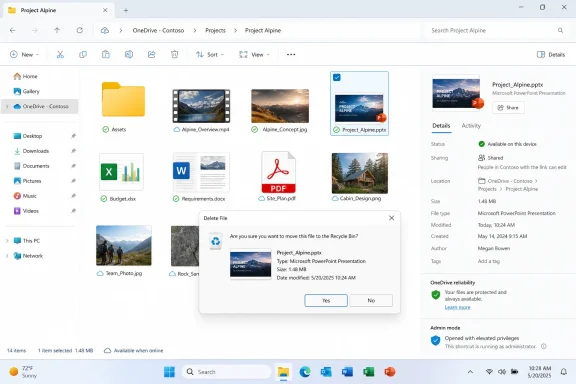
The deletion-dialog fix is another example of a small defect appearing at the worst possible moment. After the June 2026 security updates, some Windows systems displayed internal Recycle Bin names such as “$Rxxxxx.ext” when permanently deleting a single item, rather than showing the original filename. The file was not renamed, and restoration behavior reportedly remained intact, but the confirmation prompt became less trustworthy.That matters because confirmation dialogs are trust rituals. Windows asks, in effect, “Are you sure you want to destroy this?” The user expects the dialog to identify the item in human terms. If the system instead presents an internal storage name, even briefly, it introduces uncertainty at the exact point where certainty is the entire purpose of the interface.
The Recycle Bin has always used internal bookkeeping. Deleted files are moved into hidden per-drive storage and represented with metadata that lets Windows show the friendly original name and restore location. Users are not supposed to see that machinery. When they do, it is not necessarily dangerous, but it is disorienting.
Microsoft’s correction is therefore more than a cosmetic repair. It restores a basic promise: when Windows asks for permission to permanently delete something, it should name the thing in the same language the user used to select it. Anything else turns a safety prompt into an implementation detail.
Optional Preview Updates Are Now the Dress Rehearsal for Everyone Else
KB5095093 is an optional preview update, which means many cautious users and managed organizations will not rush to install it. That is sensible. Preview cumulative updates are Microsoft’s late-month staging area for non-security fixes that typically roll into the following month’s broader cumulative release, assuming no show-stopping regressions appear.For enthusiasts, these updates offer early access to practical improvements. For administrators, they are signals. A fix in a preview update tells IT teams what Microsoft believes is ready for production-quality servicing, but it does not necessarily mean every environment should deploy it immediately.
The File Explorer changes are particularly interesting because they sit at the border between visible quality and operational reliability. Faster folder handling, better cloud previews, and corrected OneDrive navigation can reduce support friction, but Explorer regressions can also be disproportionately disruptive. A broken shell is not like a broken accessory app; it touches almost every workflow.
That is why Microsoft’s gradual rollout language remains important. Some features and fixes may not appear for every eligible user at the same time, even after the update is installed. This can frustrate power users trying to verify a change, but it reflects Microsoft’s modern servicing model: ship broadly, enable carefully, watch telemetry, then expand.
Windows 11’s File Manager Is Becoming a Cloud Negotiator
The bigger arc is that File Explorer is no longer a neutral viewer of local storage. It negotiates among local disks, OneDrive, SharePoint, Microsoft 365 recents, cloud placeholders, indexed metadata, sync states, and security boundaries. That is a fundamentally harder job than listing files in a folder.Microsoft’s challenge is that users still judge Explorer by old expectations. Press Windows+E, open a folder, see files instantly, identify the right one, move it, copy it, rename it, delete it, recover it. Every modern layer has to improve that flow or get out of the way.
The Details pane and cloud thumbnail work show Microsoft trying to make cloud-backed files feel native. The OneDrive admin-mode fix shows the company repairing a seam between modern identity-driven storage and traditional elevated maintenance workflows. The deletion-dialog fix shows the company cleaning up a regression in one of Windows’ oldest safety surfaces.
Taken together, these changes point to a more realistic strategy for Windows 11. Microsoft does not need to reinvent file management every six months. It needs to make the modernized Explorer less surprising. In Windows, boring is not an insult; it is a product requirement.
The Changelog Says “Polish,” but the Subtext Says “Trust”
The practical advice is straightforward: if you are an enthusiast on Windows 11 24H2 or 25H2 and these bugs affect you, KB5095093 is worth evaluating. If you manage fleets, treat it as a preview of what is likely coming next, test against your OneDrive, shell-extension, backup, and endpoint-security stack, and avoid assuming every visible change is enabled immediately.The more important lesson is that File Explorer’s rough edges now have broader consequences than they did a decade ago. A thumbnail failure is a cloud experience failure. A broken OneDrive shortcut is an identity and elevation failure. A confusing delete prompt is a trust failure.
The Fixes Worth Noticing Before July’s Broader Rollout
Microsoft’s latest Explorer work is not glamorous, but it lands in places users touch every day. The update’s value is clearest when viewed as a set of corrected expectations rather than a bundle of new features.- The Details pane is being refined into a clearer, more useful space for file properties, previews, sharing state, and cloud context.
- Cloud-file thumbnail reliability matters because OneDrive-backed folders are now part of ordinary Windows navigation, not a specialist workflow.
- The OneDrive shortcut fix under administrator mode should reduce friction for power users, technicians, developers, and IT staff.
- The permanent-delete confirmation repair restores the original filename where Windows had exposed an internal Recycle Bin name.
- The optional preview update gives administrators a chance to validate these changes before they are expected to reach a wider audience through regular cumulative servicing.
References
- Primary source: thewincentral.com
Published: 2026-06-29T08:10:09.926765
Windows 11 File Explorer Gets Smarter with New Fixes - WinCentral
Windows 11 improves File Explorer with better cloud previews, a redesigned Details pane, and important OneDrive fixes. - Read in Windows 11 News on WinCentral thewincentral.com
- Official source: support.microsoft.com
File Explorer in Windows | Microsoft Support
Find and open File Explorer in Windows, and customize Quick access by pinning and removing files and folders.support.microsoft.com - Related coverage: howtogeek.com
Windows 11's File Explorer Is Getting a New Details Pane
Another Windows 7-era element is getting a refresh. www.howtogeek.com
- Related coverage: windowscentral.com
Microsoft is modernizing even more parts of File Explorer on Windows 11 | Windows Central
The File Explorer details pane is getting a face lift.www.windowscentral.com - Official source: learn.microsoft.com
Duplicate OneDrive Shortcut on File Explorer Pane - Microsoft Q&A
I've been recently using OneDrive and noticed that I have 2 of the same shortcuts on the left pane of File Explorer, which for me is quite irritating. I am running Windows 11 Professional 23H2 Build 22631.4169 and have installed all the latest…learn.microsoft.com - Related coverage: scscc.club
- Official source: blogs.windows.com
Announcing Windows 11 Insider Preview Build 23451
Hello Windows Insiders, today we are releasing Windows 11 Insider Preview Build 23451 to the Dev Channel. What’s new in Build 23451 Modernized Details Pane in File Explorer We areblogs.windows.com - Related coverage: techrepublic.com
Microsoft Confirms Windows Recycle Bin Bug Affects All Supported Versions
Microsoft confirmed a Windows June update bug that shows internal Recycle Bin file names during permanent deletion, with a fix planned.www.techrepublic.com
- Related coverage: shellex.info
OneDrive Icon Overlay Not Showing in Windows 11? Fix Sync Status Icons (2026) | ShellEx Info
Fix missing OneDrive sync status icons in File Explorer caused by the Windows icon overlay limit. Learn the registry trick to prioritize OneDrive overlays over Dropbox, TortoiseSVN, and others. shellex.info
- Related coverage: techspot.com
This month's Windows 11 update broke the Recycle Bin, OneDrive, and possibly your PC's stability | TechSpot Forums
According to Microsoft, users who have installed the KB5095051 update might encounter a strange Recycle Bin bug that replaces the names of deleted files...www.techspot.com
- Related coverage: vpncentral.com
Microsoft Confirms Recycle Bin Bug After June 2026 Windows Updates
Microsoft has confirmed a new Windows bug that causes the Recycle Bin deletion confirmation dialog to show an internal file name instead of the original file name. The issue appears after installing the June 9, 2026 Windows security updates, according to Microsoft’s Windows release health... vpncentral.com
- Related coverage: officeconsumer.com
Why Does the OneDrive App Not Open? (w/Examples) + FAQs
The OneDrive app often fails to open because of a corrupted user profile, a broken update, blocked startup permissions, a stuck sync process, or a conflictofficeconsumer.com - Related coverage: umatechnology.org
Where Are Recycle Bin Files Actually Stored in Windows?
Discover where Recycle Bin files are stored in Windows, how $Recycle.Bin, SIDs, and metadata work, and how to view them safely without recovery mistakes umatechnology.org
- Related coverage: windowsforum.com
Windows Recycle Bin Shows Internal $R File Names After June 9 Security Updates | Windows Forum
Microsoft confirmed on June 18, 2026, that Windows security updates released on June 9 can cause the Recycle Bin’s delete confirmation dialog to show an...windowsforum.com - Related coverage: getsolarny.com
- Related coverage: notebookcheck.net
Windows 11 KB5095093 Preview adds Point-in-time restore - Notebookcheck News
Microsoft launches Windows 11 optional preview update KB5095093 for versions 24H2 and 25H2, introducing Point-in-time restore and a Recycle Bin display patch. www.notebookcheck.net
- Related coverage: windowslatest.com
Microsoft begins rolling out a faster File Explorer on Windows 11, and no, it's not preloading
Microsoft has quietly confirmed that it's rolling out a faster File Explorer on Windows 11, and a faster context menu is coming. www.windowslatest.com
- Related coverage: pcworld.com
Microsoft quietly sped up File Explorer in June's optional update | PCWorld
Microsoft's optional KB5095093 update speeds up File Explorer, fixes the address bar, and improves disk image performance.www.pcworld.com - Related coverage: anavem.com
KB5095093: Windows 11 Preview Update – Builds 26200/26100 (2026)
KB5095093 is the June 23, 2026 Preview Cumulative Update for Windows 11 (Builds 26200.8737 & 26100.8737). Fixes taskbar, File Explorer, DirectX, Search, andwww.anavem.com - Related coverage: windowsreport.com
Windows 11 KB5095093 Brings Major File Explorer, Bluetooth, and Networking Improvements
Microsoft's Windows 11 KB5095093 preview update improves File Explorer, Bluetooth, networking, VPN support, voice typing, and more. windowsreport.com
- Related coverage: pureinfotech.com
KB5095093 (build 26200.8737) for Windows 11 drops as part of the July 2026 update (preview) - Pureinfotech
KB5095093 for Windows 11 (build 26200.8737) introduces Point-in-time Restore, Widgets changes, and major improvements to File Explorer, Bluetooth, and the system. pureinfotech.com
- Related coverage: technobaboy.com
Microsoft rolls out Windows 11 KB5095093 with new features - Technobaboy
Windows 11 KB5095093 released with restore snapshots, widget updates, Bluetooth fixes, and Explorer improvements.www.technobaboy.com