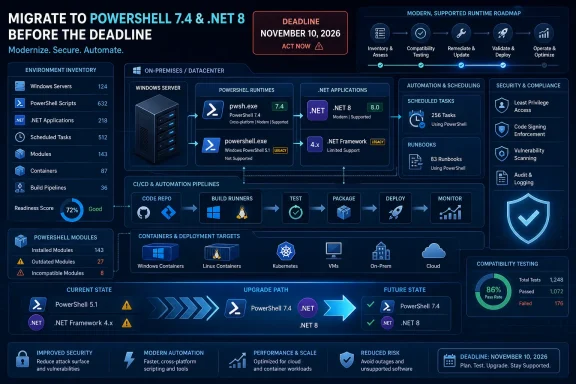
Most production automation running PowerShell 7.4 should be tested directly on PowerShell 7.6 LTS before November 10, 2026—not moved to PowerShell 7.5, which reaches end of support on the same date. Use
PowerShell 7.4 LTS, released November 16, 2023 on.NET 8, reaches end of support on November 10, 2026. PowerShell 7.5 reaches end of support that same day, so moving from 7.4 to 7.5 does not extend the support window. PowerShell 7.6 LTS, released March 18, 2026 on.NET 10, is supported through November 14, 2028, while.NET 10 is supported through November 2028. These dates come from Microsoft’s PowerShell support lifecycle and.NET support policy.
That makes the practical decision tree straightforward:
This distinction matters in the broader retirement of older PowerShell technology. WindowsForum’s reports on the PowerShell 2.0 phaseout describe a long-signaled removal that affects legacy scripts and Windows features rather than merely changing a command-line preference. Its coverage of PowerShell 7.6 also highlights packaging and release-engineering complexity, reinforcing why administrators should begin validation before the support deadline rather than plan a last-minute executable swap.
Query each available engine directly:
Do not rely only on
For each result, decide:
This finds direct references. A service can also call a wrapper that launches PowerShell later, so verify the product’s configuration and logs where applicable.
Search pipeline and deployment definitions too:
Matches are investigation leads, not proof of incompatibility. Prioritize entries that explicitly launch an engine or import a critical module.
Use the following compatibility matrix to direct testing:
Microsoft documents important behavioral and feature differences in Migrating from Windows PowerShell 5.1 to PowerShell 7. Use that guidance to evaluate particular modules instead of assuming every Windows-oriented module is incompatible.
This avoids assuming that a particular package manager, package identifier, installer type, or server configuration is available throughout the estate.
After deployment, open a new terminal and verify the intended executable:
Confirm that:
For each workload:
Treat a successful import as a test result, not as proof of complete compatibility. Validate every command the workload actually uses and obtain vendor support guidance where the module is business-critical.
Retained Windows PowerShell 5.1 workloads should have an owner, host, dependency, business justification, and replacement plan. WindowsForum’s PowerShell 2.0 retirement coverage shows why this documentation matters: legacy engines can remain embedded in automation for years when no one owns the migration.
The safe plan is to deploy 7.6 through an approved method, test every 7.4 workload directly on it, skip 7.5 unless a dependency specifically requires it, and retain Windows PowerShell 5.1 only as an owned and documented exception.
pwsh.exe for PowerShell 7 workloads and powershell.exe for Windows PowerShell 5.1 exceptions; verify the executable in every task, service, and pipeline before changing it.
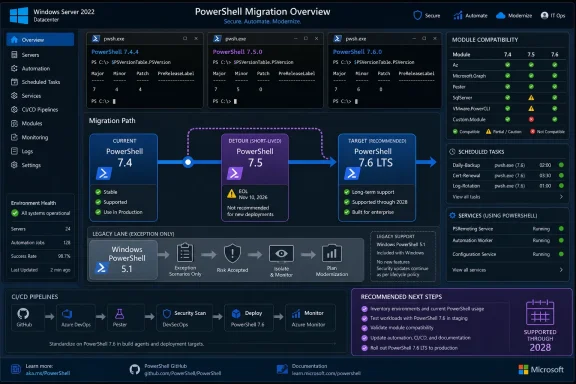 Why November 10 Is a Dependency Deadline
PowerShell 7.4 LTS, released November 16, 2023 on.NET 8, reaches end of support on November 10, 2026. PowerShell 7.5 reaches end of support that same day, so moving from 7.4 to 7.5 does not extend the support window. PowerShell 7.6 LTS, released March 18, 2026 on.NET 10, is supported through November 14, 2028, while.NET 10 is supported through November 2028. These dates come from Microsoft’s PowerShell support lifecycle and.NET support policy.That makes the practical decision tree straightforward:
- A workload runs on PowerShell 7.4: Test it on 7.6.
- A dependency explicitly requires 7.5: Use 7.5 only for that documented requirement, not for additional lifecycle coverage.
- A workload fails on 7.6 but still runs in Windows PowerShell 5.1: Keep its existing
powershell.exeexecution path as a documented exception while investigating replacement or remediation. - The execution host controls the shell: Inventory and test that host separately rather than assuming a workstation installation changes it.
This distinction matters in the broader retirement of older PowerShell technology. WindowsForum’s reports on the PowerShell 2.0 phaseout describe a long-signaled removal that affects legacy scripts and Windows features rather than merely changing a command-line preference. Its coverage of PowerShell 7.6 also highlights packaging and release-engineering complexity, reinforcing why administrators should begin validation before the support deadline rather than plan a last-minute executable swap.
Inventory PowerShell Before Changing Production
Use this decision-tree-led checklist on representative workstations, servers, and automation hosts.1. Identify the engine used by each workload
Record installed commands:
Code:
Get-Command powershell.exe, pwsh.exe -All -ErrorAction SilentlyContinue |
 Select-Object Name, Version, Source
Code:
powershell.exe -NoProfile -Command '$PSVersionTable'
pwsh.exe -NoProfile -Command '$PSVersionTable'PATH. Record the complete executable path used by production tasks.2. Find scheduled tasks that call PowerShell
Code:
Get-ScheduledTask | ForEach-Object {
 $task = $_

 foreach ($action in $task.Actions) {
 if ($action.Execute -match '(?i)(powershell|pwsh)(\.exe)?$') {
 [pscustomobject]@{
 TaskPath = $task.TaskPath
 TaskName = $task.TaskName
 Execute = $action.Execute
 Arguments = $action.Arguments
 }
 }
 }
} | Format-Table -AutoSizepwsh.exerunning 7.4: schedule a 7.6 test.pwsh.exerunning 7.5: document the dependency or schedule a 7.6 test.powershell.exe: determine whether 5.1 is genuinely required before changing it.- Fixed executable path: preserve that path in rollback records.
3. Check services
Code:
Get-CimInstance Win32_Service |
 Where-Object PathName -Match '(?i)(powershell|pwsh)(\.exe)?' |
Select-Object Name, State, StartName, PathName4. Scan automation repositories
Set$Root to a repository or automation share:
Code:
$Root = 'C:\Automation'

Get-ChildItem $Root -Recurse -File -Include *.ps1,*.psm1,*.psd1 |
 Select-String -Pattern @(
 '#requires\s+-Version',
 'powershell\.exe',
 'pwsh\.exe',
 'Add-PSSnapin',
 'Import-Module',
 '\bworkflow\b',
 'WindowsPowerShell'
 ) |
 Select-Object Path, LineNumber, Line
Code:
Get-ChildItem $Root -Recurse -File -Include *.yml,*.yaml,*.json,*.xml |
 Select-String -Pattern @(
 'powershell',
 'pwsh',
 'mcr\.microsoft\.com/powershell',
 '\.ps1'
 ) |
Select-Object Path, LineNumber, Line5. Export module inventories
Run this in each engine currently used by production:
Code:
Get-Module -ListAvailable |
 Sort-Object Name, Version -Unique |
 Select-Object Name, Version, Path, CompatiblePSEditions |
Export-Csv ".\PowerShell-Modules-$($PSVersionTable.PSEdition).csv" -NoTypeInformation| Finding | Decision |
|---|---|
| Module imports and passes tests in 7.6 | Candidate for migration |
| Module vendor documents 7.6 support | Validate in your environment, then migrate |
Module is marked only for Desktop | Investigate before migration |
Script uses Add-PSSnapin or workflow | Treat as a redesign candidate |
| Private binary module has no current owner | Assign ownership and test before cutover |
| Module works only through a compatibility mechanism | Keep as an exception until behavior and vendor support are confirmed |
Deploy PowerShell 7.6 Through an Approved Method
Use Microsoft’s official PowerShell installation guidance for Windows to select a supported installation method, then distribute the approved package through your organization’s software-management process.This avoids assuming that a particular package manager, package identifier, installer type, or server configuration is available throughout the estate.
After deployment, open a new terminal and verify the intended executable:
pwsh.exe -NoProfile -Command '$PSVersionTable'Confirm that:
PSVersionreports the approved 7.6 release.PSEditionreportsCore.- The path matches the executable that scheduled tasks and services will use.
- Production jobs have not changed merely because the interactive shell changed.
Test the Runtime Change, Not Just Syntax
Moving from PowerShell 7.4 to 7.6 also changes the underlying runtime from.NET 8 to.NET 10, as shown in Microsoft’s PowerShell support lifecycle table. Parsing a script successfully is therefore not enough.For each workload:
- Start 7.6 without profiles:
pwsh.exe -NoLogo -NoProfile- Import every required module explicitly:
Import-Module ModuleName -ErrorAction Stop- Run read-only operations or use a test environment first.
- Capture errors, warnings, native-command exit codes, and output files.
- Test under the real service account, scheduled-task identity, or automation agent.
- Exercise credential access, network paths, remoting, proxies, certificates, APIs, and downstream parsers used by the complete job.
- Compare resulting objects, files, logs, and system state with the 7.4 baseline.
Import-Module ModuleName -UseWindowsPowerShellTreat a successful import as a test result, not as proof of complete compatibility. Validate every command the workload actually uses and obtain vendor support guidance where the module is business-critical.
Check Every Execution Host Once
Maintain one inventory covering:- Administrator endpoints and jump servers
- Scheduled-task and service hosts
- CI/CD agents and self-hosted runners
- Automation platforms and managed runbook services
- Configuration-management systems
- Container definitions
- Remote session configurations
- Applications or vendor products that invoke PowerShell
Use a Controlled Cutover
Migrate in exact, reversible stages:- Deploy PowerShell 7.6 without changing production job definitions.
- Clone a representative job or create a non-production schedule.
- Point only the clone to the verified 7.6 executable.
- Run it with production-equivalent identity and permissions.
- Compare logs, output, exit codes, and resulting state.
- Migrate jobs in groups based on business impact.
- Monitor each group through an agreed validation period.
- Preserve the previous task action, pipeline definition, and executable path until validation ends.
Retained Windows PowerShell 5.1 workloads should have an owner, host, dependency, business justification, and replacement plan. WindowsForum’s PowerShell 2.0 retirement coverage shows why this documentation matters: legacy engines can remain embedded in automation for years when no one owns the migration.
Troubleshooting Failed Migrations
Use the failure point to narrow the investigation:pwsh.exeis not found: Verify installation, the complete executable path, and the account’s environment.- The wrong version launches: Check task actions, service command lines, runner configuration, aliases, and
PATHorder. - A module is missing: Compare module inventories and follow the module publisher’s installation instructions.
- A module will not import: Check
CompatiblePSEditions, binary dependencies, vendor support, and Microsoft’s migration guidance. - Interactive testing succeeds but automation fails: Test with the actual identity, working directory, environment variables, and noninteractive settings.
- Output changed: Compare object properties and exported formats rather than checking only whether the command completed.
- A native program fails: Record
$LASTEXITCODE, architecture, arguments, quoting, environment, and working directory.
Frequently Asked Questions
Does upgrading from PowerShell 7.4 to 7.5 buy more support time?
No. Both reach end of support on November 10, 2026. PowerShell 7.6 LTS is supported through November 14, 2028, according to Microsoft’s PowerShell support lifecycle.Must Windows PowerShell 5.1 be removed when adopting 7.6?
No migration plan should remove or alter 5.1 merely to force workloads onto 7.6. Usepwsh.exe for validated PowerShell 7.6 automation and retain powershell.exe only for documented Windows PowerShell dependencies. Follow Microsoft’s Windows and PowerShell servicing guidance before changing an operating-system component.Will installing.NET 10 automatically migrate PowerShell 7.4?
No. Treat the PowerShell deployment and each workload cutover as explicit tasks. Verify the executable and version used by every host.Can an application remain on PowerShell 7.4 after November 10, 2026?
It may still launch, but it will be outside Microsoft’s support window. Document and isolate any temporary exception, apply available servicing updates, assign an owner, and prioritize migration.The safe plan is to deploy 7.6 through an approved method, test every 7.4 workload directly on it, skip 7.5 unless a dependency specifically requires it, and retain Windows PowerShell 5.1 only as an owned and documented exception.
References
- Primary source: learn.microsoft.com
PowerShell - Microsoft Lifecycle | Microsoft Learn
PowerShell follows the Modern Lifecycle Policy.learn.microsoft.com - Independent coverage: github.com
Releases · PowerShell/PowerShell · GitHub
PowerShell for every system! Contribute to PowerShell/PowerShell development by creating an account on GitHub. github.com
- Primary source: WindowsForum
PowerShell 2.0 Retirement in Windows 11: What Admins Need to Know | Windows Forum
For more than a decade, PowerShell 2.0 has lingered as a legacy artifact in the Windows ecosystem. Now, Microsoft is finally drawing the curtain on what was...windowsforum.com