

The Bluetooth icon in Windows 11 is restored by enabling Show the Bluetooth icon in the notification area under Settings > Bluetooth & devices > Devices > More Bluetooth settings. These instructions cover current Windows 11 Home, Pro, Enterprise, and Education releases in 2026. They address the classic Bluetooth Devices icon beside the clock—not the separate Bluetooth button in Quick Settings.
Use this first if Bluetooth works normally but its blue icon is missing from the right side of the taskbar.
If More Bluetooth settings is unavailable, or the dialog does not contain an Options tab, continue to the Bluetooth adapter checks below.
If no Bluetooth switch appears in Settings or Quick Settings, skip to Check the Bluetooth adapter in Device Manager.
Open the hidden-icon menu after the taskbar returns. If the Bluetooth icon remains missing, restart the PC:
Microsoft directs current Windows 11 users to the automated troubleshooter in the Get Help app:
If the adapter has a down-arrow symbol:
You can also ask Device Manager to search for a driver:
Warning: Uninstalling the adapter temporarily disconnects Bluetooth keyboards, mice, headphones, and other Bluetooth devices. Have a wired or USB input device available if Bluetooth is your only way to control the PC.
If Roll Back Driver is unavailable, uninstall the adapter without deleting its driver package, restart Windows, and then install the manufacturer-recommended version.
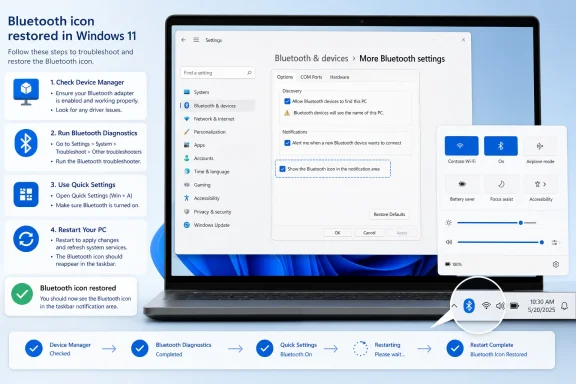 Enable the Bluetooth notification-area icon
Use this first if Bluetooth works normally but its blue icon is missing from the right side of the taskbar.- Select Start and open Settings.
- Select Bluetooth & devices.
- Select Devices.
- Scroll to Related settings.
- Select More Bluetooth settings.
- In the Bluetooth Settings dialog, open the Options tab.
- Check Show the Bluetooth icon in the notification area.
- Select Apply, and then select OK.
If More Bluetooth settings is unavailable, or the dialog does not contain an Options tab, continue to the Bluetooth adapter checks below.
Move the icon out of the hidden-icon menu
Windows can place the Bluetooth icon in the system tray overflow area instead of showing it permanently beside the clock.- Select the Show hidden icons chevron near the time and date.
- Find the Bluetooth Devices icon.
- Drag the icon from the overflow panel onto the visible system tray.
- Right-click an empty part of the taskbar.
- Select Taskbar settings.
- Expand Other system tray icons.
- If Bluetooth or Bluetooth Devices appears, turn it on.
Turn on Bluetooth
The notification-area icon may disappear when Windows cannot detect an active Bluetooth radio.- Open Settings.
- Select Bluetooth & devices.
- Turn Bluetooth on.
- Press Windows key + A, or select the combined network, sound, and battery area beside the clock.
- Select Bluetooth so that the control shows it is on.
If no Bluetooth switch appears in Settings or Quick Settings, skip to Check the Bluetooth adapter in Device Manager.
Turn off Airplane mode and check wireless controls
Airplane mode can disable Bluetooth, while some laptops have a physical or keyboard-based wireless control that overrides Windows settings.- Press Windows key + A.
- Make sure Airplane mode is off.
- Open Settings > Bluetooth & devices.
- Confirm that Bluetooth is on.
- A physical wireless switch on the side or front of the device.
- A function key bearing a radio, antenna, or airplane symbol.
- A manufacturer utility that controls wireless radios.
- A BIOS or UEFI setting that disables internal Bluetooth.
Restart Windows Explorer if the icon setting is already enabled
If Bluetooth works and the notification-area checkbox is selected, Windows Explorer may not have refreshed the system tray correctly.- Press Ctrl + Shift + Esc to open Task Manager.
- Select Processes.
- Find Windows Explorer.
- Right-click Windows Explorer and select Restart.
Open the hidden-icon menu after the taskbar returns. If the Bluetooth icon remains missing, restart the PC:
- Select Start > Power.
- Select Restart.
Open Bluetooth settings directly
If navigating through Settings is inconvenient, the classic Bluetooth Control Panel component can be opened from Run.- Press Windows key + R.
- Enter:
bthprops.cpl - Select OK.
- Open the Options tab.
- Check Show the Bluetooth icon in the notification area.
- Select Apply, and then select OK.
Run the Windows 11 Bluetooth troubleshooter
Use the troubleshooter when the Bluetooth switch, Quick Settings control, or notification-area icon is missing.Microsoft directs current Windows 11 users to the automated troubleshooter in the Get Help app:
- Open Start.
- Type Get Help, and then open the app.
- Search for:
Troubleshoot Bluetooth - Follow the diagnostic prompts.
- Apply any recommended repair.
- Restart the PC if instructed.
- Open Settings > System > Troubleshoot.
- Select Other troubleshooters.
- Find Bluetooth.
- Select Run if that option is present.
Check the Bluetooth adapter in Device Manager
If Windows has no Bluetooth switch, first determine whether the operating system can detect the adapter.- Right-click Start.
- Select Device Manager.
- Look for a Bluetooth category.
- Expand it and identify the Bluetooth radio or adapter.
If the adapter has a down-arrow symbol:
- Right-click the adapter.
- Select Enable device.
- Restart Windows.
- Turn on Bluetooth and re-enable the notification-area icon.
- Right-click it.
- Select Properties.
- Read the message under Device status.
- Continue with the driver update and reinstall procedures below.
- Select View > Show hidden devices.
- Check Bluetooth again.
- Expand Network adapters and look for a Bluetooth or combined wireless adapter.
- Select Action > Scan for hardware changes.
Install Windows and Bluetooth driver updates
Microsoft distributes some Bluetooth drivers through Windows Update.- Open Settings > Windows Update.
- Select Check for updates.
- Install available updates.
- Open Advanced options > Optional updates.
- Check for relevant Bluetooth, wireless, chipset, or hardware driver updates.
- Install applicable updates.
- Restart the computer.
You can also ask Device Manager to search for a driver:
- Open Device Manager.
- Expand Bluetooth.
- Right-click the Bluetooth adapter.
- Select Update driver.
- Select Search automatically for drivers.
- Follow the displayed instructions.
- Restart the computer after an update.
Reinstall the Bluetooth adapter
Reinstall the adapter when Bluetooth appears in Device Manager but its controls and icon do not return after an update.Warning: Uninstalling the adapter temporarily disconnects Bluetooth keyboards, mice, headphones, and other Bluetooth devices. Have a wired or USB input device available if Bluetooth is your only way to control the PC.
- Open Device Manager.
- Expand Bluetooth.
- Right-click the physical Bluetooth adapter.
- Select Uninstall device.
- Select Uninstall.
- Select Start > Power > Restart.
- Open Device Manager.
- Select Action > Scan for hardware changes.
- Check whether the Bluetooth category and adapter return.
- Install the manufacturer’s Bluetooth driver if they remain absent.
- Restart again.
Roll back a recently changed Bluetooth driver
Use rollback when the icon, Bluetooth switch, or adapter disappeared immediately after a driver update.- Open Device Manager.
- Expand Bluetooth.
- Right-click the Bluetooth adapter and select Properties.
- Open the Driver tab.
- Select Roll Back Driver if available.
- Choose the applicable reason and complete the prompts.
- Restart the computer.
If Roll Back Driver is unavailable, uninstall the adapter without deleting its driver package, restart Windows, and then install the manufacturer-recommended version.
Check restrictions on managed work or school PCs
An organization can use policy to hide the notification area, remove Quick Settings, or restrict Bluetooth use. Signs of management include:- “Some of these settings are managed by your organization.”
- The entire notification area is missing.
- Quick Settings does not open.
- Bluetooth controls are disabled or locked.
- Device Manager access is restricted.
- Bluetooth works for some accounts but not your work account.
Verify that the icon is restored
- Open Settings > Bluetooth & devices and confirm that Bluetooth is on.
- Open Devices > More Bluetooth settings > Options.
- Confirm that Show the Bluetooth icon in the notification area is checked.
- Inspect the visible system tray and the Show hidden icons overflow menu.
- Right-click the Bluetooth Devices icon.
References
- Primary source: Technobezz
Published: 2026-07-14T18:45:25.397000+00:00
How to Show the Bluetooth Icon in Windows 11 (2026) | Technobezz
Bluetooth icon missing in Windows 11? Restore the taskbar icon with current Settings, Quick Settings, and driver fixes.www.technobezz.com - Official source: support.microsoft.com
Update Bluetooth drivers in Windows | Microsoft Support
Update Bluetooth drivers in Windowssupport.microsoft.com - Official source: learn.microsoft.com
Introduction to Bluetooth Profile Drivers - Windows drivers | Microsoft Learn
This article also provides guidelines on how to develop Bluetooth profile drivers for your Bluetooth-enabled device.learn.microsoft.com
