

SharePoint administrators who are not ready for user-driven file archiving should disable tenant-wide file archiving, confirm pay-as-you-go billing and Microsoft 365 Archive prerequisites, verify their SharePoint Online Management Shell version, and then scope and test pilot sites before enabling broader access. WindowsForum’s July 2026 launch report on Roadmap item 477371 makes the practical change clear: Microsoft 365 Archive can now archive individual SharePoint files, turning what might look like a storage feature into a permissions, retrieval, support, and governance decision.
The feature is useful for genuinely inactive content, but it should not be treated as an automatic fit for every document library. Users with edit permissions can archive eligible files, while users with read access can reactivate them. That means a routine collaboration permission can now affect whether a document remains immediately available in active storage.
For a broader overview of the release, see WindowsForum’s coverage of SharePoint File-Level Archiving. The immediate governance question is not whether cold storage has value; it is where the Archive action should be available first and which teams are prepared to support retrieval.
The central issue is straightforward: edit rights can carry an archive decision. A contributor may see a file as finished, while another employee may depend on it as a template, an audit reference, a seasonal report, or an incident-response document.
An archived file is not necessarily a file that has lost business value. A quarterly spreadsheet may sit untouched until a finance review. A proposal may become the starting point for the next bid. An operations document may be opened only when something goes wrong. In each case, the person archiving the file may have a reasonable view of its inactivity, but the person who later needs it may encounter a retrieval delay.
Microsoft documents that reactivation can take up to 24 hours. Files archived in the preceding seven days may reactivate immediately, but that grace period does not eliminate the support challenge. A user may discover that a needed file is archived weeks or months after the original action.
WindowsForum’s reporting on Microsoft 365 Archive’s availability for SharePoint in GCC-L also underscores that this is part of a broader Microsoft 365 cold-storage direction, not a narrow document-library toggle. Organizations in commercial and government environments should apply the same discipline: establish ownership, validate retrieval, and define how archive actions fit with existing records, security, and support processes.
The sensible starting point is a small set of deliberately selected sites, not an assumption that every active SharePoint library is appropriate for end-user-controlled cold storage.
Administrators should also confirm that the SharePoint Online Management Shell installed on their administration workstation is current enough to expose the relevant archive controls. Do not rely on an old script host, a copied command history, or an assumed module version. Verify the installed module and review the current Microsoft command documentation before making production changes.
The core controls are documented in Microsoft’s references for
If the organization needs time to establish governance, the tenant-level setting can be used to disable file archiving:
For site-level configuration, administrators can use the site control:
And the tenant-level setting can be enabled when the organization is ready:
Do not interpret a tenant-off, site-on, tenant-on command sequence as proof that only the intended pilot sites can archive files. The supported interaction between tenant and site settings, the available validation commands, and the proper rollout sequence should be confirmed against Microsoft’s current management guidance before deployment.
The operational work should happen around the commands:
Use representative but non-sensitive files. Include a document that is rarely opened, one accessed through a direct link, one typically found through search, one opened in a browser, and one used through the organization’s normal Windows desktop and Office workflow.
At a minimum, validate these scenarios:
Microsoft documentation remains the authority for supported product behavior. The pilot establishes whether that behavior works cleanly with the organization’s own Purview configuration, internal policies, Windows client workflows, and support procedures.
Review at least three types of content during the pilot:
Finance and IT should review pilot results together. Compare archive usage and billing with retrieval demand, support time, and administrative overhead. Set alerts for unusual archive growth, repeated reactivations, and tickets involving unavailable SharePoint files.
Define exclusions just as clearly. Pilot users should not archive files that support active operations, incident response, recurring reporting, departmental templates, or systems that depend on immediate document availability. The issue is not necessarily whether those files can be archived technically; it is whether the organization accepts the retrieval risk.
Prepare the helpdesk script before training begins:
Microsoft has made file-level archiving available, but that does not make every SharePoint library suitable for user-driven cold storage. The organizations that benefit most will use the launch to establish a measured pilot, prove retrieval and governance workflows, and expand only when an archived document remains manageable in practice—not merely economical on paper.
The feature is useful for genuinely inactive content, but it should not be treated as an automatic fit for every document library. Users with edit permissions can archive eligible files, while users with read access can reactivate them. That means a routine collaboration permission can now affect whether a document remains immediately available in active storage.
For a broader overview of the release, see WindowsForum’s coverage of SharePoint File-Level Archiving. The immediate governance question is not whether cold storage has value; it is where the Archive action should be available first and which teams are prepared to support retrieval.
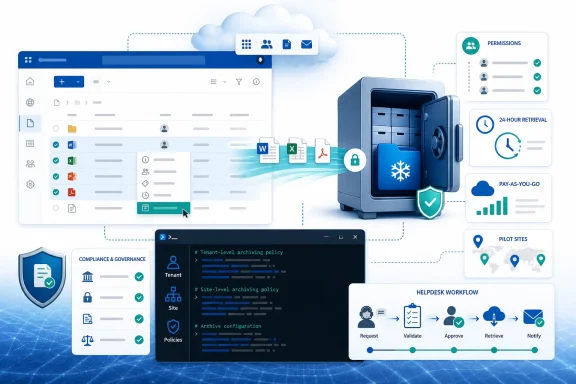 Default-On Changes a Storage Choice Into a Permissions Choice
The central issue is straightforward: edit rights can carry an archive decision. A contributor may see a file as finished, while another employee may depend on it as a template, an audit reference, a seasonal report, or an incident-response document.An archived file is not necessarily a file that has lost business value. A quarterly spreadsheet may sit untouched until a finance review. A proposal may become the starting point for the next bid. An operations document may be opened only when something goes wrong. In each case, the person archiving the file may have a reasonable view of its inactivity, but the person who later needs it may encounter a retrieval delay.
Microsoft documents that reactivation can take up to 24 hours. Files archived in the preceding seven days may reactivate immediately, but that grace period does not eliminate the support challenge. A user may discover that a needed file is archived weeks or months after the original action.
WindowsForum’s reporting on Microsoft 365 Archive’s availability for SharePoint in GCC-L also underscores that this is part of a broader Microsoft 365 cold-storage direction, not a narrow document-library toggle. Organizations in commercial and government environments should apply the same discipline: establish ownership, validate retrieval, and define how archive actions fit with existing records, security, and support processes.
The sensible starting point is a small set of deliberately selected sites, not an assumption that every active SharePoint library is appropriate for end-user-controlled cold storage.
Confirm the Prerequisites Before Changing Policy
Before users can see or use the Archive action, administrators need to confirm two concrete prerequisites:- Pay-as-you-go billing must be configured for the tenant.
- Microsoft 365 Archive must be enabled for the tenant.
Administrators should also confirm that the SharePoint Online Management Shell installed on their administration workstation is current enough to expose the relevant archive controls. Do not rely on an old script host, a copied command history, or an assumed module version. Verify the installed module and review the current Microsoft command documentation before making production changes.
The core controls are documented in Microsoft’s references for
Set-SPOTenant and Set-SPOSite. Use Microsoft’s Microsoft 365 Archive management documentation for the supported scoping model, prerequisites, and validation commands applicable to the tenant.Use PowerShell as a Control Point, Not as a Shortcut to a Pilot
SharePoint Administrators and Global Administrators can use the SharePoint Online Management Shell to control or scope file archiving. The following commands are useful operational controls, but the commands by themselves do not define a safe selective rollout. A pilot requires a documented scope, validation against Microsoft’s supported management model, and tested user workflows.If the organization needs time to establish governance, the tenant-level setting can be used to disable file archiving:
Set-SPOTenant -AllowFileArchive $falseFor site-level configuration, administrators can use the site control:
Set-SPOSite -Identity <site_url> -AllowFileArchive $trueAnd the tenant-level setting can be enabled when the organization is ready:
Set-SPOTenant -AllowFileArchive $trueDo not interpret a tenant-off, site-on, tenant-on command sequence as proof that only the intended pilot sites can archive files. The supported interaction between tenant and site settings, the available validation commands, and the proper rollout sequence should be confirmed against Microsoft’s current management guidance before deployment.
The operational work should happen around the commands:
- Identify sites with clear business ownership and responsive site administrators.
- Choose libraries with predictable, low-risk content and known retrieval expectations.
- Exclude policy repositories, executive collaboration spaces, active operational libraries, application back ends, and other locations where immediate access is important.
- Record the intended archive posture for each pilot site and library.
- Capture the current configuration before changes, then validate the resulting tenant and site states using Microsoft’s documented commands.
- Define who can approve pilot expansion, who receives support escalations, and who reviews billing and retrieval outcomes.
Test the Retrieval Journey, Not Only the Archive Button
A successful archive action does not prove that the organization is ready to use the feature broadly. The pilot should test the complete journey: archive, discovery, reactivation, access, support escalation, and compliance review.Use representative but non-sensitive files. Include a document that is rarely opened, one accessed through a direct link, one typically found through search, one opened in a browser, and one used through the organization’s normal Windows desktop and Office workflow.
At a minimum, validate these scenarios:
- Archive an eligible file as an editor and confirm what a reader sees when searching for it or following a saved link.
- Attempt to open and download an archived file from the browser and Office workflows users actually rely on.
- Have a user with read access reactivate the file and document whether the file returns immediately or follows the longer retrieval path.
- Confirm how search, metadata, permissions, and direct links behave before archive and after reactivation.
- Run normal retention, eDiscovery, audit-review, and export procedures against a known archived test file.
- Record screenshots, timestamps, support notes, and any confusing messages that could affect helpdesk handling.
Microsoft documentation remains the authority for supported product behavior. The pilot establishes whether that behavior works cleanly with the organization’s own Purview configuration, internal policies, Windows client workflows, and support procedures.
Establish a Billing and Retrieval Baseline
Archive storage can be attractive, but it should not be approved as a generic “save money” switch. Before broad deployment, establish a baseline for active SharePoint storage, likely archive candidates, archive growth, reactivation volume, and helpdesk demand.Review at least three types of content during the pilot:
- A low-touch records library where documents are genuinely inactive and retrieval is rare.
- A seasonal working library where files appear dormant but return during audits, renewals, or reporting periods.
- A collaborative project library where completed work remains useful as a reference, source file, or template.
Finance and IT should review pilot results together. Compare archive usage and billing with retrieval demand, support time, and administrative overhead. Set alerts for unusual archive growth, repeated reactivations, and tickets involving unavailable SharePoint files.
Give Users Rules They Will Not Infer
Training should not tell employees simply to archive “old files.” That phrase is too vague to govern a feature that changes retrieval behavior. Define eligible content in business terms: completed material with no expected operational use during the next review period, no role as an active template, and an identified owner who can assess whether it is ready for archive.Define exclusions just as clearly. Pilot users should not archive files that support active operations, incident response, recurring reporting, departmental templates, or systems that depend on immediate document availability. The issue is not necessarily whether those files can be archived technically; it is whether the organization accepts the retrieval risk.
Prepare the helpdesk script before training begins:
That instruction reduces a common secondary problem: duplicate documents created because a user assumes an archived file has been deleted. The retrieval path must be clear enough that employees do not work around it with uncontrolled copies.“The file may have been archived in SharePoint. If you have read access, reactivate the file from its original location. Files archived in the last seven days may reactivate immediately; otherwise, reactivation can take up to 24 hours. Do not create a replacement copy until the site owner or support team confirms the retrieval path.”
Frequently Asked Questions
Should administrators disable file-level archiving everywhere?
Not permanently, unless the organization intends to use Microsoft 365 Archive without user-driven file archiving. Temporarily disabling tenant-wide file archiving is reasonable when the feature arrives before governance, testing, billing review, and support procedures are ready.Can a read-only user reactivate an archived file?
Yes. Users with read access can reactivate the file, while users with edit permissions can archive eligible files.How should administrators create a selective pilot?
Start by confirming billing, Microsoft 365 Archive enablement, and the management-shell version. Then use Microsoft’s current Microsoft 365 Archive management documentation to configure and validate the supported tenant and site scope. Do not treat a few PowerShell commands as a substitute for validating the resulting configuration.How long should a pilot run?
Long enough to test archive, search, reactivation, support escalation, billing review, and normal compliance procedures. A pilot that tests only immediate reactivation within the seven-day window has not tested the most consequential retrieval experience.Microsoft has made file-level archiving available, but that does not make every SharePoint library suitable for user-driven cold storage. The organizations that benefit most will use the launch to establish a measured pilot, prove retrieval and governance workflows, and expand only when an archived document remains manageable in practice—not merely economical on paper.
References
- Primary source: learn.microsoft.com
Manage Microsoft 365 Archive - Microsoft 365 Archive | Microsoft Learn
Learn how to archive, reactivate, and manage sites in Microsoft 365 Archive.learn.microsoft.com - Independent coverage: microsoft.com
Microsoft 365 Roadmap | Microsoft 365
The Microsoft 365 Roadmap lists updates that are currently planned for applicable subscribers. Check here for more information on the status of new features and updates.www.microsoft.com
- Independent coverage: mc.merill.net
MC1381114 - Microsoft 365 Archive: File-level archiving General Availability | Microsoft 365 Message Center Archive
Microsoft 365 Archive now supports file-level archiving for SharePoint files, enabling cold storage with discoverability. Rolling out worldwide in July 2026, it is enabled by…mc.merill.net - Independent coverage: support.microsoft.com
Restore deleted items from the site collection recycle bin  | Microsoft Support
Learn how to manage the SharePoint Site Collection recycle bin for SharePoint Online.support.microsoft.com - Primary source: WindowsForum
SharePoint File-Level Archiving Launches in Microsoft 365 Archive (July 2026) | Windows Forum
Microsoft has marked Microsoft 365 Roadmap item 477371 as launched, bringing file-level archiving to Microsoft 365 Archive for SharePoint in July 2026. The...windowsforum.com
