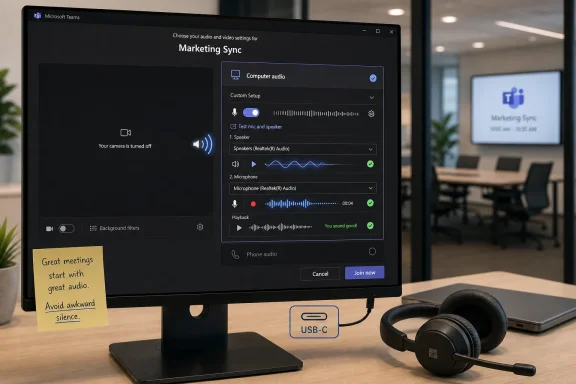
Microsoft is rolling out a Microsoft Teams pre-join audio test in June 2026 that lets users record and play back a short microphone sample from the meeting join screen before entering a call, with worldwide commercial tenants expected to receive it by late June and government clouds after that. It is a small feature with an unusually large emotional payload, because Teams meetings often fail not in grand outages but in the first awkward 20 seconds of “can you hear me?” The change matters because it moves troubleshooting from the public stage of a meeting to the private anteroom where it always belonged.
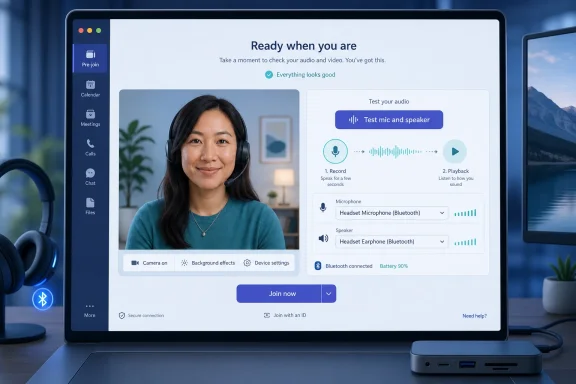
Teams has long had ways to check devices, but Microsoft’s new pre-join option changes the moment at which the check happens. Instead of digging through settings, launching a separate test call, or gambling that the right headset is still selected, users will see a “Test mic and speaker” control on the same screen where they choose whether to enter a meeting.
That placement is the story. Enterprise software often treats configuration as an administrative ritual: something done in advance, in a settings panel, ideally before the user is under pressure. Real users behave differently. They change rooms, switch headsets, dock and undock laptops, hand off between Bluetooth earbuds and monitor speakers, and then discover the problem only after a dozen people are already watching them troubleshoot.
The new Teams flow is simple enough to sound almost trivial. A user opens a meeting, stays on the pre-join screen, records a short audio clip, plays it back, and confirms both microphone input and speaker output before joining. The feature is enabled by default and, according to Microsoft’s rollout messaging, does not require administrator action.
That last detail is important for IT departments. A useful end-user quality-of-life fix that requires no tenant policy ceremony is the rare Teams update that can reduce tickets without creating a parallel deployment project. It will not solve every audio problem, but it should eliminate a class of preventable embarrassments.
For years, the burden sat mostly on the user. Teams offered device settings and test-call mechanisms, but they lived in places that made sense to people who already knew where to look. A user preparing for a job interview, board presentation, client escalation, or class session is not calmly exploring settings menus. They are trying to make sure they do not enter a meeting sounding like a submarine radio.
That is why the pre-join screen is such valuable real estate. It is the one moment when the user is already thinking about meeting readiness. Camera on or off, microphone muted or live, background blurred or visible, speaker and mic selected: these decisions naturally belong together.
Microsoft’s fix acknowledges that audio testing is not a separate technical task. It is part of joining a meeting. By folding it into the join flow, Teams is catching the problem at the point of intent rather than after the social damage is done.
Bluetooth alone can make sane users feel cursed. Many headsets expose separate profiles for high-quality playback and bidirectional call audio, and the “right” choice depends on what the meeting app is trying to do. Add a dock, an external monitor with speakers, a webcam with its own microphone, and a laptop lid state change, and it becomes easy for Teams to pick a technically valid device that is practically wrong.
That is why a playback test is more useful than a passive meter. A volume indicator can tell users that sound is entering a microphone, but it does not confirm that the microphone is the one they intended to use. A speaker selection menu can show the selected output, but it does not guarantee that the user can hear it at the expected volume. Recording and replaying a short clip closes the loop.
The feature also helps with subtle failures. A mic may work but be too quiet. A headset may connect but sound distorted. A laptop array mic may pick up typing and room noise instead of the user’s voice. A private pre-join recording gives users a quick, human answer: is this what I want other people to hear?
A collaboration platform cannot hide behind power-user complexity when it is the default meeting room for an entire company. The same product must serve a sysadmin joining from a managed Windows workstation, a sales rep in a hotel room, a student on a personal laptop, a contractor in a browser, and an executive walking into a high-stakes call with three minutes to spare. In that world, “just check your settings” is not a satisfying answer.
The pre-join audio test is part of a broader pattern in Teams development: Microsoft is trying to turn meeting confidence into a visible product feature. Recent improvements around audio indicators, meeting controls, device selection, summaries, transcription, and AI-assisted recap all point in the same direction. Teams is not merely trying to connect people; it is trying to reduce the number of small failures that make virtual work feel brittle.
That is the optimistic reading. The more skeptical reading is that Teams still needs too many repairs to things users assumed should have worked elegantly already. Both readings can be true. Mature software often improves not through revolutionary redesign but by sanding down the sharp edges that millions of users hit every day.
For administrators, the key operational point is that no action is expected. There is no policy to enable, no training campaign required, and no compliance review implied by the feature itself. The user records a short local test sample for playback before joining, not a meeting artifact intended for retention or sharing.
That does not mean IT should ignore it. Help desks should update internal Teams guidance, especially pages that still tell users to make a separate test call before important meetings. Onboarding documents for executives, presenters, interview panels, court or public-sector hearing participants, and remote workers should mention the new pre-join control once it appears in the tenant.
The smartest organizations will treat this as a nudge, not a news item. The best Teams feature is the one a user discovers at exactly the moment they need it. Still, a single screenshot in a “before your meeting” guide could prevent a surprising number of support pings.
There is also a psychological difference between testing in a settings panel and testing in the meeting context. In settings, the user may be testing the default Teams configuration. On the pre-join screen, the user is checking the actual state they are about to bring into a real meeting, including whichever device Teams currently plans to use.
That distinction matters in shared-device and hot-desk environments. It also matters for people who switch frequently between home offices, conference rooms, customer sites, and travel setups. Teams may remember prior device choices, Windows may adjust defaults, and peripherals may appear or disappear depending on docking state. The pre-join test is a final checkpoint after all of those variables have already done their damage.
In other words, Microsoft has not invented audio diagnostics. It has moved them from the toolbox to the door handle.
Every minute spent resolving audio at the start of a meeting is multiplied by the number of people waiting. In a one-on-one, that is annoying. In a 20-person planning call, it is expensive. In a sales pitch, interview, webinar, legal proceeding, or classroom setting, it can change the tone of the entire interaction.
The new pre-join test will not force better meeting culture, but it supports it. Good meeting discipline depends on participants arriving ready, and readiness now includes verifying that the tools of participation actually work. Microsoft is effectively telling users: check the thing that most often breaks before everyone else has to watch it break.
There is a quiet accessibility angle here as well. Clear audio is not merely a convenience for people with perfect hearing in quiet rooms. It affects caption accuracy, comprehension, fatigue, and the ability of participants to follow discussions across accents, environments, and devices. A simple pre-join playback can improve the quality of the signal before Teams’ more advanced features ever get involved.
That contrast is not a contradiction. It is the condition of enterprise software in 2026. AI features may reshape how work is summarized, searched, and automated, but they depend on the boring layers beneath them. A meeting summary is only as good as the audio captured. A transcript is only as useful as the signal it receives. Speaker attribution, voice profiles, and intelligent recap all become less impressive if half the first discussion is spent diagnosing a headset.
The pre-join test is therefore more than a nicety. It is part of the foundation beneath Microsoft’s AI meeting ambitions. If Teams is going to become the system of record for what happened in a meeting, then Teams must first be a reliable medium for what was said in the meeting.
This is where Microsoft’s practical side shows through. The company may market Copilot as the future of work, but it knows the future of work still begins with a microphone, a speaker, and a user hoping the correct device was selected.
Still, administrators should watch for documentation drift. Internal knowledge-base articles, service-desk macros, and training decks often accumulate old Teams instructions long after the interface changes. Once the new pre-join audio test lands broadly, guidance that sends users into Settings first will feel outdated and needlessly complicated.
There may also be support questions around availability. Users in different rings, tenants, platforms, and cloud environments may not see the control at the same time. Government tenants traditionally lag commercial worldwide rollout for many Microsoft 365 features, and phased deployment means “my colleague has it but I do not” will be a predictable complaint.
IT teams should answer that with chronology rather than guesswork. The feature is rolling out in stages, not appearing everywhere at once. A calm note in the service desk portal may prevent users from assuming their client is broken.
A pre-join audio test also respects the social reality of meetings. The worst part of an audio failure is not merely that the microphone fails. It is that the failure happens in front of other people, often at the moment when the user is supposed to appear prepared. By giving users a private rehearsal, Teams reduces both friction and embarrassment.
That matters in professional contexts where confidence is part of the job. Job seekers, presenters, teachers, clinicians, consultants, sales teams, support engineers, and executives all face situations where the first impression of a meeting is shaped by whether they can simply be heard. A small private test can prevent the opening seconds from becoming a technical apology.
The best interface improvements often feel obvious after they ship. This one does. That should not be held against it. Obvious fixes are often the ones users have been waiting for the longest.
 Microsoft Finally Puts the Audio Test Where the Panic Happens
Teams has long had ways to check devices, but Microsoft’s new pre-join option changes the moment at which the check happens. Instead of digging through settings, launching a separate test call, or gambling that the right headset is still selected, users will see a “Test mic and speaker” control on the same screen where they choose whether to enter a meeting.That placement is the story. Enterprise software often treats configuration as an administrative ritual: something done in advance, in a settings panel, ideally before the user is under pressure. Real users behave differently. They change rooms, switch headsets, dock and undock laptops, hand off between Bluetooth earbuds and monitor speakers, and then discover the problem only after a dozen people are already watching them troubleshoot.
The new Teams flow is simple enough to sound almost trivial. A user opens a meeting, stays on the pre-join screen, records a short audio clip, plays it back, and confirms both microphone input and speaker output before joining. The feature is enabled by default and, according to Microsoft’s rollout messaging, does not require administrator action.
That last detail is important for IT departments. A useful end-user quality-of-life fix that requires no tenant policy ceremony is the rare Teams update that can reduce tickets without creating a parallel deployment project. It will not solve every audio problem, but it should eliminate a class of preventable embarrassments.
The “Can You Hear Me?” Problem Was Always a Design Problem
The phrase “can you hear me?” became one of the defining rituals of pandemic-era work, but it survived because hybrid work made the edge cases permanent. A laptop that worked yesterday might be docked today. A headset that behaved in one app might silently become the wrong device in another. A browser permission, Bluetooth profile, monitor speaker, or operating-system default can derail the first minute of a meeting.For years, the burden sat mostly on the user. Teams offered device settings and test-call mechanisms, but they lived in places that made sense to people who already knew where to look. A user preparing for a job interview, board presentation, client escalation, or class session is not calmly exploring settings menus. They are trying to make sure they do not enter a meeting sounding like a submarine radio.
That is why the pre-join screen is such valuable real estate. It is the one moment when the user is already thinking about meeting readiness. Camera on or off, microphone muted or live, background blurred or visible, speaker and mic selected: these decisions naturally belong together.
Microsoft’s fix acknowledges that audio testing is not a separate technical task. It is part of joining a meeting. By folding it into the join flow, Teams is catching the problem at the point of intent rather than after the social damage is done.
A Tiny Feature Exposes the Complexity Under Modern Meetings
The reason this feature took on outsized importance is that audio in modern collaboration software is deceptively complicated. The average Teams user may see only a microphone icon and a speaker icon, but underneath that are device drivers, operating-system permissions, Bluetooth profiles, browser sandboxing, Teams client state, hardware mute switches, noise suppression, echo cancellation, and sometimes corporate device-management policies.Bluetooth alone can make sane users feel cursed. Many headsets expose separate profiles for high-quality playback and bidirectional call audio, and the “right” choice depends on what the meeting app is trying to do. Add a dock, an external monitor with speakers, a webcam with its own microphone, and a laptop lid state change, and it becomes easy for Teams to pick a technically valid device that is practically wrong.
That is why a playback test is more useful than a passive meter. A volume indicator can tell users that sound is entering a microphone, but it does not confirm that the microphone is the one they intended to use. A speaker selection menu can show the selected output, but it does not guarantee that the user can hear it at the expected volume. Recording and replaying a short clip closes the loop.
The feature also helps with subtle failures. A mic may work but be too quiet. A headset may connect but sound distorted. A laptop array mic may pick up typing and room noise instead of the user’s voice. A private pre-join recording gives users a quick, human answer: is this what I want other people to hear?
Teams Is Still Paying Down Its Collaboration Debt
Microsoft Teams has grown from a Slack competitor into a sprawling workplace operating surface. It hosts chats, meetings, webinars, files, apps, calendars, Copilot features, phone systems, frontline workflows, and increasingly a layer of AI-generated meeting intelligence. That breadth has made Teams indispensable in many organizations, but it has also made small usability failures more conspicuous.A collaboration platform cannot hide behind power-user complexity when it is the default meeting room for an entire company. The same product must serve a sysadmin joining from a managed Windows workstation, a sales rep in a hotel room, a student on a personal laptop, a contractor in a browser, and an executive walking into a high-stakes call with three minutes to spare. In that world, “just check your settings” is not a satisfying answer.
The pre-join audio test is part of a broader pattern in Teams development: Microsoft is trying to turn meeting confidence into a visible product feature. Recent improvements around audio indicators, meeting controls, device selection, summaries, transcription, and AI-assisted recap all point in the same direction. Teams is not merely trying to connect people; it is trying to reduce the number of small failures that make virtual work feel brittle.
That is the optimistic reading. The more skeptical reading is that Teams still needs too many repairs to things users assumed should have worked elegantly already. Both readings can be true. Mature software often improves not through revolutionary redesign but by sanding down the sharp edges that millions of users hit every day.
The Rollout Timing Matters More Than the Feature Size Suggests
Microsoft’s message center guidance puts the rollout in the late-spring to early-summer 2026 window, with worldwide tenants expected first and government cloud environments following later. The feature is tied to desktop and Mac meeting experiences, which makes sense because that is where most complex device-switching pain occurs.For administrators, the key operational point is that no action is expected. There is no policy to enable, no training campaign required, and no compliance review implied by the feature itself. The user records a short local test sample for playback before joining, not a meeting artifact intended for retention or sharing.
That does not mean IT should ignore it. Help desks should update internal Teams guidance, especially pages that still tell users to make a separate test call before important meetings. Onboarding documents for executives, presenters, interview panels, court or public-sector hearing participants, and remote workers should mention the new pre-join control once it appears in the tenant.
The smartest organizations will treat this as a nudge, not a news item. The best Teams feature is the one a user discovers at exactly the moment they need it. Still, a single screenshot in a “before your meeting” guide could prevent a surprising number of support pings.
The Existing Test Call Was Useful, but It Was in the Wrong Place
Teams’ older “Make a test call” option was not useless. It gave users a way to verify devices and hear playback, and many IT support scripts relied on it. The problem was discoverability. A feature buried in settings cannot rescue a user already staring at the join button with 30 seconds to go.There is also a psychological difference between testing in a settings panel and testing in the meeting context. In settings, the user may be testing the default Teams configuration. On the pre-join screen, the user is checking the actual state they are about to bring into a real meeting, including whichever device Teams currently plans to use.
That distinction matters in shared-device and hot-desk environments. It also matters for people who switch frequently between home offices, conference rooms, customer sites, and travel setups. Teams may remember prior device choices, Windows may adjust defaults, and peripherals may appear or disappear depending on docking state. The pre-join test is a final checkpoint after all of those variables have already done their damage.
In other words, Microsoft has not invented audio diagnostics. It has moved them from the toolbox to the door handle.
The Real Winner Is Meeting Discipline
The obvious beneficiaries are remote workers and hybrid employees, but the real productivity gain belongs to meetings themselves. Audio failures are uniquely disruptive because they stop the social machinery cold. A video issue can often be ignored. A chat issue can be worked around. A broken microphone turns participation into pantomime.Every minute spent resolving audio at the start of a meeting is multiplied by the number of people waiting. In a one-on-one, that is annoying. In a 20-person planning call, it is expensive. In a sales pitch, interview, webinar, legal proceeding, or classroom setting, it can change the tone of the entire interaction.
The new pre-join test will not force better meeting culture, but it supports it. Good meeting discipline depends on participants arriving ready, and readiness now includes verifying that the tools of participation actually work. Microsoft is effectively telling users: check the thing that most often breaks before everyone else has to watch it break.
There is a quiet accessibility angle here as well. Clear audio is not merely a convenience for people with perfect hearing in quiet rooms. It affects caption accuracy, comprehension, fatigue, and the ability of participants to follow discussions across accents, environments, and devices. A simple pre-join playback can improve the quality of the signal before Teams’ more advanced features ever get involved.
AI Did Not Make the Basics Optional
One of the stranger tensions in modern Microsoft 365 is that Teams is simultaneously becoming more futuristic and still catching up on humble workflow basics. Microsoft is pushing Copilot deeper into meetings, promising summaries, action items, intelligent recaps, and richer collaboration across the Microsoft 365 graph. At the same time, users are celebrating the arrival of a button that lets them hear whether their microphone works.That contrast is not a contradiction. It is the condition of enterprise software in 2026. AI features may reshape how work is summarized, searched, and automated, but they depend on the boring layers beneath them. A meeting summary is only as good as the audio captured. A transcript is only as useful as the signal it receives. Speaker attribution, voice profiles, and intelligent recap all become less impressive if half the first discussion is spent diagnosing a headset.
The pre-join test is therefore more than a nicety. It is part of the foundation beneath Microsoft’s AI meeting ambitions. If Teams is going to become the system of record for what happened in a meeting, then Teams must first be a reliable medium for what was said in the meeting.
This is where Microsoft’s practical side shows through. The company may market Copilot as the future of work, but it knows the future of work still begins with a microphone, a speaker, and a user hoping the correct device was selected.
Admins Should Welcome the Default, but Watch the Edges
Because the feature is enabled by default, most organizations will experience it as a gradual UI improvement rather than a deployment. That is the right approach for a low-risk usability fix. If Microsoft had buried this behind an admin toggle, adoption would have been slower and the people most likely to benefit from it might never have seen it.Still, administrators should watch for documentation drift. Internal knowledge-base articles, service-desk macros, and training decks often accumulate old Teams instructions long after the interface changes. Once the new pre-join audio test lands broadly, guidance that sends users into Settings first will feel outdated and needlessly complicated.
There may also be support questions around availability. Users in different rings, tenants, platforms, and cloud environments may not see the control at the same time. Government tenants traditionally lag commercial worldwide rollout for many Microsoft 365 features, and phased deployment means “my colleague has it but I do not” will be a predictable complaint.
IT teams should answer that with chronology rather than guesswork. The feature is rolling out in stages, not appearing everywhere at once. A calm note in the service desk portal may prevent users from assuming their client is broken.
The Fix Is Small Because the Failure Was Human-Sized
Some Teams updates arrive with diagrams, licensing caveats, admin center controls, and five separate exceptions. This one arrives with a button. That simplicity is precisely why it resonates. It solves a problem that users can describe without technical vocabulary.A pre-join audio test also respects the social reality of meetings. The worst part of an audio failure is not merely that the microphone fails. It is that the failure happens in front of other people, often at the moment when the user is supposed to appear prepared. By giving users a private rehearsal, Teams reduces both friction and embarrassment.
That matters in professional contexts where confidence is part of the job. Job seekers, presenters, teachers, clinicians, consultants, sales teams, support engineers, and executives all face situations where the first impression of a meeting is shaped by whether they can simply be heard. A small private test can prevent the opening seconds from becoming a technical apology.
The best interface improvements often feel obvious after they ship. This one does. That should not be held against it. Obvious fixes are often the ones users have been waiting for the longest.
The New Button Will Save More Meetings Than Its Size Implies
The pre-join audio test is not a sweeping reinvention of Teams, but it is a rare Microsoft 365 update whose value is instantly legible. It puts a practical diagnostic tool in the one place where users are most likely to need it and least likely to go hunting for it.- Microsoft is adding a “Test mic and speaker” option directly to the Teams meeting pre-join screen.
- The feature lets users record a short sample and play it back before they enter the meeting.
- Worldwide commercial rollout is expected by late June 2026, with government cloud completion following afterward.
- The feature is enabled by default and is not expected to require administrator action.
- The biggest benefit is not technical sophistication but better timing, because users can catch device problems before they become meeting interruptions.
- IT teams should update support guidance once the control appears, especially for users preparing for interviews, webinars, client calls, and executive meetings.
References
- Primary source: thewincentral.com
Published: 2026-06-25T06:42:07.571433
Microsoft Teams Now Lets You Test Audio Before Joining a Meeting - WinCentral
Teams now lets users test audio before joining meetings, reducing microphone and speaker issues. - Read in Latest News on WinCentral thewincentral.com
- Related coverage: supersimple365.com
Test your microphone and speaker before joining a Teams meeting - Super Simple 365
Short VersionMicrosoft is introducing the ability to test your microphone and speakers before joining a Teams meeting. Now due mid-May to late June 2026. DetailsResolve your Teams audio issues before joining a meeting by selecting the new Test mic and speaker option on the meeting pre‑join... supersimple365.com
- Official source: support.microsoft.com
Join a meeting in Microsoft Teams | Microsoft Support
Learn how to join a Microsoft Teams meeting by link, calendar, channel, chat, or by calling in.support.microsoft.com - Official source: techcommunity.microsoft.com
New microphone volume indicator in Teams
The new microphone volume indicator in Microsoft Teams on Windows and Mac provides you with real-time visual feedback on your audio levels, minimizing... techcommunity.microsoft.com
- Related coverage: uctoday.com
Microsoft Teams Microphone Test: A Long-Awaited Fix
Microsoft is finally adding a Microsoft Teams microphone test to the pre-join screen. Discover the rollout timeline.www.uctoday.com - Related coverage: kbworks.eu
Teams Test Audio: The Smart New Way to Join Calls Better
Teams test audio is finally on the pre-join screen. Learn how to check your mic and speaker before a meeting, who needs a license, and Paul's take.kbworks.eu
- Related coverage: guidingtech.com
How to Test Audio in Microsoft Teams - Guiding Tech
Want to test audio in Microsoft Teams? Here are easy ways to conduct these tests effectively, guaranteeing optimal audio quality.www.guidingtech.com
- Related coverage: datagrom.com
Teams Finally Fixes Embarrassing Meeting Audio Problems — Datagrom AI News
Microsoft is rolling out two notable Teams updates. A pre-join mic and speaker test, arriving on desktop and Mac in May 2026, lets users record and play back awww.datagrom.com - Related coverage: m365admin.handsontek.net
Improved device selection on Microsoft Teams meeting join screen - M365 Admin
Microsoft Teams now allows users to select and change their microphone, speaker, or headset directly on the meeting join screen across desktop and web clients. This feature is on by default, requires no admin setup, and aims to simplify audio setup before joining meetings. Introduction To reduce...m365admin.handsontek.net - Related coverage: windowscentral.com
Microsoft Teams adds mic icon for live audio feedback | Windows Central
Teams' new mic volume indicator ends the need to ask if you're being heard in the latest wave of updates.www.windowscentral.com - Official source: adoption.microsoft.com
- Related coverage: pa.gov
- Related coverage: houstontx.gov
</rdf:Alt> </dc:title> <dc:description> <rdf:Alt> <rdf:li xml:lang="x-default"/> </rdf:Alt> </dc:description> <dc:creator> <rdf:Seq> <rdf:li>Osibodu
</rdf:Alt> </dc:description> <dc:creator> <rdf:Seq> <rdf:li>Osibodu, Tinu - ITwww.houstontx.gov
- Related coverage: metronorth.health.qld.gov.au
Microsoft Teams Device settings - before and during meetings
PDF documentmetronorth.health.qld.gov.au
- Official source: microsoft.com
Microsoft 365 Roadmap | Microsoft 365
The Microsoft 365 Roadmap lists updates that are currently planned for applicable subscribers. Check here for more information on the status of new features and updates.www.microsoft.com
- Official source: cdn-dynmedia-1.microsoft.com