

Microsoft’s attempt to make File Explorer feel “instant” by preloading it on startup has exposed a simple truth: warming a window in memory is not the same as fixing the underlying architecture that makes the app feel sluggish, and in practice the preload experiment increases memory usage significantly while delivering only modest perceptual gains.
Microsoft has been iterating on File Explorer for years, and the Windows 11 era brought a visible modernization push: new visuals, tabs, and a gradual migration of UI components to WinUI/XAML via the Windows App SDK. Those changes promised a cleaner, more consistent interface across modern apps, but they also introduced a more complex mix of legacy Win32 shell components and modern WinUI elements. That hybrid architecture is central to why many users perceive File Explorer as slower on Windows 11 than on Windows 10. In late-November Insider builds Microsoft began testing a concrete mitigation: an optional setting that preloads parts of File Explorer in the background so the first visible paint happens faster when you open it. The change arrived as part of Windows 11 Insider Preview Build 26220.7271 (KB5070307) and surfaces as a toggle labelled “Enable window preloading for faster launch times” in File Explorer → View → Options → Folder Options → View. Microsoft describes the feature as an exploration, not a final architectural fix.
Benefits of a preload approach:
That hybrid arrangement creates additional rendering and composition layers:
Why context menus are hard to optimize:
The real litmus test will be whether Microsoft uses this telemetry phase to:
File Explorer remains central to daily productivity on Windows. The preload experiment is a small, understandable attempt to make the UI feel faster today. But the long-term answer must be deeper: faster composition paths, out-of-process handling of untrusted handlers, and a more surgical approach to what gets warmed at boot. Until then, the perceived sluggishness that prompted this experiment will remain a live issue for many Windows 11 users.
Source: TweakTown Microsoft's plan to speed up File Explorer in Windows 11 backfires: double the RAM, still slow
 Background
Microsoft has been iterating on File Explorer for years, and the Windows 11 era brought a visible modernization push: new visuals, tabs, and a gradual migration of UI components to WinUI/XAML via the Windows App SDK. Those changes promised a cleaner, more consistent interface across modern apps, but they also introduced a more complex mix of legacy Win32 shell components and modern WinUI elements. That hybrid architecture is central to why many users perceive File Explorer as slower on Windows 11 than on Windows 10. In late-November Insider builds Microsoft began testing a concrete mitigation: an optional setting that preloads parts of File Explorer in the background so the first visible paint happens faster when you open it. The change arrived as part of Windows 11 Insider Preview Build 26220.7271 (KB5070307) and surfaces as a toggle labelled “Enable window preloading for faster launch times” in File Explorer → View → Options → Folder Options → View. Microsoft describes the feature as an exploration, not a final architectural fix. What Microsoft shipped in Build 26220.7271 (KB5070307)
- An experimental background preload for File Explorer, enabled by default for Insiders who receive the experiment, with a user-visible toggle to opt out.
- A context-menu reorganization that groups less-used commands into a new Manage file flyout and moves cloud-provider actions into provider-specific submenus. This aims to reduce vertical clutter in the right-click menu.
What the tests show: memory up, speed gains small
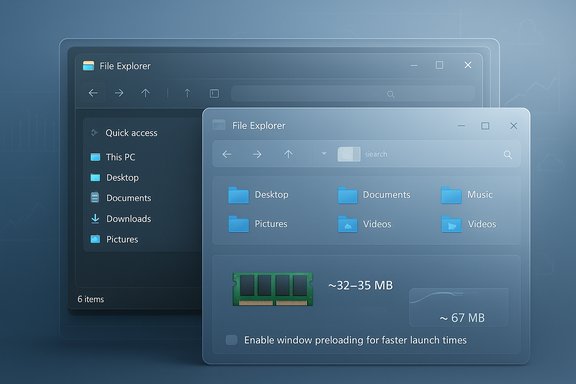
Independent tests and side‑by‑side comparisons from Insider builds show a familiar trade-off: preloading keeps Explorer resident in RAM and makes the cold-start feel snappier, but it also increases idle memory usage and does little for other forms of sluggishness such as slow right-click context menus or delayed folder enumeration.- Reported idle memory usage for File Explorer roughly doubled after enabling the preload experiment — from around ~32–35 MB to ~67 MB on the tested machines. That’s an extra ~35 MB reserved for the warmed instance.
- In real-world video comparisons the improvement in perceived launch time is minor unless you slow footage down to 0.25× — the difference is measurable but subtle. The context menu, meanwhile, remains sluggish under load and is not meaningfully improved by the preload setting.
Why preloading was chosen (and what it buys Microsoft)
Preloading is cheap to implement, visible to users, and follows patterns Microsoft has used elsewhere (Edge’s Startup Boost, Office prelaunch techniques). The idea is straightforward: take expensive initialization work and perform it during idle time so the app appears instant when the user requests it.Benefits of a preload approach:
- Immediate perceptual improvement on cold starts for many users.
- Low engineering risk compared to a ground-up refactor.
- A toggle lets Insiders and enterprise admins opt out if they prefer legacy behavior.
- Increased memory footprint (small on modern machines, meaningful on low-RAM systems).
- Potential small battery or background resource impact if preload wakes I/O subsystems.
- No improvement for runtime operations that happen after the window opens (context menus, folder enumeration, network I/O).
The deeper technical problem: Win32 core + WinUI shell = render friction
File Explorer’s core—the shell, namespace handlers, file-system integration—remains a Win32/COM-based stack for compatibility reasons. Windows 11 has overlaid that legacy core with WinUI/XAML elements to deliver a modern interface: command bars, address bars, details panes, and other controls are now commonly rendered by WinUI components hosted in the legacy process.That hybrid arrangement creates additional rendering and composition layers:
- WinUI controls are hosted inside the legacy process via XAML Islands or Windows App SDK components, adding marshaling, layout, and composition steps to common UI flows.
- The context menu model has grown more dynamic and extensible, pulling commands from cloud providers, Copilot integrations, and modern apps — each new handler may require DLL loads, registry checks, or network calls when the menu opens.
Context menu pain: the visible bottleneck
The right-click context menu is an excellent example of where preloading can't help. Tests reveal that the menu still opens slowly under load, and many of the sluggish parts are the modern additions: Copilot entries, cloud provider items, and app-specific “Edit with…” commands. Those elements often require loading modern UI modules or third-party shell extensions at the moment of invocation — work that a warmed Explorer instance may not pre-register or can’t fully avoid if those handlers are designed to initialize lazily.Why context menus are hard to optimize:
- Shell extensions and preview handlers are third-party code that runs in Explorer’s process and can block UI.
- Cloud-provider entries may require querying local sync states or contacting background services.
- Modern menu items embedded by apps (Clipchamp, Photos, Copilot) can trigger loading of large DLLs or COM objects.
Who is affected and how badly
- Desktop systems with 16GB+ RAM: the extra ~35 MB is negligible for most users and the preload may deliver a modest quality-of-life improvement.
- Low-memory machines (4–8GB), tablets, and some older laptops: the trade-off will be more noticeable. Reserved memory matters more on constrained devices, and any background wakeups can affect battery life.
- Enterprise environments: corporate imaging, third-party shell extensions (backup clients, security tools), and managed cloud clients can interact badly with preloaded Explorer instances and surface compatibility or stability issues that preloading cannot solve.
Practical, actionable steps for users and IT admins
- How to try or disable preload (Insiders)
- Open File Explorer → View → Options → Folder Options → View and toggle “Enable window preloading for faster launch times.” Reboot to ensure a clean cold start for testing.
- For end users experiencing slow context menus or Explorer lag:
- Test with preloading off to compare behavior; some users report no meaningful benefit and prefer legacy behavior.
- Audit installed shell extensions using tools or built-in troubleshooting to identify third-party handlers that block UI.
- Disable or update cloud provider clients and context-menu integrations that add complexity (OneDrive, third-party sync clients, clip tools).
- For power users and organizations:
- Test the preload in a non-production VM first.
- If your environment relies on many shell extensions (backup agents, security products), test end-to-end workflows to ensure compatibility.
- Consider third-party file managers for power workflows where Explorer’s UX or performance is unacceptable; modern alternatives offer tabbed interfaces and faster file operations in some cases.
What Microsoft should (and could) do next
Preloading is a useful bandage, but the long-term fix must be architectural and multi-pronged:- Optimize WinUI integration paths: reduce marshaling and composition overhead between Win32 core and WinUI; move perf-critical panes back to lighter-weight paths or tighten the handoff between stacks.
- Lazy, selective preload: instead of warming everything, selectively prime only safe, non-blocking subsystems and defer third-party extension initialization until needed. This narrows the memory cost while targeting the most visible delays.
- Move slow handlers to a sandbox: run context-menu and preview handlers in an out-of-process sandbox to prevent third-party code from blocking Explorer’s UI thread.
- Telemetry-driven tuning: publish more telemetry insights for Insiders so the community can see which subsystems consume time and memory; make the preload behavior adaptive based on system RAM and battery state. Microsoft’s staged approach suggests they intend to refine the experiment with telemetry—this should be accelerated and made more transparent.
Risks, trade-offs, and broader implications
- Memory inflation vs. responsiveness: For most modern desktops the extra tens of megabytes are negligible; for constrained devices they are meaningful and can reduce available headroom for other apps.
- Battery life: Background preloads that wake storage or network subsystems may subtly increase power draw on battery devices. Users on laptops or tablets will notice this more than desktop users.
- Compatibility and stability: Preloading may load third-party handlers earlier and expose race conditions or compatibility bugs that previously occurred only on demand. Organizations with heavy shell extension usage should test thoroughly.
- Perception risk: When a fix is visible but the painful parts of the UX remain unchanged (slow context menu, laggy file operations), users may judge the overall OS negatively despite incremental improvements, amplifying perception of bloat or poor performance.
- Telemetry & privacy: Collecting more detailed telemetry to tune the feature may raise privacy concerns; clear documentation about what’s collected and why will be necessary to maintain trust.
How this fits into the larger Windows 11 performance conversation
Windows 11’s reception around performance has been mixed: many users appreciate new features like tabs in File Explorer and a modern UI, but others point to regressions versus Windows 10’s snappiness. Microsoft’s strategy with Explorer — incremental modernization with opt-in experiments for Insiders — is pragmatic but slow. Preloading is a low-risk, visible step that buys time while deeper optimizations are designed, tested, and validated.The real litmus test will be whether Microsoft uses this telemetry phase to:
- Reduce the runtime cost of WinUI overlays,
- Harden the shell against blocking third-party handlers,
- Make the modern File Explorer match or exceed the responsiveness users expect from the classic Win32 experience.
Bottom line: small, visible gains — but not a cure
The preload experiment in Windows 11 Insider Preview Build 26220.7271 (KB5070307) delivers a narrow, perceptible improvement in File Explorer cold-start times at the cost of reserving additional RAM. For users on modern hardware the extra memory is unlikely to matter, but the update does little to resolve longstanding sources of sluggishness — especially slow context menus and the overhead introduced by mixing Win32 core logic with modern WinUI/XAML layers. This is an incremental, pragmatic move from Microsoft: an honest, testable exploration rather than a finished solution. The real measure of success will be what comes next—whether the company uses Insider feedback and telemetry to eliminate the blocking costs in Explorer’s runtime paths, or whether preloading becomes an enduring bandage that masks deeper performance debt.Quick reference — What to know right now
- Feature tested in Insider Preview Build 26220.7271 (KB5070307); toggle lives in File Explorer → View → Options → Folder Options → View.
- Observed idle memory rise in independent tests: ~32–35 MB → ~67 MB (approx +35 MB).
- Preload helps cold-start paint times; it does not fix context menu delays or network/NAS enumeration slowness.
- Microsoft frames the change as an exploration and will tune or roll back based on telemetry and Insider feedback.
File Explorer remains central to daily productivity on Windows. The preload experiment is a small, understandable attempt to make the UI feel faster today. But the long-term answer must be deeper: faster composition paths, out-of-process handling of untrusted handlers, and a more surgical approach to what gets warmed at boot. Until then, the perceived sluggishness that prompted this experiment will remain a live issue for many Windows 11 users.
Source: TweakTown Microsoft's plan to speed up File Explorer in Windows 11 backfires: double the RAM, still slow
