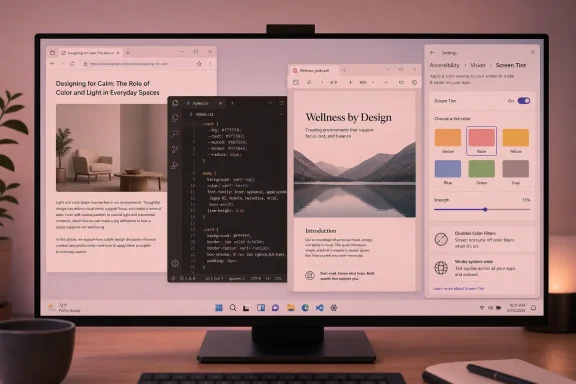
Microsoft added a new Windows 11 Screen tint accessibility setting in Insider Experimental Preview Build 26300.8497, released May 22, 2026, letting testers apply a customizable color overlay across the entire display from Settings > Accessibility > Vision. It is not yet a mainstream Windows 11 feature, and that matters. Screen tint is less about another cosmetic switch than Microsoft admitting that “one display fits all” is no longer a defensible accessibility posture. For users with light sensitivity, eye fatigue, migraine triggers, or simply too many hours under harsh pixels, Windows is finally learning to soften the room.
Screen tint arrives as a small toggle in Settings, but it points to a larger shift in Windows design. For years, Microsoft has treated visual comfort as a collection of adjacent features: Night light for blue-light reduction, Color filters for color blindness and contrast needs, Magnifier for low-vision workflows, and display calibration for the hardware-minded. Screen tint gives Windows a more direct answer to a very ordinary complaint: the screen is too visually intense.
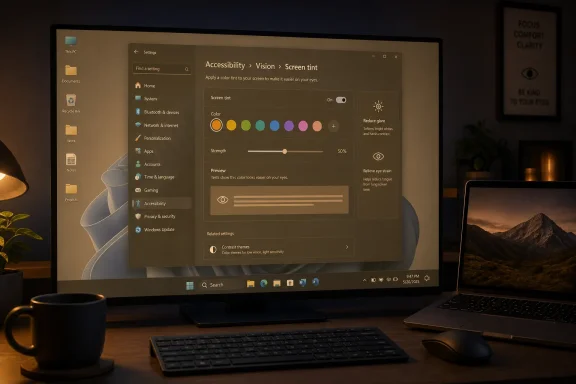
The feature applies a color overlay across the entire display. Users can choose from preset tint colors or pick a custom one, then adjust the strength from a light wash to a much heavier overlay. That sounds simple because it is simple, and that is the point. Accessibility features work best when they do not require users to become display engineers.
The important distinction is that Screen tint is not Night light with a new coat of paint. Night light warms the display to reduce blue light, especially in the evening. Screen tint changes the overall visual intensity and color cast of the interface during everyday use. One is primarily about sleep-friendly color temperature; the other is about softening the screen itself.
That difference is easy to miss because the public vocabulary around display comfort has been flattened into “blue light.” Anyone who has tried to work through a migraine, light sensitivity, post-concussion symptoms, dry eyes, or fluorescent-office fatigue knows the problem is broader than blue light. Sometimes white backgrounds are too aggressive. Sometimes saturated colors are the problem. Sometimes dark mode helps but does not go far enough. Screen tint gives Windows a native way to answer those cases without asking users to hunt for a third-party utility.
That build number is not a typo, and it will look alien to many users sitting on current production builds. Microsoft’s Insider channels are where the company tests features before deciding whether they move forward, change shape, or disappear. Experimental Channel features are especially provisional. They are public enough to discuss, but not guaranteed enough to build policy around.
Microsoft’s own Insider guidance makes that explicit. Features in these builds may never ship to the general public, may be removed, may be renamed, or may arrive later in a different form. That is not boilerplate; it is the operating logic of Windows development in 2026. The Settings app has become a live laboratory, and Screen tint is one of the experiments.
For enthusiasts, that makes the feature worth trying. For administrators, it makes the feature worth watching. For ordinary users, it means the how-to instructions are useful only if the machine is enrolled in the right Insider path and has actually received the controlled rollout. Even among Insiders, Microsoft can stage features gradually, so two PCs on similar builds may not always expose the same controls at the same time.
Inside the Screen tint page, enable the option to show a color overlay. Once enabled, choose one of the available preset colors or open the custom color picker if the presets do not fit your eyes. The final control is the strength slider, which determines whether the tint is barely perceptible or dramatically changes the look of the desktop.
That strength slider is the part users should treat with care. A tint that feels soothing in a Settings screenshot may become annoying after an hour in Excel, Visual Studio Code, Photoshop, or a browser full of white pages. Start low, test it in the applications you actually use, and then increase the intensity only if the benefit is obvious.
Screen tint is also global. It is not a per-app reading mode, not a browser extension, and not a theme. If it is on, it affects the whole display. That makes it powerful for comfort but also potentially disruptive for color-sensitive work.
If a user’s problem is that bright, saturated screen content becomes uncomfortable over a long session, then a universal tint is more reliable than asking every application to behave. Windows still contains legacy dialogs, web-rendered panels, WinUI surfaces, Electron apps, games, remote desktops, and corporate tools that all handle color differently. A setting that sits above all of that has a better chance of creating a consistent visual environment.
This is also why the feature belongs in Accessibility rather than Personalization. A tint can be aesthetic, but the use case Microsoft is describing is functional. It is about reducing eye fatigue and light sensitivity, not decorating the desktop.
That framing matters because accessibility features are often diluted when they are sold as “nice to have” personalization. Dark mode suffered from this problem. It became a fashion preference, even though for some users it is a work-enabling accommodation. Screen tint should avoid that trap. It is not just a vibe; it is a tool.
Screen tint should not replace Night light. It should sit beside it. Microsoft says the two features can be used together because they affect different parts of the experience. Night light changes warmth; Screen tint changes overlay intensity.
That distinction gives users a more nuanced setup. Someone might run a gentle gray or amber Screen tint during the workday to soften glare, then let Night light warm the display in the evening. Another user might avoid Night light because it makes color judgment too yellow, but use a subtle tint to make white backgrounds less punishing.
The risk is confusion. Windows now has multiple controls that alter screen color, and Microsoft needs to explain the hierarchy clearly. If a user toggles Night light, Screen tint, HDR, manufacturer display modes, GPU color enhancements, and monitor presets, diagnosing “why does my screen look weird?” becomes harder. More control is welcome, but control without legible state becomes support debt.
That is why Microsoft’s warning matters: turning on Screen tint disables Color filters, and turning on Color filters disables Screen tint. The two are mutually exclusive in the current implementation. If you rely on Color filters for daily accessibility, Screen tint may be unavailable to you in practice.
This is where the first version of the feature shows its limits. The users most interested in reducing light sensitivity may overlap with users who also need color filtering. Windows is asking that group to choose. That may be technically reasonable for now, but it is not an ideal endpoint.
The better long-term design would make these systems more composable, or at least explain the tradeoff in plain language at the point of use. Accessibility settings should not surprise users by silently breaking another accommodation. If one visual aid must disable another, Windows should say so clearly and help the user decide which one matters more.
A native Windows setting changes the trust model. It can work across more of the desktop, survive enterprise baselines more easily, and be documented by help desks without sending users into third-party downloads. That matters in companies where users are not allowed to install utilities just because the default screen feels harsh.
It also matters on laptops, where manufacturer utilities vary wildly. One vendor’s “eye care” mode may be tied to a bloated control center. Another may bury display color in a firmware-dependent app. A Windows-level feature is more portable, especially for users who move between machines.
That said, Screen tint will not satisfy everyone who has used specialized tools. Third-party utilities often support time-based color curves, per-monitor settings, keyboard shortcuts, location-aware schedules, and finer control than Microsoft’s first pass appears to offer. Microsoft does not need to beat all of that immediately. It needs to make the baseline better for everyone.
That does not mean these users should never use it. It means they need a workflow. Use Screen tint while writing, reading, coding, or doing administrative work, then turn it off when judging color, checking brand assets, grading video, approving print proofs, or testing accessibility contrast.
This is where Windows could use a quick toggle. If Screen tint remains buried in Settings, users will either leave it off or forget it is on. A Quick Settings tile, keyboard shortcut, or command-line hook would make the feature easier to incorporate into real work.
Enterprise administrators will care about that too. If help-desk tickets start with “the screen colors are wrong,” technicians need a fast way to see whether Screen tint, Night light, Color filters, HDR, or GPU settings are responsible. The more Windows modifies display output for good reasons, the more it needs a clean diagnostic surface.
The braille work is especially important because it reaches into setup. HID braille displays working during the initial Windows setup experience means some deaf-blind users can set up a PC more independently from the first screen. That is a different order of accessibility than adding a checkbox after the machine is already configured.
Voice Access improvements follow the same logic. Voice Isolation aims to help Windows focus on the user’s voice in noisy environments, with processing kept on the device. That is not merely a convenience for dictation; it is an attempt to make voice-driven computing viable in normal rooms rather than ideal acoustic conditions.
Screen tint is the most visually obvious of the bunch, but it belongs to that same story. Microsoft is trying to reduce the number of scenarios where a user needs a workaround before Windows becomes usable. That is the right ambition, even if the implementation remains early.
That is because accessibility is not just a list of device options. It is a set of human factors. Vision, hearing, mobility, speech, cognition, fatigue, and environmental context all shape how a computer should behave. Settings is where Microsoft can present those controls in user language rather than engineering language.
Screen tint benefits from that. A registry-only tint, GPU panel overlay, or manufacturer-specific display mode would be invisible to many users. A clearly named Accessibility page makes the feature discoverable to people who are already looking for relief.
The naming is also good. “Screen tint” is plain English. It does not pretend to be medical, and it does not hide behind display jargon. Microsoft should keep that restraint as the feature develops.
The Experimental Channel is particularly volatile because it is designed to test concepts earlier. Even when a feature is documented, that does not mean it has a release vehicle, a final UI, a policy surface, or a support lifecycle. For IT pros, that is the difference between “interesting” and “deployable.”
There is also the matter of controlled rollout. Microsoft can light up a feature for a subset of Insiders, gather telemetry and feedback, then expand or pause. That means the presence of Build 26300.8497 alone may not guarantee Screen tint appears immediately on every machine.
For WindowsForum readers, the sensible posture is curiosity with discipline. Try it on a test machine. Do not enroll your production workstation in an experimental channel just to get a tint slider. If you need a production-grade comfort feature today, use Night light, Color filters where appropriate, monitor settings, or trusted existing tools until Screen tint graduates.
The second missing piece is per-display behavior. Multi-monitor setups are common among the very users likely to care about eye strain: developers, analysts, traders, administrators, writers, and support staff. A single overlay across all displays may be too crude if one monitor is bright, one is calibrated, and one is used mainly for reference material.
The third missing piece is enterprise policy. If Screen tint ships broadly, Microsoft should expose sensible management controls. Organizations may want to allow the feature, prevent accidental use on color-critical workstations, or document it for accessibility accommodations. Windows accessibility features should empower users, but enterprise environments need predictable controls.
The fourth missing piece is communication. Microsoft needs to state clearly what Screen tint does and does not do. It should not be marketed as a medical treatment. It should not be reduced to a blue-light feature. It should be described as a comfort and accessibility control that may help some users reduce visual intensity and light sensitivity.
If you are trying to reduce harshness from white backgrounds, a subtle warm or gray tint may be enough. If you are sensitive to glare, a cooler or greenish tint may feel better depending on your display and environment. If you are trying to avoid migraine triggers, test cautiously and do not assume someone else’s preferred color will work for you.
Users should also compare Screen tint with Night light rather than stacking everything immediately. Turn on Screen tint alone first. Then test Night light alone. Then try both together if needed. That sequence makes it easier to understand which control is helping and which one is merely making the screen look strange.
If colors suddenly look wrong, check Screen tint before blaming the monitor, GPU driver, HDR setting, app theme, or display cable. New visual features create new troubleshooting paths. The more subtle the feature, the easier it is to forget.
 Microsoft Turns Eye Comfort Into a First-Class Windows Setting
Screen tint arrives as a small toggle in Settings, but it points to a larger shift in Windows design. For years, Microsoft has treated visual comfort as a collection of adjacent features: Night light for blue-light reduction, Color filters for color blindness and contrast needs, Magnifier for low-vision workflows, and display calibration for the hardware-minded. Screen tint gives Windows a more direct answer to a very ordinary complaint: the screen is too visually intense.The feature applies a color overlay across the entire display. Users can choose from preset tint colors or pick a custom one, then adjust the strength from a light wash to a much heavier overlay. That sounds simple because it is simple, and that is the point. Accessibility features work best when they do not require users to become display engineers.
The important distinction is that Screen tint is not Night light with a new coat of paint. Night light warms the display to reduce blue light, especially in the evening. Screen tint changes the overall visual intensity and color cast of the interface during everyday use. One is primarily about sleep-friendly color temperature; the other is about softening the screen itself.
That difference is easy to miss because the public vocabulary around display comfort has been flattened into “blue light.” Anyone who has tried to work through a migraine, light sensitivity, post-concussion symptoms, dry eyes, or fluorescent-office fatigue knows the problem is broader than blue light. Sometimes white backgrounds are too aggressive. Sometimes saturated colors are the problem. Sometimes dark mode helps but does not go far enough. Screen tint gives Windows a native way to answer those cases without asking users to hunt for a third-party utility.
The Feature Is Real, but the Rollout Is Still Experimental
The first practical caveat is availability. Screen tint is currently tied to Windows 11 Insider Experimental Preview Build 26300.8497, with Microsoft also documenting the feature in related Insider build notes. If your PC is running a normal retail version of Windows 11, you should not expect to find the setting today.That build number is not a typo, and it will look alien to many users sitting on current production builds. Microsoft’s Insider channels are where the company tests features before deciding whether they move forward, change shape, or disappear. Experimental Channel features are especially provisional. They are public enough to discuss, but not guaranteed enough to build policy around.
Microsoft’s own Insider guidance makes that explicit. Features in these builds may never ship to the general public, may be removed, may be renamed, or may arrive later in a different form. That is not boilerplate; it is the operating logic of Windows development in 2026. The Settings app has become a live laboratory, and Screen tint is one of the experiments.
For enthusiasts, that makes the feature worth trying. For administrators, it makes the feature worth watching. For ordinary users, it means the how-to instructions are useful only if the machine is enrolled in the right Insider path and has actually received the controlled rollout. Even among Insiders, Microsoft can stage features gradually, so two PCs on similar builds may not always expose the same controls at the same time.
How to Turn On Screen Tint Without Overthinking It
If the feature is available on your PC, the path is straightforward. Open Settings with Win + I, choose Accessibility, and look under the Vision section for Screen tint. Microsoft also points users toward Win + U, the long-standing shortcut into Accessibility settings, which is often the faster route if you are already tuning visual options.Inside the Screen tint page, enable the option to show a color overlay. Once enabled, choose one of the available preset colors or open the custom color picker if the presets do not fit your eyes. The final control is the strength slider, which determines whether the tint is barely perceptible or dramatically changes the look of the desktop.
That strength slider is the part users should treat with care. A tint that feels soothing in a Settings screenshot may become annoying after an hour in Excel, Visual Studio Code, Photoshop, or a browser full of white pages. Start low, test it in the applications you actually use, and then increase the intensity only if the benefit is obvious.
Screen tint is also global. It is not a per-app reading mode, not a browser extension, and not a theme. If it is on, it affects the whole display. That makes it powerful for comfort but also potentially disruptive for color-sensitive work.
The Color Overlay Is Helpful Because It Is Blunt
There is a temptation to judge Screen tint by whether it is technically elegant. That misses why it may be useful. A system-wide overlay is blunt, but blunt tools are sometimes exactly what accessibility requires.If a user’s problem is that bright, saturated screen content becomes uncomfortable over a long session, then a universal tint is more reliable than asking every application to behave. Windows still contains legacy dialogs, web-rendered panels, WinUI surfaces, Electron apps, games, remote desktops, and corporate tools that all handle color differently. A setting that sits above all of that has a better chance of creating a consistent visual environment.
This is also why the feature belongs in Accessibility rather than Personalization. A tint can be aesthetic, but the use case Microsoft is describing is functional. It is about reducing eye fatigue and light sensitivity, not decorating the desktop.
That framing matters because accessibility features are often diluted when they are sold as “nice to have” personalization. Dark mode suffered from this problem. It became a fashion preference, even though for some users it is a work-enabling accommodation. Screen tint should avoid that trap. It is not just a vibe; it is a tool.
Night Light Solves a Different Problem
Night light remains the better-known Windows display comfort setting, and for good reason. It is easy to understand: at night, reduce blue light by making the display warmer. The setting lives under System > Display > Brightness & color, and it can be turned on immediately or scheduled around sunset, sunrise, or custom hours.Screen tint should not replace Night light. It should sit beside it. Microsoft says the two features can be used together because they affect different parts of the experience. Night light changes warmth; Screen tint changes overlay intensity.
That distinction gives users a more nuanced setup. Someone might run a gentle gray or amber Screen tint during the workday to soften glare, then let Night light warm the display in the evening. Another user might avoid Night light because it makes color judgment too yellow, but use a subtle tint to make white backgrounds less punishing.
The risk is confusion. Windows now has multiple controls that alter screen color, and Microsoft needs to explain the hierarchy clearly. If a user toggles Night light, Screen tint, HDR, manufacturer display modes, GPU color enhancements, and monitor presets, diagnosing “why does my screen look weird?” becomes harder. More control is welcome, but control without legible state becomes support debt.
Color Filters Are Not the Same Thing, and Microsoft Knows It
Windows Color filters live in Accessibility and serve a different population of needs. They can help users with color blindness or other visual requirements distinguish content that would otherwise be hard to read. These filters are not merely comfort overlays; they change color relationships to support perception.That is why Microsoft’s warning matters: turning on Screen tint disables Color filters, and turning on Color filters disables Screen tint. The two are mutually exclusive in the current implementation. If you rely on Color filters for daily accessibility, Screen tint may be unavailable to you in practice.
This is where the first version of the feature shows its limits. The users most interested in reducing light sensitivity may overlap with users who also need color filtering. Windows is asking that group to choose. That may be technically reasonable for now, but it is not an ideal endpoint.
The better long-term design would make these systems more composable, or at least explain the tradeoff in plain language at the point of use. Accessibility settings should not surprise users by silently breaking another accommodation. If one visual aid must disable another, Windows should say so clearly and help the user decide which one matters more.
The Real Competition Is Not Night Light but f.lux and Monitor Menus
Screen tint also enters a world where users have already improvised. For years, power users have leaned on tools like f.lux, monitor-side low-blue-light modes, GPU control panels, browser extensions, and custom ICC profiles to tame displays that Windows itself did not adequately control. Some of those tools are excellent. Some are abandoned, inconsistent, or awkward in managed environments.A native Windows setting changes the trust model. It can work across more of the desktop, survive enterprise baselines more easily, and be documented by help desks without sending users into third-party downloads. That matters in companies where users are not allowed to install utilities just because the default screen feels harsh.
It also matters on laptops, where manufacturer utilities vary wildly. One vendor’s “eye care” mode may be tied to a bloated control center. Another may bury display color in a firmware-dependent app. A Windows-level feature is more portable, especially for users who move between machines.
That said, Screen tint will not satisfy everyone who has used specialized tools. Third-party utilities often support time-based color curves, per-monitor settings, keyboard shortcuts, location-aware schedules, and finer control than Microsoft’s first pass appears to offer. Microsoft does not need to beat all of that immediately. It needs to make the baseline better for everyone.
Color-Critical Workflows Need an Obvious Off Switch
There is one class of user who should be cautious from day one: anyone doing color-critical work. Designers, photographers, video editors, print professionals, game artists, and UI testers should treat Screen tint like any other color-altering feature. It may make the screen more comfortable, but it also changes what you are seeing.That does not mean these users should never use it. It means they need a workflow. Use Screen tint while writing, reading, coding, or doing administrative work, then turn it off when judging color, checking brand assets, grading video, approving print proofs, or testing accessibility contrast.
This is where Windows could use a quick toggle. If Screen tint remains buried in Settings, users will either leave it off or forget it is on. A Quick Settings tile, keyboard shortcut, or command-line hook would make the feature easier to incorporate into real work.
Enterprise administrators will care about that too. If help-desk tickets start with “the screen colors are wrong,” technicians need a fast way to see whether Screen tint, Night light, Color filters, HDR, or GPU settings are responsible. The more Windows modifies display output for good reasons, the more it needs a clean diagnostic surface.
Accessibility Is Becoming a Windows Platform Strategy
Screen tint did not arrive alone. Build 26300.8497 also includes broader accessibility work, including improvements around HID braille displays, Narrator, Magnifier, and Voice Access. The pattern is clear: Microsoft is trying to move accessibility deeper into the operating system rather than treating it as a set of optional aids bolted onto the side.The braille work is especially important because it reaches into setup. HID braille displays working during the initial Windows setup experience means some deaf-blind users can set up a PC more independently from the first screen. That is a different order of accessibility than adding a checkbox after the machine is already configured.
Voice Access improvements follow the same logic. Voice Isolation aims to help Windows focus on the user’s voice in noisy environments, with processing kept on the device. That is not merely a convenience for dictation; it is an attempt to make voice-driven computing viable in normal rooms rather than ideal acoustic conditions.
Screen tint is the most visually obvious of the bunch, but it belongs to that same story. Microsoft is trying to reduce the number of scenarios where a user needs a workaround before Windows becomes usable. That is the right ambition, even if the implementation remains early.
The Settings App Is Becoming the New Control Panel for Human Factors
For longtime Windows users, the Settings app can still feel like an argument Microsoft has been having with itself since Windows 8. Some controls are modern, some are thin wrappers around older infrastructure, and some still throw users back to classic dialogs. Accessibility, however, is one area where the Settings app has become genuinely important.That is because accessibility is not just a list of device options. It is a set of human factors. Vision, hearing, mobility, speech, cognition, fatigue, and environmental context all shape how a computer should behave. Settings is where Microsoft can present those controls in user language rather than engineering language.
Screen tint benefits from that. A registry-only tint, GPU panel overlay, or manufacturer-specific display mode would be invisible to many users. A clearly named Accessibility page makes the feature discoverable to people who are already looking for relief.
The naming is also good. “Screen tint” is plain English. It does not pretend to be medical, and it does not hide behind display jargon. Microsoft should keep that restraint as the feature develops.
The Insider Caveat Is Not Just Legal Fine Print
Because this is an Insider feature, users should resist turning it into a promise. Microsoft has a long history of testing Windows ideas that change dramatically before general release. Sometimes those changes are improvements. Sometimes they are retreats. Sometimes the feature vanishes.The Experimental Channel is particularly volatile because it is designed to test concepts earlier. Even when a feature is documented, that does not mean it has a release vehicle, a final UI, a policy surface, or a support lifecycle. For IT pros, that is the difference between “interesting” and “deployable.”
There is also the matter of controlled rollout. Microsoft can light up a feature for a subset of Insiders, gather telemetry and feedback, then expand or pause. That means the presence of Build 26300.8497 alone may not guarantee Screen tint appears immediately on every machine.
For WindowsForum readers, the sensible posture is curiosity with discipline. Try it on a test machine. Do not enroll your production workstation in an experimental channel just to get a tint slider. If you need a production-grade comfort feature today, use Night light, Color filters where appropriate, monitor settings, or trusted existing tools until Screen tint graduates.
Microsoft Still Has Work to Do Before This Becomes Everyday Windows
The first missing piece is scheduling. Night light is useful partly because it can run automatically. Screen tint would benefit from the same idea, but with more flexible triggers. A user might want a stronger tint during late-night sessions, a softer one during office hours, or a different tint when switching from laptop display to external monitor.The second missing piece is per-display behavior. Multi-monitor setups are common among the very users likely to care about eye strain: developers, analysts, traders, administrators, writers, and support staff. A single overlay across all displays may be too crude if one monitor is bright, one is calibrated, and one is used mainly for reference material.
The third missing piece is enterprise policy. If Screen tint ships broadly, Microsoft should expose sensible management controls. Organizations may want to allow the feature, prevent accidental use on color-critical workstations, or document it for accessibility accommodations. Windows accessibility features should empower users, but enterprise environments need predictable controls.
The fourth missing piece is communication. Microsoft needs to state clearly what Screen tint does and does not do. It should not be marketed as a medical treatment. It should not be reduced to a blue-light feature. It should be described as a comfort and accessibility control that may help some users reduce visual intensity and light sensitivity.
The Practical Setup for Insiders Is Simple but Worth Testing Slowly
For those who do have the feature, the best setup is not to max it out and call it done. Start with the lowest useful strength. Spend time in the apps where your eyes usually complain. Adjust once, then leave it alone for a while.If you are trying to reduce harshness from white backgrounds, a subtle warm or gray tint may be enough. If you are sensitive to glare, a cooler or greenish tint may feel better depending on your display and environment. If you are trying to avoid migraine triggers, test cautiously and do not assume someone else’s preferred color will work for you.
Users should also compare Screen tint with Night light rather than stacking everything immediately. Turn on Screen tint alone first. Then test Night light alone. Then try both together if needed. That sequence makes it easier to understand which control is helping and which one is merely making the screen look strange.
If colors suddenly look wrong, check Screen tint before blaming the monitor, GPU driver, HDR setting, app theme, or display cable. New visual features create new troubleshooting paths. The more subtle the feature, the easier it is to forget.
The Most Useful Screen Tint Advice Fits on One Monitor
Screen tint is early, but it is practical enough that Insiders can learn from it now. The feature’s value is not in complexity. It is in making a common comfort adjustment native, visible, and reversible.- Screen tint is currently an Insider feature, so most production Windows 11 PCs will not have it yet.
- The setting lives under Accessibility in the Vision area, where users can enable the overlay, choose a preset or custom color, and adjust strength.
- Night light and Screen tint solve different problems, and Microsoft says they can be used together.
- Screen tint and Color filters are mutually exclusive in the current implementation, which matters for users who rely on color filters.
- Anyone doing color-sensitive work should turn Screen tint off before judging images, video, print output, UI colors, or brand assets.
- The feature is promising, but it still needs faster toggles, scheduling, per-display behavior, and clear enterprise management before it feels fully mature.
References
- Primary source: Guiding Tech
Published: 2026-06-03T05:19:31.300301
How to Use New Windows 11 Screen Tint Feature - Guiding Tech
Windows 11 Screen Tint lets you add a customizable color overlay to reduce eye strain and improve screen comfort. Here's how to enable and use it.www.guidingtech.com
- Related coverage: windowslatest.com
Windows 11’s hidden Screen Tint feature lets you soften your display with amber, blue, green, and more colors
Windows 11 is testing a new feature called 'Screen Tint,' which adds a subtle color overlay to make your screen more comfortable to view. www.windowslatest.com
- Related coverage: windowscentral.com
I dug into the Windows 11 features insiders got in May 2026 and here’s what matters most | Windows Central
May 2026 brought a wave of Windows 11 improvements, focusing on accessibility, productivity, personalization, and system modernization.www.windowscentral.com - Related coverage: notebookcheck.net
Windows 11 Insiders get screen tint and voice isolation - Notebookcheck News
Microsoft releases Windows 11 Experimental build 26300.8497 with screen tint, braille display support, and voice isolation improvements for Insiders. www.notebookcheck.net
- Related coverage: windowsreport.com
Windows 11 Gets Screen Tint Setting & More With New Experimental (Dev) Build
In addition to Beta Build 26220.8491, Microsoft has also released the Build 26300.8497 for Windows 11 Insiders in the new Experimental channel. To remind you, all the changes and improvement in this build applies to Dev channel insiders too. Windows 11 gets new screen tint, braille, and voice... windowsreport.com
- Related coverage: pccentral.net
Windows 11 Insiders get screen tint and voice isolation
Microsoft released Windows 11 Experimental channel build 26300.8497 with new screen tint, Braille display support, and Voice Access improvements.pccentral.net
- Related coverage: pureinfotech.com
Build 26300.8497 for Windows 11 26H2 adds new Screen Tint and Voice Isolation features - Pureinfotech
Build 26300.8497 for Windows 11 adds Screen Tint, Voice Isolation, HID Braille support, Windows Ready Print, and several fixes. pureinfotech.com
- Related coverage: betanews.com
Microsoft releases an experimental build of Windows 11 with Screen Tint feature - BetaNews
Microsoft has released a new build of Windows 11 that adds new accessibility features. In Windows 11 Insider Experimental Preview Build 26300.8497 there isbetanews.com
- Official source: learn.microsoft.com
Versión preliminar experimental compilación 26300.8497 - Windows Insider Program | Microsoft Learn
Notas de la versión preliminar experimental de la compilación 26300.8497learn.microsoft.com - Related coverage: windowsforum.com
Windows 11 Insider: Screen Tint, HID Braille Setup, and Voice Isolation Boost Accessibility | Windows Forum
Microsoft released Windows 11 Insider Preview builds on May 22, 2026, adding a Screen Tint accessibility setting in the Experimental channel alongside...windowsforum.com - Related coverage: windowsnews.ai
Experimental Windows 11 Build 26300.8497 Adds Custom Screen Tint and AI Voice Isolation - Windows News
Microsoft rolls out Windows 11 Insider Build 26300.8497 with screen tint, plug-and-play HID Braille displays, and Voice Access voice isolation. Experimental...windowsnews.ai - Related coverage: techradar.com
New screen tint feature discovered in Windows 11 is designed to help with eye strain and even combating migraines | TechRadar
This isn't a substitute for healthy screen habits, mindwww.techradar.com