Windows 11 Task Manager Duplicates After Close in KB5067036 Preview

  • Thread Author
Windows 11 users on recent preview builds are reporting a strange and persistent regression: closing Task Manager with the window “X” sometimes does not terminate taskmgr.exe, and each reopen can spawn another live Task Manager process — producing dozens of background taskmgr.exe instances that quietly consume memory and occasional CPU until explicitly killed.

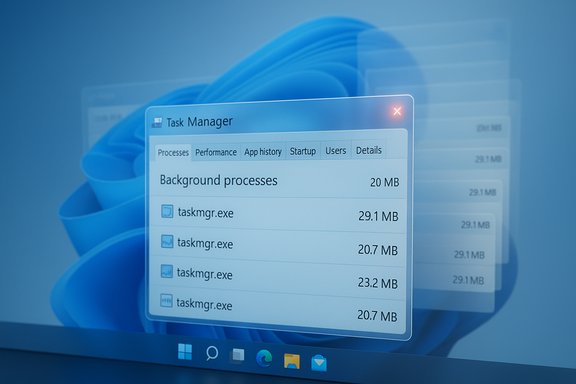
Windows Task Manager displaying background processes and several taskmgr.exe entries.Background / Overview​

Microsoft released an optional preview cumulative update, identified as KB5067036, on October 28, 2025. The package ships UI refinements (notably a refreshed Start menu and updated taskbar battery icons) along with a set of quality changes that include an adjustment to Task Manager’s process grouping behavior and other under‑the‑hood fixes. The preview is being deployed in a staged manner across Windows Insider and Release Preview channels, which helps explain why the problem is reproducible on many machines but not universal.
Shortly after the preview began rolling out, several independent outlets and community testers documented the same reproducible symptom: closing Task Manager using the close button leaves behind a running taskmgr.exe, and reopening the utility spawns another one. Those leftover instances appear in Task Manager’s own Processes view, Process Explorer, tasklist output or Get‑Process results — they are real processes, not cosmetic UI duplicates.

What users are seeing (concise reproduction)​

  • Press Ctrl+Shift+Esc or otherwise open Task Manager.
  • Click the top‑right Close (X) button.
  • Reopen Task Manager and inspect Processes → Background processes.
  • On affected systems, you will see multiple “Task Manager” entries; the count increases each time you repeat open → close.
Independent community stress tests recorded that each orphaned taskmgr.exe consumes roughly 20–30 MB of RAM in typical reproductions; one contrived run that opened and closed Task Manager around 100 times ended up with roughly 2 GB of RAM used by orphaned instances. That accumulation is unlikely to matter on well‑equipped desktops but can be material on memory‑constrained laptops, VMs, or test rigs.

Verified technical details and scope​

  • The preview update is KB5067036 and was published on October 28, 2025; it shipped OS builds 26100.7019 and 26200.7019 for Windows 11 channels referenced in community testing.
  • The orphaned entries are visible to system tooling (Task Manager, Process Explorer, tasklist, PowerShell Get‑Process), demonstrating they are actual processes rather than a display bug.
  • Practical mitigations used by testers include right‑clicking a Task Manager entry in the Processes tab and selecting End task, or running taskkill /im taskmgr.exe /f from an elevated Command Prompt to forcibly terminate all taskmgr.exe instances.
Where reporting varies is in vendor acknowledgement: independent coverage broadly reproduced the behaviour, but some reports note Microsoft had not published a known‑issue advisory at the time of writing; other reports mention Microsoft engineers acknowledging the symptom in private communications. Treat claims of an official root‑cause confirmation as unverified until Microsoft publishes a definitive KB known‑issue entry or engineering post‑mortem.

Why this matters: practical impact​

Task Manager is a primary troubleshooting tool for both power users and helpdesk engineers. When the tool itself fails to exit cleanly:
  • Memory pressure can build on low‑RAM devices. Repeated open/close cycles in pathological cases produced gigabytes of resident memory consumed by orphaned managers.
  • Diagnostic confusion increases: multiple taskmgr.exe entries under Background processes can mislead users and complicate triage.
  • Battery and CPU: while each instance has a small footprint, background sampling or periodic polling by orphaned Task Manager instances may cause periodic CPU spikes that degrade responsiveness and battery life on mobile devices.
  • Operational risk for admins: helpdesk workflows rely on Task Manager to inspect processes; in enterprise pilots, this regression increases support load and can complicate remote troubleshooting.
For many users the effect is minor and transient, but for endpoints used in troubleshooting, demo machines, or resource‑constrained deployments, it is a material regression that justifies containment steps.

Likely technical cause (analysis and hypotheses)​

The behaviour looks like a teardown / lifecycle regression in Task Manager’s close path. Task Manager runs a combination of UI threads, background sampling threads, and references to system services (performance counters, COM objects, etc.. If the window close path does not release a handle, terminate a background thread, or deregister a COM object, the process may remain resident even after the UI disappears.
  • The KB notes included a change targeting process grouping in Task Manager; grouping touches enumeration and mapping logic and could easily interact with lifecycle logic, leaving a background worker alive when the UI exits. This makes a teardown regression a plausible hypothesis.
  • Observed periodic CPU polling from orphaned instances in community reproductions supports the idea that a background sampling thread or registered timer is not being torn down.
This is a reasoned technical inference based on observable symptoms; it is not a confirmed root cause. Until Microsoft publishes diagnostics or a fix note, the teardown hypothesis should be treated as plausible but unverified.

How to detect if your PC is affected​

  • Check the installed build: press Windows+R, type winver, and confirm whether your system is on the affected preview build (KB5067036 or the builds above).
  • Reproduce the quick test:
  • Open Task Manager (Ctrl+Shift+Esc).
  • Close it using the top‑right Close (X) button.
  • Reopen Task Manager and look in Processes → Background processes for multiple "Task Manager" entries.
  • Use command‑line tooling to count instances:
  • PowerShell: Get‑Process -Name taskmgr
  • Command Prompt: tasklist /FI "IMAGENAME eq taskmgr.exe"
If multiple taskmgr.exe entries persist after a Close (X) → Reopen cycle, your machine exhibits the orphaning behaviour.

Immediate mitigations and step‑by‑step fixes​

If your device is affected, these mitigations are the fastest and safest options to reclaim resources:
  • Use Task Manager’s Processes tab:
  • Expand Background processes, select the individual Task Manager instance(s), and click End task. This avoids triggering the duplicate‑on‑close behaviour noted when closing via the X.
  • Use Command Prompt (admin) for a forced kill:
  • Open an elevated Command Prompt (right‑click Start → Windows Terminal (Admin) or Command Prompt as Admin).
  • Run: taskkill /im taskmgr.exe /f
    This will forcibly terminate all taskmgr.exe instances.
  • Use PowerShell:
  • Stop‑Process -Name taskmgr -Force
  • Reboot: a full system restart clears orphaned instances and is a simple if blunt instrument.
  • If you require absolute stability on production endpoints, uninstall the optional preview update (KB5067036) or pause preview channel deployments until Microsoft issues a patch. For enterprise fleets, rollbacks or blocking the preview in deployment rings is a sensible containment strategy.
Advanced users and triage engineers should capture repro artifacts (ProcMon trace, ETW traces, Process Explorer stacks) before killing processes — this evidence accelerates vendor triage if you plan to file a Feedback Hub entry or a Microsoft support case.

Recommendations for power users and administrators​

  • Power users: avoid closing Task Manager via the X on systems where KB5067036 is installed; prefer End task or the command line until a patch is released. Document the issue in team runbooks if Task Manager is part of your troubleshooting checklist.
  • Helpdesk teams: add a short diagnostic script to detect multiple taskmgr.exe instances (PowerShell Get‑Process -Name taskmgr) and to run taskkill automatically when appropriate. Consider training Tier‑1 agents to look for orphaned Task Manager processes during basic triage.
  • Enterprise patching: treat KB5067036 as an optional preview; keep preview updates in pilot rings until Microsoft publishes a corrective update. If your organization already deployed the preview broadly and is seeing the issue, run detection/remediation scripts and open support cases with Microsoft including collected traces.
  • Use Process Explorer as an alternative for investigation: it provides richer handle/thread stacks and won’t trigger the same duplication behaviour when inspecting other processes.

QA and product‑development lessons​

This regression is a clear example of how subtle lifecycle paths (close, teardown, unregister) can be broken when unrelated subsystems change. Key lessons for vendors and integrators:
  • Lifecycle regression tests (open → close → reopen cycles) for system utilities must be included in automated and manual test suites; the close path is one of the most frequently exercised code paths in a UI.
  • Preview channels and staged rollouts work as intended by surfacing environment‑specific regressions, but they also demand clear communication and cadence for known‑issue acknowledgements and mitigations from the vendor.
  • For enterprise rollouts, include helpdesk and developer endpoints in pilot rings since they exercise management tools more aggressively and will likely reveal lifecycle regressions early.

Risk assessment and who should worry​

  • Low risk: users with high‑RAM desktops or casual users who rarely open/close Task Manager. Occasional orphaned instances are unlikely to affect day‑to‑day productivity on beefy hardware.
  • Medium risk: laptop users and field power users. Orphaned instances can increase battery usage and produce occasional UI stutters.
  • High risk: constrained VMs, kiosk images, thin clients, demo machines and helpdesk endpoints. There the additive memory and CPU cost of dozens of orphaned Task Manager instances can push systems into swap and materially affect responsiveness. Administrators should block or roll back the preview in production rings until fixed.

What to watch for from Microsoft​

  • A known‑issue acknowledgement (KIA) on the KB support page or Release Health dashboard that explicitly names Task Manager duplication and offers a targeted remediation or a patch.
  • A follow‑up cumulative update or out‑of‑band patch that addresses Task Manager’s teardown logic; historically, Microsoft has released targeted fixes for reproducible, high‑impact regressions discovered in preview channels.
  • Guidance on telemetry and repro artifacts that Microsoft recommends you collect when opening Feedback Hub or support cases (ProcMon, ETW, Process Explorer stacks, tasklist output).
Until Microsoft issues an official fix, the pragmatic guidance is clear: avoid using the window Close (X) on Task Manager in affected environments, use End task or taskkill to clear instances, and withhold KB5067036 from production endpoints where Task Manager stability is essential.

Final analysis — strengths, weaknesses and the road ahead​

This incident underscores both the strengths and constraints of staged preview rollouts. On the positive side, preview channels and an engaged community identified a lifecycle regression that would be more damaging if it reached broad production without notice. Community reproductions produced measurable diagnostics, practical mitigations, and paths to triage.
On the risk side, the regression hits a tool that every Windows power user, field engineer and admin relies on. That makes the bug disproportionately disruptive relative to its code size: small changes to process‑grouping or enumeration logic can cascade into lifecycle regressions that leak resources in subtle ways. The multiplicative cost of dozens of orphaned Task Manager instances transforms a small defect into an operational problem for vulnerable systems.
Looking ahead, expect a targeted vendor fix: the issue is narrow, reproducible, and tied to an explicit change in the preview notes. When a fix arrives, validate it in a pilot ring before broad rollout, and include lifecycle tests in your acceptance plan to catch similar regressions early. Until that fix appears, the mitigations above are practical, tested and low‑risk.

In short, the Windows 11 Task Manager duplication bug is a real and reproducible lifecycle regression tied to the KB5067036 preview that can leave multiple taskmgr.exe processes resident after closing the UI. The immediate defenses are straightforward — avoid the Close (X), use End task or taskkill, collect diagnostics if you need vendor support, and withhold the optional preview from production systems until Microsoft publishes a corrective update.

Source: XDA Windows 11 is reportedly making more Task Managers whenever you close one
 

Microsoft has quietly closed one of Windows’ most persistent little mysteries: the “Update and shut down” / “Refresh and shut down” option that for years sometimes installed updates and then restarted the PC instead of powering it off has finally been corrected in the October preview package identified as KB5067036 — but the same preview also ships a visible Start menu refresh and, worryingly, a reproducible Task Manager regression that can leave multiple hidden taskmgr.exe processes running and degrade system performance.

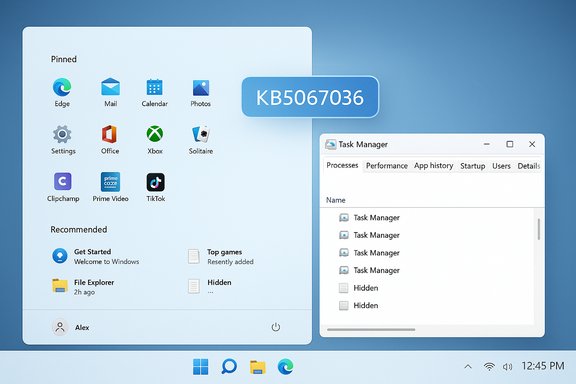
Windows 11 desktop with pinned apps and a floating KB5067036 badge beside the Task Manager window.Background​

The problem that many users have encountered for years is deceptively simple: you select Update and shut down from the Start menu expecting the machine to install updates and power off, but after the update sequence your PC restarts (or returns to the lock screen) and remains powered on. That behavior frustrated laptop owners (battery drain), administrators (broken maintenance windows), and everyday users who rely on the UI to be trustworthy. Microsoft’s preview package KB5067036, published on October 28, 2025, contains a servicing change that specifically addresses this sequencing and finally makes the option perform as labeled in the scenarios observed by testers. The KB5067036 preview is an optional, non‑security cumulative update targeted at Windows 11 versions 24H2 and 25H2 with build numbers reported as 26100.7019 and 26200.7019 respectively. It is being rolled out in a staged fashion (preview → wider preview → Patch Tuesday inclusion), and like previous preview releases it bundles a mix of user-facing UX changes and lower-level servicing fixes. The Start menu redesign, taskbar visual tweaks and a number of behind-the-scenes reliability improvements are all part of that bundle.

What KB5067036 fixes — the shutdown bug explained​

The symptom​

The Update and shut down bug had two practical outcomes: (1) users expecting a powered‑off PC would return to an awake machine (often at the login screen), and (2) scheduled or scripted workflows that assumed a deterministic power-off after updates were broken. This was intermittent and environment-dependent — it did not affect every system — which made it especially frustrating to debug. The issue involved conditional orchestration in Windows’ servicing and shutdown paths (Fast Startup, multi‑phase servicing, sign‑in finishing tasks, and driver interactions).

The fix​

Microsoft’s preview notes and subsequent reporting confirm that KB5067036 contains a servicing orchestration change described as “Fixed an underlying issue which could lead ‘Update and shutdown’ to not actually shut down your PC.” Testers who installed the preview report that the option now behaves correctly in the scenarios previously producing reboots. For Insiders and early adopters the fix landed earlier in preview builds; KB5067036 brings the same correction to a broader preview audience and signals Microsoft intends to include it in an upcoming cumulative update for general distribution.

What this means for users and admins​

  • For laptop users who avoid Update and shut down because it sometimes left machines powered on, the change restores trust in the UI.
  • For administrators, predictable shutdown behavior reduces the need for workaround scripts and manual checks in maintenance windows.
  • For everyone, it reduces unexpected battery drain and improves the reliability of update‑at‑shutdown workflows.
That said, preview updates are staged by design; not every machine will immediately receive all server‑gated features or fixes.

What’s new besides the fix: Start menu redesign and UI changes​

KB5067036 is not only a servicing patch. It bundles a redesigned Start menu and additional shell updates intended to modernize discoverability and layout. The major visible changes being rolled out include:
  • A single, scrollable Start canvas that puts Pinned, Recommended, and All Apps on one page, improving discoverability on large screens.
  • New All Apps views (Category, Grid/List) and larger pinned‑app rows for quicker scanning.
  • A revamped Phone Link/notifications panel and taskbar visual tweaks, including colorful battery icons and animated thumbnails in some configurations.
These Start changes are being feature‑flighted server-side, meaning installation of the KB does not guarantee immediate exposure to every new element; Microsoft is enabling them gradually.

The new regression: Task Manager duplicates and background ghost processes​

The issue in plain terms​

Soon after KB5067036 began rolling out, testers and multiple outlets observed a critical regression: closing Task Manager with the window’s top‑right Close (X) button sometimes does not terminate taskmgr.exe. Reopening Task Manager creates an additional visible instance while the previous process remains running, and repeating this sequence can accumulate dozens or even hundreds of orphaned taskmgr.exe processes in memory. Each orphaned instance consumes tens of megabytes of RAM and can produce tiny CPU spikes; multiplied at scale, this can degrade responsiveness and battery life. Multiple independent tech publications and community labs reproduced the behavior and measured resource impact; in extreme, contrived runs testers accumulated significant RAM usage (reports from community tests show roughly 20–25 MB per orphaned instance). Microsoft’s own public KB page initially listed no known issues for the update, but community pressure and reproducible reports rapidly made the regression visible. At time of reporting Microsoft acknowledged the symptoms to at least one outlet and advised mitigation steps while engineering works on a remediation.

Why this likely happened​

The update included a stated fix to Task Manager’s process‑grouping behavior — code that maps the UI rows to underlying process trees and performance counters. Changes to grouping logic commonly alter object lifecycles, reference counts, or the way windows and processes are detached on close. The most plausible technical hypothesis is that a lifecycle or shutdown handler in Task Manager’s close path no longer triggers full process termination under certain conditions, leaving the process resident while a new UI instance starts. This is a classic regression class where a well‑intentioned fix in one area inadvertently breaks the teardown path elsewhere. Community reproduction and the timing of the regression make this the leading candidate cause.

Immediate impact and practical mitigations​

Symptoms to check for now​

  • Press Ctrl+Shift+Esc to open Task Manager.
  • Click the Close (X) button.
  • Reopen Task Manager and inspect the Processes tab (expand Background processes if necessary).
    If the count of “Task Manager” entries increases each time you repeat open → close, your machine is affected. Use winver to confirm you’re on a build in the KB5067036 family (26100.7019 or 26200.7019).

Quick fixes and workarounds​

  • Avoid closing Task Manager with the window Close (X) button. Instead use Task Manager’s End task option (right‑click the Task Manager entry → End task).
  • Kill all Task Manager instances from an elevated command prompt or PowerShell:
  • Open Command Prompt as administrator.
  • Run: taskkill /im taskmgr.exe /f
  • Use PowerShell to inspect instances: Get‑Process taskmgr
  • If necessary, reboot the system to clear orphaned processes.
  • If KB5067036 is installed and the issue is intolerable on production devices, uninstall the preview via Settings → Windows Update → Update history → Uninstall updates (note: combined servicing packages can complicate uninstall semantics, so proceed with care and backups).

For administrators​

  • Keep KB5067036 confined to test rings and pilot devices until Microsoft publishes a formal known‑issue acknowledgment and patch.
  • Collect repro artifacts (ProcMon traces, ETW, Process Explorer dumps) and open Feedback Hub or support cases to accelerate triage.
  • If Task Manager behavior is critical to your workflow, block the optional preview on production devices using standard update deployment controls and the Microsoft show/hide updates tool, or wait for the fix in a cumulative update.

Analysis: What this episode reveals about Windows servicing and QA​

Positive: Microsoft fixed a long‑running, user‑impacting servicing bug​

Fixing the Update and shut down behavior is a clear win for users and administrators. It addresses a problem that undermined trust in a simple OS control and caused real-world frustration (battery drain, failed maintenance windows). Correcting such a subtle orchestration bug — which likely involved complex interactions between Fast Startup, multi‑phase servicing and sign‑in finishing flows — is non‑trivial and valuable. The rollout in preview form is the expected delivery mechanism: staged validation before broad release.

Negative: Preview updates remain a double‑edged sword​

The Task Manager regression underscores an enduring tension in modern software delivery: early access to fixes and features accelerates innovation but increases the chance that rapidly pushed changes will slip through QA for certain lifecycle paths. Core utilities like Task Manager are exercised frequently and in diverse diagnostic contexts. A change intended to improve process grouping should have been covered by basic open→close lifecycle tests across a variety of window manager and shell configurations. That it wasn’t highlights weaknesses in coverage or the limits of lab testing versus the diversity of real‑world environments.

Risk vectors and secondary effects​

  • Performance and battery life: multiple orphaned processes that poll hardware or performance counters can create measurable battery and responsiveness impacts.
  • Trust and user confidence: Task Manager is a trust anchor for troubleshooting; when it behaves incorrectly, it complicates diagnostics and reduces user confidence.
  • Operational risk for enterprises: a preview update that flavors core tooling with regressions can propagate into imaging, monitoring, and management workflows if staged incorrectly.

Recommendations​

For everyday users (concise)​

  • If you do not need the Start redesign or are risk-averse: do not install optional preview updates. Wait for the next mainstream cumulative rollup.
  • If you installed KB5067036: test the Task Manager close behavior. If you observe duplicates, use taskkill /im taskmgr.exe /f and avoid using the X until Microsoft releases a fix.
  • Keep recovery options ready: system restore points, a recent backup, and familiarity with uninstalling updates are prudent steps for those testing previews.

For power users and testers​

  • Reproduce and capture artifacts: ProcMon, Process Explorer, ETW traces, and steps-to-reproduce increase the velocity of an effective vendor fix.
  • Use isolated test devices for preview installs and run both synthetic tests and common user flows (open/close of core apps repeatedly, update/maintenance scenarios, Start menu interactions).
  • Share reproducible patterns in Feedback Hub and community channels to raise the issue’s visibility.

For IT administrators​

  • Pilot KB5067036 in a small, representative ring (hardware mix, enterprise agents, imaging profiles).
  • Validate process lifecycle behaviors for Task Manager and other diagnostic utilities.
  • If critical systems rely on deterministic shutdown behavior, apply the preview only after successful validation or wait for Microsoft’s mainstream rollup with the fix.
  • Maintain a rollback and recovery plan: know how to uninstall the preview, restore images, and block optional updates using administrative tools.

How Microsoft should respond (constructive critique)​

  • Publish a known‑issue entry and timeline: a short KB/Release Health update acknowledging the regression, affected builds, and an ETA for a remediation package would reduce confusion and align admin expectations.
  • Ship an out‑of‑band fix quickly for affected machines, given Task Manager’s central role in diagnostics and the reproducible nature of the bug.
  • Add explicit lifecycle tests to the Task Manager QA suite: repeated open→close cycles, rapid sequence toggles, and grouping-mode toggles across diverse hardware and Shell configurations.
  • Consider a limited auto‑rollback trigger in the staged rollout when telemetry shows a critical diagnostic utility regression on a significant percentage of devices. This is operationally complex but would reduce broad exposure to regressions that impact troubleshooting and stability.

Final assessment​

KB5067036 is a mixed bag: it contains a long‑needed and welcome servicing fix that finally addresses the long‑standing Update and shut down behavior, and it ships attractive UI improvements (Start redesign, battery icon updates) that will be appreciated by many users. At the same time, the preview has introduced a reproducible Task Manager regression that can accumulate hidden taskmgr.exe instances and harm performance on affected machines. The two developments together are instructive: they show that while Microsoft is making measurable progress on long-standing servicing problems, the complexity of Windows and the variety of real-world configurations still make preview updates a testing ground with potential for surprising regressions. Practical takeaway: if you value stability above access to the new Start menu, skip the optional KB5067036 preview on production devices and wait for the cumulative update that integrates the shutdown fix and any subsequent Task Manager remediation. If you’re an early adopter or an IT tester, apply the preview in a controlled ring, validate the Task Manager behavior, and be ready to apply the simple mitigations (avoid the X, use taskkill) until Microsoft issues a patch.
Conclusion: KB5067036 represents progress — a real bug with measurable user impact has been fixed — but it also reinforces a perennial truth about complex operating systems: fixes can introduce new problems. The sensible posture for most users and administrators remains the same: test preview updates in a controlled environment, collect evidence for vendor triage when regressions appear, and treat optional releases as a trade‑off between early access and operational risk.
Source: igor´sLAB Windows 11: Microsoft finally fixes the shutdown bug that has been around for years | igor´sLAB
 

Microsoft has finally corrected a persistent Windows annoyance: the “Update and shut down” option now behaves as labeled in recent preview builds and in the October 28, 2025 preview package KB5067036, which Microsoft documents as including a targeted servicing fix that addresses the underlying orchestration bug that could leave a PC powered on after applying updates.

Computer screen shows an 'Update and Shut Down' dialog with a power icon and an October 28, 2025 calendar.Background: the small UI wrong that became a big user problem​

For many users the “Update and shut down” command is a simple convenience — choose it at the end of the day, let Windows apply pending patches, and return to a powered‑off, patched PC. That expectation broke for a non‑trivial subset of systems over the last few years: instead of powering off, some machines completed parts of the update process and then restarted (or returned to the lock screen), leaving the device powered on. The symptom was intermittent and configuration‑dependent, which made it especially frustrating and hard to reproduce.
That mismatch between the UI label and the actual behavior mattered for real reasons:
  • Laptop batteries drained overnight on devices expected to be off.
  • Maintenance windows and scripted shutdown workflows failed to deliver deterministic results.
  • Users and admins lost trust in a basic Windows Update workflow and adopted manual workarounds.
Microsoft’s own release notes and community reporting trace sustained complaints through 2022–2025, and the company finally documented a servicing change in Insider release notes and in the KB5067036 preview that explicitly states the problem is fixed.

What Microsoft changed (the fix in KB5067036 and earlier Insider builds)​

The official fix​

Microsoft’s preview documentation for the October 28, 2025 package (KB5067036) for Windows 11 versions 24H2 and 25H2 lists a servicing change described as “Fixed an underlying issue which could lead ‘Update and shutdown’ to not actually shut down your PC after.” The KB page identifies the preview builds as OS builds 26200.7019 (25H2) and 26100.7019 (24H2).

How that change landed​

The fix was validated earlier in Windows Insider preview flights (Dev/Beta channels) — Microsoft included the same remediation text in those flight notes — and was later folded into the optional preview KB preview package KB5067036 for a broader Release Preview audience. This staged path (Insider → Release Preview → general cumulative update) is Microsoft’s standard approach for introducing servicing corrections while collecting telemetry across a wide range of hardware and configurations.

Why a servicing fix, not a label change​

The language Microsoft uses — “Fixed an underlying issue” — and the behavioral reports from testers indicate engineers adjusted the servicing orchestration (the control flow that coordinates offline servicing, reboot requirements, and the final shutdown directive), not merely the menu text. In practical terms this means Windows Update’s shutdown sequencing now better preserves the user’s final intent to power off after update commit steps complete.

Cross-checks: independent verification and timeline​

Multiple independent outlets and community testing corroborate the change and the packaging:
  • Microsoft Support lists KB5067036 (October 28, 2025) as a preview update containing several functional and reliability improvements, and shows the builds and release notes.
  • Coverage across mainstream tech press and community sites reported the fix in Insider notes and the inclusion in the October preview, then flagged the roll‑out strategy toward the November cumulative update.
  • Community threads and aggregated summaries document widespread reports of the original symptom across 2022–2025 and confirm testers saw improved shutdown behavior after the preview installs.
Taken together, these traces establish:
  • Microsoft implemented and documented a servicing change in Insider builds (September–October preview flights).
  • The same fix appears in the October 28, 2025 preview package KB5067036 for 24H2/25H2 builds.
  • Microsoft’s normal cadence and multiple independent reports indicate the fix is slated for wider distribution (Patch Tuesday / November cumulative) after staged validation.

The KB5067036 preview: what else is bundled (and why that matters)​

KB5067036 is not a single bug fix — it’s a mixed preview that bundles UI changes, accessibility and AI improvements, and multiple servicing fixes. Key visible items in the preview include:
  • A redesigned Start menu with a single scrollable canvas and new All Apps views.
  • Accessibility improvements such as Fluid Dictation and expanded Voice Access locales.
  • Servicing fixes including the 0x800f0983 install failure remediation and the Update‑and‑Shutdown orchestration correction.
That packing matters because preview bundles expose more surface area: a servicing fix can arrive alongside unrelated UI changes or regressions, which increases the chance of collateral issues on some configurations. The practical consequence is that installing optional preview updates is useful for testing but carries a slightly elevated risk relative to waiting for the cumulative production roll‑out.

A cautionary aside: KB5067036 also introduced a Task Manager regression​

Within days of the KB5067036 preview rollout, reproducible reports surfaced showing a Task Manager regression: when users close Task Manager with the window Close (X) button, the UI disappears but the underlying taskmgr.exe process can remain resident; reopening Task Manager may spawn additional visible instances while the prior processes remain running in the background. Each orphan instance consumes memory (commonly ~20–30 MB in community tests) and small periodic CPU, so repeated open/close cycles can accumulate meaningful resource usage. Multiple outlets documented the behavior and offered practical workarounds:
  • Avoid closing Task Manager with the X; use End task inside Task Manager or run taskkill /im taskmgr.exe /f to terminate all instances.
  • Rebooting clears the orphaned processes; they are not persistent across restarts.
This regression is a salient example of preview‑stage risk: a package that corrects a longstanding servicing bug also carried an independently reproducible UI/process lifecycle regression. Microsoft and community testing channels are tracking and addressing the Task Manager issue; until Microsoft publishes a corrective patch testers should withhold the optional preview from production devices.

Why the original “Update and shut down” failure persisted (technical anatomy)​

The symptom’s intermittent nature comes from the interplay of several subsystems in modern Windows servicing:
  • Fast Startup / Hybrid Shutdown: Hybrid shutdown semantics preserve kernel session state to speed boot. That changes the meaning of “shutdown” on many devices and can interfere with offline servicing handoffs, causing an intermediate restart rather than a true power‑off.
  • Multi‑phase servicing: Complex updates sometimes require multiple offline commit phases and one or more reboots to fully replace in‑use components. If the servicing pipeline deems an additional restart necessary, it may route the flow into a restart even when the user selected “shut down.”
  • Sign‑in/automatic finish flows: Features that use saved credentials to sign in and complete configuration can alter post‑update behavior; interactions here may cause the device to return to the lock screen rather than complete a shutdown path.
  • Driver and agent interactions: Third‑party drivers or management agents that require restarts to replace files increase the servicing pipeline’s complexity and can tip the decision toward a restart for stability reasons.
Because these variables differ by hardware, drivers, and update content, the problem was never universal — which is why it was both persistent and hard to diagnose centrally. The service‑orchestration fix Microsoft shipped modifies the control flow decisions at the orchestration layer so the final shutdown intent is preserved where appropriate.

What to watch: rollout, testing, and practical guidance​

Microsoft is staging the preview features and fixes with server‑side gating and progressive rollouts; installing the KB preview supplies the binaries, but feature enabling can still be controlled remotely. Expect the fix to be broadly distributed as part of the November cumulative update cycle (Patch Tuesday) after the preview and release‑preview validation completes. Practical guidance for different user types:
  • Home users and enthusiasts
  • If you want the fix now: install KB5067036 from Settings → Windows Update (optional preview), but test on a spare device first and back up important data.
  • If you prefer stability: wait for the official November cumulative update, which will roll the fix into the mainstream channel with broader validation.
  • Administrators and enterprises
  • Pilot the update on a representative ring and validate shutdown behaviour and app compatibility.
  • Watch for collateral regressions (e.g., Task Manager anomalies) and collect diagnostics if any appear.
  • Keep Fast Startup and other environment variables in mind while testing, as they affect shutdown semantics.
  • If you must guarantee deterministic shutdown behavior now: prefer “Update and restart,” and then shut down manually once the system has completed the expected cycles. This is an immediate, low‑risk workaround that bypasses the shutdown orchestration ambiguity until your environment receives the tested fix.

Risk analysis: strengths of Microsoft’s approach and potential pitfalls​

Strengths​

  • Servicing‑level fix: Correcting orchestration at the servicing layer is the right engineering choice; it addresses the root coordination problem rather than changing labels.
  • Staged validation path: Insider → Release Preview → Patch Tuesday allows telemetry and regression detection across broader, but still manageable, device sets. This reduces the chance of shipping an untested fix directly to millions of endpoints.
  • Transparency in release notes: Microsoft documented the remediation in official notes, which helps administrators plan and triage.

Potential pitfalls and residual risks​

  • Preview collateral regressions: Bundling fixes with UI features increases the surface area for regressions (the Task Manager duplication bug is a recent example). Installing optional previews in production environments can expose critical systems to new issues.
  • Server‑side gating confusion: Installing the preview may not immediately show user‑visible changes because Microsoft gates features server‑side; this can confuse testers who expect immediate behavioral changes after applying the package.
  • Incomplete root‑cause publicization: Microsoft’s changelog language is intentionally terse; while that’s common, it makes it harder for third parties to craft precise mitigations or to reproduce the bug in lab conditions without iterative testing. Treat any claim about an exact root cause as plausible but not fully verified unless Microsoft publishes specific engineering detail.

Step‑by‑step: how to safely validate and adopt the fix​

  • Prepare a test device or ring and ensure full backups before applying optional previews.
  • Install KB5067036 via Settings → Windows Update (look in Optional updates) or fetch the MSU from Microsoft Update Catalog for offline installs.
  • Reboot and reproduce the “Update and shut down” sequence with a small, non‑critical update to confirm the behavior: schedule an update, choose Update and shut down, and verify the device is powered off in the morning. Document results and attach logs if needed.
  • Test related workflows that may be impacted (Fast Startup enabled/disabled, sign‑in auto finish settings, common drivers and management agents).
  • If you observe regressions (e.g., Task Manager duplication), collect diagnostics (ETW traces, tasklist/process dumps) and report via Feedback Hub or your enterprise support ticketing path; hold the preview from broad deployment until Microsoft issues a targeted correction.

What remains unverifiable — and why we should be cautious​

Public reporting and Microsoft’s notes confirm the fix and the preview packaging, but the precise internal root cause (the exact race condition or handle leak in orchestration logic) is not fully disclosed in public engineering notes. That means:
  • Any claim about the exact code path fixed should be treated as an engineering inference unless Microsoft releases a detailed postmortem.
  • The incidence rate across hardware and driver combinations remains a telemetry question; community threads show wide variance in reproducibility.

Conclusion: a meaningful quality‑of‑life win — but test before you trust​

Correcting the “Update and shut down” behavior is a small but genuine usability and reliability improvement for Windows’ update experience. Microsoft implemented a servicing‑level remediation and exposed it in insider and preview channels, then packaged it into the October 28, 2025 preview KB5067036 for Release Preview devices; mainstream rollout is expected through the regular November cumulative update cycle. That said, preview channels sometimes surface collateral issues — the Task Manager duplication/regression in KB5067036 is an immediate reminder that fixes can come with unintended side effects. Administrators and power users should pilot the update, validate shutdown semantics under representative conditions, and prefer conservative deployment in production until Microsoft completes the broader rollout cycle and, if needed, issues follow‑up fixes. For everyday users, the practical triage remains:
  • Wait for the November cumulative update for the safest general rollout, or
  • Install the preview on a non‑critical device if you want the fix sooner, but watch for unrelated regressions and be ready to roll back or collect diagnostics if something behaves unexpectedly.
This correction restores a predictable, time‑saving workflow many users rely on — a quietly important fix that, once broadly deployed and validated, will remove a small but persistent annoyance from everyday Windows use.
Source: Research Snipers Microsoft Finally Fixes the Long-Standing “Update and Shutdown” Bug in Windows 11 – Research Snipers
 

Microsoft has quietly closed a small but long‑standing Windows annoyance: the “Update and shutdown” option — which for many users installed updates only to leave PCs powered on instead of off — now behaves as labeled after Microsoft included a servicing fix in preview builds and the October 28, 2025 preview package (KB5067036).

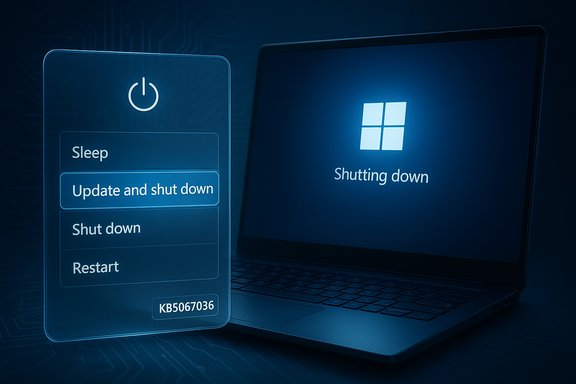
A laptop shows a blue Windows shutdown screen with options: Sleep, Update and shut down, Shut down, Restart.Background / Overview​

For roughly the past few years a recurring complaint surfaced across forums, help desks and social media: when users chose Update and shut down from the power menu, some machines would still come back to the lock screen or desktop after update installation instead of powering off. The symptom was intermittent and configuration‑dependent, which made it particularly frustrating; affected users reported drained laptop batteries, broken maintenance windows, and automation that no longer produced deterministic shutdown behavior. Microsoft has stated the problem was addressed in the Windows Insider preview channel and then folded into the optional preview cumulative update KB5067036 (published October 28, 2025), which lists the change as “Improved: Addressed underlying issue which can cause ‘Update and shutdown’ to not actually shut down your PC after updating.” The update targets Windows 11 builds 26100.7019 (24H2) and 26200.7019 (25H2) in the preview package. This fix is narrowly focused but symbolically important: it restores a basic promise of the UI (the label should match the behavior) and reduces a nagging reliability gap that many users had learned to work around by choosing “Update and restart” or avoiding update‑at‑shutdown flows entirely. Additional reporting and community testing corroborated Microsoft’s notes and confirmed the remediation first appeared in Insider flights before being packaged as KB5067036.

Why the bug mattered: simple UI, complex plumbing​

The illusion of a simple two‑word command​

“Update and shutdown” reads like a single, deterministic action: apply updates, then power off. In practice the OS performs a multi‑stage servicing sequence behind that single menu item. The steps usually include:
  • staging the update payload,
  • executing offline servicing steps that require a reboot,
  • committing component swaps during the reboot,
  • and finally honoring the user’s shutdown intent once servicing completes.
Any break in the orchestration between these phases — race conditions, driver interactions, Fast Startup semantics, or sign‑in/credential handoffs — can cause the final step (power off) to be skipped or replaced by a restart. The result is a mismatch between expectation and outcome.

Real impacts beyond annoyance​

This was not purely cosmetic. The consequences were tangible:
  • Laptop batteries were drained overnight when users expected a shutdown.
  • Automated maintenance workflows that rely on deterministic power states failed.
  • IT imaging and staging processes became fragile where shutdown semantics were part of scripted flows.
  • Trust in the Windows Update UX eroded; users adopted defensive behaviors to avoid surprises.
The intermittent and environment‑specific nature of the bug made it hard to reproduce universally, and that complexity delayed diagnosis and remediation in some cases.

What Microsoft changed (technical summary)​

Microsoft’s release notes and Insider posts describe the correction as a servicing/orchestration repair — not a superficial relabeling or UI change. In practice that means engineers altered the control flow that coordinates offline servicing, reboot sequencing, and the final shutdown directive so the user’s chosen post‑update power state is preserved and enforced when the servicing path completes. The remediation text appears verbatim in Insider release notes and in the KB5067036 preview notes. Key technical points in the fix:
  • The servicing orchestration now better tracks and respects the intent flag for “shutdown after update” across reboots and offline phases.
  • Edge cases around hybrid shutdown (Fast Startup) and multi‑phase servicing sequences were explicitly targeted by the change.
  • The fix was validated across multiple Insider channels (Dev and Beta) before being included in the Release Preview/optional package to gather broader telemetry.
These details indicate the change is deeper than a one‑line edit; it touches the servicing stack and the handoffs between the update pipeline and power management subsystems.

Timeline: from complaints to remediation​

  • 2021–2023: Community reports and forum threads collect examples of the behavior; many users work around the issue by choosing “Update and restart” or running updates manually.
  • 2023–2025: Sporadic reports continue; the issue appears intermittently and in varied hardware/driver contexts, complicating diagnosis.
  • Late September 2025: Microsoft lands a remediation in Windows Insider previews (Dev/Beta), calling out: “Fixed an underlying issue which could lead ‘Update and shutdown’ to not actually shut down your PC after.” Early Insider testers report improved shutdown behavior.
  • October 28, 2025: Microsoft packages the fix into the optional preview cumulative update KB5067036 (OS builds 26100.7019 / 26200.7019) for broader Release Preview testing. The KB release notes explicitly list the change.
  • Following rollout: The fix is expected to be folded into mainstream cumulative updates (Patch Tuesday) after staged validation; real‑world telemetry remains the final arbiter of completeness.

Independent verification and cross‑checks​

Multiple independent outlets and community logs confirm the same sequence and wording in Microsoft’s release notes, increasing confidence in the claim:
  • Microsoft Support’s KB5067036 preview page documents the fix and identifies affected preview OS builds.
  • Windows Central and Tech press outlets reported the fix when it first appeared in Insider release notes and tracked its inclusion in KB5067036.
  • Community forums and aggregated threads collected tester observations confirming that after installing preview builds, some testers observed the “Update and shutdown” option performing a true shutdown instead of a restart.
Taken together, these sources corroborate that Microsoft implemented a servicing change in Insiders and promoted it into KB5067036 for wider preview testing.

How to get the fix and recommended precautions​

KB5067036 is a preview (optional) cumulative package and therefore must be explicitly installed via Windows Update “Optional updates” or obtained manually from the Microsoft Update Catalog as MSU packages.
Practical steps for different audiences:
  • Home users (safe path):
  • Settings → Windows Update → Check for updates.
  • Find the Optional/Preview entry for KB5067036 and select Download & install.
  • Reboot when prompted and validate “Update and shutdown” behavior on a non‑critical device first.
  • If you prefer to wait, the fix is likely to enter the mainstream cumulative releases after staged validation.
  • Power users and enthusiasts:
  • Consider joining the Windows Insider Beta or Dev channel only on spare devices if you want to validate behavior early and help provide feedback to Microsoft. Back up data and expect gated feature activation.
  • IT administrators:
  • Pilot KB5067036 in a tightly controlled ring, validate imaging and scripted shutdown workflows, and monitor for regressions (preview updates bundle multiple changes beyond the servicing fix). Preserve rollback media and maintain a canonical image if you rely on deterministic behavior in production.
Caveat: preview packages can include unrelated UI changes and server‑gated features, so installing an optional preview exposes systems to a wider surface area of changes than a small targeted patch would. For production fleets, conservative staged testing remains the recommended approach.

Strengths of Microsoft’s response — what to praise​

  • Clarity in release notes: Microsoft explicitly listed the servicing remediation in Insider posts and the KB release notes, which provides the factual basis for verification. That transparency is welcome after years of community reporting.
  • Standard staged rollout: The fix followed Microsoft’s usual pipeline — Insiders → Release Preview → wider cumulative — allowing telemetry collection across varied hardware before a full distribution, which reduces the likelihood of broad regressions.
  • A pragmatic servicing fix: Addressing the underlying orchestration in the servicing stack is the right engineering approach; it reduces the risk that a superficial UI tweak would simply mask the symptom.

Risks, collateral issues and what to watch​

  • Preview bundle surprises: KB5067036 is not just the shutdown fix; it bundles Start menu changes, accessibility features, battery icon adjustments, and more. Bundled changes increase the chance of side effects or regressions on some hardware. Test thoroughly.
  • Task Manager regression reports: Early community testing of the preview flagged a Task Manager regression that could leave multiple hidden taskmgr.exe processes running. While unrelated to the shutdown fix, it underscores that preview packages can surface collateral issues that matter to stability. Administrators should validate lifecycle behaviors after installing previews.
  • Incomplete scope and telemetry opacity: Microsoft’s release notes do not publish precise telemetry on how many devices were affected historically. Estimates in community threads are informative but not authoritative. Treat any public numerical claims about the bug’s prevalence as provisional unless Microsoft publishes telemetry.
  • Fast Startup and policy interactions: Some scenarios will still depend on system configuration (Fast Startup, sign‑in settings, driver states). Users who depend on deterministic post‑update shutdowns should validate on representative hardware and consider temporarily disabling Fast Startup where determinism is required.

Broader context: what this fix says about Windows servicing and user trust​

This fix is small in scope but large in symbolic value. A simple power‑menu label failing to do what it promises becomes a credibility issue over time. Restoring that trust matters because predictable behavior in basic UI flows is the baseline expectation for an OS used across homes and enterprises.
At the same time, shipping the fix as part of a feature‑heavy preview underscores how Microsoft now packages servicing work alongside UX changes. That model has pros (efficient validation across devices, fewer separate packages) and cons (higher chance of interaction regressions). For end users and administrators, the appropriate posture is pragmatic: validate early on non‑critical systems, back up, and stagger rollouts.
Some commentators have framed the bug as emblematic of Windows’ broader quality issues — citing bloat, telemetry and UI churn as signs of decline. While those critiques tap into real frustrations, diagnosing systemic decline requires broader metrics (security patch cadence, regression rates, telemetry, and customer satisfaction trends) that go well beyond a single bug fix. Use this remediation as a corrective data point, not definitive proof of a platform trend.

Practical checklist: if you want the fix now​

  • Back up important data before installing preview packages.
  • Install KB5067036 on a spare or test machine via Settings → Windows Update → Optional updates, or download MSU from the Update Catalog and apply manually.
  • After install, test “Update and shutdown” with a small non‑critical update or a staged test to confirm that the machine powers off as expected.
  • If you encounter regressions (e.g., Task Manager duplication or update install errors like 0x800f0983), collect logs and report them via Feedback Hub or your enterprise support channel. Some users have experienced 0x800f0983 while installing the same preview package — a reminder to validate before broad rollout.

Verdict and conclusion​

Fixing the “Update and shutdown” bug was a relatively modest engineering task compared with many of Windows’ larger initiatives, but its effect on user trust and convenience was outsized. Microsoft’s approach — landing a servicing patch in Insider channels, documenting the change plainly, and packaging it into the KB5067036 preview for Release Preview testing — follows an appropriate remediation path for a tricky, environment‑dependent bug.
Users seeking immediate relief can install KB5067036 on test systems and validate behavior, while cautious administrators should pilot the preview and rely on staged rollout policies. The wider lesson is practical: verify, back up, and test preview updates before mass deployment, because preview bundles carry both fixes and unrelated feature changes that can interact unexpectedly.
At the end of the day this repair restores a basic promise of an everyday UI action: when Windows tells you it will install updates and shut down, the machine should actually shut down. That predictability matters for power, privacy, automation and trust — and for millions of users, the fix will be a meaningful, welcome improvement.
Source: OC3D Windows 11's decade-old "update and shutdown" bug finally fixed
 

When you click “Update and shut down,” Windows is finally going to do exactly that — after years of intermittent misbehavior that left machines powered on instead of off, Microsoft has implemented a servicing fix that restores deterministic shutdown semantics and rolled the change into the October 28, 2025 optional preview update (KB5067036); the correction first appeared in Windows Insider Dev and Beta builds and is being staged toward mainstream release.

Windows Insider update in progress on a desktop, glowing progress screen with a shadowy figure in the doorway.Background / Overview​

For many users the Start menu option Update and shut down has always promised a simple convenience: install pending Windows updates while you sleep, then power the PC off so you return to a patched, quiet machine. Instead, a nontrivial subset of devices — laptop users most painfully — discovered Windows would apply the updates and then restart, stopping at the lock screen or desktop rather than powering off. The result: drained batteries, broken maintenance windows, and a loss of trust in a basic OS control. Microsoft’s recent preview builds explicitly call out a fix: “Fixed an underlying issue which could lead ‘Update and shutdown’ to not actually shut down your PC after.” That same wording appears in Insider blog release notes and in the KB5067036 preview package notes for Windows 11 (24H2 and 25H2). This article explains what went wrong, what Microsoft changed, how you can verify and install the fix today, and the practical risks and caveats administrators and end users should be aware of before they treat the problem as fully resolved.

What actually caused the problem (technical anatomy)​

The symptom — Update and shut down behaving like Update and restart — looks simple, but the root cause lives in the intersection of Windows servicing and power-state orchestration. The fix Microsoft shipped addresses those orchestration paths rather than the UI label. Key technical contributors include:
  • Fast Startup (hybrid shutdown): On many systems Fast Startup alters shutdown semantics by saving kernel session state to disk; that hybrid behavior can complicate whether an update’s offline commit completes in a cold power-off or requires a restart.
  • Multi-phase servicing: Modern cumulative updates and LCUs often perform staged operations that require one or more offline commits. If the servicing pipeline requires an intermediate reboot for a particular component, the final decision about powering off vs. restarting becomes conditional.
  • Sign-in / finishing flows: Features like “Use my sign‑in info to finish setting up” can alter whether Windows automatically completes post-reboot configuration; when those flows don’t run as expected, the system may end up returning to the lock screen instead of powering off.
  • Driver/firmware interactions or process handoffs: Third-party drivers and running processes that require full restarts to replace in-use files can nudge the orchestrator toward restart for stability reasons.
Microsoft’s release-note language — a fix to the “underlying issue” — implies changes to how the servicing stack and the shutdown orchestration communicate the user’s intended final state across these phases. That’s why the remedy had to be staged in Insider builds, validated with telemetry, and folded into a preview cumulative update before broader rollout.

Timeline: how the fix reached users​

  • Community reports and forum threads documented inconsistent behavior across many devices from 2022 through 2025; some users worked around it by always choosing Update and restart or disabling Fast Startup.
  • September 29, 2025: Microsoft published Insider preview release notes for Dev and Beta channels that included the remediation text acknowledging the issue in new builds (Dev build 26220.6760, Beta build 26120.6760).
  • October 28, 2025: Microsoft packaged the servicing change into the optional non-security preview cumulative update KB5067036 (OS Builds 26200.7019 and 26100.7019) and published the KB support page describing the improvements and the accompanying servicing stack update (KB5067035).
  • Late 2025 (expected): The fix is staged to be included in the mainstream monthly cumulative update (Patch Tuesday), following Microsoft’s normal validation and controlled rollout model; the November Patch Tuesday falls on November 11, 2025 (the second Tuesday).
Multiple independent outlets tracked the same sequence — reporting the Insider release-note wording, the optional October preview (KB5067036), and the expectation the change would reach general users through the regular monthly update cycle.

What’s included in KB5067036 (short summary)​

The October 28, 2025 preview package KB5067036 is an optional, non-security cumulative update that bundles several user-facing changes and servicing fixes, among them:
  • The servicing correction that improves the Update and shut down orchestration so Windows honors the shutdown intent after offline servicing.
  • An accompanying Servicing Stack Update (SSU) KB5067035 to ensure the servicing stack is robust for applying the LCU/preview package.
  • Other feature flights and UX changes (Start menu updates, Copilot/AI experiences, File Explorer tweaks) that are server-gated and may not activate for all devices immediately.
Note: Preview (optional) updates may include several unrelated changes; installing them is useful for testers but carries slightly higher risk than waiting for the mainstream cumulative update.

How to check whether your PC has the fix​

Short checklist:
  • Open Run → type winver → press Enter. Compare the build number shown with the Insider build numbers (Dev: 26220.6760, Beta: 26120.6760) or the preview package builds (OS builds 26200.7019 / 26100.7019).
  • Settings > Windows Update > Update history will list recently installed cumulative updates and KB identifiers (look for KB5067036 and/or KB5067035).
  • If you’re on a non‑Insider machine and do not see the optional update, Settings > Windows Update > Optional updates (or Check for updates and then look for “Optional updates available”) is where KB5067036 appears if Microsoft offered it to your device.
If your machine reports one of the preview build numbers or lists KB5067036 as installed, test the behavior on a non‑critical device:
  • Save your work and plug in (laptop).
  • Start > Power > Update and shut down.
  • Let the update sequence finish and confirm the device powers off fully rather than returning to the sign-in screen.
If the machine still restarts, capture the build number and update history (and consider reporting the symptom via Feedback Hub).

How to get the fix now (options and trade-offs)​

  • Option A — Install the preview KB now (fastest, for testers): Settings > Windows Update > Optional updates > install KB5067036 (or download from Microsoft Update Catalog). This brings the servicing fix early but may expose the device to other preview-level regressions.
  • Option B — Join Windows Insider (Dev/Beta) on a spare machine: you can validate the fix in preview builds earlier, but insiders accept higher change velocity and risk.
  • Option C — Wait for the mainstream inclusion on Patch Tuesday (conservative): allow Microsoft to fold the optional preview changes into the monthly cumulative update (the expected mainstream update window after validation). This is best for production devices.
Practical workaround if you cannot or do not want to install the preview now:
  • Use Update and restart, then once the system reaches the desktop and completes post-install steps, perform a manual shutdown.
  • Temporarily disable Fast Startup (Control Panel > Power Options > Choose what the power buttons do > Change settings that are currently unavailable > uncheck Turn on fast startup) to restore full shutdown semantics. This slows cold boots slightly but reduces hybrid-state ambiguity.

What to watch for: risks, regressions, and the new Task Manager issue​

While the fix is welcome, KB5067036 is an optional preview package and evidence shows that preview updates can introduce regressions. Two important caution points:
  • Task Manager “ghost” instances: Following the October preview release, Microsoft acknowledged — and its release-health pages recorded — a problem where Task Manager may continue running after closing, producing multiple lingering taskmgr.exe instances and potential performance degradation on affected machines. Microsoft marked this as a known/mitigated issue in the preview builds tied to KB5067036 and has documented mitigation guidance in the release-health notes. This is a real-world regression to monitor if you plan to install the preview.
  • Optional update instability: Some testers encountered update installation errors (e.g., 0x800f0983) when trying to apply the preview, and community threads show a mix of success and failure across hardware and driver stacks. That’s typical of optional preview releases that exercise wide platform permutations. If you must keep a production device stable, consider deferring the preview until the fix lands in the mainstream cumulative update.
Why this matters: fixing the shutdown sequencing requires touching the servicing orchestration and the handoff between the update pipeline and power manager. Those paths are delicate, and small changes can ripple into UI or process lifecycle regressions if not validated broadly — hence Microsoft’s staged rollout approach.

Analysis: why this fix matters — and why it took so long​

On the surface the bug was a small UX mismatch: a menu item promising one result but sometimes delivering another. In practice, the failure undermined trust in the operating system and produced tangible consequences:
  • Battery drain: Laptops left “off” overnight could be found running and drained.
  • Operational friction: Maintenance windows relying on deterministic shutdowns failed intermittently.
  • Behavioral side effects: Users developed workarounds (manually install updates, avoid Update and shut down) that reduce automation and may lower patch compliance.
Technically, the behavior was intermittent and heavily environment-dependent — which made the bug both harder to reproduce and harder to isolate. The servicing stack, Fast Startup, sign-in finishing flows, firmware/driver behavior, and multi-phase update sequences all intersect in ways that can cause a shutdown intent to be interpreted as a restart requirement. Correcting that required a servicing-level orchestration change and careful rollout. The fix is therefore significant: it restores a deterministic, user-expected outcome for a basic control while addressing a subsystem (the servicing/orchestration layer) rather than merely relabeling the UI.

Practical recommendations (for users and IT)​

  • Home users (conservative): Wait for the mainstream cumulative update (Patch Tuesday) to include the fix — install it then and test on non-critical devices first. Until then, use Update and restart + manual shutdown or disable Fast Startup if you need deterministic off behavior.
  • Power users and enthusiasts (testers): If you want the fix now, install KB5067036 from Optional updates on a spare device and test the Update-and-shutdown flow, but be ready to rollback or wait for fixes for any regressions (Task Manager issue, installation errors).
  • IT administrators: Pilot KB5067036 in a controlled ring. Validate imaging, scripted shutdown workflows, and automated maintenance windows. Preserve rollback paths and coordinate the staged rollout with your change control processes. Expect the final fix to arrive via the monthly cumulative update after Microsoft’s telemetry validation.
Quick verification steps for IT:
  • Deploy KB5067036 to a pilot ring and record wins/rollbacks.
  • Confirm Update and shut down now powers off across representative hardware profiles.
  • Monitor for new regressions (Task Manager zombie instances, drivers, or device-specific failures) and file reports through established channels.

What remains uncertain (and what to treat cautiously)​

  • Exact root-cause detail: Microsoft’s public notes confirm an orchestration-level fix but do not publish a file-level postmortem that identifies the exact race condition or code path. Any public explanation beyond Microsoft’s wording is an engineering inference unless Microsoft supplies deeper documentation.
  • Coverage and corner cases: Because the original behavior was intermittent and environment-dependent, the incidence rate across every OEM, driver, and firmware permutation is not yet fully known; staged telemetry will confirm whether additional corner cases remain. Treat broad “problem solved for everyone” statements as contingent until telemetry matures.

Final verdict​

The servicing correction in Insider builds and the inclusion of that change in the October 28, 2025 optional preview update (KB5067036) is a meaningful, user-facing improvement: the Update and shut down action can now obey the shutdown intent in the scenarios Microsoft targeted, restoring predictability and preventing needless battery drain. Microsoft’s public documentation (Insider release notes and KB page) and independent press coverage corroborate the change and the staged rollout plan. That said, the preview packaging also demonstrates why staged testing matters: the same update bundle introduced a separate Task Manager regression on some machines, underscoring that fixes touching core orchestration can yield unintended side effects. For most users the safest course is to wait for the fix to arrive through the mainstream monthly cumulative update (Patch Tuesday) and then validate behavior across representative machines; testers and power users who install the preview should do so on non-critical hardware and be vigilant about known and emerging regressions.

Quick reference: commands and locations​

  • Check your build: Run → winver → Enter.
  • Install the preview: Settings → Windows Update → Optional updates → look for KB5067036 → Download & install.
  • Temporarily mitigate: Control Panel → Power Options → Choose what the power buttons do → Change settings that are currently unavailable → Uncheck Turn on fast startup.

Correcting a small but persistent mismatch between UI promises and real outcomes is an important quality-of-life win for Windows users, and this remediation restores a simple expectation: click Update and shut down, and the machine will be off when you leave. The fix is live in Insider flights and packaged as KB5067036 for preview testers; mainstream delivery via the regular cumulative update cadence is the conservative path for production environments. Monitor update history and Microsoft’s release-health notices, pilot where appropriate, and stay aware of new known issues while Microsoft finishes the staged rollout.
Source: Lifehacker 'Update and Shut Down' Actually Restarts Your PC (but a Fix Is Coming)
 

You weren’t imagining it: for many Windows users, the familiar promise of “Update and shut down” behaved like a rickety coin‑flip — sometimes the PC powered off, sometimes it silently booted back to the login screen and left you with a humming laptop in the morning. Microsoft has quietly acknowledged and patched the behavior, folding the repair into the October preview cumulative update (KB5067036) and preparing a wider rollout during the November 11, 2025 Patch Tuesday servicing cycle.

Laptop shows a blue software update panel: KB5067036 Patch Tuesday; update complete, shut down.Background / Overview​

Windows Update offers two different end‑of‑day options that look almost identical: Update and restart and Update and shut down. The intention is simple: choose “Update and shut down” when you want the machine to apply updates and then power off for the night. Under the hood, however, that process is multi‑phased — downloads, staged offline install phases that require one or more reboots, final offline servicing passes, and a final power‑off instruction. The chain is fragile: if any link breaks or a state isn’t preserved, the OS can end up at the wrong end state and restart instead of shutting down. The problem made itself visible in ways that matter. Laptops left on overnight drained battery; maintenance windows and automation that assume deterministic shutdowns failed; and above all, user trust in a button label was eroded. The fix Microsoft shipped removes a long‑standing inconsistency by addressing the servicing orchestration so the system preserves and fulfills the user’s final “power off” intent after update processing completes.

What Microsoft actually said — and what it shipped​

Microsoft’s October 28, 2025 preview cumulative update KB5067036 (preview builds OS 26200.7019 for 25H2 and 26100.7019 for 24H2) explicitly lists the change as: “Addressed underlying issue which can cause ‘Update and shutdown’ to not actually shut down your PC after updating.” That line is terse but decisive: it frames the remedy as a servicing logic correction rather than a simple cosmetic relabeling. The preview KB reached Release Preview channels and was offered as an optional, non‑security package in late October. Microsoft’s staged release model—Insider → Release Preview → mainstream Patch Tuesday—means the change is being validated across diverse hardware before the mandatory cumulative update distribution scheduled for Patch Tuesday on November 11, 2025. Users who want the change immediately can install the optional KB; the broader population should see it bundled in November’s mainstream rollout. Key technical facts you should be able to confirm on your machine:
  • The patch is surfaced in KB5067036 (October 28, 2025 preview).
  • The note applies to Windows 11 25H2 (builds beginning at 26200.7019) and 24H2 (26100.7019).

How users experienced the bug — the real world impact​

This wasn’t an abstract cosmetic issue. The failure mode was practical and painful:
  • Battery drain: Laptops expected to be off overnight instead continued running cooling and display systems, sometimes draining battery by morning.
  • Maintenance and automation failures: Scheduled overnight updates that assume a power‑off could no longer be relied upon, breaking scripts and systems that depend on deterministic state.
  • User friction and distrust: People stopped trusting the UI label and either avoided the option entirely or used manual workarounds like running updates only while awake. Community threads and Feedback Hub items documenting the behavior go back years, with heavy activity visible since 2023.
Anecdotally, many long‑time Windows users reported switching to “Update and restart” or simply locking their device and leaving it powered on rather than risking a failed shutdown. That’s a pragmatic workaround but one that means the update experience no longer matched user expectations.

What likely went wrong: a technical autopsy​

Microsoft’s release notes are deliberately sparse — “addressed underlying issue” is the phrase engineers use when they don’t want or can’t publish implementation detail. But the community’s reconstruction and Microsoft’s own servicing design offer a plausible explanation:
  • Multi‑phase servicing: Windows update commits require an offline servicing phase that runs before the full OS session resumes. That offline phase can include registry transactions, component store (CBS) work, driver servicing, and servicing stack updates. If the orchestration that hands control back to the kernel fails to carry the “power off when done” flag, the system will continue to boot to the login screen.
  • Race conditions and servicing stack interactions: Observers point to the Servicing Stack (the component that sequences offline updates) and race conditions between final offline install steps and the power manager. If the shutdown instruction is dropped, cleared, or blocked by an unexpected process, the device will complete updates and then present the lock screen instead of powering off.
  • Fast Startup, driver or third‑party interference: Fast Startup, misbehaving drivers, or third‑party services that block clean shutdown can change expected state transitions and resurrect similar symptoms even after a code‑level fix. Community troubleshooting commonly identifies drivers, background services, and Fast Startup as usual suspects.
The important takeaway: Microsoft’s change appears to correct the core servicing orchestration, but the lived environment of Windows—drivers, firmware, user settings—still matters. You may still see restart-like behavior if something else prevents the machine from accepting the final power‑off.

Timeline: how long has this been a problem?​

Narrative in the wild ranged from “it’s always been broken” to “this started in Windows 11.” The data suggest a simpler, more defensible characterization:
  • Community reports and Feedback Hub threads with examples become prominent in and after 2023; Reddit and forum threads from 2023–2025 show steady reports.
  • Microsoft began landing targeted fixes in Windows Insider preview flights in late September 2025; these fixes were validated in Dev/Beta channels before being packaged into an optional preview cumulative update.
  • The optional KB5067036 (Oct 28, 2025) folded that remediation into a broader preview package for Release Preview and voluntary testers; mainstream distribution followed via the Patch Tuesday pipeline on November 11, 2025.
So while headlines describing a “decade‑long” sin of omission make for punchy copy, the evidence for a continuous decade of official acknowledgment is weak. Reports peaked and were persistent from 2023 onward; Microsoft’s formal remediation and public patch arrived in late 2025. The broader point remains true: the behaviour lingered long enough to damage trust.

How to tell whether your PC has the fix (practical checklist)​

If you want to verify whether your machine has the remediation, check these items in order:
  • Open Settings → Windows Update → Update history and confirm that KB5067036 (or the November 2025 cumulative update) is installed. If you see the October preview entry, you have the optional fix; the November Patch Tuesday rollout will include it for everyone.
  • Run winver (press Windows+R, type winver, Enter). The About Windows dialog shows the OS build. Look for 26200.7019 (25H2) or 26100.7019 (24H2) or newer.
  • Test the behavior with a small update — or use the Optional updates page to install the KB manually (Settings → Windows Update → Advanced options → Optional updates) — then select Update and shut down and confirm the device powers off rather than returning to the lock screen.
If your configuration is managed by enterprise policies (SCCM/Intune/Group Policy), your IT admin may control update visibility and installation. Administrators should validate the change in a controlled pilot before broad deployment.

If the problem persists: troubleshooting steps that help​

Even with Microsoft’s fix, some systems may still resume to the lock screen after Update and shut down. The causes are heterogeneous; here are proven mitigations to try, ordered by risk and complexity:
  • Disable Fast Startup temporarily:
  • Control Panel → Power Options → Choose what the power buttons do → Change settings that are currently unavailable → uncheck Turn on fast startup. Fast Startup can keep kernel state and skip full shutdown sequences, which may interact poorly with update finalization.
  • Check the “Use my sign‑in info…” setting:
  • Settings → Accounts → Sign‑in options → under Privacy you'll find Use my sign‑in info to automatically finish setting up my device after an update or restart. This feature allows Windows to sign in automatically after a restart to finish setup; toggling it can change whether updates complete without explicit sign‑in. Note: Microsoft historically recommends BitLocker when using automatic sign‑in tokens because of the security trade‑offs.
  • Update device drivers and firmware:
  • Graphics, network, and storage drivers are common culprits. Update from vendor sites or use optional driver updates in Windows Update. A stubborn driver that blocks power transitions can force a restart or prevent shutdown.
  • Run system integrity checks:
  • sfc /scannow and DISM /Online /Cleanup-Image /RestoreHealth can help if corrupted system files interfere with servicing workflows.
  • Review third‑party software:
  • Security suites, virtualization tools, or remote management agents can intercept shutdown signals. Temporarily disable or update them to test.
  • For administrators: review Group Policy and scheduled task workflows that may explicitly request a reboot after update install, overriding shutdown semantics.
If none of these resolve the symptom, collect logs (SetupAPI, WindowsUpdate, System event logs) and open a Feedback Hub item or contact Microsoft support with the logs. Community diagnostic scripts and verbose update logs can accelerate root‑cause analysis.

The trust problem and the bigger picture​

A clearly labeled UI action that doesn’t perform the promised work is a UX failure with consequences beyond battery life. Users rely on textual affordances: if a button is labeled “Shut down,” the reasonable expectation is that the system will power off. When that breaks, the logical result is loss of trust and adoption of riskier or clunkier workflows.
There are several structural reasons Windows is vulnerable to this type of failure:
  • Windows runs on a vast diversity of hardware with vendor drivers that can, and often do, affect power state transitions.
  • Update servicing touches low‑level components and kernels; the sequencing is complex and sometimes brittle.
  • Microsoft’s staged deployment strategy (Insider → preview → Patch Tuesday) is designed to catch these problems, but intermittent, configuration‑dependent bugs are inherently hard to reproduce at scale.
The takeaway for users and admins is twofold: Microsoft fixed one of the orchestration failures in late 2025, but system reliability still depends on firmware, drivers, and local configuration. Think of the fix as necessary but not sufficient.

Why this fix matters to power users and admins​

  • Predictability: For scheduled maintenance windows and overnight update plans, deterministic shutdowns are important. The repair restores predictable behavior for many workflows.
  • Energy and security: Laptops left on overnight increase power consumption and attack surface (e.g., unlogged sessions). Correct shutdown behavior reduces both energy waste and exposure.
  • Support complexity: For help desks and sysadmins, inconsistent behaviors create hard‑to‑diagnose tickets. A servicing‑level fix reduces a whole class of intermittent problems and support calls.

What Microsoft still won’t say — and what remains uncertain​

Microsoft’s terse changelog does not disclose the exact code path fixed. That’s standard for servicing notes and is often done to avoid revealing exploitable implementation detail or to keep the notes concise. However, there are a few unverifiable elements and open questions:
  • The exact root cause (specific race condition, servicing stack bug, or power manager interaction) is not enumerated by Microsoft public notes; community reconstructions are plausible but not equivalent to an authoritative postmortem. This qualifies as an unverified technical inference.
  • The claim that the bug persisted for “nearly a decade” is hyperbolic. Community reports and threads notably gather after 2021 and especially in 2023–2025; an unbroken, continuous decade‑long failure with Microsoft awareness is not supported by the public record. The grievance is valid, but the timeline needs tempering.
Where Microsoft’s notes are strongest is in the behavioral assurance: the company has shipped a servicing correction and is delivering it via the standard validation and rollout pipeline.

Final analysis: praise the fix, but keep the skepticism​

Fixing “Update and shut down” was the right repair — it restores an elementary promise of the user interface and eliminates the frustrating mismatch between label and outcome. The remediation’s arrival in KB5067036 and its inclusion in the November 11, 2025 Patch Tuesday cadence is a welcome corrective to months of inconsistent behavior. At the same time, the episode highlights an uncomfortable reality: in a complex, ecosystem‑driven OS, a bad interaction between components can persist long enough to erode confidence. The modern remedy for Microsoft is not just to ship a binary fix but to restore trust by improving telemetry, QA coverage for common‑sense UI semantics, and transparency when behavior affects millions of users.
For Windows users: install the preview KB if you want the repair immediately, or wait for the mainstream November 11 release that will deliver it broadly. Keep drivers and firmware updated, review sign‑in options and Fast Startup settings, and if the machine still misbehaves, treat the problem as a system configuration issue rather than proof the fix failed.
We can now close the loop: the button that lied has been fixed in practice. The deeper moral is organizational: when a small labeled behavior breaks, it can have outsized consequences. Software vendors shipping at global scale must remember that the promise of a button matters as much as the code behind it.

Source: indiaherald.com You Weren’t Crazy — Windows Really Never Shut Down. Microsoft Just Confessed.
 

Microsoft has quietly fixed one of Windows’ most persistent little annoyances: the Start‑menu option labeled “Update and shut down” now behaves as promised in recent Insider preview builds and in the October 28, 2025 optional preview cumulative update (KB5067036), addressing an orchestration bug that in some systems applied updates and then left the PC powered on instead of completing a shutdown.

Blue, futuristic computer UI showing update/shutdown options and a power button.Background / Overview​

For years a surprising number of Windows users reported the same frustrating pattern: they selected Update and shut down, expecting the machine to finish installing updates and power off, only to come back later to a humming laptop with the lock screen or desktop visible — effectively a restart instead of a shutdown. That mismatch between the UI label and observed outcome created practical problems (battery drain for laptop users, broken maintenance windows, and brittle automation) and a lot of annoyance. Microsoft has described the repair in Insider release notes as a change to the underlying servicing orchestration — not merely a relabeling of the option.
The fix was validated in Windows Insider Dev and Beta builds and was later packaged into the optional preview cumulative update KB5067036 (identified in preview build notes as OS builds 26200.7019 and 26100.7019). Microsoft’s changelog language — terse but explicit — reads along the lines of “Fixed an underlying issue which could lead ‘Update and shutdown’ to not actually shut down your PC after.” The same update package also includes servicing fixes that target a recurring install failure, error 0x800f0983, which had been causing some update installations to fail and roll back.

Why this bug mattered​

At first glance the problem seems tiny: a menu item did not do exactly what it said. In practice the effects were concrete:
  • Battery and energy waste: Laptops expected to be off were left on overnight, often draining batteries.
  • Operational friction: Maintenance windows and scripted processes that expect deterministic shutdown behavior failed or produced inconsistent results.
  • Loss of trust: When a labelled control does not yield the promised outcome, users adopt manual workarounds (e.g., always using Update and restart) that reduce convenience and potentially lower update compliance.
Technically, the symptom was intermittent because the servicing path that performs updates during shutdown is inherently multi‑phase and interacts with other platform features such as Fast Startup (hybrid shutdown), driver handoffs, sign‑in finishing flows, and the multi‑stage Component Based Servicing pipeline. These interlocked systems created timing and state conditions where the final orchestration could choose a restart/resume flow instead of honoring the explicit shutdown intent. Microsoft’s described remediation addresses these orchestration decisions rather than just changing UI text.

What Microsoft shipped (builds, KBs, and timeline)​

Where the fix first appeared​

Microsoft landed the servicing change in Windows Insider preview release notes in late September 2025 and allowed testing in both the Dev and Beta channels. The preview releases validated the fix against telemetry gathered from a diverse set of hardware and configurations. The same logic was subsequently packaged into the optional preview cumulative update KB5067036, published on October 28, 2025, targeted at Windows 11 versions 24H2 and 25H2 (OS builds 26100.7019 and 26200.7019 in the preview notes).

What KB5067036 contains relevant to this story​

  • A servicing/orchestration correction to ensure Update and shut down honors the user’s shutdown intent in the scenarios Microsoft targeted.
  • Targeted servicing fixes addressing a recurring Windows Update install failure: error 0x800f0983.
KB5067036 is an optional preview update — meaning it is delivered as a “Download & install” preview in Windows Update and as MSU files in the Microsoft Update Catalog for manual or enterprise deployment. It is not automatically forced on systems the way mandatory security rollups are; Microsoft typically uses this staged path (Insider → Release Preview/optional preview → mainstream cumulative) to validate fixes and collect telemetry before broad distribution.

Technical anatomy — why “Update and shut down” is more complicated than it looks​

The apparent two‑step action — "install updates, then power off" — masks several fragile handoffs:
  • Fast Startup (hybrid shutdown): This feature persists kernel session state to disk to speed boot; it changes shutdown semantics and can cause the OS to treat a shutdown more like a hibernate-style session, complicating an offline servicing step that wants a true cold power-off. Disabling Fast Startup has been a common user workaround.
  • Multi‑phase servicing: Modern cumulative updates often perform staged operations: they stage files while the OS is running and then require an offline commit during shutdown/boot. Some packages need intermediate reboots; the servicing stack must decide whether to restart or power off after completing the offline phase.
  • Sign‑in / finishing flows: Features like “Use my sign‑in info to finish setting up my device” may cause the system to resume to the lock screen or desktop to complete configuration, interfering with the intended power state.
  • Driver/firmware interactions: Third‑party drivers or firmware updates that require reboots to swap out in‑use files can nudge the orchestrator toward restart for consistency reasons.
Microsoft’s fix targets the decision logic in that orchestration layer — the plumbing that coordinates whether, after offline servicing completes, the system truly powers off or instead initiates a restart/resume path. That’s why the remedy needed validation across diverse builds and hardware in the Insider channels prior to preview packaging.

The related 0x800f0983 install failure: what it is and why KB5067036 matters​

What 0x800f0983 typically signals​

Error code 0x800f0983 often points to problems within the Component-Based Servicing (CBS) pipeline or component store corruption. The usual pattern: the update downloads successfully, the installer fails during the offline commit, the update rolls back, and the device remains on the prior build. Standard local remediation (SFC /scannow, DISM /Online /Cleanup-Image /RestoreHealth) helps in many cases but not always.

How KB5067036 helps​

Microsoft’s preview notes and community investigation indicate KB5067036 bundles servicing‑stack and component‑store fixes that mitigate common failure modes that surfaced after recent cumulative updates — precisely the circumstances that triggered 0x800f0983 for many devices. While not a universal cure for every possible servicing state, the package demonstrably reduced the incidence of the error for many users and is a valid remediation path for affected machines.

How to get KB5067036 and validate the fix​

Consumer-safe path (recommended)​

  • Settings → Windows Update → Check for updates.
  • Look under Optional updates for the KB5067036 preview entry and choose Download & install.

Manual / enterprise path​

  • Download matching MSU packages for your architecture from the Microsoft Update Catalog and install offline via wusa.exe or DISM /Online /Add-Package. Ensure you follow Microsoft’s documented package ordering and apply any prerequisite Servicing Stack Updates (SSUs) if required.

Quick validation steps after installing​

  • Test the Update and shut down flow on a non-critical update to confirm the device powers off fully.
  • Run a small update or apply a minor driver/staging change and observe the final power state.

Practical troubleshooting: if you still see 0x800f0983 or update problems​

Follow a safe, ordered troubleshooting playbook (least intrusive first):
  • Restart and retry the update (clears transient locks).
  • Run the Windows Update Troubleshooter.
  • Run health checks:
  • sfc /scannow
  • DISM /Online /Cleanup-Image /ScanHealth
  • DISM /Online /Cleanup-Image /RestoreHealth
  • Reset Windows Update components: stop services, rename SoftwareDistribution and catroot2, restart services, retry.
  • Attempt manual MSU installation via the Microsoft Update Catalog.
  • If failures persist, perform an in‑place repair (mount an official Windows 11 ISO and run setup.exe → Keep personal files and apps).
If you manage a fleet, stage KB5067036 to a pilot ring and validate upgrade and rollback behaviors before mass deployment. Keep rescue ISOs and offline recovery plans at hand — some edge cases still require an in‑place repair to reconstitute the servicing stack.

Strengths and real benefits​

  • Restores predictable behavior for a common UI flow: Users who depend on Update and shut down regain a simple, reliable workflow. This reduces the need for manual workarounds and helps prevent battery drain on laptops.
  • Addresses a widespread servicing failure class: By targeting error 0x800f0983, Microsoft reduces helpdesk load and removes a repeat‑failure mode that previously forced manual remediation for many users.
  • Staged release path is sane for debugging: Rolling the fix through Insider → preview → mainstream allows Microsoft to collect telemetry and catch regressions before broad rollout.

Remaining risks and caveats — what to watch for​

  • Not a universal cure: Community telemetry shows that while KB5067036 reduced occurrences of 0x800f0983 and restored shutdown behavior for many, a minority of devices with complex or corrupted servicing histories still needed manual repair. Do not assume a single preview package fixes every edge case.
  • Preview mixing: KB5067036 is a mixed preview — it bundles servicing fixes with visible UI/feature changes (Start redesign, Copilot and accessibility improvements). That increases the risk that unrelated interactions or regressions appear on test systems. Admins should pilot the package carefully.
  • Feature gating and server‑side enablement: Installing the KB supplies code, but many features are toggled server‑side and will appear progressively; this can make validation confusing. Don’t equate bit presence with feature exposure.
  • Lack of public telemetry scope: Microsoft has not published exact device‑count telemetry showing how many machines were affected before or after KB deployment. Statements that the bug was “fixed for all devices” are not verifiable without further vendor telemetry. Treat broad scope claims as provisional.

Action checklist — for home users and admins​

  • Home users:
  • Back up important data before installing preview updates.
  • Install KB5067036 on a spare or non-critical machine and validate Update and shut down.
  • If 0x800f0983 persists, follow the ordered troubleshooting sequence (troubleshooter → SFC/DISM → component reset → manual MSU → in‑place repair).
  • IT administrators:
  • Create a pilot ring representing your hardware and software diversity.
  • Validate sign‑in flows, Windows Hello, WinRE boot/rescue behaviors, and critical apps.
  • Keep offline MSUs and the latest SSUs available for manual remediation.
  • Maintain recovery images and a rollback plan before mass deployment.

Critical analysis: what this fix tells us about Windows servicing and quality engineering​

Fixing the Update and shut down mismatch is a welcome quality‑of‑life repair, but its long life-cycle — community threads and help-desk reports show this behavior appeared repeatedly over multiple update cycles — highlights systemic complexities in distributed OS servicing.
Strengths:
  • Microsoft identified an orchestration target and implemented a remedial servicing change rather than superficially relabeling UI. That shows engineering attention to behavioral correctness.
  • Combining servicing fixes with preview packaging allows expedient field testing of both the repair and adjacent interactions.
Risks:
  • Mixed preview packages increase surface area for regressions. Recent months included urgent out‑of‑band fixes for unrelated regressions (for example WinRE USB input regressions), illustrating the tradeoffs of bundling fixes with feature work. Administrators must balance early remediation against the risk of preview-induced regressions.
  • Persistent edge cases underline the reality that single packages can’t heal every corrupted servicing state; robust recovery guidance and in‑place repair remain necessary tools.
Bottom line: KB5067036 is a pragmatic corrective move that restores a simple, expected behavior and reduces a known update failure mode. It does not eliminate the need for cautious rollout and testing, especially in managed environments.

What remains uncertain or unverifiable​

  • Claims that the Update and shut down bug dates back "eight years" to Windows 10 are plausible in anecdote but are not definitively corroborated by a single authoritative public timeline; community reports span multiple years, and Microsoft’s release notes only confirm the recent remediation path. Treat claims about an exact first‑report year as unverified until primary Microsoft telemetry or archived Feedback Hub records are produced.
  • Precise counts of affected devices before and after KB deployment have not been published by Microsoft; therefore, any sweeping claim about global resolution is not verifiable from the available public artifacts. Administrators should assume variability and plan accordingly.

Final verdict and practical recommendation​

This repair closes a small but very visible gap between a UI promise and system behavior. For most users the practical experience will improve: choosing Update and shut down should now power the system off in the scenarios Microsoft targeted, and KB5067036 also reduces the frequency of the servicing failure 0x800f0983 for many affected devices. That outcome restores trust and reduces helpdesk churn.
However, because KB5067036 is a preview/optional package that bundles feature and servicing changes, the safest posture for production environments remains to pilot the update on representative hardware, validate recovery procedures, and stage the deployment. Home users who want the fix now should apply it to spare or non‑critical devices first and follow the troubleshooting playbook if they encounter installation failures.
In short: Microsoft fixed the orchestration that caused the mismatch — a meaningful quality‑of‑life improvement — but the complexity of modern servicing means vigilant testing, backups, and staged rollouts are still the prudent way forward.


Source: 80 Level "Update and Shut Down" Now Actually Shuts Down Your Windows PC
 

Microsoft has quietly corrected a long‑standing inconsistency in Windows’ update workflow: the “Update and shut down” option now actually powers the PC off after applying updates in the latest Windows 11 preview and staged Patch Tuesday releases, restoring deterministic behavior that many users and IT admins have relied on for years.

Laptop on a blue background shows update progress and a 'Update and Shut Down' prompt.Background: the annoyance that wouldn’t die​

For a long time, a small but very visible mismatch existed between what Windows promised and what many machines actually did. When a user selected Update and shut down, Windows would seem to install pending updates, run through the offline servicing phase, and then — in a frustrating subset of devices and scenarios — return to the lock screen or desktop instead of powering off. That behavior created real, measurable problems: drained laptop batteries overnight, failed maintenance windows, and eroded trust in a one‑click convenience that should be predictable. Microsoft engineers treated this as a servicing orchestration problem rather than merely a UI glitch. The remedy landed in Windows Insider preview flights and was packaged into an optional preview cumulative update (KB5067036) issued on October 28, 2025. The preview produced OS build tokens 26100.7019 for Windows 11 version 24H2 and 26200.7019 for Windows 11 version 25H2; those build numbers identify machines that include the fix.

Why “Update and shut down” sometimes behaved like “Update and restart”​

The multi‑phase servicing pipeline (short version)​

At a glance, Update and shut down appears atomic: install updates, then turn off. In reality, modern Windows servicing is multi‑phase:
  • While you’re signed in, Windows applies updates it can change while running.
  • For replacements that require offline servicing (kernel, low‑level drivers, protected files), the system reboots into an offline phase to commit those changes.
  • After offline servicing finishes, Windows must honor the original user intent — either restart (and sign back in) or shut down. If orchestration loses or mishandles that intent, the device can return to a powered‑on state.
That last hop — preserving and enforcing the final shutdown intent across the reboot/supervisory boundary — is where the bug lived. The symptom was intermittent and hardware dependent, which is why reproductions were inconsistent across machines and updates. Fast Startup, driver interactions, and varied servicing payloads complicated diagnostics and delayed a definitive fix.

Why it felt like “ghost clicks” or misclicks​

Because Update and restart and Update and shut down appear side‑by‑side, many users assumed they had mistakenly chosen the wrong command. For years the community has debated whether it was user error, a timing quirk, or a permissions issue. The clear takeaway now: for a subset of systems it was a real, reproducible servicing orchestration issue — not phantom fingers. Microsoft explicitly documented the fix in Insider notes and the KB change log.

What Microsoft shipped (builds, KBs, timeline)​

The engineering artifact: KB5067036 (preview)​

Microsoft released a non‑security preview cumulative update identified as KB5067036 on October 28, 2025. The KB lists a direct change: “Addressed underlying issue which can cause ‘Update and shutdown’ to not actually shut down your PC after updating.” That preview produces the OS builds 26200.7019 (25H2) and 26100.7019 (24H2).

Staging path and expected mainstream rollout​

Microsoft’s update cadence uses optional non‑security preview releases (typically on the fourth Tuesday of the month) for early validation and testing, followed by the mainstream cumulative update release on Patch Tuesday (the second Tuesday of the following month). By that staged process, the October 28 preview was expected to be folded into the November Patch Tuesday cumulative update scheduled for November 11, 2025. That schedule is consistent with Microsoft’s documented release cycle.

Where the fix first appeared​

  • Insider channels (Dev and Beta) listed the remediation as early as September 29, 2025 in release notes for preview builds.
  • The optional preview KB (KB5067036) on October 28, 2025 included the same fix and produced the build numbers listed above.
  • The staged, mainstream rollout — via Patch Tuesday — was expected to complete the distribution to most users by November 11, 2025, pending telemetry validation and any rollout throttling Microsoft applies.

How to confirm and adopt the fix​

If you want to be certain your machine will respect Update and shut down as a true shutdown, follow these steps:
  • Open Settings → Windows Update → Check for updates and install any available cumulative update.
  • After installing, confirm your OS build: press Win+R, type winver, and press Enter. Verify the build is 26100.7019 (24H2) or 26200.7019 (25H2) or later.
  • If the preview doesn’t appear and you want to wait for the conservative path, ensure you install the November Patch Tuesday cumulative update (expected rollout on November 11, 2025).
  • For IT admins: pilot the update on a narrow ring (test devices) before wide deployment. Use imaging and rollback plans for critical endpoints.
Important deployment notes:
  • KB5067036 is an optional, non‑security preview — you must click “Download and install” to apply it immediately. Mainstream security‑cumulative updates later include preview fixes for broad deployment.
  • Create a System Restore point or image backup if you plan to install optional previews on production hardware. Pilot the update first.

Practical implications: why this fix matters​

  • Battery life: Laptops left “off” overnight but actually left running will drain battery and reduce component lifespan due to extra cycles and heat. Fixing Update and shut down reduces accidental overnight drain.
  • Automation and maintenance windows: Many scripts and enterprise workflows assume deterministic shutdown semantics. When those fail, scheduled tasks, patch plans, and imaging processes can break unpredictably. Restoring a deterministic shutdown simplifies automation and reduces edge‑case complexity.
  • User trust: Even small UI‑behavior mismatches undermine trust. Restoring promised behavior matters because it reduces risk and cognitive load for everyday users.

What the fix does not tell us — and where to be cautious​

Microsoft’s public release notes and the KB entry are deliberately concise. They confirm the symptom and the remediation, but they do not include a granular engineering post‑mortem. Where the root cause is not publicly disclosed, treat any deeper technical claim as informed inference rather than a documented fact.
  • It’s plausible the issue involved race conditions or orchestration edge cases in the servicing stack, and community analysis points to interactions with Fast Startup, drivers, and multi‑phase servicing. These are reasonable hypotheses supported by the symptom pattern, but Microsoft has not published a line‑by‑line root cause in public engineering notes. Caution: assertion of a single, specific root cause is not directly verifiable via Microsoft’s public notes.

Reported regressions and why optional previews carry risk​

A practical reason to be conservative about installing optional previews immediately: preview updates occasionally introduce regressions. After the October 2025 preview (KB5067036), multiple outlets and community reports flagged a separate issue where Task Manager instances could duplicate and persist in the background until terminated. That problem was reported by several independent publications and by testers following the preview roll‑out. Those reports illustrate the trade‑off between early access and stability. If you prefer maximum stability:
  • Wait for the mainstream Patch Tuesday cumulative update (the conservative path).
  • Pilot the preview on non‑critical devices first; monitor for regressions such as UI glitches, driver anomalies, or process duplicates.

Enterprise guidance and mitigation strategies​

Immediate steps for admins​

  • Deploy the preview only to a small pilot ring. Observe telemetry and user reports for 48–72 hours.
  • Ensure update orchestration (WSUS/SCCM/Intune) targets the correct build and that rollback procedures are in place.
  • Test critical automation scripts that assume deterministic shutdown behavior (e.g., imaging, BIOS/firmware updates that run on power‑off).

Longer‑term operational hardening​

  • Where feasible, disable Fast Startup on devices that must reliably shut down after updates; Fast Startup’s hybrid behavior can complicate shutdown semantics under certain conditions. Test the change carefully — disabling Fast Startup affects boot performance and hibernation behavior.
  • Keep device drivers updated from hardware vendors to reduce odd interactions between update orchestration and driver install flows. The preview also aimed to address recurring driver install failures (error 0x80070103 / 0x800f0983) alongside the shutdown fix.

FAQ — short, factual answers​

  • Does this fix apply to Windows 10 as well?
    Microsoft’s KB entry and the preview indicate the remediation was applied to Windows 11 versions 24H2 and 25H2 (builds 26100.7019 and 26200.7019). Public documentation and reporting have not indicated a corresponding fix packaged for Windows 10 in this KB. Users still on Windows 10 should verify Windows 10 cumulative updates and consider upgrading or ESU enrollment for continued support.
  • Which update includes the fix?
    The fix first appeared in the optional non‑security preview cumulative update KB5067036 (released October 28, 2025) and was staged for mainstream inclusion in the November Patch Tuesday cumulative update.
  • Can I still use Update and restart normally?
    Yes. The remediation targets how the OS preserves the shutdown intent after offline servicing. Update and restart behavior remains unchanged.
  • How can I check whether my PC has the fix?
    Install the latest cumulative update, then confirm the OS build via winver. Look for 26100.7019 or higher (24H2) or 26200.7019 or higher (25H2). If you see those builds your system contains the preview fix.
  • Why did it take so long to fix?
    Microsoft has not published a detailed timeline explaining why the issue persisted for years. The fix required changes to the servicing and orchestration stacks and needed broad validation across hardware and driver ecosystems; the intermittent nature of the bug made reproducibility and targeted correction more complex than a simple UI change. This high‑level explanation is consistent with Microsoft’s public release notes and community analysis but the exact internal roadmap and engineering timeline remain undisclosed. Treat specific root‑cause statements as informed, but not officially documented, assertions.

Critical assessment: strengths and lingering risks​

Notable strengths​

  • The remediation addresses a long‑standing, user‑facing reliability problem and restores expected behavior for a widely used UI action. Microsoft documented the change in Insider notes and the KB, and the fix appears in preview builds with identified OS build numbers — a strong, verifiable artifact for tracking adoption.
  • Microsoft followed its standard staged validation path (Insider → preview → Patch Tuesday). That conservative progression helps reduce the chance of widespread regressions in the final mainstream rollout.

Potential risks and caveats​

  • Optional preview updates can introduce new regressions. Post‑preview reports of Task Manager duplication demonstrate that fixes touching core orchestration can have unintended side effects. That risk argues for pilot testing and conservative adoption on production devices.
  • Windows 10 users remain outside the labeled fix. If you’re still on Windows 10 you should not assume the same KB will fix the behavior; instead, verify applicable Windows 10 cumulative updates or migrate to Windows 11 or ESU options as appropriate.
  • Microsoft’s public notes are terse. While concise release notes are standard, they leave engineers and admins without a full forensic narrative. For enterprise risk assessment, the lack of a full engineering explanation means administrators should validate behavior in their own environments rather than rely solely on the KB text.

Bottom line​

A deceptively small usability bug — “Update and shut down” acting like a restart on some machines — has finally been addressed in Windows 11 preview builds and the optional October 28, 2025 cumulative update (KB5067036). The fix produces OS builds 26100.7019 and 26200.7019 for 24H2 and 25H2 respectively and is staged for broad distribution via the November Patch Tuesday release cycle. For home users and IT professionals this is a welcome restoration of expected behavior; for administrators it’s a reminder to pilot optional previews and to weigh early access against the risk of regressions. The reliable, verifiable artifacts are in place — the KB entry, the Insider notes, and independent coverage — but pragmatic caution remains: install on test hardware first, watch telemetry, and keep device backups ready. The convenience of “Update and shut down” is back, but sensible change management is still the best way forward.
Source: Windows Central Windows 11 finally fixes the long-broken “Update and shut down” option that has plagued me for years
 

Microsoft’s terse changelog entry finally delivered: after years of intermittent frustration, the Start‑menu option “Update and shut down” now behaves as advertised in recent Insider builds and the October 28, 2025 optional preview (KB5067036), restoring deterministic shutdown semantics for many Windows 11 (and some Windows 10) configurations.

A laptop screen displays an Update and shut down dialog with a progress bar and green checkmark.Background​

For many users the two words Update and shut down read like a promise: install pending updates while you walk away, and return to a patched, powered‑off PC. For an intermittent but sizable subset of devices that expectation routinely failed — machines would apply updates, perform offline servicing, and then return to the lock screen or desktop instead of powering off. The consequence was practical: drained laptop batteries, broken maintenance windows, and automation that could no longer rely on deterministic power states. Microsoft acknowledged the problem in Insider release notes and rolled a servicing change into the October 28, 2025 optional preview cumulative update identified as KB5067036 (OS builds 26200.7019 for 25H2 and 26100.7019 for 24H2). The KB entry explicitly lists: “Improved: Addressed underlying issue which can cause ‘Update and shutdown’ to not actually shut down your PC after updating.”

What Microsoft shipped — the facts you need to know​

  • The fix first appeared in Windows Insider preview release notes (Dev/Beta channel) and was documented in the September 29, 2025 Insider blog.
  • Microsoft packaged the same servicing change into the optional preview cumulative update KB5067036, published October 28, 2025, producing OS builds 26200.7019 (25H2) and 26100.7019 (24H2).
  • The company described the change as an orchestration/servicing correction, not merely a UI relabeling; engineers adjusted the control flow that decides whether offline servicing ends in a shutdown or restart.
What to expect after installing the preview combined package (LCU + SSU):
  • Systems that previously returned to the lock screen after applying updates should now honor an explicit Update and shut down directive more reliably.
  • The package is an optional preview (non‑security) release; Microsoft intends to stage it toward mainstream distribution via the normal monthly cumulative update pipeline, with the broader rollout slated to follow preview validation.

Timeline and verification​

  • September 29, 2025 — Windows Insider Dev/Beta release notes include a line: “Fixed an underlying issue which could lead ‘Update and shutdown’ to not actually shut down your PC after.”
  • October 28, 2025 — Microsoft publishes the optional preview cumulative update KB5067036 (OS builds 26100.7019 and 26200.7019) and the accompanying servicing stack update (SSU). The KB entry includes the Update‑and‑Shutdown improvement.
  • November Patch Tuesday (scheduled second Tuesday, November 11, 2025) — Microsoft plans to include validated preview fixes in the mainstream monthly cumulative update distribution as telemetry confirms stability. This staged approach is Microsoft’s standard rollout path.
These milestones are confirmed in the Insider blog and the Microsoft Support KB for the October preview; independent outlets reported and tested the change in preview builds.

Why the bug was harder to fix than it looked​

At first glance the symptom is a simple UI mismatch, but under the hood the decision to shut down or restart after servicing is an orchestration problem involving multiple subsystems:
  • Multi‑phase servicing: Updates are staged while the OS runs, with offline commits happening during shutdown/reboot. Some updates need multiple commit steps, which can force additional reboots to safely replace core components.
  • Fast Startup (hybrid shutdown): When enabled, Fast Startup preserves kernel session state to speed boot time. That hybrid semantics can alter the shutdown path and interact poorly with offline servicing logic. Disabling Fast Startup was a common community workaround.
  • Sign‑in / resume behaviors: Features like Use my sign‑in info to finish setting up my device can change whether configuration steps complete automatically after restart, influencing the servicing flow’s final state decision.
  • Driver and process handoffs: If a driver or component cannot be safely swapped without a running session, the servicing stack may prefer a restart. Those handoffs create timing and race‑condition scenarios where the shutdown intention can be lost.
Microsoft’s remediation modifies the orchestration layer — the code that coordinates offline servicing, reboot requirements, and the final power‑state — so the user’s explicit shutdown choice is respected when possible. That is why the entry in the KB is phrased as an underlying issue fix rather than a simple cosmetic change.

How to get the fix today (options and caveats)​

  • Install the optional preview update KB5067036 via Settings > Windows Update > Optional updates available. This combines the latest LCU (cumulative update) and SSU (servicing stack update) for the targeted OS build.
  • If you prefer a lower‑risk path, wait for the validated fix to be included in the mainstream monthly cumulative update (Patch Tuesday distribution). Microsoft’s staged rollout aims to catch device‑ and driver‑specific regressions before general release.
  • For immediate mitigation without installing the preview package:
  • Disable Fast Startup (Control Panel > Power Options > Choose what the power buttons do > uncheck Turn on fast startup) as a temporary workaround.
  • Or use Update and restart, then manually shut down after the restart completes.
Important caveats when installing preview updates:
  • Preview bundles can include other changes and regressions; the October preview KB itself lists a known issue where Task Manager might continue running in the background after being closed. Microsoft flags such known issues on the KB page. Test the preview on non‑critical hardware before deploying widely.

Practical guidance for administrators and power users​

Pilot, validate, and then deploy:
  • Pilot on representative hardware: test laptops, desktops, systems with fast startup enabled and disabled, and devices that use common third‑party drivers.
  • Validate shutdown semantics under realistic conditions: schedule an update, choose Update and shut down, and verify whether the machine remains powered off by morning. Record telemetry and event logs if behavior differs.
  • Deploy gradually: use feature rings or phased deployments in your management tools (Windows Update for Business, WSUS, or SCCM/ConfigMgr) to avoid a sudden enterprise‑wide regression.
Why this conservative approach matters: preview updates bundle fixes and enhancements across UI, accessibility, servicing, and drivers. A servicing‑stack change that fixes shutdown semantics could interact with other components in unexpected ways on certain driver stacks or hardware. The KB’s known‑issues list and Microsoft’s staged release model underline that vigilance is still necessary.

Testing checklist (quick, repeatable steps)​

  • Confirm current OS build and Windows version: Settings > System > About (verify 24H2 vs 25H2).
  • Create a restore point or ensure you have recent backups before installing preview packages.
  • Apply KB5067036 on a non‑critical machine. Reboot if prompted.
  • Recreate the scenario: schedule a pending update, choose Update and shut down, and wait.
  • Confirm power‑off state by attempting to wake the device after a reasonable interval (e.g., 30 minutes).
  • Inspect Event Viewer (System and Microsoft‑Windows/Servicing) for any error codes or unexpected service restarts.
  • If unexpected behavior occurs, collect diagnostics (msinfo32, setupdiag logs, WindowsUpdate logs) and consider rolling back the LCU if necessary.

Known regressions and potential risks​

  • Task Manager duplication: the October preview KB documents a condition where Task Manager may continue running in the background after being closed, producing multiple taskmgr.exe entries and consuming resources. Microsoft is investigating. This is an example of a preview‑side regression to watch for.
  • Install failures on some devices: community reports from early adopters showed occasional 0x800f0983 install errors when applying previews; Microsoft included an improvement targeting that error in the same KB, but preview installs can still fail on some configurations. Treat the preview as a trade‑off between early access and operational risk.
  • Unverified historical scope: widespread community reports place the symptom across Windows 10 and 11 and across multiple years, but the precise “first appearance” and full scope vary by anecdote. Treat any single‑year or single‑source claim about how long the bug existed as plausible but not universally corroborated without deeper archival research. This is flagged as an unverifiable historical detail.

Technical analysis — what Microsoft likely changed​

Microsoft’s public notes are intentionally short — they don’t disclose implementation detail beyond the high‑level fix description. Based on the behavior and the servicing stack responsibilities, the most plausible engineering adjustments fall into two categories:
  • Orchestration logic changes: ensuring the final power state decision preserves the user’s explicit shutdown intent when offline servicing completes successfully and no component flags an unavoidable restart. This is a coordination change between the update orchestration, the servicing stack (trustedinstaller/COM components), and the power manager.
  • Servicing stack robustness improvements: tweaks to SSU/LCU sequencing so staged updates set and respect a persistent “finalize and power off” flag rather than transiently using a restart path triggered by interim state. Microsoft shipped the SSU (KB5067035) paired with KB5067036 in the preview combined package, which supports this inference.
These changes are surgical but platform‑deep: they touch the pipeline that guarantees update integrity while also trying not to disturb unrelated components. That explains the staged rollout through Insider rings, Release Preview, then mainstream Patch Tuesday.

Why this matters beyond convenience​

  • Power and battery conservation: Laptops that should have been off overnight will be off, saving battery and reducing wear.
  • Operational reliability: Imaging labs, maintenance windows, and scripted automation rely on deterministic shutdown behavior; fixing this removes a source of intermittent failures.
  • User trust: A simple UI label matching its behavior reduces friction and restores confidence in basic OS affordances.
Fixing tiny, widely used affordances often yields outsized benefits; a corrected Update and shut down restores a workflow many users have come to depend on.

Conclusion​

The remediation in KB5067036 is a focused servicing‑stack and orchestration fix that restores expected shutdown behavior for the Update and shut down flow in many real‑world configurations. Microsoft documented the correction in Insider release notes on September 29, 2025 and bundled it into the October 28, 2025 optional preview cumulative update (OS builds 26100.7019 and 26200.7019). Users who need the fix now can install the preview; administrators should pilot and validate before broad deployment and, if cautious, wait for the validated mainstream cumulative update via Patch Tuesday distribution. This fix closes a small but persistent gap between label and behavior — and, in doing so, removes a recurring annoyance that impacted battery life, maintenance automation, and user confidence in Windows Update. The sensible next steps remain the same: test, validate, and deploy in phases, and watch for preview‑side regressions while Microsoft finishes the broader rollout.

Source: Inside Halton Microsoft issues fix for ‘update and shutdown’ bug on Windows 10 and 11
 

After years of intermittent frustration, Windows’ long‑running “Update and shut down” problem has finally been corrected in preview builds and packaged into the October 28, 2025 optional cumulative update (KB5067036), restoring the simple promise that when you choose Update and shut down the machine will actually power off instead of rebooting unexpectedly.

Laptop screen shows 'Updating' with a progress bar, a green checkmark, and a power icon on a blue tech background.Background / Overview​

For many users the two words Update and shut down read like a small convenience with outsized expectations: install pending updates, walk away, and return to a patched, powered‑off PC. That expectation broke for a sizable subset of Windows systems over the last few years — updates would install, the system would perform the usual online/offline servicing steps, and then the device often returned to the lock screen or desktop instead of powering off. The result was real: drained laptop batteries overnight, disrupted maintenance windows, and a measurable erosion of trust in Windows Update UI semantics.
Microsoft documents the remediation as an orchestration/servicing change — not a cosmetic label tweak — and the company folded the same fix from Insider flights into the optional preview cumulative update KB5067036, which produces OS builds 26200.7019 for Windows 11 25H2 and 26100.7019 for 24H2.

What exactly changed​

  • Microsoft fixed an underlying orchestration issue that could cause “Update and shutdown” to not actually power the PC off after installing updates. This language appears verbatim in the Insider release notes and the KB changelog for the October 28, 2025 preview.
  • The correction first showed up in Windows Insider preview builds (Dev and Beta) and was then included in the optional preview cumulative update KB5067036, allowing broader Release Preview testing before mainstream rollout.
  • The preview package is being staged for a general rollout via Microsoft’s normal monthly cumulative update process (Patch Tuesday), so wider availability follows validation and telemetry collection. Early reporting indicated an expected inclusion during the November cumulative update cycle.

Why the wording matters​

Microsoft’s phrasing — “addressed underlying issue” / “fixed an underlying issue” — is important because it tells us engineers changed the servicing and shutdown choreography (the logic that decides when offline commits finish and whether the system should power off), rather than adjusting UI text. That implies the fix acts at a core orchestration layer where update sequencing, reboot requirements, and power‑state decisions intersect.

Technical anatomy: why a simple UI choice became flaky​

Under the hood, a shutdown that carries out updates is not atomic. Several subsystems and mechanics determine whether a machine truly powers off, or instead reboots and remains on:
  • Multi‑phase servicing: Modern cumulative updates often stage payloads while the OS is running, then perform offline commits at shutdown/boot. Some components require one or more reboots to be replaced safely, which makes the final power decision conditional on the servicing pipeline.
  • Fast Startup (hybrid shutdown): When Fast Startup is enabled, Windows writes kernel session state to disk to speed boots. Hybrid semantics can change the shutdown behavior and interact poorly with offline servicing, sometimes producing unexpected restart-like outcomes instead of a cold power‑off.
  • Sign‑in / automatic finish settings: Features like “Use my sign‑in info to finish setting up after an update” can trigger post‑reboot flows that alter whether Windows completes offline commits and powers off.
  • Drivers and processes that need replacement: If a driver or service requires a restart to unload and be replaced correctly, the servicing stack may favor restarting to guarantee system integrity rather than powering down — another branching point in the decision tree.
Because these variables vary by hardware, firmware, driver versions, and update payloads, the symptom was intermittent: some machines always shut down correctly, others never did, and many failed only for specific update-driver combinations. That made reproduction and diagnosis especially challenging for Microsoft and the community.

Timeline: how the fix reached testers and users​

  • September 29, 2025 — Microsoft published Windows Insider preview release notes (Dev and Beta channel builds) that included the note: “Fixed an underlying issue which could lead ‘Update and shutdown’ to not actually shut down your PC after.” This was the public confirmation the behavior was addressed in preview flights.
  • October 28, 2025 — Microsoft released the optional, non‑security preview cumulative update KB5067036 (OS builds 26200.7019 for 25H2 and 26100.7019 for 24H2). The KB changelog lists the Update‑and‑Shutdown servicing improvement among the package highlights.
  • November 2025 (staged) — The fix was expected to be included in the mainstream Patch Tuesday cumulative update once preview telemetry validated the change. Microsoft uses this Insider → optional preview → Patch Tuesday path to minimize regression risk while collecting validation data.
These artifacts — the Insider release notes and Microsoft Support KB entry — are the definitive public traces showing where and when the remediation was introduced.

How to get the fix now (and how to validate it)​

If you want the correction immediately, there are two practical routes:
  • Option A — Install the optional preview update: Open Settings → Windows Update → Optional updates available and install KB5067036. That will apply the preview LCU (latest cumulative update) and the combined SSU (servicing stack update) that Microsoft bundles with these packages. After installation, test the Update and shut down flow on a non‑critical update or a small update payload to confirm the system stays powered off overnight.
  • Option B — Wait for the mainstream rollout: If you prefer lower risk, wait for the validated cumulative update packaged into the regular Patch Tuesday release (Microsoft stages preview fixes into mainstream channels after telemetry confirms stability). This is the recommended path for production systems and enterprise fleets.
Practical validation checklist (for testers and admins)
  • Back up critical data and install KB5067036 on a spare or non‑production machine.
  • Create a controlled test update (or pick an innocuous optional update), choose Update and shut down, and verify the system is powered off in the morning. Record results.
  • Repeat the test with Fast Startup enabled and disabled to reveal hybrid shutdown interactions.
  • Watch for side effects and regressions (Task Manager duplication, update install errors such as 0x800f0983), and collect diagnostics (ETW traces, Feedback Hub logs) if you see anomalies.

Notable strengths of Microsoft’s fix​

  • Addresses the orchestration, not the label. Fixing the servicing logic — where offline commits, driver handoffs, and final power decisions are coordinated — is the correct engineering approach. It reduces the chance of cosmetic workarounds masking deeper sequencing problems.
  • Staged validation path. Rolling the change through Insider channels and an optional preview gives Microsoft the telemetry it needs to validate behavior across diverse hardware before broad rollout. That reduces mass regressions if the change interacts badly with certain drivers or OEM firmware.
  • Practical user impact. For mobile and gaming laptop users, restoring deterministic shutdown behavior reduces overnight battery drain, heat accumulation, and unnecessary wear on components — tangible benefits beyond mere convenience.

Potential risks and immediate regressions to watch​

Fixing deep orchestration logic can create collateral effects, and preview reports already surfaced at least two concerns:
  • Task Manager duplication bug: After installing the October preview (KB5067036), testers reported Task Manager windows duplicating themselves and refusing to close cleanly, causing memory growth and fragmentation. Several outlets and community reports flagged this regression and recommended workarounds (use Task Manager’s End Task or use taskkill) until Microsoft issues a follow‑up fix. Because KB5067036 is optional, users who need maximum stability may want to wait for the Patch Tuesday release that contains any subsequent fixes.
  • Install failures on some systems: A smaller number of testers reported installation errors (for example, error 0x800f0983) when applying the preview package, again underscoring that optional previews can produce environment‑specific problems. Administrators should pilot the preview package in a representative ring before broad deployment.
  • Device‑dependent outcomes: Because the problem and the remediation both live at the intersection of firmware, drivers, and update payloads, a successful fix on one device does not guarantee parity across an entire fleet. Expect to validate outcomes across device classes, OEM models, and peripheral configurations.
Caveat: Microsoft’s public notes remain terse; the company has not published a detailed postmortem explaining the precise root cause. That means any detailed hypothesis about the exact race condition or code path fixed is, at present, an engineering inference rather than a confirmed internal fact. Treat such technical conjecture cautiously until Microsoft provides a fuller explanation.

Practical recommendations — who should do what and when​

Home users
  • If you want the fix now and you have a spare device, install KB5067036 and confirm the Update and shut down behavior with a small update. Keep an eye on Task Manager behavior after installing the preview.
  • If you prefer stability on your main machine, wait for the mainstream Patch Tuesday release that incorporates the validated fix.
Power users and gamers
  • Test on your gaming laptop first. Long overnight runs can affect battery health; validate that the machine actually powers off after Update and shut down before relying on the option. Use battery‑reporting tools and thermal logs to confirm reduced overnight cycles.
IT administrators and enterprises
  • Pilot the preview in a small test ring. Add an Update+Shutdown test to your acceptance suite and exercise common update payloads, Fast Startup states, and sign‑in automatic finish flows. Monitor telemetry and be prepared to roll back if regressions (including Task Manager anomalies or install errors) occur.
  • Prefer staged, phased deployment through existing rings rather than mass immediate rollout. Document acceptance criteria (successful cold shutdown after update, no new orphaned processes, and no recurring install failures).

What this fix means longer term​

  • Restores a baseline trust expectation. Small UI promises matter. When a label says “shut down,” users expect a powered‑off machine; restoring that trust reduces human error and avoids awkward workarounds.
  • Reinforces the importance of staged validation. The preview‑then‑Patch‑Tuesday path is Microsoft’s pragmatic trade‑off between speed and safety: push fixes into Insiders for diverse telemetry, then broaden distribution cautiously. That process worked here but also highlighted the trade‑off — previews can reveal regressions that must be fixed before mass rollout.
  • A reminder for OEM and driver vendors. Because servicing orchestration touches drivers and firmware, vendors should test their drivers against updated servicing flows to ensure replacements and handoffs work cleanly when Microsoft changes the orchestration layer.

Quick troubleshooting and verification commands​

  • Disable Fast Startup (Control Panel → Power Options → Choose what the power buttons do → Change settings that are currently unavailable → uncheck Turn on fast startup) and re‑test Update and shut down to isolate hybrid‑shutdown related behavior.
  • Run a battery report after a successful overnight test: open an elevated PowerShell and run powercfg /batteryreport to document battery drain pre‑ and post‑fix. Compare results across identical scenarios.
  • If Task Manager duplicates appear after installing the preview, use taskkill /im taskmgr.exe /f to terminate all Task Manager instances as a temporary workaround and report diagnostics via Feedback Hub.

Balanced assessment and closing verdict​

The fix for “Update and shut down” is a meaningful quality‑of‑life win: it addresses the orchestration layer that determines whether an update‑at‑shutdown flow terminates in a true power‑off. That correction directly benefits laptop users, gamers, and administrators who rely on deterministic shutdowns, and it restores a long‑eroded trust in a basic Windows Update affordance. Microsoft’s approach — validate in Insider channels, push to an optional preview (KB5067036), and stage to mainstream Patch Tuesday distribution — followed the standard risk‑mitigation playbook for servicing work that touches core orchestration logic. At the same time, the preview rollout underlines the perennial trade‑off in modern OS maintenance: fixes can introduce new regressions. Early reports of Task Manager duplication and isolated install failures remind users and IT managers to pilot updates and to collect diagnostics when anomalies appear. Until Microsoft publishes a more detailed engineering postmortem, the exact internal root cause remains undisclosed and should be treated as not fully public — engineers changed the control flow, but the precise race condition or handle leak is unconfirmed outside Microsoft’s internal telemetry. For most users the practical takeaway is simple and hopeful: once KB5067036 (or the validated Patch Tuesday cumulative update that follows it) reaches your machine, the Update and shut down option should finally do exactly what it promises — and that restored predictability alone is worth the cautious celebration.

Conclusion: Microsoft has closed a small but stubborn UX gap by fixing the servicing orchestration that made Update and shut down unreliable; the fix is available today in optional preview form as KB5067036 (OS builds 26200.7019 / 26100.7019) and is being staged for broader rollout. Test on spare hardware if you want the fix immediately; otherwise, wait for the mainstream cumulative update to minimize exposure to preview regressions.
Source: Digital Trends Windows finally fixes the “Update & Shut Down” bug that kept PCs running all night
 

Back
Top