Windows 11 Update Refresh: More Control, Fewer Surprise Restarts for 2026

Microsoft is moving to make Windows 11 updates noticeably less disruptive, and this time the changes look more like a genuine course correction than a cosmetic tweak. In a new Insider blog post published on April 24, 2026, the company said it is rolling out a set of Windows Update improvements that directly answer some of the most persistent complaints from users: too little control, too many surprise restarts, and too many separate update events scattered across the month. The features are starting with Windows Insiders now and are expected to reach broader Windows 11 audiences later this year.

A laptop displays Windows update controls with security and monthly scheduling graphics beside it.Background​

Windows Update has always lived in a delicate balance between security and convenience. Microsoft needs devices to stay current quickly, but users have long resented being forced to stop what they are doing because the operating system decided now was the time to patch, reboot, or both. The tension has only become more visible as Windows 11 has matured and Microsoft has leaned harder into a “secure by default” model.
That friction is not new. Microsoft has supported pausing updates for years, but the old model was bounded and somewhat rigid. Windows Update policies and Microsoft Learn documentation show that quality updates have traditionally been capped at a 35-day pause window, after which the device resumes on its own. Feature updates have likewise had fixed pause and deferral behavior, with legacy policies and admin controls that were designed more for predictability than for user freedom.
The latest Windows Insider changes suggest Microsoft is now rethinking the consumer-facing side of that equation. The company says it reviewed thousands of feedback entries and found two recurring themes: untimely updates and not enough control over when they happen. That’s an important admission, because it signals that Microsoft is no longer treating update interruptions as a minor annoyance. It is treating them as a product experience problem.
There is also a broader engineering story here. Microsoft has been trying to reduce update overhead across Windows 11 for some time, including faster servicing, better recovery from failures, and more predictable timing. The new Windows Update experience fits neatly into that bigger effort, which Microsoft has framed around “continuous innovation,” improved reliability, and a more coherent monthly servicing rhythm.

Why this matters now​

The timing is significant because Microsoft is not just adding a few convenience buttons. It is adjusting the default rhythm of how Windows 11 gets patched, how restarts are presented, and how much agency users have in the setup experience. That is a deeper product shift than it might look at first glance. It also arrives just as Microsoft is trying to reassure users that Windows 11 can be both secure and less intrusive at the same time.

The New Windows Update Controls​

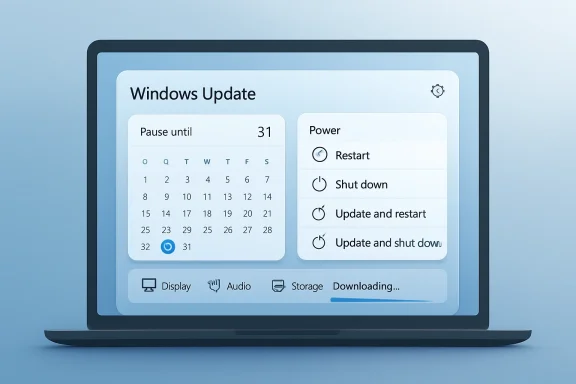
The headline feature is the expanded pause system. Microsoft says users will be able to pause updates for up to 35 days at a time and then re-pause again and again with no apparent limit on how often the pause end date is reset. That is a dramatic change in practical terms, even if the underlying pause window remains the same. For many users, the difference between “35 days max” and “35 days, repeatedly” is the difference between a temporary delay and real scheduling freedom.
Just as important is the new ability to shut down or restart without being pushed into an update flow. Windows 11 has long blurred the line between power actions and update actions, sometimes making a routine reboot feel like a negotiation with the servicing stack. Microsoft now says the Power menu will always show standard Restart and Shut down options, alongside update-specific choices when appropriate. That is a small interface change with outsized emotional value.

The end of “surprise update” behavior​

The company’s language here is notable because it explicitly calls out predictability. If a user chooses Restart or Shut down, Windows will do exactly that, without unexpectedly starting an update. That sounds basic, but it addresses one of the most irritating Windows complaints of the last decade: the feeling that the OS sometimes converts a user decision into an update decision after the fact.
Microsoft is also adding more insight into available updates, especially drivers. After simplifying update titles late in 2025, the company apparently heard that users still could not tell what a given driver update actually did. The new system adds the device class to driver titles, making it clearer whether a pending update affects display, audio, battery, extension, HDC, or another class. That is not a flashy feature, but it is the kind of information that helps power users and IT staff make better decisions.
  • Pause updates repeatedly instead of hitting a hard stop after one cycle.
  • Restart or shut down without being forced into installation.
  • See clearer driver labels before approving updates.
  • Make update choices based on better context, not just generic titles.

Why the pause change is a bigger deal than it sounds​

This matters because the old pause system was designed as a temporary escape hatch, not a recurring control pattern. In practice, users who wanted to hold off longer often had to rely on workarounds, policy settings, or simply accept a reboot they did not want. The new behavior is more flexible, and that flexibility is the real product improvement.

OOBE Gets a Quiet but Meaningful Upgrade​

Microsoft is also changing the Windows 11 out-of-box experience, or OOBE, by letting users skip updates during initial setup. In the new flow, an “Update later” option allows people to land on the desktop faster and decide when they want to update rather than being pushed into immediate servicing during setup. This is especially useful for users who want to get into the system first, connect peripherals, sign in, and personalize the device before any long patch sequence starts.
That said, the feature is not universal in every setup scenario. Microsoft notes that it does not apply to managed commercial devices, and it may also be unavailable in select cases where updates are required for the device to function. That caveat matters, because it reminds readers that consumer freedom and enterprise compliance are often very different design problems.

Why “Update later” is a user-experience win​

For a lot of people, first impressions matter. The first boot of a new PC should feel fast and friendly, not like a queue for patching. Allowing a user to defer updates during OOBE can make a device feel much more responsive at the exact moment excitement is highest.
There is also a practical benefit for people migrating to a new machine on a deadline. If you are setting up a laptop before a trip, before a meeting, or on unstable Wi-Fi, a forced update can be more than annoying. It can be a real obstacle. Letting users opt to update later is a small mercy, but one with real-world impact.
  • Faster arrival at the desktop.
  • More control during first setup.
  • Better fit for poor or limited connectivity.
  • Less disruption during device migration.

Fewer Reboots, More Coordination​

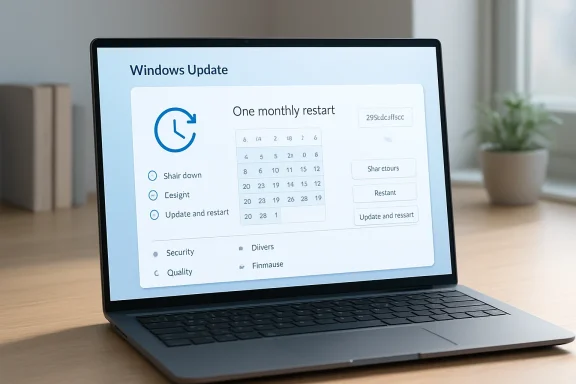
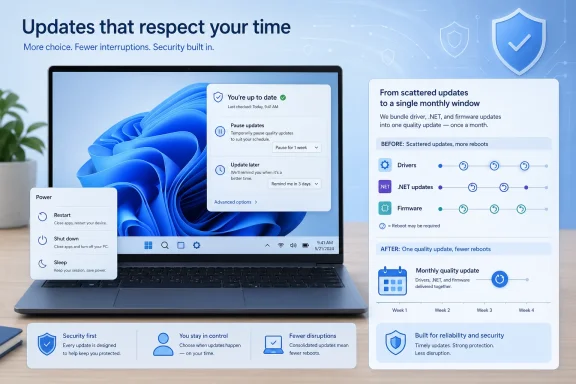
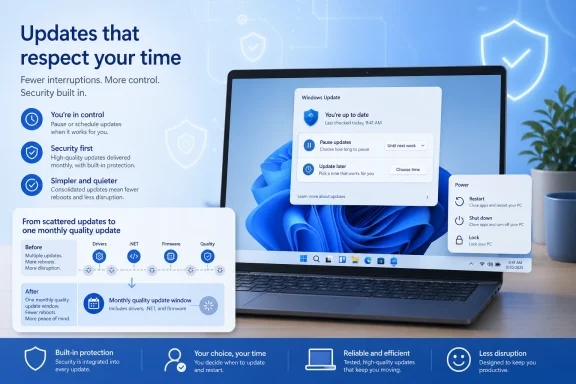
The other major change is the move to a more unified update experience. Microsoft says it is coordinating driver,.NET, and firmware updates so they align more closely with the monthly quality update, reducing the number of reboots users see each month. That is the kind of servicing simplification Windows users have wanted for years, because separate update pipelines have often meant separate interruptions.
In practical terms, this means more items will appear collapsed into a single Available updates section in Settings > Windows Update. Updates will still download in the background, but installation and restart can be coordinated around the next quality update or a manually approved action. If users want to act earlier, they still can. The key difference is that the system appears to be moving from fragmented servicing toward a more synchronized cadence.

Why this matters to everyday users​

Fewer reboots sounds like a modest promise until you imagine the cumulative impact. A machine that used to restart for the OS, then for a driver, then again for firmware, now has a better shot at handling all of that in one pass. That saves time, reduces friction, and lowers the odds that users postpone one update because they already tolerated another.
It also changes how Windows feels in the background. One of the most annoying things about software maintenance is not just the downtime, but the uncertainty. When users know a system will likely need only one coordinated restart, they can plan around it more easily. That makes Windows feel more managed and less chaotic.
  • Driver, firmware, and.NET updates are being coordinated.
  • The Windows Update page will present a more unified list.
  • Users may see only one restart instead of several.
  • Manual approval still allows earlier installation if needed.

Security Still Comes First​

Microsoft is careful to frame all of this as an improvement in usability without backing away from its security posture. The company repeatedly emphasizes that Windows devices should remain secure by design and by default, and that updates should be installed shortly after release. That is not just marketing language. It reflects Microsoft’s broader Secure Future Initiative and its ongoing push to keep devices on current security baselines.
The company also says it is working to reduce update download times, shorten installation times, and improve automatic recovery when update failures occur. These are the kinds of background improvements users rarely celebrate, but they matter because they lower the chance that update friction turns into update avoidance. In other words, better reliability is also a security strategy.

The balancing act Microsoft is trying to solve​

Microsoft’s challenge is obvious: if it gives users too much freedom, they may leave systems unpatched for too long. If it gives them too little freedom, they get angry and delay updates anyway. The new Windows Update controls are an attempt to move users toward voluntary compliance rather than forced compliance. That is a smarter long-term bet, even if it carries some short-term risk.
The company’s own language points in this direction. It says the new features are meant to reduce disruption while still encouraging users to install updates shortly after release. That is a more realistic user-experience strategy than pretending everyone wants the same update cadence.
  • Security remains the official priority.
  • Usability is being improved to reduce update avoidance.
  • Recovery mechanisms are being strengthened.
  • Faster installs should reduce friction on weak connections.

What It Means for Consumers​

For consumers, this is mostly a quality-of-life victory. Most Windows users are not asking for deep servicing control panels. They are asking for fewer interruptions at inconvenient times, more understandable update prompts, and a setup process that does not feel like an obstacle course. The new Windows 11 update model speaks directly to those complaints.
The repeated pause option is especially attractive to home users who travel, work irregular schedules, or simply prefer to wait until they are ready. It is also useful for families sharing a single PC, where a restart in the middle of someone’s work or school activity can cause more disruption than Microsoft’s update design seems to account for today. In that sense, the change is less about “ignoring updates” and more about choosing when life allows them.

A more human Windows Update​

The restart and shut down changes are equally important for consumers because they restore trust in a basic interaction. Users should not have to second-guess whether a simple power action will become an install action. Making that behavior predictable may not sound transformative, but predictability is a major part of what makes software feel polished.
The improved driver labeling may also help everyday users who have historically clicked through update prompts without understanding what they were installing. Clearer labels reduce the mystery factor. That can lead to better decisions, fewer accidental approvals, and a stronger sense that Windows is speaking in plain language rather than system jargon.
  • Better for travel and busy schedules.
  • Easier to avoid surprise reboots.
  • More informative driver prompts.
  • Faster setup for new PCs.
  • Less frustration for non-technical users.

What It Means for IT and Enterprise​

The enterprise story is more complicated. Microsoft says some OOBE changes will not apply to managed commercial devices, and it has also hinted that it will share more about commercial controls later. That makes sense, because enterprise administrators tend to value policy consistency over consumer-style flexibility. They need controls, but they also need those controls to be centrally enforceable.
For IT teams, the unified update experience could be welcome if it reduces restart sprawl across mixed fleets. Coordinating driver, firmware, and.NET updates with monthly servicing can make maintenance windows more efficient and more predictable. But it also means administrators will want to scrutinize whether the new behavior maps cleanly onto their compliance cadence, especially in environments with tightly controlled reboot schedules.

Administration still needs guardrails​

The consumer promise of “pause as many times as you need” is not automatically a good enterprise pattern. In managed environments, indefinite flexibility can become a compliance problem if not bounded by policy. That means the real question is not whether Microsoft can ship these features, but whether it can expose them in ways that admins can govern without reintroducing the old complexity through policy layers.
There is also a packaging question. If more updates are collapsed into one monthly servicing event, administrators may gain operational simplicity. But they will also want clarity on sequencing, failure handling, and whether one stalled component can delay the whole chain. The theory is attractive; the operational details will determine whether it becomes a real win.
  • Potentially fewer maintenance windows.
  • Better predictability for managed fleets.
  • Need for clear policy controls.
  • OOBE changes may not map to commercial devices.
  • Admins will want visibility into restart sequencing.

Competitive Implications​

Microsoft is not making these changes in a vacuum. Apple has long marketed a more polished, less interruptive update experience on macOS, while ChromeOS and mobile platforms generally make updates feel more background-oriented. Windows, by contrast, has historically carried the burden of legacy compatibility and a more visible servicing footprint. Reducing that burden helps Microsoft compete on user experience, not just capability.
There is also a strategic reputational element. Windows has often been criticized for being simultaneously powerful and temperamental. By giving users more visible control over updates, Microsoft is trying to soften one of the platform’s most persistent pain points. That can matter as much as any single feature, because product trust is built through repeated small interactions.

Why rivals should care​

If Microsoft succeeds, it raises the bar for what users expect from a desktop OS update flow. People may become less tolerant of forced restarts, vague prompts, and opaque servicing. That could pressure competitors to make their own update experiences even more seamless, particularly in enterprise and prosumer markets where downtime carries direct cost.
The bigger market implication is that Windows is trying to preserve its installed base by removing one of the reasons people hesitate to upgrade or even to buy new Windows devices. A smoother update experience is not glamorous, but it can improve the perceived quality of the whole ecosystem. And in a crowded PC market, perceived quality is often what users remember most.
  • Windows is trying to narrow the UX gap with competitors.
  • Update trust affects broader platform perception.
  • Fewer reboots help the case for Windows 11.
  • Better update control may reduce user resentment over time.

Strengths and Opportunities​

Microsoft’s update refresh has several obvious strengths. It addresses complaints users have repeated for years, and it does so with changes that are easy to understand and easy to feel in daily use. The best part is that the improvements are not just superficial UI polish; they affect the logic of how updates are scheduled, described, and executed. That makes them more likely to matter long after the launch buzz fades.
  • Better user control over timing and restarts.
  • Fewer interruptions from separate update cycles.
  • Clearer driver labels for more informed decisions.
  • Faster first-run setup through OOBE deferral.
  • Improved predictability in the Power menu.
  • Potentially lower update frustration across the Windows base.
  • Stronger alignment between usability and security goals.

Where Microsoft can build from here​

The company also has a chance to turn this into a broader servicing story. If the update pipeline becomes simpler, clearer, and more resilient, Microsoft can use that momentum to improve trust in other parts of Windows 11. That could include better failure recovery, smarter active hours behavior, and more transparent enterprise controls.
The opportunity is not just to reduce pain. It is to reframe Windows Update as a managed service users can live with, rather than a recurring nuisance they must endure. That is a meaningful brand shift.

Risks and Concerns​

The biggest concern is obvious: more flexibility can mean more postponement. If users take advantage of indefinite pause behavior too aggressively, some devices will remain behind on security fixes longer than Microsoft would like. That creates a tension between user agency and patch discipline, and it is the single most important tradeoff in the new design.
  • Users may delay updates too long if the pause option feels too easy.
  • Enterprise admins may need new guardrails to prevent policy drift.
  • Coordinated updates may hide complexity that surfaces later in edge cases.
  • Some commercial workflows may not benefit from consumer-style controls.
  • Fewer reboots can still mean longer update sessions if recovery work increases.
  • Driver consolidation may complicate troubleshooting if one package affects many components.
  • The new UI could create false confidence if users assume “Update later” means “safe indefinitely.”

The security tradeoff is real​

Microsoft is trying to solve a trust problem without weakening its security stance, but those goals can conflict in the real world. A user who finally feels in control may be more willing to postpone a patch than Microsoft would prefer. That does not make the change wrong, but it does mean the company will need to keep educating users that control is not the same as immunity from risk.
There is also a reliability risk in the coordination model. When more update types are chained together, a failure in one area can affect the whole experience. Microsoft says it is improving automatic recovery, which is encouraging, but the proof will be in how the new flow behaves on real hardware with real driver stacks and real enterprise images.

Looking Ahead​

The immediate question is how quickly Microsoft can bring these changes out of Insider-only testing and into mainstream Windows 11. The company says they are rolling out now to Insiders and will arrive for all users later in 2026. That suggests the feature set is already mature enough for broad deployment, but not necessarily finished enough to promise an exact consumer ship date.
The more interesting question is whether this becomes a one-off update or the start of a broader redesign of Windows servicing. If Microsoft really wants fewer complaints about restarts and update timing, the next logical step is to keep tightening the relationship between user intent, update orchestration, and transparent feedback. A better Windows Update page is a good start, but it is not the finish line.

What to watch next​

  • The broad consumer rollout timing for Windows 11.
  • Whether Microsoft adds enterprise policy controls for the new behavior.
  • How often indefinite pause gets used in the wild.
  • Whether fewer reboots translate into fewer support tickets.
  • Whether driver and firmware coordination improves or complicates troubleshooting.
  • Whether Microsoft expands the update model further into other Windows maintenance flows.
If Microsoft executes well, these changes could become one of the more meaningful quality-of-life improvements Windows 11 has seen in years. They do not reinvent the platform, but they do something just as important: they make the operating system feel more respectful of the person using it. That may be the real story here, because a modern OS earns loyalty not only by being powerful, but by knowing when to get out of the way.

Source: Neowin These long requested Windows 11 Update features will soon be available to all users
 

Attachments
  • windowsforum-windows-11-update-refresh-more-control-fewer-surprise-restarts-for-2026.webp
    windowsforum-windows-11-update-refresh-more-control-fewer-surprise-restarts-for-2026.webp
    171.5 KB · Views: 0
Last edited:
Microsoft is taking a fresh swing at one of Windows 11’s longest-running pain points: update interruptions. In preview builds now rolling out to Windows Insiders in the Dev and Experimental channels, the company is testing a redesigned Windows Update experience that makes pausing updates more flexible and restarts far less intrusive. The changes are small on paper, but they speak to a much bigger shift in how Microsoft wants Windows to behave: less surprise, more user choice, and fewer moments when the operating system decides the timing for you.

A smartphone icon stack with an illuminated yellow app tile on a dark background.Background​

For years, Windows updates have occupied an awkward place in the relationship between Microsoft and its users. On one hand, automatic updates are essential for security, reliability, and device health. On the other, the cadence of forced reboots and “update now” prompts has been one of the most common complaints from both consumers and IT admins. Microsoft has repeatedly tuned the system, but it has never fully escaped the perception that Windows Update can be too eager to take control at the wrong time.
That tension is why this latest change matters. Microsoft’s recent preview builds are not just about polishing a menu or moving a button. They are part of a broader effort to make update behavior more predictable, less disruptive, and easier to understand. The company says the redesign reflects direct user feedback gathered from more than 7,600 responses, and the themes were consistent: people want less disruption and more control over when changes happen.
The timing also fits the broader Windows 11 story. Over the last several release cycles, Microsoft has steadily tried to make the OS feel more modern and less heavy-handed. In parallel with performance improvements, UI refinements, and shell changes, the company has been increasingly willing to revisit legacy behaviors that users tolerate rather than love. Update handling is one of the most visible of those behaviors, so any meaningful improvement here is likely to land with both consumers and enterprises.
There is also a strategic angle. Microsoft has long framed Windows updates as a security necessity, and that argument has not changed. But the company clearly recognizes that security messaging alone does not solve the everyday friction of a laptop rebooting at the wrong time, or a desktop silently preparing a restart after a shutdown request. The new update design aims to preserve the benefits of automation while reducing the moments when automation feels like a punishment.

What Microsoft Changed​

The most obvious change is the new pause model. Instead of the older, more rigid approach, Windows Update now lets users pause updates for up to 35 days at a time through a calendar-style flyout. More importantly, that pause can be renewed again and again, without a fixed overall cap. In practical terms, Microsoft is moving from a one-time deferral model to a repeatable pause pattern that gives users far more breathing room.
That sounds subtle, but it is a meaningful philosophical shift. The previous design effectively treated pause as a temporary grace period before the system resumed its own schedule. The new behavior is closer to a user-managed hold state, where the person at the keyboard decides when the next update cycle begins. For anyone who works in bursts, travels often, or simply prefers to control maintenance windows manually, that is a big improvement.
Microsoft is also splitting the power menu into clearer choices. Under the new design, Restart and Shut down can be used normally, without automatically triggering a pending update install. If an update is ready, the menu still offers Update and Restart or Update and Shut Down, but those are now explicit actions rather than defaults disguised as routine power options. That should eliminate one of the most frustrating Windows experiences: intending to turn a machine off, only to discover that the OS has quietly decided to spend the next several minutes installing patches.

Why the Calendar UI Matters​

A calendar-based pause flyout may seem cosmetic, but it solves a real usability problem. The current approach tends to feel abstract, with users selecting a generic duration and then trying to remember when the pause ends. A visible end date is easier to reason about and harder to forget.
It also aligns Windows Update with the way people already manage time-based commitments. Users think in dates, not just in time spans. By making the pause end date explicit, Microsoft is reducing uncertainty and making the feature feel more deliberate.
  • Pause duration is now easier to understand.
  • End dates are visible rather than implied.
  • Repeatable holds reduce the pressure of a single countdown.
  • Longer deferrals become less of a workaround and more of a workflow.

The New Restart Logic​

The power menu changes are equally important, especially for reliability. Microsoft has acknowledged for years that users dislike being forced into a restart simply because they clicked the wrong power option at the wrong time. The new split behavior is intended to remove that ambiguity.
This is also a quality-of-life improvement for mobile users. If you are packing up a laptop, you want to shut it down now, not wait for a patch cycle that begins because an update is pending. The new options preserve user intent, which is exactly where Windows has often been weakest in the past.

Why Microsoft Is Doing This Now​

The company’s own explanation is straightforward: it listened to users. But there is a deeper reason this reform is arriving in 2026 rather than earlier. Windows has reached a stage where update friction is no longer just an annoyance; it is a brand problem. In a world where users have alternatives for many everyday tasks, persistent complaints about forced restarts are the kind of reputation issue that can linger for years.
Microsoft also appears to be trying to clean up the contradictions in Windows Update itself. For example, a system that tells users it is managing maintenance intelligently should not still surprise them with restarts at inconvenient times. Nor should it bury important choices in menus that make the user feel like they are fighting the OS instead of working with it. The new design is an attempt to bring the behavior into line with the promise.
There is a competitive element too. While Windows remains dominant in PC computing, Microsoft is increasingly aware that trust and convenience are part of the platform value proposition. Enterprise administrators want predictable patching. Consumers want fewer interruptions. OEMs want fewer support calls. The fact that one update can create pain across all three groups makes Windows Update a surprisingly strategic component of the Windows ecosystem.

Feedback at Scale​

Microsoft says the redesign was shaped by more than 7,600 direct feedback submissions, which is an unusually concrete signal for a Windows feature. That matters because it suggests the changes are not just theoretical usability ideas; they are responses to repeated user pain points.
The feedback appears to have centered on two themes: update disruption and schedule control. Those are not niche complaints. They are the two most common things people notice about Windows Update because they affect the way the system behaves in ordinary daily use.
  • Disruption is the emotional trigger.
  • Schedule control is the practical fix.
  • Predictability is the real product goal.
  • Trust is the long-term business objective.

A Better Fit for Hybrid Work​

Hybrid work has made update timing more complicated. A laptop may be used at home, in the office, on the road, or in a meeting room, often with very little idle time. In that environment, a 30-minute update window can be wildly inconvenient even if it is technically scheduled “correctly.”
This is why a more flexible pause model matters beyond consumer convenience. It acknowledges that modern Windows devices are not always attached to a desk at 5 p.m. waiting for maintenance. They are mobile tools, and their update behavior should reflect that.

The Bigger Windows Update Strategy​

The pause and restart changes are only one piece of the story. Microsoft is also trying to reduce the number of monthly restarts by combining driver, .NET, and firmware updates with the monthly cumulative update process. In other words, rather than scattering multiple separate reboot events across a month, the company wants more of that maintenance to converge into one planned installation cycle.
That is a smart move for both usability and support. Fewer restarts means fewer interruptions, less confusion, and fewer chances for users to ignore prompts. It also means Microsoft can better stage how patches land, rather than forcing users through a sequence of loosely connected update events that each feel mandatory on their own.
The company is not eliminating the need for individual update packages. Users who want to install something sooner can still do so manually. But the default path is becoming more consolidated, and that is likely to benefit casual users the most. The less Windows feels like it is dragging them through a maze of maintenance jobs, the better the platform will feel overall.

Monthly Cumulative Update as the Anchor​

By using the monthly quality update as the anchor point, Microsoft is basically saying that Windows maintenance should happen in a more coordinated rhythm. That has a practical upside: the more components that can be grouped into a single restart, the less likely it is that users will encounter random reboot pressure throughout the month.
It also reduces the cognitive load for nontechnical users. Most people do not care whether an update is for firmware, .NET, or a driver. They care whether their machine is usable when they need it. Consolidation helps align the maintenance model with that reality.

Manual Control Still Exists​

The important caveat is that Microsoft is not removing manual control. If a user wants to install a specific update early, they still can. That balance matters because the company is trying to improve convenience without turning Windows Update into a black box.
This is one of the more thoughtful parts of the redesign. The system becomes less intrusive by default, but still gives power users and IT staff a way to act quickly when needed.
  • Default behavior becomes calmer.
  • Manual action remains available.
  • Update grouping reduces reboot fatigue.
  • Emergency patching is still possible when necessary.

Driver Updates Get Easier to Read​

Another practical improvement is that driver updates now show the device type directly in the title. Instead of listing multiple items from the same manufacturer with only a vague label, Windows Update will identify the target more clearly, such as display, audio, or battery. That is a simple change, but it removes a lot of ambiguity.
This has long been an area where Windows Update felt opaque. Users would see a list of driver entries from the same vendor and have little idea which piece of hardware each one affected. That made it hard to assess importance and even harder to troubleshoot if a recent update caused a problem. Clearer labeling should make the update list less intimidating and more useful.
For enterprises, this is especially helpful because inventory and troubleshooting often depend on quick identification. Administrators may still use dedicated management tools for deployment, but clearer consumer-facing labeling reduces support friction when users call in asking what just changed. The fewer mysteries Windows Update creates, the easier it is to support.

Better Labels, Better Decisions​

This improvement may also help users make smarter choices about whether to pause or install. If an update clearly refers to the graphics adapter or audio stack, the user can more easily judge whether it is relevant.
That does not turn the average person into a driver expert, but it does reduce the “what is this for?” problem that has plagued Windows Update for years. Clarity is not flashy, but in operating system maintenance it is often the most valuable feature.

Troubleshooting Becomes Less Painful​

Clearer driver names can also aid rollback and recovery. If a device starts misbehaving after an update, the user or administrator is better positioned to identify the likely culprit. That should not only help support teams but could also reduce the time spent hunting through update histories.
  • Display drivers become easier to spot.
  • Audio changes are easier to distinguish.
  • Battery-related updates are less confusing.
  • Support calls should become more actionable.

Enterprise and Consumer Impact​

The consumer impact is obvious: fewer forced restarts, less ambiguity, and more control over when maintenance happens. That alone will make many Windows users happier, especially those who have long felt that the platform was deciding for them at the worst possible moments. Even if the underlying security model remains the same, the experience of using Windows Update should feel much less adversarial.
For enterprises, the story is more nuanced. IT departments already rely on structured patching tools and policy controls, so some of these changes are less revolutionary than they are welcome refinements. Still, a system that behaves more consistently at the user level can reduce help desk noise and lower the number of accidental interruptions on managed devices.
There is also a trust dimension that cuts across both markets. Users who feel in control of updates are more likely to accept them, and that acceptance matters. If a reboot feels like a choice rather than an ambush, the system becomes easier to live with. In an environment where security compliance and user satisfaction often compete, that is a meaningful win.

Consumer Expectations Are Rising​

Consumers increasingly expect operating systems to be polite, not just functional. Phones already offer more nuanced scheduling around updates and reboots, and Windows has been under pressure to catch up in user experience terms. Microsoft’s changes suggest the company understands that modern PC users compare their desktop experience with the much more controlled behavior they see on mobile devices.
That comparison is not always fair, but it is real. Users care less about whether a patch was technically necessary than about whether it interrupted dinner, a meeting, or a deadline.

IT Admins Will Still Need Guardrails​

Enterprises will likely welcome the improvements, but they will also want policy controls that prevent indefinite postponement in managed environments. Flexibility is useful, but unbounded flexibility can be risky if left unchecked on corporate networks.
So while the new design is good news for end users, it also reinforces the need for proper governance. More user control should not mean less admin control.

What This Means for Windows 11​

The update overhaul is part of a broader effort to make Windows 11 feel more refined and less legacy-bound. Microsoft has spent years modernizing the interface and adding quality-of-life improvements, but the update experience has remained one of the system’s most stubborn rough edges. This rollout suggests the company is finally willing to address that friction directly rather than merely paper over it.
That matters because operating system trust is cumulative. If users consistently feel that Windows respects their time, they are more likely to tolerate the occasional mandatory patch. If they feel the opposite, every update becomes a small annoyance that adds to a larger sense of frustration. The current redesign appears designed to reverse that sentiment.
It also helps reposition Windows 11 as a more mature platform. Mature software does not merely add features; it reduces friction. In that sense, these update changes are not glamorous, but they are the kind of changes that make an operating system feel more finished.

A Shift from Enforcement to Negotiation​

The old Windows Update experience often felt like enforcement. The new one looks more like negotiation. Users still get the security benefits of updates, but the timing and presentation are becoming more flexible.
That philosophical shift may prove more important than any single UI element. Once users believe Windows is willing to cooperate, they are less likely to treat update prompts as adversarial.

Why This Could Stick​

There is reason to think this change could endure. Unlike many cosmetic tweaks, update behavior affects everyone and is visible every day. If Microsoft gets this right, the payoff is broad and immediate.
  • Fewer interruptions improve daily usability.
  • Clearer choices reduce confusion.
  • Better labels improve transparency.
  • More predictable restarts improve trust.

Strengths and Opportunities​

Microsoft’s update redesign has several obvious strengths, but the biggest one is that it addresses a complaint users have raised for years without forcing them to choose between security and convenience. It also gives Microsoft a chance to rebuild confidence in a system that has often been perceived as disruptive rather than helpful.
The opportunity is not just about convenience. It is about reshaping how people feel about Windows maintenance, especially on devices that move between home and work and need to stay usable throughout the day.
  • More user control over when updates happen.
  • Reduced restart fatigue through better update coordination.
  • Clearer update titles that improve transparency.
  • Less accidental disruption from routine shutdowns.
  • Better fit for hybrid work and mobile computing.
  • Improved supportability for IT teams and help desks.
  • Stronger user trust in the update process.

Risks and Concerns​

The obvious risk is that more flexibility can create more delay. Security updates exist for a reason, and if users repeatedly postpone them, they may leave themselves exposed longer than they should. Microsoft will need to balance user freedom with sensible nudges that encourage timely installation.
There is also the question of consistency. Preview features often evolve before broad release, and Microsoft may still refine the behavior or reset expectations before the changes reach all Windows 11 users. That makes it hard to know exactly how permissive the final model will be.
  • Longer deferrals could increase security exposure.
  • Enterprise policy conflicts may require careful management.
  • Preview behavior could change before general availability.
  • User confusion may persist if the UI is not clear enough.
  • Uneven rollout timing could frustrate those outside Insider channels.
  • Too much flexibility might undermine patch compliance.
  • Support teams may need new guidance if the menu logic changes further.

Looking Ahead​

The immediate question is when these changes will leave Insider testing and reach mainstream Windows 11 users. Microsoft has not given a public timeline, and that means the current rollout should be viewed as a preview of the company’s direction rather than a finished product guarantee. Still, the nature of the changes suggests they are serious, not experimental for its own sake.
The broader watchpoint is whether Microsoft extends this thinking further into the rest of Windows Update. If the company is willing to make shutdown behavior more respectful and pause controls more flexible, it may also revisit other confusing pieces of the maintenance experience. That could include clearer prompts, better scheduling defaults, or more transparent explanations of why certain updates are being applied.
  • General availability timing remains the key unknown.
  • Policy controls for managed environments will matter.
  • Further UI simplification is a likely next step.
  • Security guidance may need to become more prominent.
  • User sentiment will determine whether the rollout is seen as a real fix.
The most important thing to watch is whether this turns into a one-off quality-of-life patch or the beginning of a larger philosophy shift. If Microsoft follows through, Windows Update could finally become something users trust instead of fear. If not, the new controls will still help, but they will only be a partial answer to a very old problem.
Microsoft’s latest Windows Update overhaul is not dramatic in the cinematic sense, but it is exactly the kind of change that can quietly improve the daily experience of millions of PCs. By reducing surprise restarts, clarifying update choices, and giving users more control over pause timing, the company is acknowledging a simple truth: a good operating system should protect users without constantly getting in their way. If this redesign makes it to all Windows 11 users in a stable form, it could become one of those unglamorous improvements that people notice only because life on the PC suddenly feels a little less annoying.

Source: gHacks Microsoft Rolls Out Windows Update to Reduce Forced Restarts and Extend Pause Limits - gHacks Tech News
 

Microsoft’s latest Windows Update redesign marks a meaningful shift in how Windows 11 balances security, reliability, and user control. The new experience gives users clearer choices for pausing updates, skipping updates during first-run setup, and restarting or shutting down without being unexpectedly pulled into an installation cycle. For a feature that has frustrated Windows users for more than a decade, this is not just a settings-page refresh; it is a philosophical correction.

Laptop screen showing the Windows Update pause-until timer and power options for restart or shutdown.Background​

Windows Update has long been one of the most important and most disliked parts of the Windows experience. Since the Windows 10 era, Microsoft has moved toward cumulative updates, tighter servicing schedules, and more aggressive patch delivery to reduce fragmentation and keep PCs protected against fast-moving security threats.
That strategy made sense from a security standpoint, especially after years in which unpatched Windows machines became easy targets for ransomware, worms, and opportunistic malware. But the cost was trust. Users often felt that Windows treated their time as secondary to Microsoft’s servicing calendar, particularly when a restart arrived during travel, gaming, exams, presentations, or production work.
Windows 11 improved some of the update plumbing with smaller packages, better background work, and more predictable monthly servicing. Yet the perception problem remained: too many users still associated Windows Update with surprise restarts, confusing driver entries, and power-menu choices that seemed to disappear when they were needed most.
Microsoft’s new design directly addresses that pain. The company says the changes were shaped by feedback from Windows Insiders and are already beginning to roll out in preview channels, including the Dev Channel and the new Experimental channel.

A New Philosophy: Control Without Abandoning Security​

The core of this redesign is user agency. Microsoft is not abandoning automatic updates, nor is it telling users that patches no longer matter. Instead, it is acknowledging that security works better when people are not fighting the system.

The trust problem Windows Update had to solve​

For years, Windows users have asked for one deceptively simple thing: the ability to decide when their PC is unavailable. A laptop might technically be more secure after a restart, but that does not help if the restart interrupts a client call or delays a student before an exam.
The new model reframes Windows Update as a managed background service rather than an unavoidable interruption. That distinction matters because users tend to accept maintenance when it feels predictable and reject it when it feels imposed.
Key changes include:
  • Calendar-based pause controls for choosing a specific resume date.
  • Repeatable 35-day pause windows with no stated fixed limit.
  • Standard restart and shutdown options even when updates are pending.
  • Clearer driver update labels showing device categories.
  • Coordinated update installation to reduce reboot frequency.
This is a practical compromise. Windows still nudges devices toward the latest security state, but users gain more power to align servicing with real life.

Repeatable 35-Day Pauses Change the Conversation​

The headline feature is the ability to pause updates until a specific date up to 35 days in the future, then extend that pause again as needed. That may sound like a small interface tweak, but it changes the practical meaning of pausing updates on consumer Windows systems.

Why the calendar matters​

The old pause model was blunt. Users could delay updates for a preset window, but the experience often felt like a countdown to an unavoidable installation. A calendar-based pause is more understandable because it maps update control to human planning.
A user can now pause updates around a conference, vacation, field deployment, studio session, or deadline week. That gives Windows Update a social context: maintenance happens when the user is ready, not merely when the system timer expires.
The repeatable pause option is even more significant. Microsoft is effectively allowing users to keep deferring updates in 35-day blocks, although it still recommends installing security updates soon after release.
This introduces a new balance:
  • Short-term flexibility for users who need stability during critical work.
  • Long-term responsibility because delayed updates can increase exposure.
  • Better transparency because the resume date is visible and intentional.
  • Less resentment because Windows is asking rather than cornering the user.
The phrase “indefinite pause” will attract attention, but the implementation is more structured than a permanent off switch. Microsoft is still preserving a servicing rhythm, just with more user-controlled gates.

Restart and Shutdown Finally Mean What They Say​

Perhaps the most emotionally resonant change is the redesigned Power menu. Microsoft says Windows will clearly separate normal power actions from update-related actions, so users can choose Restart or Shut down without triggering an update installation.

The end of ambiguous power choices​

This addresses a long-running frustration: users open the Start menu expecting to power off quickly, only to see update-labeled options dominate the menu. In the worst cases, people have felt forced to choose between leaving a machine running or starting an update they did not have time to complete.
Under the new model, standard power options remain visible. If updates are pending, update-specific choices such as Update and restart and Update and shut down can still appear, but they no longer replace the basic commands.
That makes Windows behavior easier to understand:
  • Choose Restart when you simply want to reboot.
  • Choose Shut down when you simply want to power off.
  • Choose Update and restart when you are ready to install.
  • Choose Update and shut down when maintenance can happen before power-off.
This may sound obvious, but obviousness is exactly what Windows Update has often lacked. A power command should not feel like a negotiation with the operating system.
For mobile workers, gamers, developers, and anyone managing time-sensitive tasks, this change may be more valuable than the pause extension. It restores semantic honesty to the user interface: a button should do what its label says.

Skipping Updates During Setup Reduces First-Run Friction​

Microsoft is also allowing users to skip updates during the out-of-box experience, commonly known as OOBE. That means a new PC can reach the desktop faster, with updates installed later when the user chooses.

Why first impressions matter​

The first hour with a new Windows PC sets the tone for the entire device experience. If setup stalls on downloads, drivers, cumulative updates, or repeated reboots, users often blame the PC maker, the network, or Windows itself.
Skipping updates during setup gives users a cleaner path to the desktop. That is especially useful when someone is unboxing a machine in a hotel, classroom, office, or retail environment where connectivity may be slow or time-limited.
There is a tradeoff. A device that skips setup updates may not immediately have the latest features, fixes, or protections. Microsoft is explicit that taking updates remains important, especially for security.
This option is best understood as a timing control, not a recommendation to avoid patching. It is about letting a user finish setup before asking them to enter the maintenance cycle.
Important caveats remain:
  • Commercially managed devices may not receive the same skip behavior.
  • Some updates may still be required if the device needs them to function correctly.
  • Enterprises may enforce setup policies through provisioning and management tools.
  • Users who skip updates should install them soon after reaching a stable network.
  • OEM recovery images may still need substantial post-setup servicing.
For consumers, this is a welcome quality-of-life improvement. For IT teams, the bigger question is how Microsoft will expose equivalent controls in managed deployment scenarios.

Driver Updates Become Easier to Understand​

Microsoft is improving driver update titles by adding the relevant device class, such as display, audio, battery, extension, or storage-related categories. This is a small but useful transparency improvement for anyone who has stared at a vague driver entry and wondered what it might break.

From mystery packages to readable signals​

Driver updates are uniquely sensitive because they sit between Windows and the hardware. A bad graphics driver can affect gaming, video editing, external displays, or GPU acceleration. A problematic audio driver can break conferencing. A firmware or battery-related update can affect sleep, charging, and thermal behavior.
Historically, Windows Update driver titles could be cryptic, repetitive, or nearly identical. That made it hard for users and support technicians to judge whether an update was relevant or risky.
Adding device categories does not solve every driver problem, but it improves decision-making. A user who sees that an update affects display hardware can plan differently than one installing a battery or audio component.
For troubleshooting, this matters. If an issue appears after an update, clearer naming helps users connect symptoms to likely causes more quickly.
The benefits include:
  • Faster triage when a device behaves differently after patching.
  • Better user confidence before installing optional drivers.
  • Improved support conversations with help desks and OEM vendors.
  • Less guesswork when reviewing update history.
  • Cleaner documentation for IT teams tracking device changes.
This is one of those improvements that may not generate headlines, but it will reduce friction in real support scenarios.

Microsoft’s Bigger Goal: Fewer Monthly Reboots​

Beyond controls and labels, Microsoft is trying to coordinate update types so users see fewer restart prompts each month. The company says it is starting by aligning driver, .NET, and firmware updates with the regular monthly quality update.

Reboot fatigue is a real productivity cost​

Windows servicing has always involved a tension between urgency and disruption. Security updates need to arrive quickly, but restarts interrupt work, consume attention, and sometimes trigger application recovery problems.
If Microsoft can reduce the experience to something closer to a single monthly restart for typical retail users, the psychological impact could be substantial. Users can plan around one maintenance event far more easily than several loosely related prompts.
This also aligns with Microsoft’s broader move toward unified update orchestration. Windows is increasingly expected to coordinate operating system updates, drivers, firmware, runtime components, and eventually more application update flows.
The challenge is that not every update has the same urgency. A critical security fix may need immediate deployment, while a driver update can usually wait for a safer maintenance window.
A smarter update system must classify urgency correctly:
  • Security updates should remain fast and reliable.
  • Firmware updates should be carefully staged because failures can be serious.
  • Driver updates should avoid destabilizing known-good configurations.
  • .NET updates should align with application compatibility needs.
  • Optional updates should remain clearly user-initiated.
The opportunity is clear: if Windows can make monthly maintenance feel routine rather than random, users will be less likely to disable, defer, or resent updates.

Background Downloads and Automatic Recovery Raise the Stakes​

Microsoft says updates will continue downloading quietly in the background and will install automatically if users take no action. The company is also improving update speed, behavior on poor connections, and recovery from installation failures.

Reliability is the quiet foundation​

Control features get attention, but reliability determines whether the new Windows Update experience succeeds. A pause calendar is useful only if updates install cleanly when the pause ends. A power menu is reassuring only if Windows behaves exactly as promised.
Microsoft says it has been working to reduce download and overall update time. That is especially important for devices that spend less time online, operate on metered or weak connections, or are frequently suspended before maintenance can complete.
Automatic recovery from update failures is another important piece. If Windows can detect a failed installation and take corrective steps without forcing users into manual troubleshooting, update success rates should improve.
Still, this area requires caution. Automatic recovery must be transparent enough that advanced users and administrators can understand what happened. A system that silently retries too aggressively could create confusion if performance drops, battery drains, or disk activity spikes.
A better recovery model should provide:
  • Clear status messages during retry and repair operations.
  • Actionable error reporting when automatic recovery fails.
  • Minimal background resource impact on battery-powered devices.
  • Respect for metered connections and constrained environments.
  • Reliable rollback behavior when an update cannot be safely completed.
The more Windows does behind the scenes, the more important it becomes for Windows to explain itself when something goes wrong.

Consumer Impact: Less Anxiety, More Predictability​

For everyday users, this redesign is about reducing anxiety. Windows Update becomes less of a looming interruption and more of a scheduled maintenance system that can be negotiated around real-world needs.

The laptop-in-a-backpack problem​

Consider a user who needs to shut down before boarding a flight. Under the old mental model, a pending update could turn that moment into a gamble: will the PC shut down quickly, or will it begin a process that takes longer than expected?
With standard power options preserved, that user can simply shut down. The update can wait until a better moment, which is exactly how most people expect personal technology to behave.
The same applies to gamers, creators, students, and home users. A gaming session should not be interrupted by a surprise reboot. A video export should not compete with background servicing. A student should not discover a major update minutes before an online exam.
The most visible consumer benefits are straightforward:
  • Fewer surprise restarts during active use.
  • More confidence when shutting down quickly.
  • Better planning with calendar-based pause dates.
  • Clearer update descriptions for drivers.
  • Faster setup for new PCs when users skip initial updates.
  • Reduced frustration from repeated monthly restart prompts.
There is also a behavioral upside for Microsoft. When users trust update controls, they may be more willing to install updates promptly because they no longer feel trapped by them.

Enterprise Impact: Promise With Unanswered Questions​

For enterprises, the redesign has obvious appeal but also unresolved complexity. Microsoft says more details about commercial devices and administrative controls are coming, which means IT departments should treat the consumer preview as a signal rather than a finished enterprise policy model.

Managed devices need different rules​

Business PCs operate under compliance requirements, maintenance windows, security baselines, and help-desk workflows. A consumer pause button cannot simply override corporate patch policy without creating risk.
Enterprises already use tools such as Microsoft Intune, Windows Update for Business, Autopatch-style services, Group Policy, and deployment rings to control update timing. The new user-facing model must coexist with those frameworks.
The most interesting question is how much flexibility administrators will be able to delegate. Some organizations may want users to choose restart timing inside a defined compliance window. Others may disable repeatable pauses entirely for regulated devices.
Potential enterprise scenarios include:
  • User-controlled restarts within IT-approved deadlines.
  • Role-based pause permissions for executives, developers, or field staff.
  • Maintenance-window alignment across Windows, firmware, and drivers.
  • Better update history for help-desk diagnostics.
  • Coordinated reboot reduction across large device fleets.
The productivity upside could be large. Fewer reboots and clearer update categories reduce support tickets, meeting disruptions, and downtime across thousands of endpoints.
But the security implications are equally real. If unmanaged deferral becomes too easy, organizations could see devices drift from compliance. Microsoft’s enterprise implementation will need strong reporting, policy enforcement, and exception handling.

Competitive Implications for Windows, macOS, ChromeOS, and Linux​

Microsoft’s move also has competitive significance. Update experience has become part of the broader operating-system value proposition, especially as users compare Windows with macOS, ChromeOS, and Linux distributions.

Windows is trying to close a perception gap​

ChromeOS built much of its reputation on silent, fast, background updates that rarely demand attention. macOS still requires restarts for many system updates, but Apple benefits from tighter hardware control and a more vertically integrated ecosystem.
Linux varies widely by distribution, but advanced users often praise the transparency and control they receive from package managers. Windows, by contrast, has had to support an enormous hardware ecosystem while also serving consumers, gamers, enterprises, schools, kiosks, and industrial systems.
That breadth explains why Windows Update is difficult. It does not excuse poor user experience, but it makes the engineering challenge more complex than simply copying a rival’s model.
Microsoft’s latest redesign suggests it wants Windows to compete not only on compatibility and security, but on maintenance dignity. Users should not feel punished for staying current.
Competitive advantages Microsoft can claim if this works include:
  • Better hardware ecosystem coverage than more closed platforms.
  • Improved user control without abandoning security defaults.
  • A clearer path for coordinated firmware and driver servicing.
  • Reduced restart friction for productivity and gaming users.
  • More transparent update information than many consumer platforms provide.
The market impact will depend on execution. Windows users have heard promises before, and trust will return only if the new behavior is consistent across real devices.

The Security Tradeoff: Flexibility Can Become Exposure​

The most important concern is obvious: making updates easier to pause can leave devices unpatched for longer. Microsoft’s challenge is to offer flexibility without encouraging risky behavior.

A better pause button still needs guardrails​

Security teams know that unpatched endpoints are among the most common paths into networks. Attackers move quickly after vulnerabilities become public, and monthly security updates often close flaws that are already under active scrutiny.
A repeatable 35-day pause could be helpful for a traveling user or production workstation, but dangerous if treated as a permanent lifestyle choice. The interface must therefore communicate risk without returning to fear-based nagging.
Microsoft should avoid two extremes. It should not hide pause controls behind confusing menus, but it also should not make indefinite deferral feel consequence-free.
A healthy model would include:
  • Plain-language reminders when security updates are delayed.
  • Escalating warnings for users who repeatedly defer critical patches.
  • Separate treatment for actively exploited vulnerabilities.
  • Clear distinction between security, feature, driver, and optional updates.
  • Enterprise override controls for regulated or high-risk devices.
This is where design becomes security policy. The best update interface is not the one that lets users ignore everything; it is the one that helps them make informed choices without losing protection.

Strengths and Opportunities​

Microsoft’s redesign has real potential because it targets the moments where Windows Update has historically damaged user trust. The strongest aspect is not any single control, but the combination of predictability, transparency, and coordination across the update lifecycle.
  • Power-menu clarity should reduce one of the most common daily frustrations with pending updates.
  • Repeatable pause controls give users flexibility during travel, deadlines, exams, and critical work.
  • Calendar-based scheduling makes update management easier to understand than abstract pause windows.
  • Driver category labels improve troubleshooting and help users understand what an update affects.
  • Coordinated monthly servicing could reduce reboot fatigue across consumer and business devices.
  • Faster background updating may help low-connectivity devices stay protected with less manual effort.
  • Automatic recovery could reduce failed-update support incidents if Microsoft implements it transparently.

Risks and Concerns​

The redesign also creates risks that Microsoft will need to manage carefully. More control is welcome, but update systems exist because many users do not have the time, expertise, or habit to assess patch urgency on their own.
  • Repeated pauses could leave consumer PCs exposed to known vulnerabilities for extended periods.
  • Unclear enterprise policy behavior may worry administrators until Microsoft publishes commercial guidance.
  • Background recovery attempts could confuse users if they affect performance, battery life, or restart timing.
  • Driver update coordination may still cause issues if problematic drivers are bundled into broader maintenance events.
  • Security messaging could become either too soft to matter or too intrusive to preserve trust.
  • Preview-channel behavior may not perfectly reflect what ships broadly to stable Windows 11 devices.
  • OEM differences could create inconsistent experiences across laptops, desktops, and custom-built PCs.

What to Watch Next​

The next milestone is Microsoft’s explanation of how these controls will work for managed and enterprise devices. IT administrators will want to know which settings are user-accessible, which are policy-controlled, and how reporting tools will reflect pauses, restart choices, and coordinated update bundles.
Microsoft also needs to prove that standard Restart and Shut down commands remain reliable across edge cases. If users choose a normal shutdown and Windows unexpectedly begins installing updates anyway, the trust gains from this redesign will evaporate quickly.
Watch for several practical signals over the coming months:
  • Whether the feature moves smoothly from Insider channels to stable Windows 11 releases.
  • How Microsoft handles urgent security updates when a user has repeatedly paused updates.
  • Whether enterprises receive granular policy controls for pause, restart, and update grouping.
  • Whether driver category labels become detailed enough to help real troubleshooting.
  • Whether monthly reboot reduction is noticeable on typical consumer PCs.
The broader question is whether this marks the beginning of a more respectful Windows maintenance model. Microsoft has the telemetry, servicing infrastructure, and cloud management stack to make updates smarter; now it must show that smarter also means more understandable.
If Microsoft delivers consistently, this Windows Update redesign could become one of the most user-friendly changes to Windows 11 in years. It will not eliminate the tension between security and convenience, but it finally acknowledges that users are more likely to keep systems secure when the operating system respects their time.

Source: Petri IT Knowledgebase Microsoft Redesigns Windows Update With New Pause and Restart Controls
 

Microsoft is finally taking aim at one of Windows 11’s most persistent sources of friction: Windows Update itself. A new set of update controls now entering the Windows Insider testing pipeline promises fewer surprise restarts, clearer update descriptions, more flexible pause options, and a less disruptive setup experience for new PCs. The changes are not a cosmetic tweak; they represent a meaningful shift in how Microsoft balances security, user control, and reliability. For Windows users who have spent years negotiating with update prompts at the worst possible moment, this could become one of the most practical Windows 11 quality-of-life improvements in years.

Laptop screen shows Windows Update options, including scheduled “update and restart.”Overview​

Windows Update has always carried a difficult mandate. It must keep more than a billion Windows devices secure against rapidly evolving threats, while also servicing an enormous hardware ecosystem that includes consumer laptops, gaming desktops, enterprise workstations, kiosks, virtual machines, and industrial PCs. That complexity explains why Microsoft has historically leaned toward automation, but it does not erase the frustration users feel when an update interrupts work, gaming, travel, or device setup.
The latest Windows 11 update experience changes are part of a broader Microsoft effort to reduce everyday “pain points” in the operating system. That phrase matters because it signals a shift away from adding headline features alone and toward fixing the small disruptions that shape how people judge Windows in daily use. In practical terms, Microsoft is targeting the moments when Windows feels less like a tool and more like an obstacle.
The improvements begin in the Windows Insider Program, specifically in the newer testing structure that includes Experimental and Beta channels. That means most production Windows 11 users should not expect all of these changes immediately. Still, Insider testing is where Microsoft validates interface behavior, telemetry signals, compatibility risks, and enterprise policy interactions before rolling changes into general availability.
The five headline changes are straightforward: more flexible update pausing, better restart choices, fewer separate reboot events, the ability to skip updates during initial PC setup, and more informative update labels. Beneath those simple descriptions is a deeper recalibration of Windows Update philosophy. Microsoft is effectively acknowledging that a secure system is not only one that receives patches quickly, but one whose update process users can understand and trust.

Why Windows Update Became Such a Flashpoint​

A legacy of forced maintenance​

The resentment around Windows Update did not appear overnight. Windows XP and Windows 7 taught users to expect patching as a recurring task, but Windows 10 made automatic updating far more assertive. Microsoft’s reasoning was defensible: unpatched PCs were a massive security liability, and fragmented patch adoption left users and businesses exposed.
The problem was that Windows became better at enforcing maintenance than explaining it. Users often saw a restart prompt without understanding whether it addressed an actively exploited vulnerability, a driver fix, a .NET update, or a feature enablement package. That lack of clarity turned even routine updates into moments of suspicion.
Windows 11 inherited much of that tension. Although Microsoft improved active hours, update orchestration, and restart notifications, the experience could still feel rigid. A machine that chooses the wrong moment to finish an update can damage user confidence more than a dozen successful background patches can repair.

The trust problem​

The real issue has always been trust. Users are more willing to accept interruptions when they believe the system is acting transparently and proportionately. They are less forgiving when Windows appears to decide that its maintenance schedule matters more than their meeting, presentation, exam, or travel day.
That is why these changes matter beyond convenience. Microsoft is not merely adding buttons; it is attempting to rebuild confidence in Windows Update as a predictable service. Predictability is especially valuable in an era when operating systems are updated continuously rather than replaced every few years.
Key sources of user frustration have included:
  • Updates starting during inconvenient windows of time
  • Restarts appearing unavoidable or poorly explained
  • Driver updates arriving separately from quality updates
  • New PCs spending too long updating before reaching the desktop
  • Vague update titles that provide little useful context
  • A sense that Windows prioritizes Microsoft’s schedule over the user’s

Longer Pauses Give Users Real Scheduling Power​

From fixed pauses to calendar-based control​

One of the most visible changes is the move from a simple pause drop-down to a calendar-based pause experience. Instead of selecting a broad one-week-to-five-week pause period, users will be able to choose a specific pause end date up to 35 days ahead. That sounds minor, but it aligns Windows Update with how people actually plan their lives.
A student preparing for finals does not think in “three weeks” as much as “after Friday’s exam.” A consultant preparing for a client presentation may want updates paused until the day after travel ends. A gamer participating in an online tournament may want no patch surprises until a specific weekend has passed.
The more important change is that users will reportedly be able to re-pause updates in additional 35-day increments without a hard limit. That effectively creates indefinite pause capability, though still structured as repeated short-term decisions. It is a major philosophical departure from the older model, where Windows eventually insisted that the pause period had expired.

Freedom versus responsibility​

This change will be welcomed by power users, but it comes with an obvious caveat. Delaying security updates indefinitely is not wise, especially for devices used for banking, work, email, or administrator access. Microsoft is giving users more control, but the security consequences of poor choices remain real.
That tension is unavoidable. A Windows PC is both a personal device and a node on the wider internet. Microsoft has to respect ownership while still nudging users toward responsible patching.
The better design answer is not to remove choice, but to pair choice with context. If Windows can clearly distinguish critical security updates from routine drivers or optional previews, users can make more informed decisions. The new pause model becomes much more powerful if it is accompanied by honest communication.
A practical pause model should help users:
  • Avoid updates during travel, exams, or professional deadlines
  • Keep control over machines used for presentations or events
  • Reduce anxiety around unpredictable restarts
  • Make temporary deferral easier without disabling Windows Update entirely
  • Preserve the expectation that security updates still matter
  • Encourage users to resume patching when the risk window passes

Restart Control Finally Gets More Respectful​

Power menu choices that matter​

The second major change addresses one of the most maddening Windows behaviors: the feeling that once an update is pending, the power menu becomes a trap. Microsoft is adding or preserving normal Shut down and Restart options alongside Update and shut down and Update and restart choices. That distinction may seem obvious, but it has enormous practical value.
There are many times when users need to power off quickly without entering an update cycle. A laptop battery may be low, a flight may be boarding, or a meeting may be about to begin. In those moments, “Update and restart” is not a helpful option; it is a threat disguised as maintenance.
Giving users explicit control over whether to complete an update immediately makes Windows feel more respectful. It also reduces the likelihood that people will take riskier actions, such as holding the power button or disabling update services. When official controls are good enough, users are less likely to seek unsafe workarounds.

The unfinished update problem​

There is still a technical concern here. A downloaded update waiting for restart can sometimes leave the system in an in-between state, especially when drivers, servicing stack components, or dependent updates are involved. Microsoft will need to ensure that postponing completion does not create instability or confusing behavior.
That is where careful engineering matters. Windows must be able to stage updates safely, tolerate postponement, and communicate when a restart becomes genuinely urgent. The more control Microsoft gives users, the more robust the underlying servicing system must become.
A better restart experience should include:
  • Clear separation between ordinary restart and update restart
  • Honest warnings when postponement increases risk
  • No surprise conversion of shutdown into update installation
  • Better handling of laptops with low battery
  • Consistent behavior across desktops, laptops, tablets, and virtual machines
  • Enterprise policy hooks for administrators who need stricter enforcement

One Monthly Restart Could Change the Mood Around Patch Tuesday​

Consolidating the servicing queue​

The most ambitious promise is the move toward one coordinated monthly restart for many users. Microsoft says it is aligning driver, .NET, and firmware updates with the monthly Windows quality update where possible. If executed well, this could reduce the scattered rhythm of update prompts that has long irritated users.
Patch Tuesday has always been a familiar landmark for administrators, but Windows 11 users often see additional update activity outside that cadence. Drivers may arrive separately. .NET updates may require their own installation window. Firmware updates can feel especially disruptive because they sometimes involve manufacturer-branded screens, longer reboot cycles, or temporary loss of control.
Bundling more of that work into a predictable monthly event makes sense. People can plan around one maintenance window. IT departments can test and communicate one patch cycle. Home users can stop wondering why Windows seems to need yet another restart days after the last one.

Why this is harder than it sounds​

The challenge is that updates are not all equal. A display driver, a security patch, a BIOS firmware update, and a .NET cumulative update have different failure modes. They may also come from different parties, including Microsoft, hardware manufacturers, and independent driver vendors.
Coordinating them requires more than changing the interface. Microsoft must manage dependencies, sequencing, rollback behavior, and device-specific eligibility. A firmware update that works perfectly on one model can be disastrous on another if poorly timed or inadequately validated.
Still, the payoff could be significant. Windows users do not necessarily hate updates; they hate uncertainty. A single monthly restart creates a rhythm that feels more like maintenance and less like ambush.
For most users, the ideal monthly cycle would look like this:
  • Windows downloads approved updates quietly in the background.
  • The system groups compatible items into a coordinated installation queue.
  • The user receives clear notice that one restart will complete the batch.
  • Windows avoids additional restart prompts unless a critical security issue requires urgency.
  • The update history explains what changed in plain language after completion.

New PC Setup Should Finally Feel Less Like Waiting in Line​

Skipping updates during out-of-box setup​

Another welcome improvement is the ability to skip updates during the out-of-box experience, the setup flow that runs when a user starts a new Windows PC. Anyone who has unboxed a laptop and then watched it spend half an hour downloading updates understands why this matters. The first impression of a new device should not be a progress bar.
This change is especially important for consumer laptops, where buyers expect to sign in, install apps, move files, and begin using the machine quickly. It also helps reviewers, IT staff, repair technicians, and family members setting up PCs for someone else. The faster a device reaches the desktop, the faster it begins feeling useful.
Microsoft’s previous instinct was understandable. A new PC may have been imaged weeks or months before purchase, and the first boot may be the best chance to bring it current. But forcing that update before the user can do anything else makes Windows feel slow before it has had a chance to impress.

Security trade-offs at first boot​

Skipping setup updates does introduce risk if the device remains unpatched for too long. The right compromise is to let users reach the desktop quickly while making background updating visible and easy to complete. Windows should not bury the fact that the PC still needs patches.
For enterprises, the implications are different. Many organizations already use provisioning tools, Autopilot workflows, device management policies, and staged deployment rings. They may prefer a controlled update state before handing devices to employees. Consumer flexibility and enterprise compliance must coexist.
This is where Windows editions, management policies, and deployment profiles become important. A home user setting up a laptop at midnight has different needs from a bank provisioning hundreds of managed endpoints. Microsoft’s update experience must adapt to both.
A better first-run experience should prioritize:
  • Faster access to the desktop
  • Clear notice that updates remain pending
  • Background download without blocking initial use
  • Respect for enterprise provisioning policies
  • A simple way to complete updates after setup
  • Reduced frustration during device unboxing

Clearer Update Labels May Reduce Fear and Guesswork​

Driver titles need context​

Microsoft’s plan to restore more detail to update descriptions is less dramatic than indefinite pauses, but it may be just as important. Users often see driver updates with nearly identical names and little explanation of what device class they affect. That vagueness creates uncertainty, especially when driver updates can change display behavior, audio reliability, battery life, networking, or sleep performance.
Adding the device class to driver titles is a sensible step. A user should be able to tell whether an update applies to display, audio, battery, storage, extension, firmware, or another component. Even if most users do not need deep technical detail, basic categorization helps them understand the stakes.
This also matters for troubleshooting. If a laptop’s speakers stop working after an update, knowing that an audio driver was installed narrows the search immediately. If battery drain begins after a firmware or power-management driver update, the update history becomes useful evidence rather than a cryptic list.

Information architecture matters​

The challenge is to provide enough information without overwhelming people. Windows Update serves novices and experts from the same interface. Too little detail breeds mistrust; too much jargon makes the page unreadable.
A layered approach would work best. The main Windows Update page can show plain-language categories, while advanced users can expand details for version numbers, vendor names, release dates, and affected hardware IDs. Enterprise admins need even more precision, ideally integrated with reporting tools and deployment dashboards.
Useful update labeling should include:
  • Device class for drivers
  • Vendor or manufacturer name
  • Clear distinction between security, quality, driver, firmware, and preview updates
  • Installation status and restart requirements
  • Links inside Windows to more details without requiring web searches
  • Plain-language descriptions where available

The Insider Program Reboot Is Part of the Story​

Experimental and Beta channels set the stage​

These Windows Update changes arrive alongside a broader refresh of the Windows Insider Program. Microsoft is simplifying channel naming and using Experimental and Beta paths to better distinguish early feature exploration from more polished preview work. That context matters because update behavior is exactly the kind of feature that benefits from staged testing.
Update controls are deceptively sensitive. A broken visual setting is annoying, but a broken servicing flow can leave a machine unpatched, unstable, or unable to reboot properly. Microsoft needs telemetry from real devices before offering these controls widely.
The Experimental channel gives Microsoft room to test new interface patterns and control flows with users who accept higher risk. Beta builds can then validate behavior closer to release quality. This pipeline should reduce the odds that a promising update feature becomes a production headache.

Feature flags and trust​

Microsoft has also been experimenting with more explicit feature flag controls for Insiders. That approach can reduce confusion when features roll out gradually, because users may have a clearer way to enable or disable specific experiments. For Windows enthusiasts, that transparency is long overdue.
The old Insider experience often left testers wondering whether a missing feature was intentional, delayed, region-specific, or blocked by an A/B test. A clearer testing model makes feedback more useful. It also helps journalists, IT pros, and community troubleshooters describe what is actually changing.
The Insider reboot could help Windows Update improvements by:
  • Testing pause behavior across more device types
  • Measuring whether users abuse indefinite deferral
  • Validating restart choices under real workloads
  • Checking driver and firmware coordination failures
  • Gathering feedback on update labels and wording
  • Proving whether fewer restarts actually occur in practice

Enterprise Impact: More Control, More Policy Questions​

Admins will want knobs, not surprises​

For enterprises, the new update model is both promising and complicated. Fewer restarts and clearer update categories are obvious wins for managed fleets. But indefinite pause capability raises immediate questions about policy enforcement, compliance reporting, and security baselines.
Most organizations already manage Windows updates through tools such as Windows Update for Business, Intune, Configuration Manager, or third-party patch platforms. The consumer-facing Settings app is only part of the story. Microsoft must ensure that new local controls do not undermine administrative intent on managed devices.
A properly managed PC should reflect company policy first. If an organization requires installation within a specific deadline, a user should not be able to bypass that indefinitely with repeated pauses. Conversely, admins may want to offer limited flexibility to executives, field workers, or devices used in live operations.

Compliance and operational timing​

Enterprises care deeply about maintenance windows. A hospital workstation, manufacturing controller, trading desk, or classroom device cannot restart casually. Coordinated monthly restarts could make planning easier, but only if administrators can predict and audit them.
The consolidation of driver, .NET, and firmware updates also demands careful governance. Many IT departments deliberately separate driver deployment from operating system quality updates because hardware regressions can be disruptive. A single restart is attractive, but not if it bundles changes that admins would rather test independently.
Enterprise success will depend on:
  • Clear management policies for pause limits
  • Reliable reporting of deferred updates
  • Separate controls for security, driver, firmware, and preview updates
  • Integration with maintenance windows
  • Predictable deadlines for mandatory restarts
  • Strong rollback and recovery tooling
  • Transparent documentation for IT administrators

Consumer Impact: Less Anxiety, More Ownership​

Windows feels better when it asks first​

For home users, the headline is simple: Windows should interrupt less and explain more. That may sound modest, but it affects the emotional relationship people have with their PCs. A machine that behaves predictably feels faster, calmer, and more personal, even if its benchmark performance is unchanged.
The new pause and restart controls reinforce the idea that the user owns the device. That is important in a market where many people already feel operating systems are becoming more cloud-directed, account-driven, and telemetry-heavy. Giving control back at the update layer is a symbolic move as well as a practical one.
This could be especially helpful for laptop users. Portable PCs are often used in time-sensitive contexts: airports, classrooms, conference rooms, hotel Wi-Fi, and shared workspaces. An update that is acceptable on a desktop at midnight can be unacceptable on a battery-powered laptop ten minutes before boarding.

Gamers, creators, and students benefit​

Different consumer groups will value different parts of the update redesign. Gamers care about avoiding unexpected reboots and driver surprises. Creators care about project deadlines and hardware stability. Students care about exam windows and device readiness.
For these users, the ability to pause until a specific date is more natural than counting weeks. The ability to choose a normal shutdown over an update shutdown is equally important. The ability to understand whether a driver update touches display or audio can help avoid last-minute surprises.
Consumers are likely to notice improvements in:
  • Fewer interruptions during gaming sessions
  • Better timing around school and work deadlines
  • Faster setup for newly purchased PCs
  • Less confusion over driver updates
  • More confidence when shutting down before travel
  • Reduced need for risky update-disabling tricks

Competitive Implications for Windows​

macOS, ChromeOS, and Linux comparisons​

Windows Update is not judged in isolation. Users compare it, fairly or not, with macOS, ChromeOS, iPadOS, Android, Linux distributions, and managed cloud devices. Each platform has its own update pain, but Microsoft faces a unique burden because Windows supports such a vast mix of hardware and legacy software.
ChromeOS benefits from a more controlled hardware and software model, making seamless updates easier. macOS has a smaller hardware matrix and strong vertical integration, though major macOS upgrades can still be disruptive. Linux distributions vary widely, but many offer advanced users granular package control.
Windows must compete while carrying decades of compatibility expectations. That is why improving update orchestration is strategically important. Microsoft cannot simply copy Apple or Google; it has to make servicing tolerable across an ecosystem that is far messier.

The Windows 11 reputation problem​

Windows 11 has faced criticism for hardware requirements, account nudges, advertising-like prompts, AI feature placement, and interface inconsistencies. Whether every criticism is fair is beside the point. The operating system’s reputation increasingly depends on whether Microsoft seems to be listening.
Fixing Windows Update pain points is one of the clearest ways to show responsiveness. It addresses a universal complaint rather than a niche feature request. It also benefits users regardless of whether they care about Copilot, widgets, gaming optimizations, or design changes.
Competitively, smoother updates could help Windows by:
  • Reducing one of the strongest arguments against Windows laptops
  • Improving satisfaction among power users and IT professionals
  • Making Windows 11 feel more polished without requiring new hardware
  • Supporting Microsoft’s security goals through higher user trust
  • Helping OEMs deliver better first-run experiences
  • Making Patch Tuesday feel routine rather than disruptive

Strengths and Opportunities​

Microsoft’s proposed update redesign is strongest where it treats users as partners rather than obstacles. The company still needs to protect the Windows ecosystem, but these changes suggest a more mature understanding of how control, clarity, and timing affect security outcomes. If users trust the process, they are more likely to keep it enabled.
  • Calendar-based pausing matches real-world planning better than fixed weekly increments.
  • Repeatable 35-day pauses give advanced users meaningful control while preserving a structured model.
  • Normal power menu options reduce panic when users need to shut down quickly.
  • Monthly restart coordination could make update behavior more predictable for homes and businesses.
  • Skipped setup updates improve the first impression of a new Windows PC.
  • Clearer driver labels make troubleshooting and user confidence much better.
  • Insider testing gives Microsoft a safer path to refine behavior before broad release.

Risks and Concerns​

The same changes that make Windows Update less painful could create new problems if Microsoft implements them poorly. Flexibility is valuable, but update systems are security infrastructure. A design that encourages endless deferral, hides urgency, or bundles too many risky components into one reboot could undermine the benefits.
  • Indefinite pausing may leave some consumer PCs dangerously out of date.
  • Coordinated monthly restarts could delay non-critical but important reliability fixes.
  • Bundled driver and firmware updates may complicate troubleshooting if multiple changes land together.
  • Enterprise policy conflicts could arise if local controls override administrative rules.
  • Preview update behavior may still confuse users who manually check for updates frequently.
  • Firmware failures remain higher-risk than ordinary quality updates and need special care.
  • Communication quality will determine whether users understand when postponement is safe.

What to Watch Next​

Testing will reveal the real story​

The next few Insider build cycles will determine whether these update improvements are merely promising or genuinely transformative. The calendar pause interface is the easiest part to validate. The harder test is whether Microsoft can reliably reduce restart frequency across diverse hardware without creating new failure patterns.
Watch especially for feedback around power menu behavior. If users select a normal shutdown while updates are pending, Windows must honor that choice consistently. Any ambiguity will quickly revive old complaints.
The most important signals to monitor include:
  • Whether re-pausing remains available exactly as described
  • Whether monthly restart coordination works across drivers, .NET, and firmware
  • Whether managed devices obey enterprise policy correctly
  • Whether update labels become meaningfully clearer
  • Whether setup skipping is offered consistently across editions
  • Whether Microsoft distinguishes urgent security updates from routine maintenance

Timing and rollout questions remain​

Microsoft has not turned these changes into a universal public release yet. The company will likely stage them gradually, first through Insider builds and then through broader Windows 11 servicing updates. Some features may arrive earlier than others, and availability may vary by device, region, edition, or management status.
WindowsForum readers should treat this as a major direction-of-travel signal rather than a finished promise. Microsoft is clearly trying to reduce update friction, but the real measure will be production behavior on ordinary PCs. A better Windows Update experience must be judged not by screenshots, but by how rarely users have to think about it.
If Microsoft gets this right, Windows Update could finally move from being one of Windows 11’s most visible irritations to one of its quiet strengths. The best update system is not the one users can avoid forever; it is the one they trust enough to leave running. These changes suggest Microsoft understands that difference, and that may be the most encouraging Windows news of all.

Source: ZDNET 5 ways your Windows updates are about to get a lot less painful
 

Back
Top