

Microsoft’s own troubleshooting guidance for Microsoft Store download failures tells administrators to check whether required endpoints are being blocked by a firewall or proxy. Microsoft also documents two separate Windows HTTP configuration paths: user-facing proxy settings used by many desktop applications, and WinHTTP, which is used by other Windows components and applications. A healthy browser therefore proves that some traffic is working; it does not prove every app is using a working route.
This guide keeps the diagnosis reversible. Check one layer, test the affected app, then move on. Turning off Microsoft Defender Firewall, applying a blanket network reset, or deleting every proxy configuration before identifying the cause can conceal the problem and break an organization’s intended network controls.
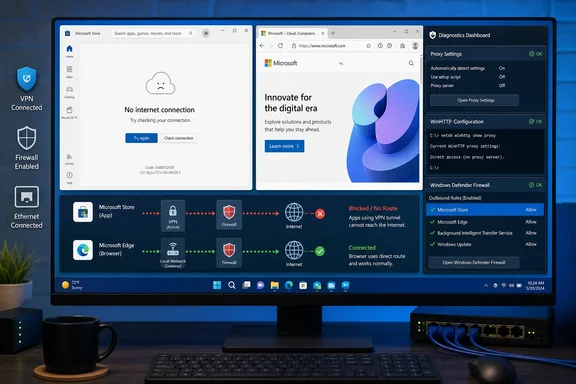 Establish the scope before changing Windows settings
First, identify the failure pattern. Open the affected app and note whether it fails immediately, only while signing in, only during downloads, or only on a specific network such as work Wi-Fi, a VPN, hotel Wi-Fi, or a mobile hotspot.
Then test a browser against the same service where practical. For example, if Microsoft Store will not download apps, visit a Microsoft site in the browser; if Outlook cannot synchronize, confirm that Outlook on the web loads. This does not establish that the desktop app’s connection is good, but it distinguishes a broad connectivity outage from an app-specific path problem.
The most revealing split is often this:
Quick walkthrough
- Browsers work, but several Windows components such as Microsoft Store, Xbox, Outlook, OneDrive, or an installer fail.
- The affected app works on a phone hotspot but not on the current office or school network.
- The issue began after a VPN, debugging proxy, traffic-inspection product, security suite, or corporate device-management policy was installed or changed.
These patterns point toward proxy configuration or filtered outbound access. They are far more informative than a generic “connected” indicator in the notification area.
Before proceeding, disconnect any consumer VPN temporarily and fully exit local proxy or traffic-capture tools you intentionally run, such as Fiddler or a development proxy. Do not remove an organization-managed VPN client or proxy configuration without approval from IT. A corporate proxy may be required for normal access, and changing it can cut off business applications that are currently working.
Check the Windows proxy settings that many apps inherit

Open Settings > Network & internet > Proxy. Windows 10 uses a similar path under Settings > Network & Internet > Proxy.
There are three settings worth inspecting:
- Automatically detect settings can use WPAD, Windows’ automatic proxy discovery mechanism. It is often enabled on managed networks and does not by itself indicate a fault.
- Use setup script points Windows to a PAC file, which contains rules telling apps when to use a proxy and when to connect directly.
- Use a proxy server specifies a manual proxy address and port.
For a personal PC on a normal home network, a manual proxy pointing to 127.0.0.1, localhost, an unfamiliar LAN address, or an old server name is a strong suspect. This is especially common after uninstalling a VPN, proxy client, web-filtering tool, or developer utility that did not clean up after itself. Turn off Use a proxy server, save the change, close and reopen the affected app, and test again.
Treat a PAC script more carefully. A bad or unreachable script can direct some destinations to a proxy that no longer exists, while other destinations continue to work normally. If this is a personal device and you never configured a script, turn off Use setup script and test. If the device belongs to an employer or school, record the script address and stop there; it is configuration evidence for the administrator, not something to casually delete.
Microsoft’s Windows proxy documentation makes an important distinction that routine browser testing hides: applications do not all have to obtain proxy settings through the same mechanism. An app can use its own configuration, the user-level Windows proxy settings, or the WinHTTP configuration discussed below. That is why the browser can be fine while the Store or another Windows-integrated client cannot connect.
Inspect WinHTTP before resetting it
Open Command Prompt as administrator and run:
netsh winhttp show proxy
On a home PC with no deliberate proxy, the expected result is direct access. If the output names a proxy server, automatic configuration URL, or a local address that you do not recognize, it may explain why an application fails while a browser works.
Windows uses WinHTTP as an HTTP API for applications and services. Microsoft documents netsh winhttp specifically for viewing and configuring that path. It is separate enough from ordinary user proxy settings that clearing one does not guarantee the other has changed.
If this is an unmanaged computer and no proxy is required, reset the WinHTTP proxy setting with:
netsh winhttp reset proxy
Run netsh winhttp show proxy again to confirm the new state, then restart the affected app. A reboot is usually unnecessary for the command itself, but it can help if a background service has retained an older connection state.
Do not run that reset on a managed work or school PC unless the network administrator confirms direct access is correct. Microsoft documents WinHTTP proxy configuration as an administrative setting, and resetting it deliberately removes the configured proxy route. On networks that require an authenticated proxy, the right repair may be restoring the organization’s PAC script, proxy address, or device-management policy—not forcing a direct connection.
If the Windows proxy pane looks clean but WinHTTP still shows an unexpected proxy, the mismatch is useful evidence. It points away from a defective app and toward a leftover system-level setting or a management policy that needs correction.
Treat “Allow an app through firewall” as a limited test
Microsoft Support’s Allow an app through firewall control is useful when an app needs to receive unsolicited inbound connections—for example, a local server, remote-control service, game, or peer-to-peer feature. It is often misapplied to ordinary client apps that merely need to make outbound HTTPS connections.
On a standard Windows installation, Microsoft documents that Defender Firewall allows outbound traffic by default unless a rule blocks it. Adding an app to the familiar “allowed apps” list may therefore do nothing for a client that cannot reach the internet. It also weakens the security posture if used indiscriminately.
Start with Windows Security > Firewall & network protection and verify that Microsoft Defender Firewall is turned on for the active network profile. Do not turn it off as a test. The page also exposes Advanced settings, which opens Windows Defender Firewall with Advanced Security.
In the advanced console, examine Outbound Rules, not only Inbound Rules. Look for rules that:
- Explicitly block the affected executable, package, publisher, service, remote address, or port.
- Apply only to the current Domain, Private, or Public profile.
- Were created by a third-party security product, a VPN, a corporate policy, or a prior troubleshooting attempt.
- Mention the app, its vendor, a broad “block telemetry” rule, or a restrictive outbound-control group.
Microsoft’s firewall-rule documentation says explicit block rules take precedence over conflicting allow rules. In practice, adding a new allow rule may not repair a connection if an existing block rule still matches it.
Administrators can quickly see the current profile defaults in an elevated PowerShell window:
Get-NetFirewallProfile |
    Format-Table Name, Enabled, DefaultInboundAction, DefaultOutboundAction
A DefaultOutboundAction of Allow is normal for a typical standalone Windows client. If it is Block, the device is using a restrictive outbound policy and the affected application needs a deliberate, narrowly scoped allow rule. That is common in hardened enterprise builds, where local firewall rules may also be ignored in favor of centrally managed policy.
To identify active local outbound blocks, use:
Get-NetFirewallRule -Enabled True -Direction Outbound -Action Block |
    Select-Object DisplayName, Profile, PolicyStoreSource
Do not delete rules just because their names are unfamiliar. Note the rule name and PolicyStoreSource. A Group Policy or MDM-sourced rule will typically return after a policy refresh, and its presence may be intentional. On a managed device, send that information to the administrator along with the app name and the time of the failed connection.
For a single known application on a personal device, disable only the specific blocking rule long enough to retest. If connectivity returns, replace a broad rule with a narrower rule that permits only the necessary program and destination traffic. Do not open arbitrary inbound ports to solve an outbound web-connection problem.
Test the repaired path and recognize endpoint blocks
After every change, fully exit the app, start it again, and repeat the exact action that failed. For Microsoft Store, that means beginning an app download or update rather than merely opening the storefront. For a sync client, it means forcing a sync. For a sign-in failure, it means signing out and initiating a fresh sign-in rather than relying on a cached session.
You can also test whether the current network can establish a basic TLS connection to a known destination:
Test-NetConnection [www.microsoft.com](http://www.microsoft.com) -Port 443
A successful result confirms that the PC can reach that hostname and TCP port. It does not prove that a particular app’s authentication, proxy handling, certificate validation, service endpoint, or content-delivery path is functioning. Use it as a transport test, not a verdict on the app.
Microsoft’s published Windows endpoint guidance shows why this distinction matters for Store-delivered apps. Store acquisition and updates can depend on Microsoft Store, Windows Update, Delivery Optimization, account, and licensing endpoints—not one hostname. An organization that permits general browsing while filtering those service paths can create the exact symptom described here: the web works, but Store installs or updates do not.
If the app succeeds after disabling an old manual proxy or resetting a stale WinHTTP proxy, leave the firewall alone and document the change. If it succeeds only when a particular outbound firewall rule is disabled, repair that rule rather than adding unrelated exceptions. If it fails only on a managed network after both proxy paths are confirmed, the next action is an endpoint review by the network or endpoint-management team, with the affected app, Windows edition, network profile, time of failure, and rule or proxy findings included in the ticket.
The practical result is a repair that preserves the device’s security controls: remove the stale route, correct the blocked path, or have the required service endpoints allowed—rather than declaring the firewall expendable because a browser happened to work.