
Microsoft’s current taskbar documentation separates the Search control on the taskbar from the broader Windows Search experience. That distinction is useful: if Win + S opens Search or typing in Start works, the search engine is present and the missing item is most likely a taskbar configuration or Explorer problem. If every entry point is gone, policy is the first thing to investigate.
Before changing anything, try Win + S. If Search opens, your files and applications are still searchable while you restore the taskbar button. If nothing opens, continue through the policy and service checks below rather than editing a cosmetic setting repeatedly.
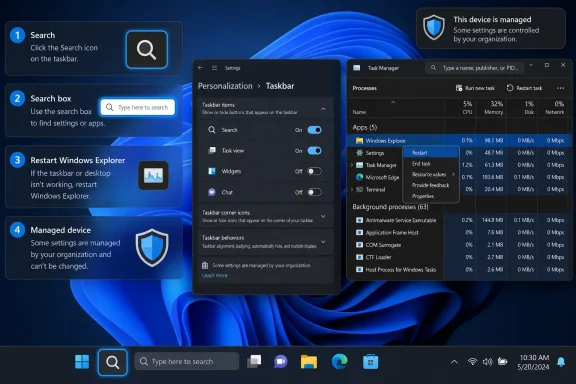 Restore the Search control in Taskbar settings
On Windows 11, right-click an empty portion of the taskbar and select Taskbar settings. Expand Taskbar items, then use the Search drop-down list to choose one of these options:
- Search box restores the full text field.
- Search icon and label shows a compact button marked “Search.”
- Search icon only restores the magnifying-glass icon.
- Hide removes the taskbar control.
If you only want Search back without surrendering taskbar space, Search icon only is the practical choice. The full box is a preference, not a requirement for Windows Search to function; Win + S and Start-menu typing remain available when Search is merely hidden.
On Windows 10, right-click an empty area of the taskbar, point to Search, and select Show search icon or Show search box. The Windows 10 menu uses different wording from Windows 11, but it changes the same visible taskbar element.
If the Search choice is already set correctly but nothing appears, do not change it back and forth. The setting may have been saved while the shell failed to redraw, which is when restarting Explorer is more effective.
Restart Windows Explorer before repairing Search
The desktop, taskbar, notification area, and File Explorer windows are all hosted by explorer.exe. A missing Search button alongside other taskbar oddities—blank spaces, a frozen Start button, missing tray icons, or an unresponsive taskbar—points to Explorer, not the indexer.
Press Ctrl + Shift + Esc to open Task Manager. On the Processes tab, locate Windows Explorer, right-click it, and select Restart. The desktop and taskbar will briefly disappear and return; open programs and unsaved document contents are not closed, although any File Explorer navigation in progress may refresh.
Now check the taskbar again. If the icon returns, the fault was a stalled shell session. There is no value in rebuilding an index or resetting registry keys after that result.
If Explorer restarts but clicking Search opens a blank panel, closes immediately, or does nothing, restart the Search interface itself. Microsoft’s Windows Search troubleshooting guidance identifies the process as SearchUI.exe on Windows 10 and SearchHost.exe on Windows 11. In Task Manager, open Details, find the matching process, choose End task, and confirm. Windows starts it again the next time Search is invoked.
This is a narrow repair: it refreshes the Search user interface without deleting files, resetting the index, or changing taskbar preferences.
Check the Windows Search service only when results are affected
The Windows Search service, whose service name is wsearch, builds and maintains the index used to return local files, email, and content quickly. It is important when Search opens but produces incomplete, stale, or very slow results. It is not normally what draws the taskbar magnifying glass.
Open the Run dialog with Win + R, enter services.msc, and press Enter. Locate Windows Search, then open Properties.
For a normal Windows installation, Microsoft’s performance troubleshooting guidance expects:
- Service status: Running.
- Startup type: Automatic (Delayed Start).
If the service is stopped, select Start. If it is disabled, set the startup type to Automatic (Delayed Start), apply the change, and start the service. A restart of the PC is sensible if Windows reports an error or the setting refuses to persist.
Do not assume that a stopped service proves corruption. Microsoft notes that Windows Search may pause during an upgrade, and external software can also disable or pause it. “PC optimizer” tools and some antivirus configurations are common suspects because they treat background indexing as disposable overhead. If the service becomes disabled again after you re-enable it, identify the tool or management policy changing it rather than repeatedly fixing the symptom.
Allow a few minutes after starting wsearch, especially after a feature update or a large file migration. An index rebuilding on a slower PC may temporarily use noticeable CPU and disk activity. That is expected behavior; killing it early only prolongs the recovery.
For a Search window that works but returns poor results, Microsoft also provides the Search and Indexing diagnostic through the Run dialog:
msdt.exe -ep WindowsHelp id SearchDiagnostic
Use this after confirming that Search is visible and the service is running. It addresses a result-quality problem, whereas the earlier taskbar and Explorer steps address an absent control.
A missing Search control can be intentional policy
A PC managed by an employer, school, or IT department may be configured to hide Search on purpose. Microsoft documents a Group Policy named Fully disable Search UI under:
Computer Configuration
  > Administrative Templates
  > Windows Components
  > Search
  > Fully disable Search UI
When enabled, this policy removes all Search entry points, including the taskbar button, Start-menu search, keyboard shortcuts, touchpad gestures, and typing directly in Start. In other words, a missing taskbar icon combined with a nonfunctional Win + S shortcut is consistent with policy—not with Explorer failing to paint an icon.
On a personally administered Windows Pro, Enterprise, or Education PC, run gpedit.msc and inspect that setting. Set it to Not Configured or Disabled only if you control the device and want Search enabled. Then restart Windows or run a policy refresh from an elevated Command Prompt:
gpupdate /force
If the setting is already enabled again after a refresh or reboot, a domain Group Policy or an MDM service such as Microsoft Intune is enforcing it. Local changes will not survive the next management check-in. In that situation, the correct repair is an IT request, not a registry workaround.
There is a second policy worth knowing on recent Windows 11 systems. Microsoft documents Configures search on the taskbar, available on Windows 11 version 24H2, build 26100, and later. Administrators can force the taskbar Search mode to hidden, icon-only, icon-and-label, or full search box—and prevent users from changing it in Settings. If the Search drop-down is greyed out or Windows says that some settings are managed by your organization, this is the policy area to check.
Use the registry as an audit tool, not a first repair
Registry edits are often presented as the universal cure for a missing search bar. They are not. A registry value cannot defeat an active domain or MDM policy, and deleting keys indiscriminately can turn a simple taskbar preference into a broken per-user Search configuration.
For Windows 10, the user-level taskbar display mode is commonly stored here:
HKEY_CURRENT_USER\SOFTWARE\Microsoft\Windows\CurrentVersion\Search
The SearchboxTaskbarMode DWORD uses these values:
0 = Hidden
1 = Search icon
2 = Search box
If Taskbar settings are inaccessible, exporting that Search key first and then setting SearchboxTaskbarMode to 1 or 2 can restore the chosen presentation after an Explorer restart or sign-out/sign-in. This is a per-user preference, so changing it under one account does not repair every profile on the machine.
For policy diagnosis on Windows 10 and Windows 11, inspect rather than immediately alter:
HKEY_LOCAL_MACHINE\SOFTWARE\Policies\Microsoft\Windows\Windows Search
Microsoft maps the Fully disable Search UI policy to a DisableSearch DWORD in that location. A value of 1 corresponds to Search being disabled. If the PC belongs to an organization, record the value and stop there; deleting it locally may briefly restore Search but will also obscure the source of the configuration and will usually be undone by management.
The useful rule is simple: a preference belongs under the current user; an enforced policy belongs under Policies. The first can be corrected locally. The second needs the administrator who owns it.
When the taskbar is fixed but Search still is not
If the Search icon or box returns but local search remains empty or unreliable, work from the least invasive repair upward: restart SearchHost.exe or SearchUI.exe, verify wsearch, install pending Windows updates, and run the Search and Indexing diagnostic. Microsoft’s guidance also includes a Windows Search reset process for stubborn component damage, but it should be a later step because it rebuilds Search configuration and may temporarily reduce result relevance while indexing catches up.
Windows 10 deserves one operational warning in 2026: Microsoft ended free Windows Update security fixes and technical support for it on October 14, 2025. The search-bar steps still apply to existing Windows 10 installations, but an unresolved shell or Search fault on an internet-connected device is another reason to plan a supported Windows 11 migration rather than treating the old installation as a long-term endpoint.
For most machines, the repair stops much earlier: set Search to visible, restart Windows Explorer, and verify that Win + S works. Escalate to services, Group Policy, and registry inspection only when the symptom shows that the problem is deeper than a hidden taskbar control.