

Register, confirm, and log in
Most account problems come from using the wrong login identifier, missing the confirmation email, forgetting which sign-in method was used, or hitting temporary security limits after repeated failed attempts.
Listen to this guide
An earlier walkthrough. Follow the current steps below for passkey sign-in.
Transcript
To join WindowsForum, use Register from the top navigation, choose a public username, and use an email address you can access. If email confirmation is required, check your inbox and spam folder before trying again. When logging in, use your username or email with your password, then complete any two-step verification method shown on screen. If you forget your password, use the lost-password flow once and wait for the recovery message.
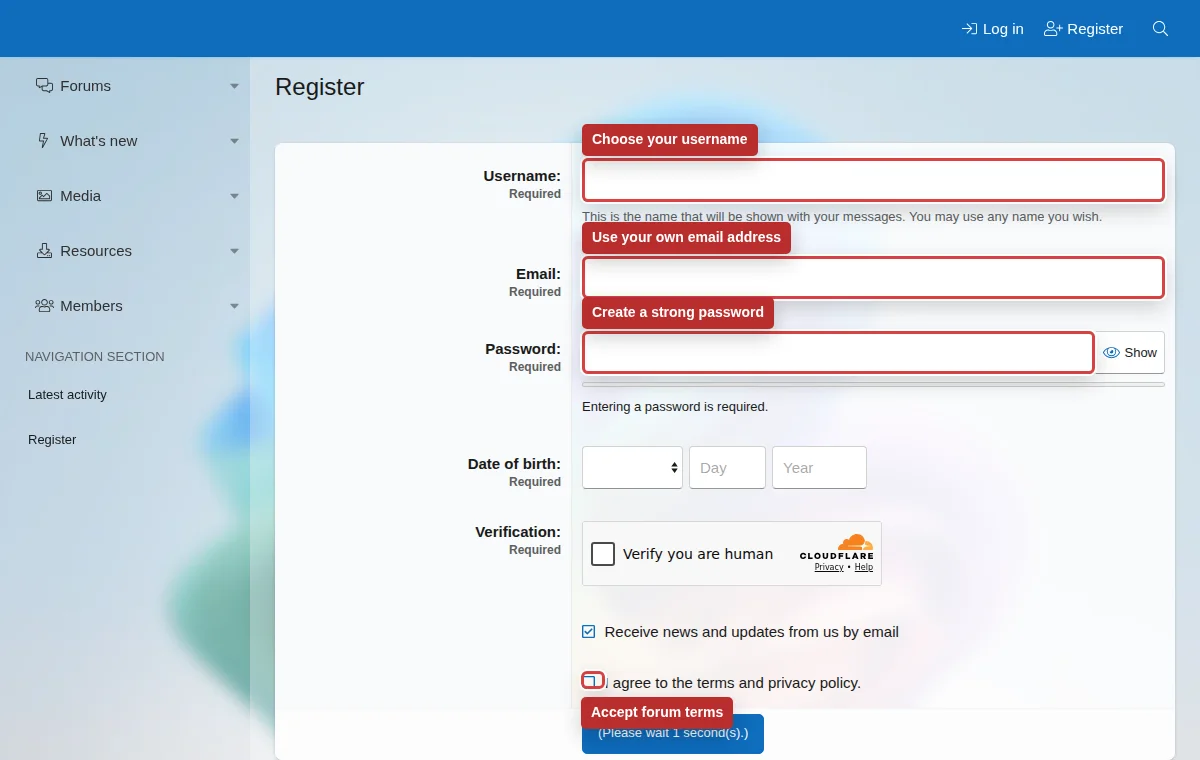
Creating an account
- Use Register from the top navigation.
- Choose a username you are comfortable using publicly. Staff can see account details, but other members should not need your real name or private contact information.
- Use an email address you can access. Confirm your email, create a passkey, and save your recovery codes. Choose “Use a password instead” during registration if you prefer password sign-in.
- Read the terms and privacy policy before accepting them. Registration means you agree to the site rules.
- If CAPTCHA or spam checks appear, complete them in the same browser session instead of opening several duplicate registration attempts.
Email confirmation
If confirmation is required, check the inbox and spam folder for the address used during registration. Do not create another account just because the first email is delayed. Multiple accounts make support harder and may trigger anti-spam checks.
If the address is wrong or the message never arrives, use the contact link and include the username you tried to register. Do not include your password.
Logging in
Choose “Sign in with a passkey” and unlock it with your device PIN, fingerprint, or face. No username or extra code is needed. You can also choose “Use a password” and complete your enrolled verification method.
Forgotten password
Use the lost-password flow once, then wait for the email. Repeated requests can look like abuse and may delay recovery.
Temporary lockouts
Several failed attempts may temporarily lock login attempts. Wait before retrying, then reset the password if you are unsure.
Verification and recovery
Use “Sign in with a passkey” and confirm with your device PIN, fingerprint, or face. If you use a password, finish with an enrolled passkey, authenticator app, or text code. Choose “Try another method” to switch.
Save your recovery codes. If you lose every sign-in method, choose “Trouble signing in?” and use your email plus a saved recovery code. App and SMS enrollment are optional for passkey accounts; SMS supports US and Canadian mobile numbers.